Fix Windows Update Error 0x800f081f: Causes & Solutions
Founder & Lead Technology Analyst at Techny Tech · IEEE Senior Member, Certified Information Systems Security Professional (CISSP) · 13+ years in embedded systems benchmarking, machine learning hardware acceleration, and consumer electronics
Windows update error 0x800f081f meaning often leaves users stuck, wondering why a critical update or .NET Framework install just won’t go through. It’s a CBS-related error, meaning Windows can’t find the source files it needs to complete the operation.
Per Microsoft’s documentation, this error translates to CBS_E_SOURCE_MISSING, and it’s most common when enabling .NET Framework 3.5 or repairing system components. Let’s break down what’s really happening.
Windows update error 0x800f081f meaning
This error means Windows can’t locate the files needed to install or repair a feature.
It often appears when enabling .NET Framework 3.5.
The issue stems from missing or corrupted Component-Based Servicing (CBS) files.
A pending reboot or disabled Windows Update service can also trigger it.
The 3 Most Common Causes (And How to Spot Yours)
If you see 0x800f081f, the first step is identifying the root cause. Each scenario has a distinct fix, so misdiagnosing here wastes time.
1. .NET Framework 3.5 won’t enable
This is the most frequent trigger. Windows tries to pull the files from Windows Update but fails. Check if you’re enabling .NET 3.5 via "Turn Windows features on or off" and the progress bar freezes.
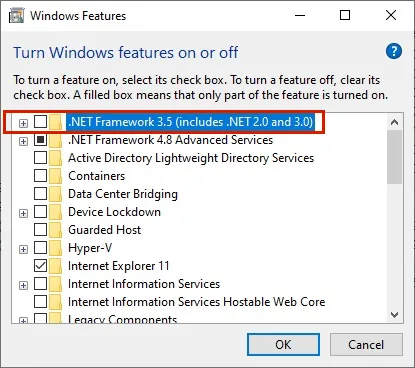
Image source: Bing (Web (fair-use with source credit))
2. Corrupted CBS or Windows Update components
If DISM or SFC scans find errors, the system can’t verify or repair the needed files. Look for prior update failures or recent system crashes.
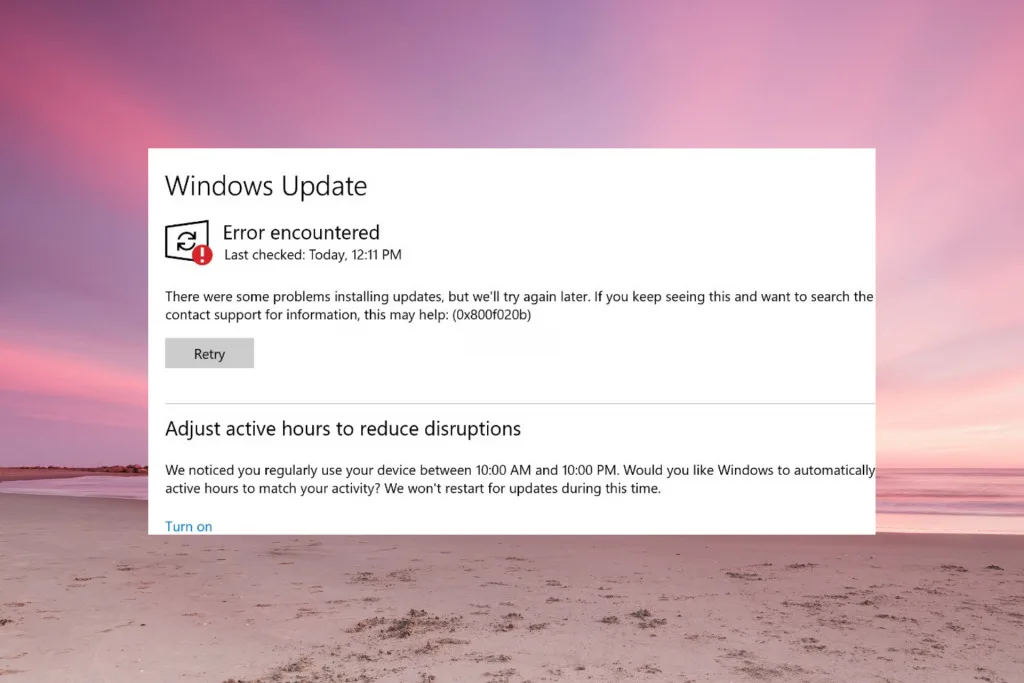
Image source: Bing (Web (fair-use with source credit))
3. WSUS or Group Policy interference (enterprise only)
In business environments, WSUS might not have the required .NET Framework files synced. Admins see this when clients can’t pull features from the local update server.
Quick Fixes to Try First (No Reboot Needed)
Start with the simplest solutions before diving into advanced repairs. These take minutes and resolve the majority of cases.
Run the Windows Update Troubleshooter. It resets services and clears temporary files that may block the process.
Enable .NET Framework 3.5 via DISM with this command:
DISM /Online /Enable-Feature /FeatureName:NetFx3 /All /LimitAccess /Source:D:\sources\sxs
Replace D: with your Windows installation media drive if needed.
Check for pending reboots. Open Command Prompt and run shutdown /r /t 0 to force an immediate restart if updates are stuck.
Step-by-Step Repair Guide for Stubborn Cases
When quick fixes fail, it’s time for a structured approach. Follow these steps in order.
1. Verify the exact failure
Open C:\Windows\Logs\CBS\CBS.log and search for 0x800f081f. This confirms whether the issue is .NET 3.5 or another component.
2. Run DISM and SFC scans
Open Command Prompt as admin and run:
DISM /Online /Cleanup-Image /RestoreHealth
Then:
sfc /scannow
These commands repair corrupted system files.
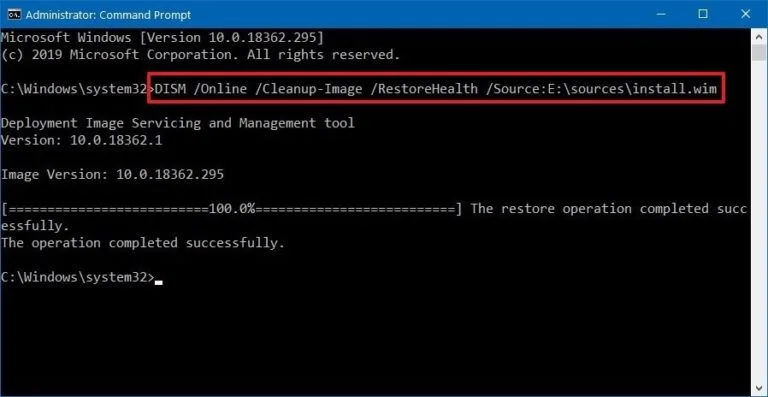
Image source: Bing (Web (fair-use with source credit))
3. Manually install .NET Framework 3.5
Download the offline installer from Microsoft’s site. Run it with admin rights to bypass Windows Update.
4. Reset Windows Update components
Stop the Windows Update service, delete the C:\Windows\SoftwareDistribution folder, then restart the service. This clears corrupted cache files.
When to Use DISM vs. SFC vs. Manual .NET Install
Not every tool fits every scenario. Picking the wrong one delays the fix.
Use DISM when
The error involves system image corruption or missing components. DISM repairs the underlying Windows image, which SFC can’t touch.
Use SFC when
You suspect corrupted system files but DISM reports no issues. SFC scans and replaces individual corrupted files.
Use manual .NET install when
CBS logs show the .NET 3.5 source files are missing. The offline installer provides the files directly.
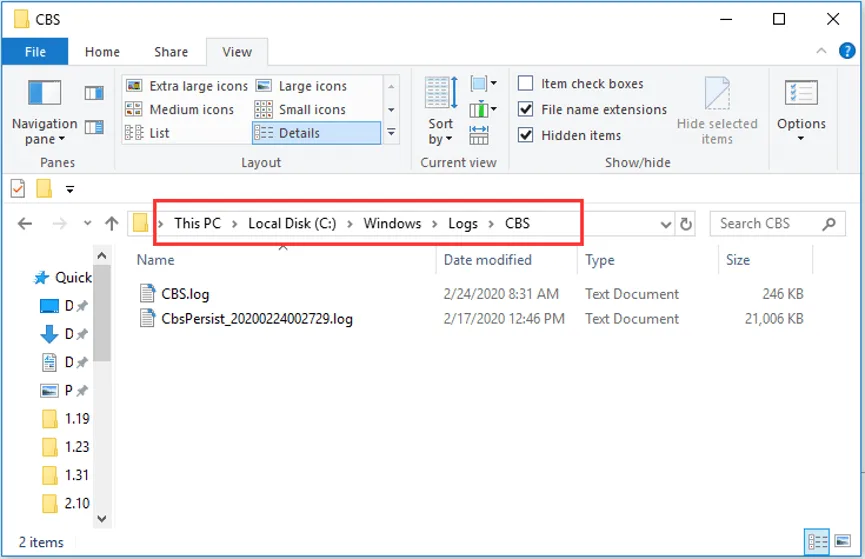
Image source: Bing (Web (fair-use with source credit))
Enterprise Fixes (WSUS, Group Policy, and Server-Specific Steps)
For IT admins, this error often ties to WSUS misconfigurations. If clients can’t pull .NET Framework files from the local server, they’ll hit 0x800f081f.
First, verify WSUS has the required .NET Framework 3.5 files synced. Open the WSUS console and check the "Products and Classifications" settings. Ensure .NET Framework is selected under "Products."
If the files are missing, resync the WSUS server. Run wsusutil reset from the command line on the WSUS server to force a full sync.
For Group Policy issues, check if "Specify settings for optional component installation" is enabled. This policy must point to a valid source path for .NET Framework files.
FAQs About 0x800f081f
Why does this error only appear with .NET Framework 3.5
This happens because .NET 3.5 isn’t included in the default Windows image for newer versions. Windows tries to download it from Windows Update or WSUS, and if the source is missing, it fails with 0x800f081f.
Can a corrupted Windows image cause this
Yes. If the underlying Windows image is damaged, DISM and SFC scans will fail to repair it. In this case, you may need to use installation media to repair the image.
Is this error specific to Windows 10
No. It appears on Windows 11, Windows Server 2016, 2019, and 2022 as well. The causes and fixes remain largely the same across these versions.
How do I check if .NET Framework 3.5 is enabled
Open Command Prompt and run Get-WindowsOptionalFeature -Online -FeatureName NetFx3. If the state is "Disabled," you’ll need to enable it.
What if DISM and SFC don’t fix the issue
If both tools report no errors but the problem persists, manually install .NET Framework 3.5 using the offline installer. This bypasses Windows Update entirely.
Can third-party antivirus cause this error
Yes. Some antivirus software blocks Windows Update or modifies system files. Temporarily disable it and retry the update or .NET Framework installation.

Similar Posts