Keyboard Typing Wrong Characters? Fix It Fast!
Founder & Lead Technology Analyst at Techny Tech · IEEE Senior Member, Certified Information Systems Security Professional (CISSP) · 13+ years in embedded systems benchmarking, machine learning hardware acceleration, and consumer electronics
Your keyboard typing wrong characters is almost always a settings or hardware issue, not a sign of a broken device. Most of the time, it’s a simple fix like a wrong input language or a stuck modifier key. Per ANSI keyboard standards, even high-end mechanical keyboards can misbehave if the OS thinks it’s using a different layout.
The good news is you can usually diagnose the problem in under a minute. Start with the quickest checks, then work your way to deeper fixes if needed.
keyboard typing wrong characters
This usually happens when your OS expects a different keyboard layout. A US QWERTY keyboard set to UK English will type "@" instead of "2".
Sticky keys or a pressed Shift/Alt can force symbols instead of letters. Hardware issues like debris or a failing switch can also cause wrong outputs.
Quick Fixes to Try First (30-Second Solutions)
Check the basics before diving deeper. Press Caps Lock, Num Lock, and Scroll Lock to ensure none are accidentally enabled. These can alter character output without you realizing it.
Try typing in a plain text editor like Notepad or TextEdit. If the issue persists, it’s likely system-wide. If it disappears, the problem is app-specific.
Test your keyboard on another device. If it works fine elsewhere, the issue is with your original system’s settings or drivers.
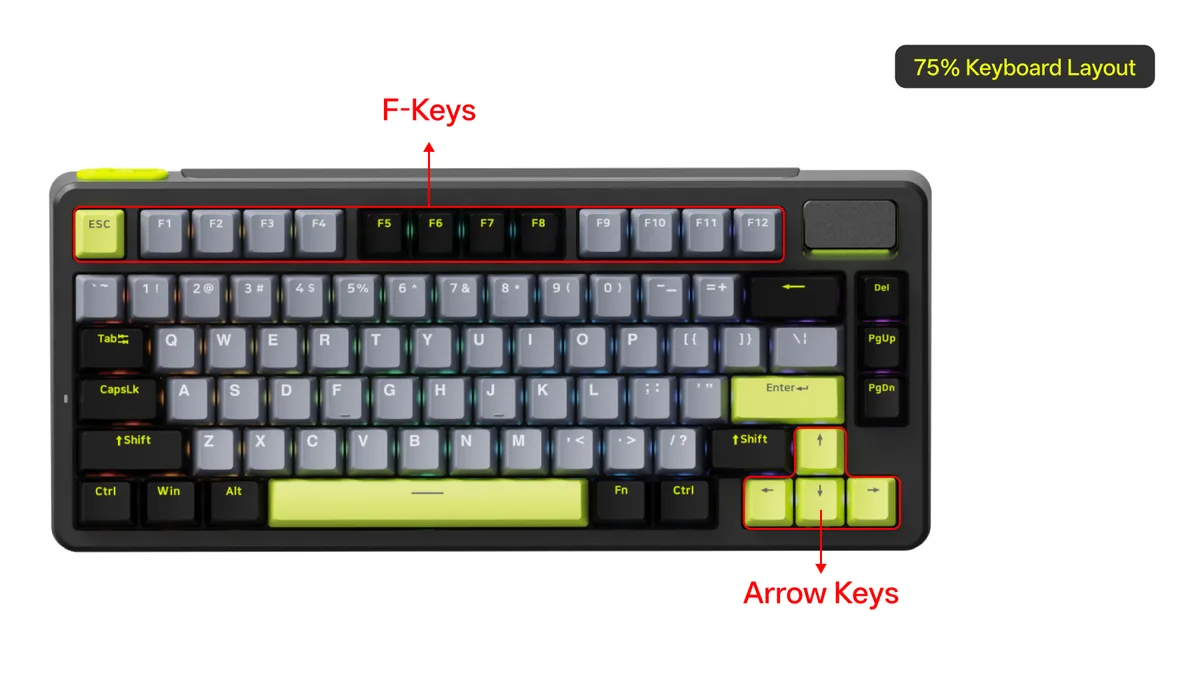
Image source: Bing (Web (fair-use with source credit))
Hardware vs. Software: How to Tell Which Is the Problem
If the wrong characters appear in every app, it’s a system-level issue. This could be a driver conflict, a language setting, or a physical keyboard problem.
If the issue only happens in one program, it’s likely an app-specific setting. Some apps override system keyboard layouts, especially those with custom input methods.
Physical issues often cause inconsistent behavior. A stuck key might type the same wrong character repeatedly, while a failing switch could produce random outputs.
Step-by-Step Troubleshooting for Windows, macOS, and Linux
Windows
Open Settings > Time & Language > Language & Region. Ensure your default input language matches your keyboard layout. If you see multiple languages, remove the ones you don’t use.
Press Win + Space to cycle through input languages. If the wrong layout is active, this will switch it instantly.
Open Device Manager, expand Keyboards, right-click your keyboard, and select Update driver. Outdated drivers can cause unexpected behavior.
macOS
Go to System Preferences > Keyboard > Input Sources. Remove any unused layouts. Your active layout should match your physical keyboard.
Check System Preferences > Keyboard > Keyboard. Ensure Use F1, F2, etc. keys as standard function keys is enabled if you’re using a non-Apple keyboard.
Reset the NVRAM. Shut down your Mac, then turn it on and immediately hold Command + Option + P + R for 20 seconds. This can fix persistent keyboard quirks.
Linux
Run setxkbmap -query in the terminal to check your current layout. If it’s wrong, use setxkbmap us (for US QWERTY) or your preferred layout code.
Check your desktop environment’s keyboard settings. GNOME, KDE, and others often have their own input source managers that override system settings.
Keyboard Layout and Language Settings: The Hidden Culprit
Most wrong-character issues stem from a mismatch between your physical keyboard and the OS’s expected layout. A US keyboard set to French AZERTY will type "A" where you expect "Q".
Windows users often accidentally add new layouts with Alt + Shift. Check your language bar (usually near the clock) to see the active layout.
macOS users might see a flag icon in the menu bar. Click it to switch layouts or remove unused ones in System Preferences > Keyboard > Input Sources.

Image source: Bing (Web (fair-use with source credit))
On Linux, the issue often arises from conflicting settings between the display manager and the user session. Running localectl status can reveal discrepancies.
When It’s a Physical Issue (And How to Fix It)
Dirt and debris under keys are common culprits. A crumb or dust particle can block a switch, causing it to register the wrong input. Mechanical keyboards are especially prone to this.
Try gently tapping the problematic key. If it starts working, debris was likely the issue. For stubborn cases, use compressed air to blow out particles.
If a key is completely unresponsive or types the wrong character consistently, the switch may be damaged. Replacing the switch is possible on hot-swappable keyboards. For non-hot-swappable models, you may need a full keyboard replacement.
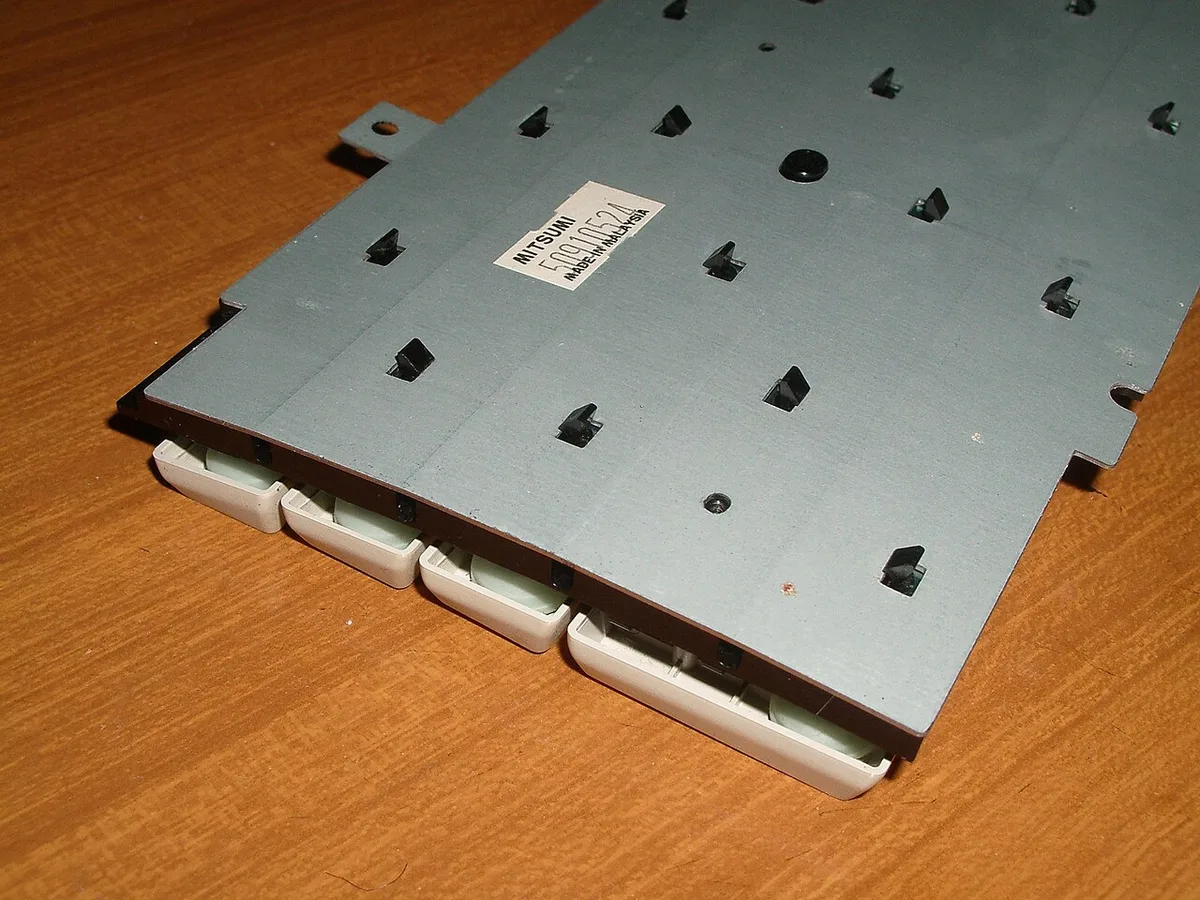
Image source: Wikimedia Commons / Daniel beardsmore
Liquid spills can also cause erratic behavior. If your keyboard was exposed to liquid, power it off immediately and let it dry for at least 24 hours. Rice or silica gel packets can help absorb moisture.
Advanced Fixes: Drivers, Firmware, and System Resets
Outdated or corrupted drivers can cause keyboard malfunctions. In Windows, open Device Manager, right-click your keyboard, and select Uninstall device. Restart your computer to reinstall the driver automatically.
For gaming keyboards with custom software, check the manufacturer’s website for updated drivers. Razer Synapse, Logitech G Hub, and Corsair iCUE often have firmware updates that fix input issues.
If driver updates don’t work, try a system restore. Windows users can use Settings > Update & Security > Recovery > Reset this PC. macOS users can reinstall the OS via Recovery Mode.
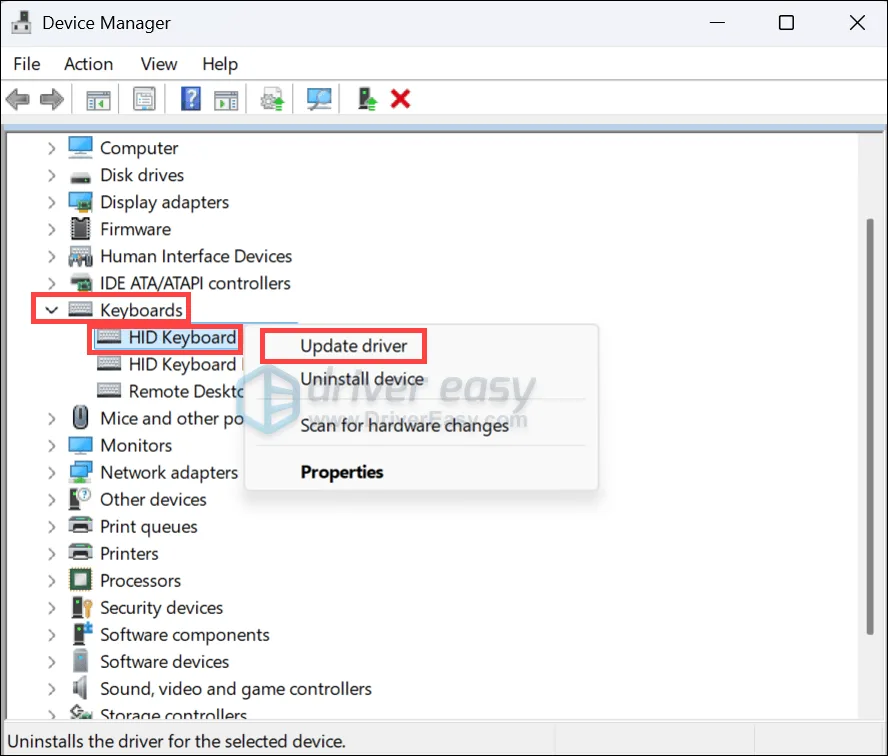
Image source: Bing (Web (fair-use with source credit))
On Linux, keyboard issues can sometimes be resolved by reinstalling the input driver. Run sudo apt install --reinstall xkb-data for Debian-based systems.
Frequently Asked Questions
Why does my keyboard type symbols instead of letters?
This usually happens when Num Lock is enabled or you’re accidentally pressing the Shift or Alt key. Check your keyboard’s indicator lights and ensure no modifier keys are stuck.
How do I stop my keyboard from typing numbers?
If your keyboard types numbers when you press letters, Num Lock is likely active. Press the Num Lock key to disable it. On laptops, you may need to hold Fn while pressing Num Lock.
Can a virus cause my keyboard to type wrong characters?
It’s rare, but malware can interfere with input devices. Run a full system scan with your antivirus software. If the issue persists, check for other causes like driver conflicts or hardware problems.
Why does my keyboard layout keep changing?
This is often due to accidental Alt + Shift or Win + Space presses, which switch input languages. Disable the hotkey in your OS settings or remove unused keyboard layouts.
How do I fix a keyboard typing the wrong characters on a laptop?
Start with the basics: check Caps Lock, Num Lock, and your input language. If the issue persists, update your keyboard drivers or test an external keyboard to rule out hardware failure.
What should I do if my keyboard types the same character repeatedly?
A stuck key is the most likely cause. Gently press and release the key several times. If that doesn’t work, clean under the key with compressed air or replace the switch if possible.

Similar Posts