Why Is My SSD Full After Windows Update?
Founder & Lead Technology Analyst at Techny Tech · IEEE Senior Member, Certified Information Systems Security Professional (CISSP) · 13+ years in embedded systems benchmarking, machine learning hardware acceleration, and consumer electronics
Your SSD didn’t suddenly fill itself up, Windows updates are a common culprit. If you’re wondering why is my SSD almost full after Windows update, the answer usually comes down to a few predictable storage hogs that Windows creates or expands during the process. These files can eat up 10GB or more without you realizing it.
Windows updates often leave behind temporary files, old system backups, and recovery data. As of 2026, a major update can require 20, 30GB of free space just to install, and if your SSD was already tight, that’s enough to push it to the brink.
why is my SSD almost full after Windows update
Windows updates store temporary files and backups on your SSD.
The Windows.old folder keeps your previous OS version for 10 days.
Hibernation and page files grow with your RAM size.
WinSxS and system restore points also consume space over time.
The 5 Most Likely Culprits (And How to Spot Them)
If your SSD is suddenly full after an update, start with the usual suspects. These are the files and folders that balloon in size during or after a Windows update.
Windows.old folder is the biggest offender. This folder contains your previous Windows installation, and it can take up 10, 20GB of space. It’s automatically created when you upgrade to a new version of Windows, and it sticks around for 10 days before Windows deletes it.
Image source: Bing (Web (fair-use with source credit))
Temporary update files are another space hog. Windows downloads and extracts update files to your system drive, and if the update fails or gets interrupted, these files might not get cleaned up. They can add up to 5, 10GB depending on the update size.
Hibernation file (hiberfil.sys) is often overlooked. This file is tied to your RAM size, if you have 16GB of RAM, the hibernation file could be 12GB or larger. It’s hidden by default, so you won’t see it unless you enable hidden files in File Explorer.
Page file (pagefile.sys) works similarly. Windows uses this as virtual memory, and its size is usually 1.5x your RAM. For a 16GB system, that’s another 24GB reserved on your SSD.
WinSxS folder is where Windows stores component backups for updates and repairs. Over time, this folder can grow to 5, 10GB+, especially after multiple updates.
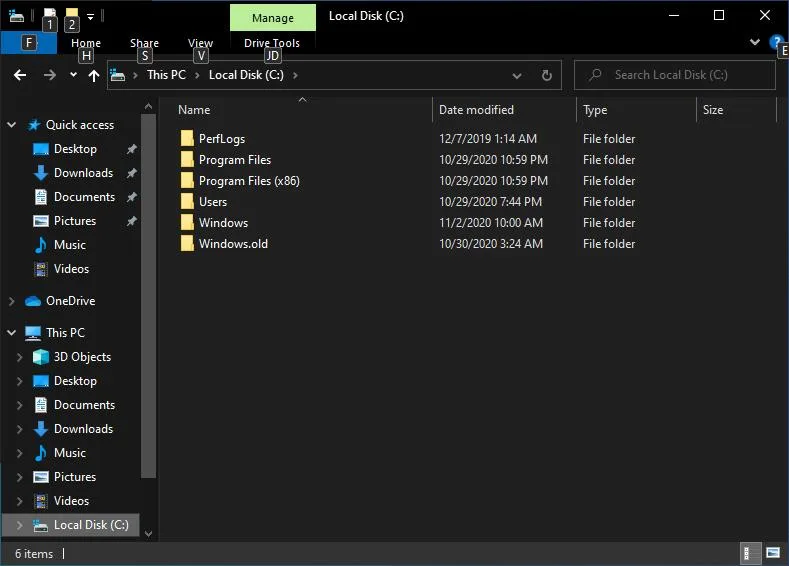
Image source: Bing (Web (fair-use with source credit))
Step-by-Step Fixes to Free Up Space Safely
Start with the easiest and safest fixes before moving to more advanced steps. These methods target the most common space hogs without risking system stability.
Delete the Windows.old folder if you’re sure the update was successful. Open Disk Cleanup, select your system drive, and check Previous Windows installation(s). This removes the folder safely.
Run Disk Cleanup for temporary files. Open the tool, select your C: drive, and check Temporary files, Downloaded Program Files, and Windows Update Cleanup. This can free up 1, 5GB instantly.
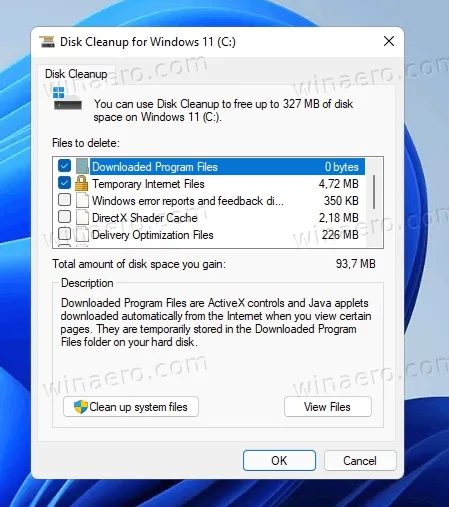
Image source: Bing (Web (fair-use with source credit))
Clear system restore points if you have multiple. Open System Properties > System Protection > Configure, then reduce the max usage or delete old restore points. Each can take up 1, 3GB.
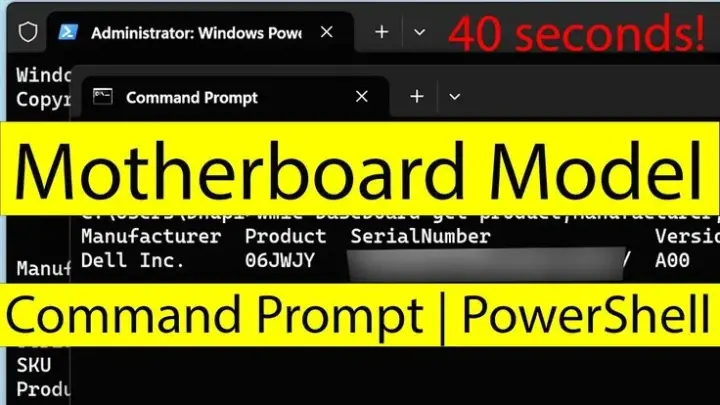
Disable hibernation if you don’t use it. Open Command Prompt as admin and run powercfg /h off. This deletes the hiberfil.sys file immediately, freeing up RAM-sized space.
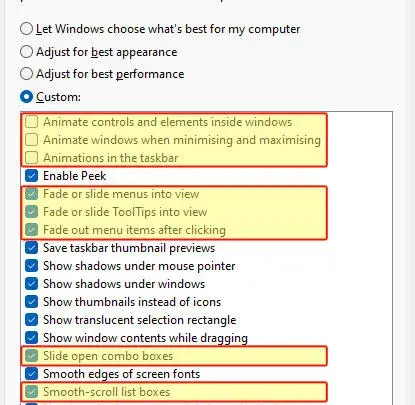
Resize the page file if it’s too large. Go to System Properties > Advanced > Performance Settings > Advanced > Virtual Memory. Set a custom size or move it to another drive.
How to Prevent This From Happening Again
A little maintenance goes a long way in keeping your SSD from filling up unexpectedly. These steps help you stay ahead of storage issues before they become a problem.
Enable Storage Sense to automate cleanup. Go to Settings > System > Storage and turn it on. This tool deletes temporary files and old downloads automatically.
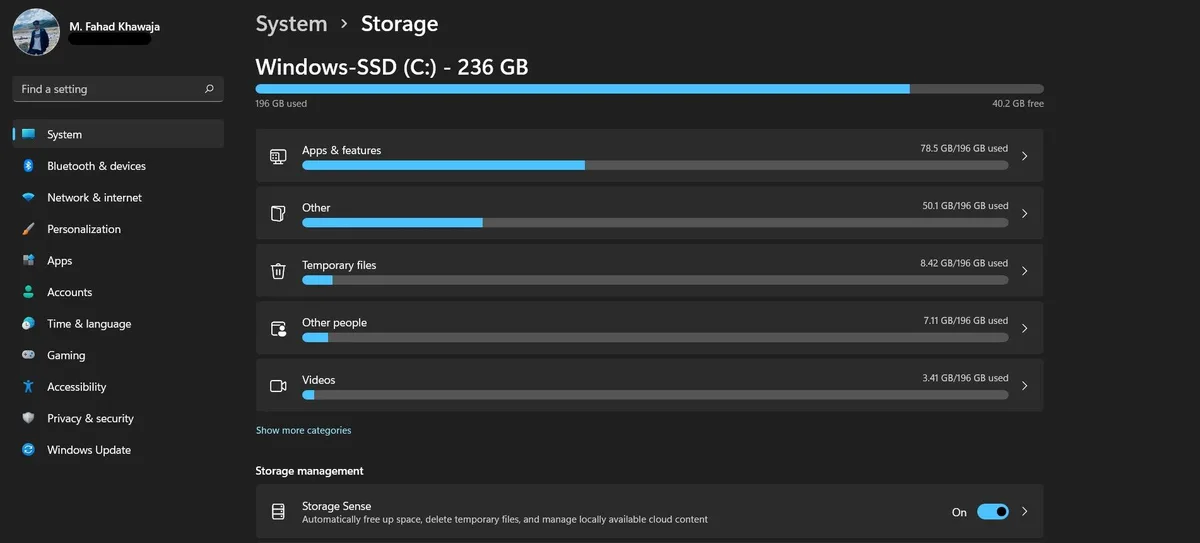
Image source: Bing (Web (fair-use with source credit))
Set a reserved storage limit for updates. Windows 10 and 11 reserve space for updates by default. You can adjust this in Settings > System > Storage > Show more categories > System & reserved.
Change default save locations for apps and files. Store new apps, documents, and downloads on a secondary drive if you have one. This keeps your SSD from filling up with user data.
Monitor WinSxS growth with DISM. Open Command Prompt as admin and run DISM /Online /Cleanup-Image /AnalyzeComponentStore. If it recommends cleanup, run DISM /Online /Cleanup-Image /StartComponentCleanup.
Keep at least 10, 15% free space on your SSD. This improves performance and gives Windows room for updates. If your SSD is consistently near full, consider upgrading to a larger drive.
Common Mistakes That Make the Problem Worse
Some well-intentioned fixes can backfire if you’re not careful. Avoid these pitfalls to keep your system stable while freeing up space.
Deleting files manually without checking their purpose can break Windows. Always use built-in tools like Disk Cleanup or Storage Sense for system files.
Disabling the page file entirely can cause crashes on low-RAM systems. If you have 8GB or less, keep it enabled or set a small custom size.
Ignoring SSD health can lead to bigger issues. SSDs slow down as they fill up, and excessive writes shorten their lifespan. Use manufacturer tools to check your drive’s health periodically.
Skipping backups before major cleanup is risky. If you delete the wrong thing, a backup ensures you can restore your system. Use File History or a third-party tool to back up important files.
Not checking for large user files means missing obvious space hogs. Games, videos, and downloads can take up just as much space as system files. Use Settings > System > Storage to see what’s using the most space.
When to Upgrade Your SSD (And How to Choose)
If you’re constantly fighting for space, it might be time for a larger drive. SSDs under 256GB fill up fast with modern Windows updates and apps.
A 512GB SSD is the sweet spot for most users. It handles updates, a few games, and daily files without constant cleanup. For power users or gamers, 1TB or more prevents headaches.
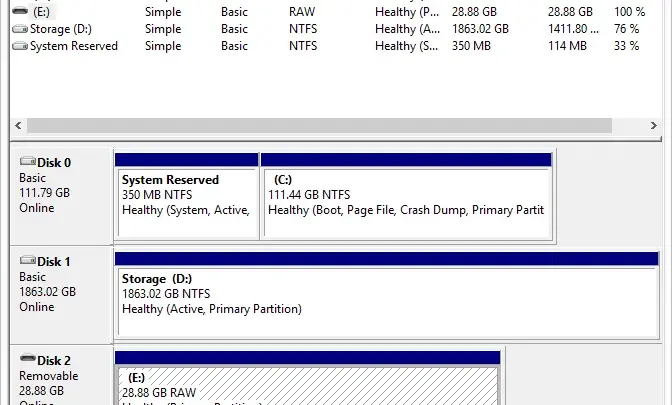
Check your current usage in Settings > System > Storage. If you’re regularly above 80% capacity, upgrading is smarter than endless cleanup.
Look for NVMe SSDs for speed, or SATA if your system is older. Brands like Samsung, Crucial, and WD offer reliable options. Clone your old drive to the new one to avoid reinstalling Windows.
FAQs About Windows Updates and SSD Storage
Why does Windows need so much space for updates?
Windows downloads the full update package, extracts it, and keeps backups for rollback. A major update can require 20GB or more temporarily.
Is it safe to delete the Windows.old folder?
Yes, but only after confirming the update worked. Use Disk Cleanup to remove it safely.
How do I check what’s taking up space on my SSD?
Open Settings > System > Storage for a breakdown. For deeper analysis, use WinDirStat or TreeSize.
Can I move the page file to another drive?
Yes, but it’s only worth it if your SSD is very small. Go to System Properties > Advanced > Performance Settings > Virtual Memory.
Will disabling hibernation hurt my PC?
No, unless you use hibernation. Running powercfg /h off in Command Prompt deletes the file and frees up RAM-sized space.

Similar Posts