PC Clock Resets After Shutdown? Fix It Now
Founder & Lead Technology Analyst at Techny Tech · IEEE Senior Member, Certified Information Systems Security Professional (CISSP) · 13+ years in embedded systems benchmarking, machine learning hardware acceleration, and consumer electronics
Your PC clock keeps resetting after shutdown because the system can’t maintain time when powered off. This usually points to a dead CMOS battery, but BIOS settings, OS sync issues, or hardware faults can also be the culprit.
The CMOS battery, a small 3V CR2032 cell on the motherboard, powers the Real-Time Clock (RTC) when the PC is off. As of 2026, most motherboards still rely on this battery, which typically lasts 2, 10 years.
PC clock keeps resetting after shutdown
The issue is almost always a dead CMOS battery. If the battery fails, the RTC loses power and resets to a default date (often 2000 or 2010). BIOS/UEFI settings may also revert.
A quick check is to enter BIOS and see if the time is wrong there too.
Why Your PC Clock Keeps Resetting After Shutdown
The root cause usually falls into one of three categories: hardware, firmware, or software. Hardware issues include a dead CMOS battery or a faulty motherboard RTC circuit. Firmware problems can stem from corrupted BIOS/UEFI settings or outdated firmware.
Software causes range from a disabled Windows Time Service to incorrect OS time zone settings.
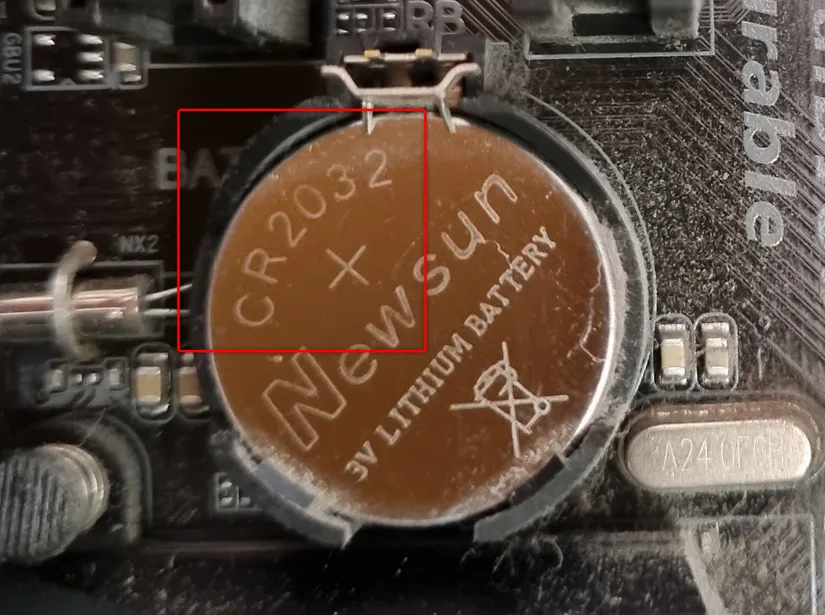
Image source: Bing (Web (fair-use with source credit))
The CMOS battery is the most common offender. It’s a coin-cell battery (usually CR2032) that keeps the RTC running when the PC is off. If the battery voltage drops below a certain threshold, the system clock resets.
Manufacturer specs confirm that these batteries typically last 2, 10 years, depending on usage and motherboard design.
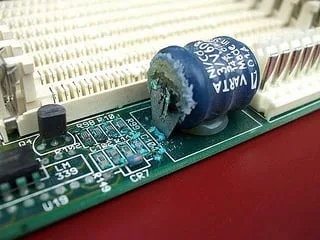
Image source: Bing (Web (fair-use with source credit))
The Most Likely Causes (and How to Spot Them)
If the clock resets only after a full shutdown, the CMOS battery is the prime suspect. If the clock is wrong even in BIOS, the battery is almost certainly dead. If the clock is correct in BIOS but wrong in Windows, the issue is likely software-related.
A failing power supply can also cause this. If the PSU doesn’t provide enough standby power to the motherboard, the RTC may lose power even when the PC is "off." This is less common but worth checking if the battery is fine.
Corrupted BIOS/UEFI settings can also trigger time resets. If the BIOS time is wrong but the battery is good, resetting the BIOS to default may fix it. Outdated BIOS firmware can sometimes cause timekeeping issues as well.
Step-by-Step Fixes: Start Here
Begin with the simplest checks. If the clock is wrong in BIOS, replace the CMOS battery. If the clock is correct in BIOS but wrong in Windows, sync the time manually or enable the Windows Time Service.
Quick Checks (5-Minute Solutions)
First, check the time in BIOS. Restart your PC and enter BIOS/UEFI (usually by pressing Del, F2, or F12 during boot). If the time is wrong there, the CMOS battery is likely dead.
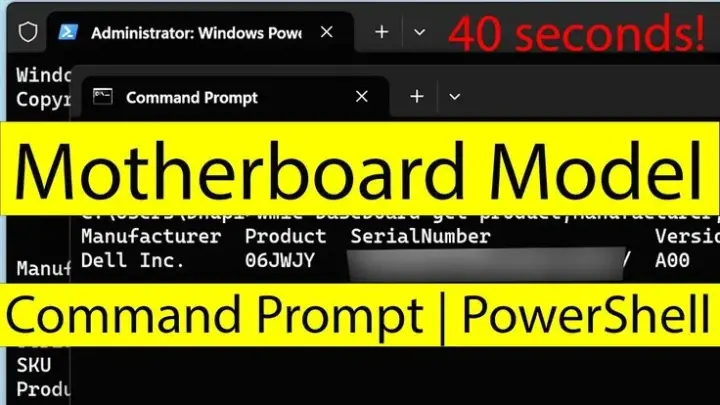
If the BIOS time is correct but Windows shows the wrong time, try syncing manually. Open Command Prompt as admin and run w32tm /resync. If that doesn’t work, enable the Windows Time Service.
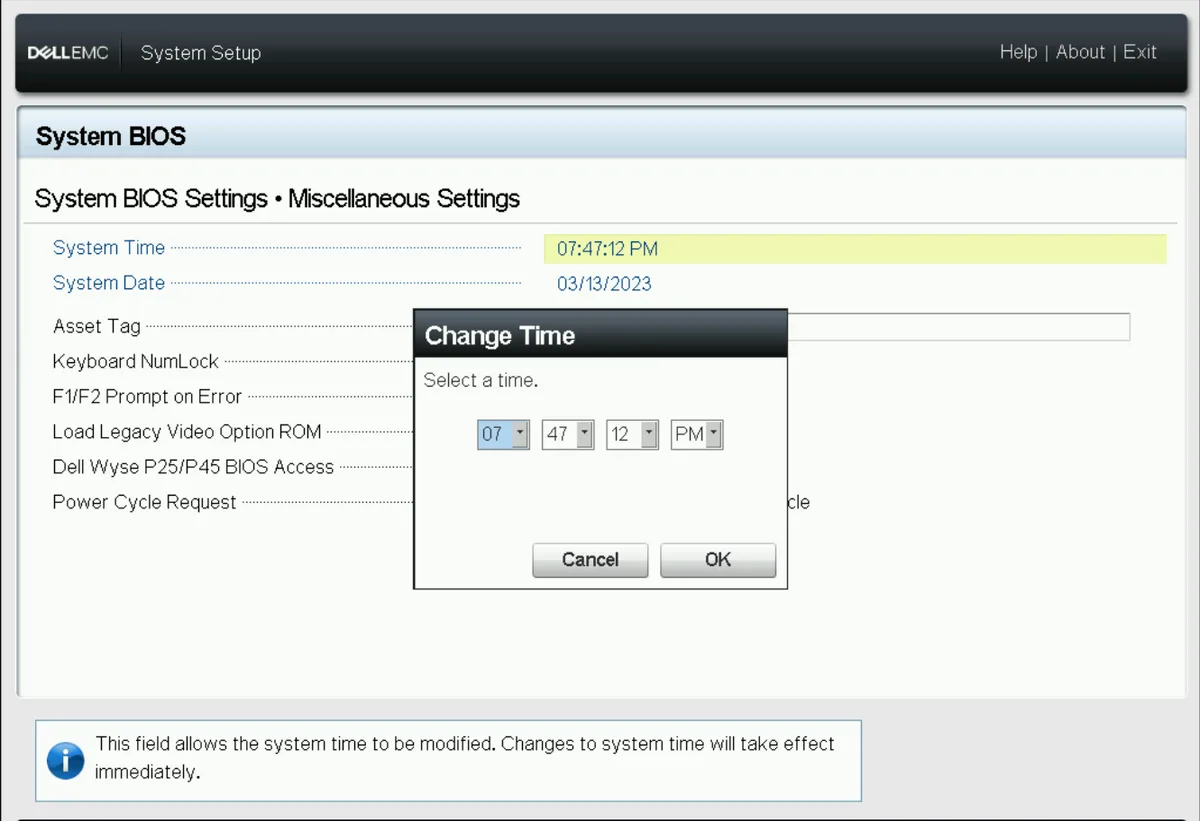
Image source: Bing (Web (fair-use with source credit))
Hardware Fixes (CMOS Battery & More)
Replacing the CMOS battery is straightforward. Power off the PC, unplug it, and open the case. Locate the battery (a coin-cell, usually labeled CR2032).
Remove it, note the orientation, and insert the new one. Wait a few minutes, then power on and enter BIOS to reset the time.
If the battery isn’t the issue, check the motherboard for damage. Look for bulging capacitors or burn marks near the RTC circuit. If you’re uncomfortable doing this, a technician can help.
Software & OS Tweaks
If the hardware is fine, the problem is likely software. In Windows, open Services (press Win + R, type services.msc, and hit Enter). Find "Windows Time" and ensure it’s running.
If not, right-click and select "Start."
For Linux users, check the timedatectl status. Run timedatectl in the terminal. If NTP is inactive, enable it with sudo timedatectl set-ntp true.
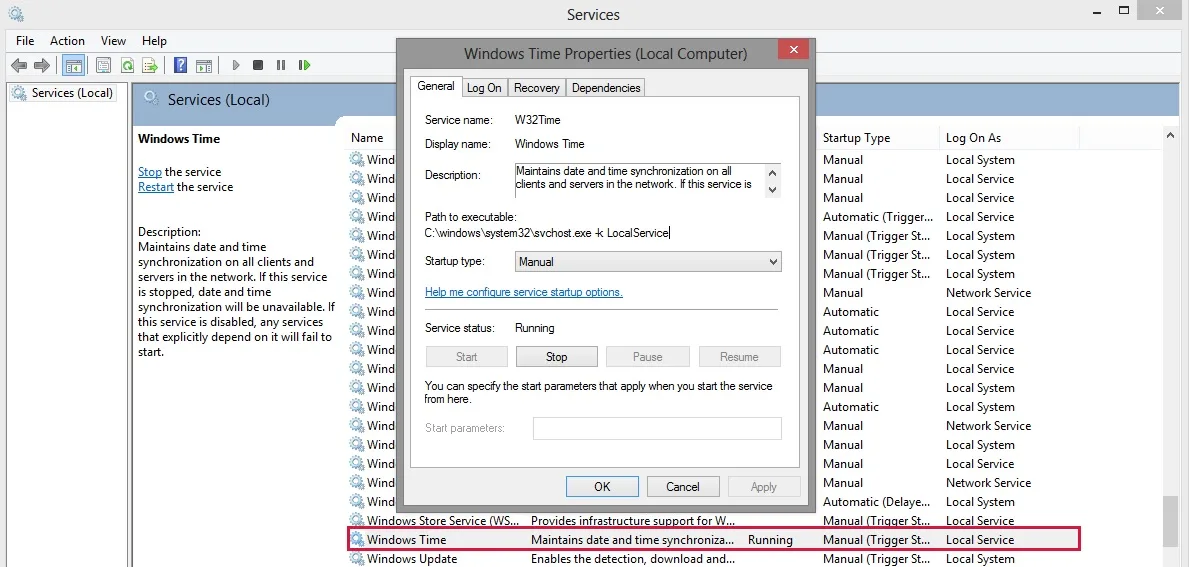
Image source: Bing (Web (fair-use with source credit))
When the Problem Isn’t the Battery
If you’ve replaced the CMOS battery and the clock still resets, the issue might be deeper. A faulty motherboard can cause this, especially if the RTC circuit is damaged. In this case, professional repair or replacement may be necessary.
Another possibility is a BIOS/UEFI bug. Some motherboards have known issues with timekeeping, particularly after a BIOS update. Check the manufacturer’s website for firmware updates or known issues.
For example, ASUS support often lists such problems in their release notes.
Mistakes That Make It Worse
Ignoring the CMOS battery is the biggest mistake. Many users waste time tweaking software when a dead battery is the root cause. Always check BIOS time first to confirm.
Using the wrong battery type can damage the motherboard. Stick to the manufacturer-recommended voltage (usually 3V CR2032). Never substitute with a different chemistry or size.
Skipping a BIOS reset after battery replacement can leave old settings causing conflicts. Clear CMOS by removing the battery for 5 minutes or using the jumper. This ensures a clean start.
Forcing a time sync without fixing the hardware first won’t work. If the RTC can’t hold time, no amount of software tweaks will keep it accurate after shutdown.
Overlooking power supply issues is another common pitfall. If the PSU isn’t delivering proper standby power, the RTC may fail even with a good battery. Test with a known-good PSU if the problem persists.

Similar Posts