Fix Boot Manager Missing After SSD Replacement
Founder & Lead Technology Analyst at Techny Tech · IEEE Senior Member, Certified Information Systems Security Professional (CISSP) · 13+ years in embedded systems benchmarking, machine learning hardware acceleration, and consumer electronics
Replacing your SSD should be a straightforward upgrade, but nothing kills the excitement like booting up to a black screen and the dreaded "boot manager missing" error. If you're staring at boot manager missing after SSD replacement, the issue usually boils down to a mismatch between your system’s boot settings and the new drive’s configuration.
Per Microsoft’s documentation, Windows Boot Manager relies on specific partition structures (MBR or GPT) and BIOS modes (Legacy or UEFI) to function. Get these wrong, and your system won’t know where to look for the OS.
boot manager missing after SSD replacement
This error means your system can’t find the bootloader. It happens when the SSD isn’t set as the primary boot device. Or the boot files are missing or corrupted.
Or the BIOS mode doesn’t match the partition style.
Why You’re Seeing “Boot Manager Missing” After SSD Replacement
The error isn’t random. It’s a sign your system and SSD aren’t speaking the same language. Three scenarios cover 90% of cases.
First, your BIOS/UEFI is still trying to boot from the old drive. If the SSD isn’t first in the boot order, the system ignores it.
Second, the SSD has no boot files. This happens if you cloned the OS but missed the system reserved partition. Or if you did a clean install but skipped the EFI partition on a UEFI system.
Third, there’s a mode mismatch. A GPT-partitioned SSD needs UEFI mode. An MBR-partitioned SSD needs Legacy mode.
Mix them, and the boot manager vanishes.
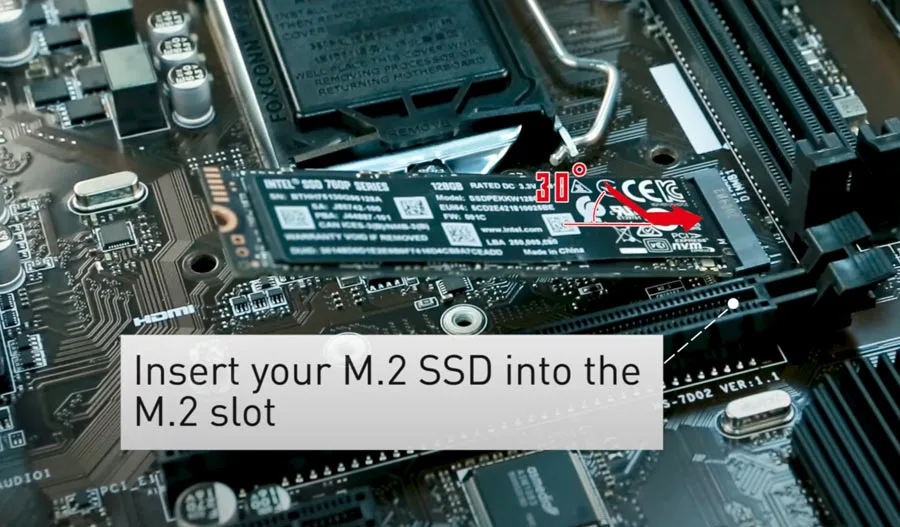
Image source: Bing (Web (fair-use with source credit))
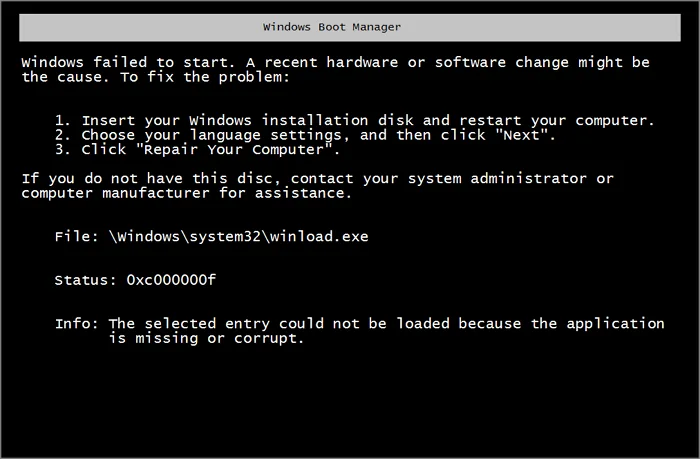
Image source: Bing (Web (fair-use with source credit))
The 3 Most Common Causes (and How to Spot Yours)
Cause 1: Wrong Boot Order
Your BIOS/UEFI is still pointing to the old drive or a non-bootable device. Check the boot priority list. If the SSD isn’t at the top, that’s your culprit.
Cause 2: Missing or Corrupted Boot Files
The SSD has the OS but lacks the bootloader. This is common after a clone gone wrong. You’ll see the error even if the SSD is detected.
Cause 3: BIOS Mode vs. Partition Style Mismatch
UEFI systems expect GPT. Legacy systems expect MBR. If your SSD is GPT but the BIOS is in Legacy mode, the system can’t read the boot data.
| Cause | How to Spot It | Quick Check |
|---|---|---|
| Wrong Boot Order | SSD is detected but not first in boot list | Enter BIOS, check boot priority |
| Missing Boot Files | SSD shows in BIOS but won’t boot | Use a Windows USB, run bootrec /scanos |
| Mode Mismatch | Error persists after setting boot order | Check BIOS mode (Legacy/UEFI) vs. disk |
Quick Fixes to Try First (No Tools Needed)
Start with the simplest solutions. These take two minutes and fix half of all cases.
1. Reseat the SSD
Power off, unplug, and open the case. Remove and reconnect the SSD. Loose SATA or power cables are a surprisingly common issue.
2. Change the Boot Order
Restart and enter BIOS/UEFI (usually Del, F2, or F12). Find the boot menu. Move the SSD to the top of the list.
Save and exit.
3. Disable Fast Startup
Windows Fast Startup can interfere with new hardware. Boot into Safe Mode if possible. Go to Power Options > Choose what the power buttons do > Change settings > Uncheck Turn on fast startup.
4. Switch BIOS Mode
If the SSD is GPT, enable UEFI. If it’s MBR, switch to Legacy. Note: Switching modes may require reinstalling Windows.
Step-by-Step Repair: Rebuild the Boot Manager
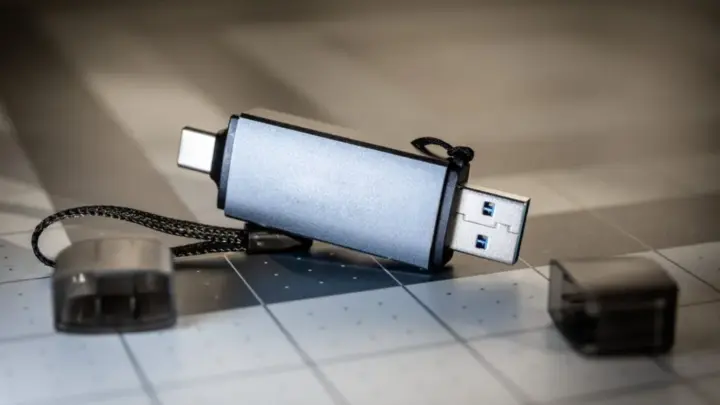
If the quick fixes fail, you’ll need to rebuild the boot files. You’ll need a Windows installation USB for this.
Step 1: Boot from USB
Insert the USB and boot from it. Select your language, then choose Repair your computer.
Step 2: Open Command Prompt
Go to Troubleshoot > Advanced options > Command Prompt.
Step 3: Run Bootrec Commands
Type these one at a time, hitting Enter after each:
bootrec /fixmbr
bootrec /fixboot
bootrec /scanos
bootrec /rebuildbcd
If rebuildbcd fails, try:
bcdboot C:\Windows /s S: /f UEFI
(Replace C: with your OS drive letter and S: with the EFI partition.)
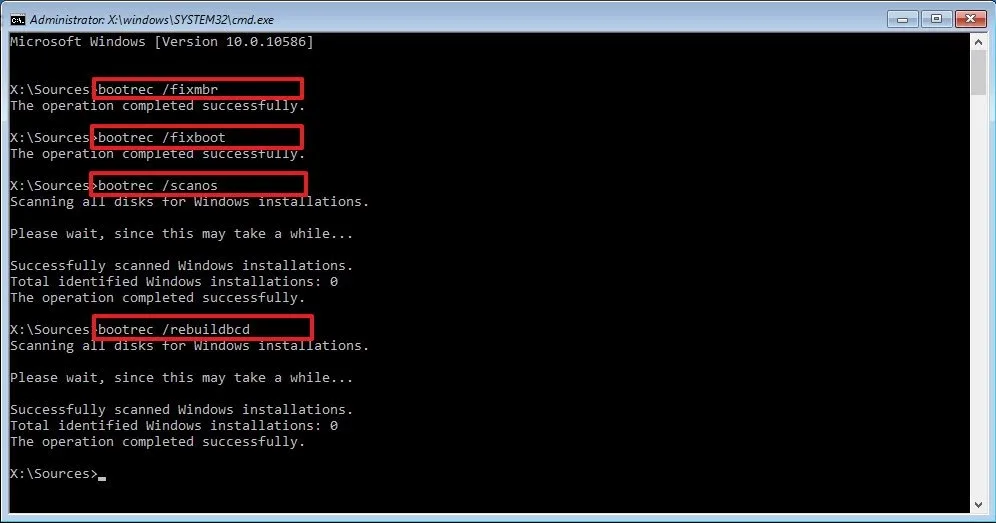
Image source: Bing (Web (fair-use with source credit))
Step 4: Check Partition Style
Run diskpart, then:
list disk
select disk X (your SSD)
list partition
If you see a * under GPT, it’s GPT. If not, it’s MBR. Ensure this matches your BIOS mode.
BIOS/UEFI Settings That Break (or Fix) the Boot
Your BIOS/UEFI settings can make or break the boot process. Get these wrong, and no amount of command-line magic will help.
Secure Boot
If enabled, it may block unsigned bootloaders. Try disabling it temporarily. You’ll find it under Security or Boot tabs.
CSM (Compatibility Support Module)
This allows Legacy mode on UEFI systems. If your SSD is MBR, enable CSM. If it’s GPT, disable CSM.
Boot Mode
UEFI vs. Legacy. Match this to your SSD’s partition style.
UEFI = GPT. Legacy = MBR.
Fast Boot
Some motherboards have a Fast Boot option. Disable it if you’re troubleshooting.
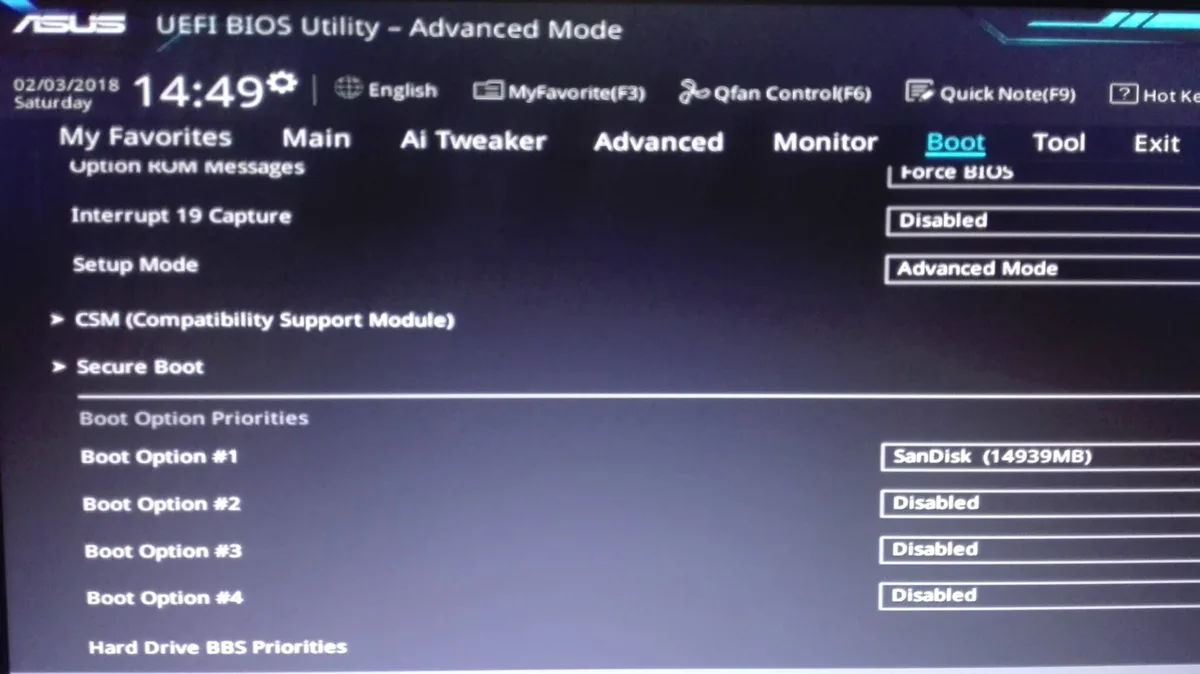
Image source: Bing (Web (fair-use with source credit))
Cloning vs. Clean Install: Which Path Solves Your Issue
Cloning copies everything from your old drive to the SSD. It’s fast and preserves your settings. But if the boot files were already corrupted, cloning just copies the problem.
A clean install wipes the slate clean. It guarantees a fresh bootloader and partition structure. But you’ll need to reinstall apps and restore data.
Choose cloning if:
Your old drive boots fine. You want to keep all files and programs. You’re using reliable software like Macrium Reflect or Clonezilla.
Choose clean install if:
Your old drive had boot issues. You’re switching from HDD to SSD with a different partition style. You want a performance boost from a fresh OS.
Mistakes That Make It Worse (And How to Avoid Them)
Skipping the backup is the biggest mistake. If something goes wrong, you lose everything. Always back up first.
Ignoring the partition style leads to boot failures. Check if your SSD is MBR or GPT before changing BIOS modes.
Using the wrong cloning software can miss critical partitions. The system reserved partition holds boot files. If it’s not cloned, your SSD won’t boot.
Forcing a BIOS mode switch without reinstalling Windows breaks the bootloader. If you must switch from Legacy to UEFI, a clean install is safer.
Frequently Asked Questions
Why does my PC not detect the new SSD at all?
Check the connections first. A loose SATA or power cable is often the culprit. If the SSD still isn’t detected, enter BIOS and see if it appears in the storage list.
If not, the drive may need initialization in Disk Management.
Can I fix this without a Windows USB?
If your system has a recovery partition, you might access it by pressing F8 or Shift+Restart. Some manufacturers include recovery tools in BIOS. But a Windows USB is the most reliable method for running bootrec commands.
How do I know if my SSD is MBR or GPT?
Open Command Prompt as admin and type diskpart, then list disk, select your SSD, and list partition. A star under GPT means it’s GPT. No star means MBR.
Will switching from Legacy to UEFI delete my files?
Switching modes alone won’t delete files. But if Windows was installed in Legacy mode, it won’t boot in UEFI without a clean install. Always back up before changing modes.
What’s the difference between MBR and GPT?
MBR is older and limited to 2TB drives and 4 primary partitions. GPT supports larger drives and unlimited partitions. UEFI systems prefer GPT.
Legacy systems use MBR.

Similar Posts