Stop Apps Reopening on Windows Restart
Founder & Lead Technology Analyst at Techny Tech · IEEE Senior Member, Certified Information Systems Security Professional (CISSP) · 13+ years in embedded systems benchmarking, machine learning hardware acceleration, and consumer electronics
Nothing’s more frustrating than firing up your PC only to watch a dozen apps reopen before you’ve even clicked anything. If you’re searching for how to stop apps reopening after Windows restart, you’re not alone, this is a default behavior in Windows 10 and 11 that trips up a lot of users. As of 2026, Microsoft still enables this by default, assuming you want to pick up where you left off.
The good news is it’s fixable in under a minute. The bad news? The exact steps depend on your Windows version and whether the apps are UWP or legacy.
Let’s start with the simplest solution.
how to stop apps reopening after Windows restart
Open Settings and go to Accounts > Sign-in options. Toggle off "Restart apps after sign-in." This stops most apps from reopening. For stubborn apps, disable them in Task Manager’s Startup tab.
Why Windows Keeps Reopening Your Apps After Restart
Windows 10 and 11 include a feature called "Restart apps after sign-in" that’s enabled by default. It’s designed to restore your previous session, but it often backfires. The OS saves the state of open apps during shutdown, then relaunches them on startup.
Fast Startup complicates this. It uses a hybrid shutdown to speed up boot times, but it can also force apps to reopen unexpectedly. UWP apps (like those from the Microsoft Store) are particularly aggressive about this behavior.
Quick Fix: Disable App Restart in 30 Seconds
The fastest way to stop this is through the Settings app. On Windows 11, press Win + I, then go to Accounts > Sign-in options. Look for "Restart apps after sign-in" and toggle it off.
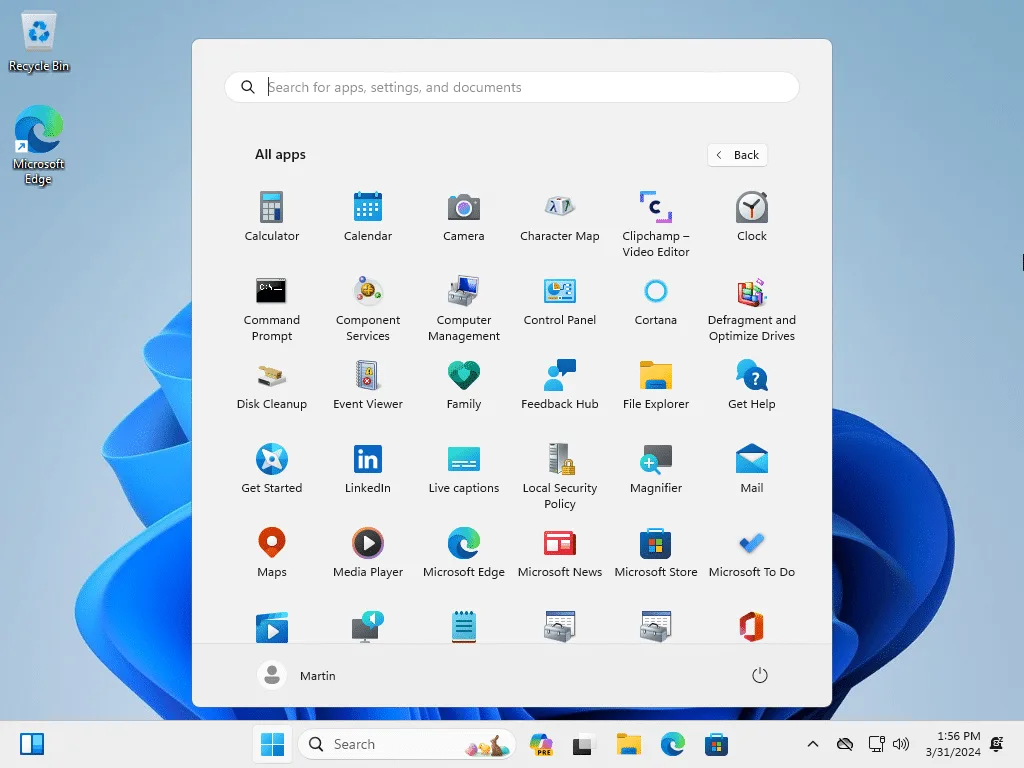
Image source: Bing (Web (fair-use with source credit))
On Windows 10, the path is slightly different: Settings > Accounts > Sign-in options > "Restart apps." Turn it off here. This change takes effect immediately, no restart needed.
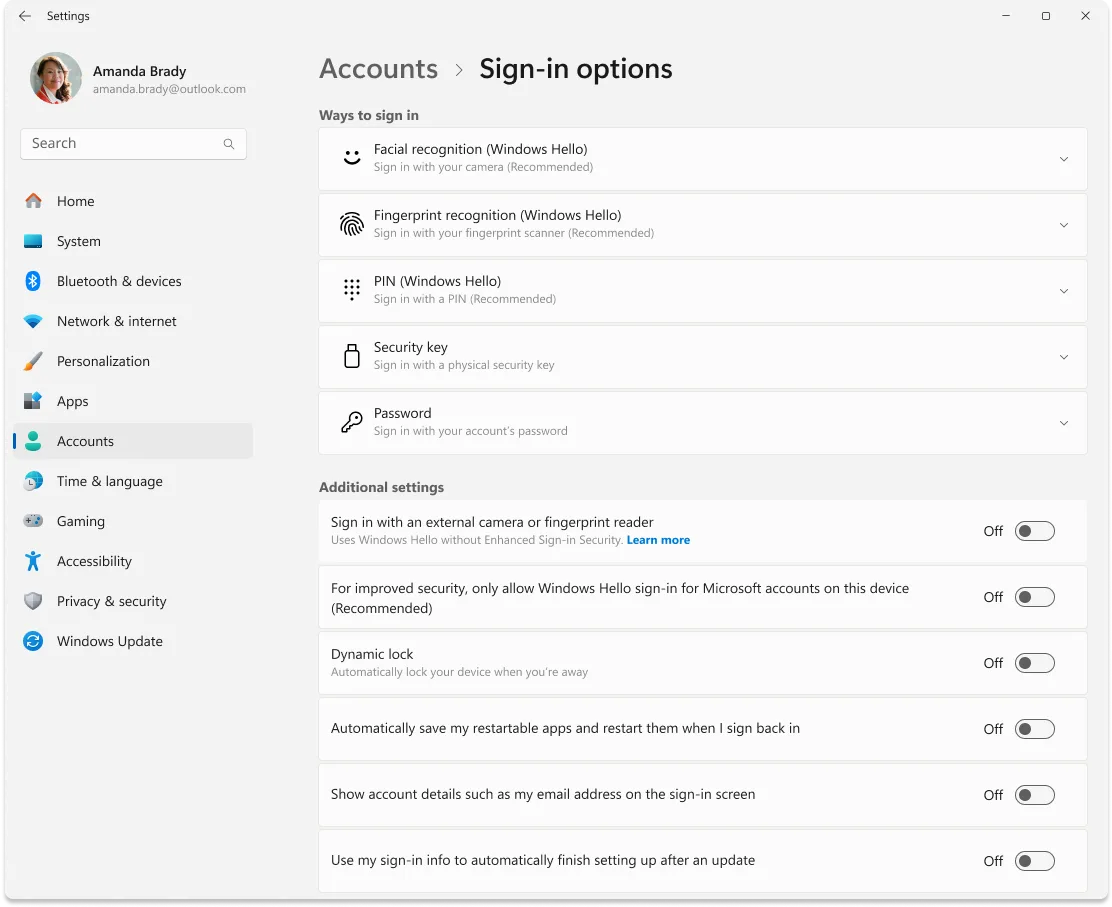
Image source: Bing (Web (fair-use with source credit))
This fix works for most built-in and UWP apps. Legacy Win32 apps might still reopen if they’re set to launch at startup.
The Real Causes (And Which One Affects You)
Not all app restarts are caused by the same setting. Here’s what’s likely happening:
- Restart apps setting enabled: This is the most common culprit. It’s a toggle in Sign-in options that Microsoft turns on by default.
- Fast Startup active: This feature speeds up boot times but can also restore app states. It’s enabled by default on most Windows 10 and 11 PCs.
- Startup apps configured: Some apps add themselves to startup via Task Manager, the Startup folder, or the Registry. These will reopen regardless of the Restart apps setting.
- UWP apps with background permissions: Universal Windows Platform apps often ignore traditional startup controls. They use their own permissions to relaunch.
If the quick fix didn’t work, you’re likely dealing with one of the last three causes.
Step-by-Step Fixes for Every Windows Version
Windows 11
Start with the Restart apps toggle in Settings. If that doesn’t work, open Task Manager (Ctrl+Shift+Esc), go to the Startup tab, and disable any apps you don’t want launching.
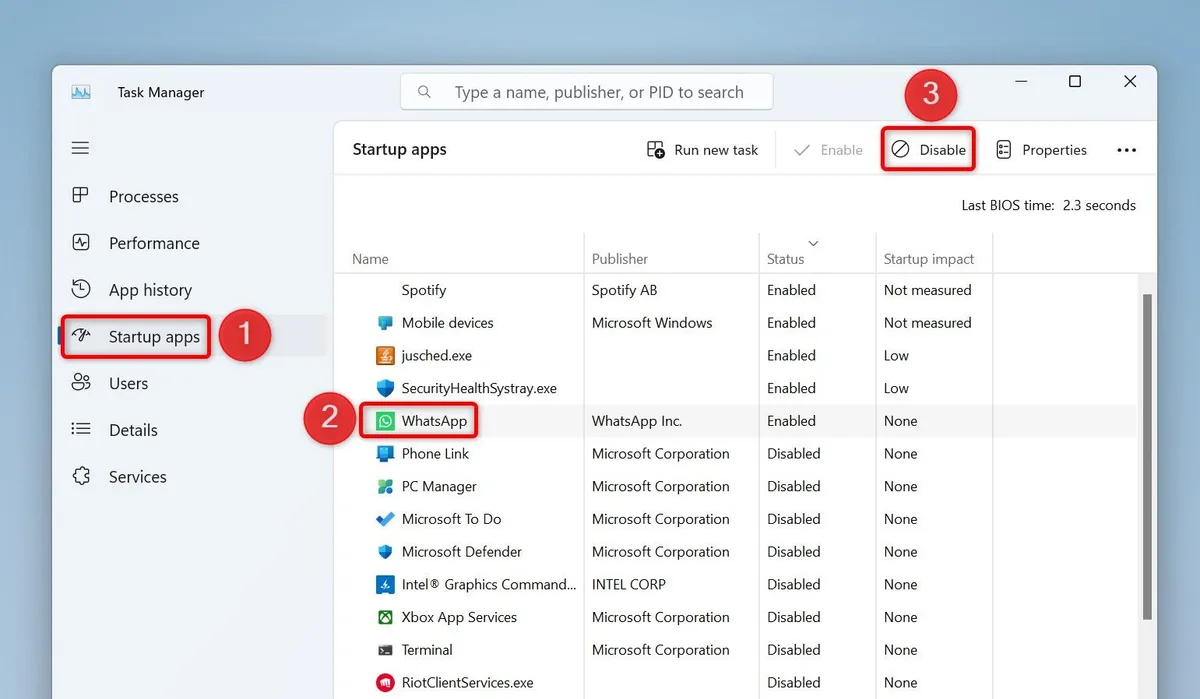
Image source: Bing (Web (fair-use with source credit))
For UWP apps, go to Settings > Apps > Installed apps. Click the three dots next to the app and select "Advanced options." Disable "Let this app run in the background."
Windows 10
The process is nearly identical. Disable the Restart apps toggle in Sign-in options, then check Task Manager’s Startup tab. For UWP apps, use Settings > Apps > Apps & features, then click "Advanced options" to disable background running.
Advanced Fixes (Registry & Group Policy)
If apps still reopen, they might be registered in the Windows Registry. Press Win + R, type regedit, and navigate to:
HKEY_CURRENT_USER\Software\Microsoft\Windows\CurrentVersion\Run
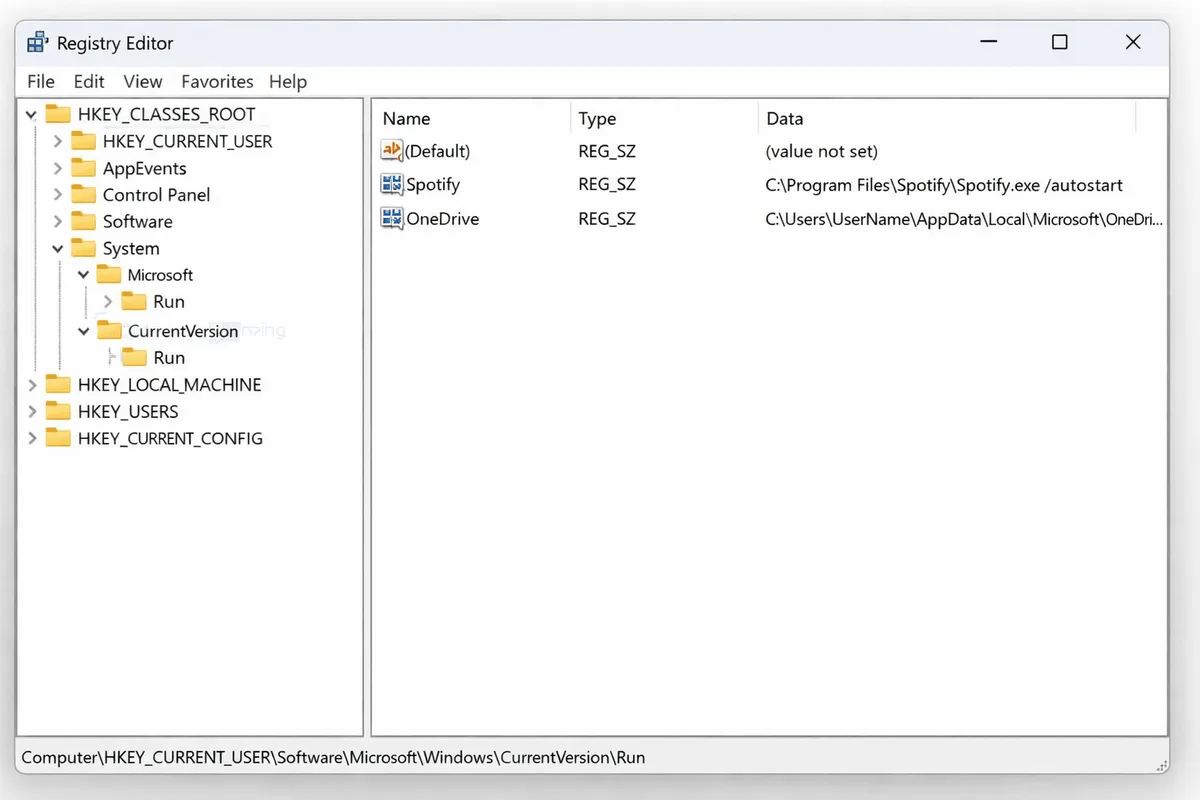
Image source: Bing (Web (fair-use with source credit))
Delete any entries for apps you don’t want launching. Be cautious, editing the Registry incorrectly can cause system issues.
For Windows Pro or Enterprise users, Group Policy Editor offers more control. Press Win + R, type gpedit.msc, and navigate to:
Computer Configuration > Administrative Templates > Windows Components > App Runtime
Enable "Prevent Windows from restoring applications at logon."
Common Mistakes That Make It Worse
Disabling the wrong setting is the top mistake. Many users turn off Fast Startup thinking it’ll stop apps from reopening, but this only affects boot speed, not app behavior. The real fix is the Restart apps toggle in Sign-in options.
Another common error is ignoring UWP apps. These don’t always respect Task Manager’s Startup tab. You’ll need to disable their background permissions separately in Settings > Apps.
Some users delete Registry entries without backing up first. A single wrong edit can crash your system. Always export the key before making changes.
If you’re unsure, stick to the GUI methods.
Finally, don’t overlook the Startup folder. Older apps often place shortcuts here. Check shell:startup in File Explorer and remove any unwanted entries.
This is a quick fix that’s easy to miss.

Similar Posts