Fix Windows Defender Stuck at Preparing Scan
Founder & Lead Technology Analyst at Techny Tech · IEEE Senior Member, Certified Information Systems Security Professional (CISSP) · 13+ years in embedded systems benchmarking, machine learning hardware acceleration, and consumer electronics
Your Windows Defender scan is frozen at "Preparing" and nothing seems to move it forward. A Windows Defender scan stuck at preparing usually means the system is either initializing a large scan or hitting a resource conflict. Microsoft’s own documentation notes this stage can take minutes on systems with over 500,000 files.
As of 2026, this remains one of the most common Defender performance complaints, especially on older hardware. Let’s start with the fastest ways to break the logjam.
Windows Defender scan stuck at preparing
This typically happens when Defender is initializing a scan of your system files. The process can stall due to high CPU usage, conflicting software, or corrupted scan data. A simple restart often resolves it.
If not, deeper troubleshooting is needed.
Quick Fixes to Try First (30-Second Solutions)
Start with the easiest fixes before diving into complex steps. These take seconds and resolve the issue in most cases.
- Restart your PC. This clears any hung processes and resets Defender’s state.
- Pause and resume the scan. Open Windows Security, go to Virus & threat protection, and toggle the scan off and on.
- Check for Windows updates. Pending updates can block Defender from functioning properly.
If the scan is still stuck, move to the next steps.

Image source: Bing (Web (fair-use with source credit))
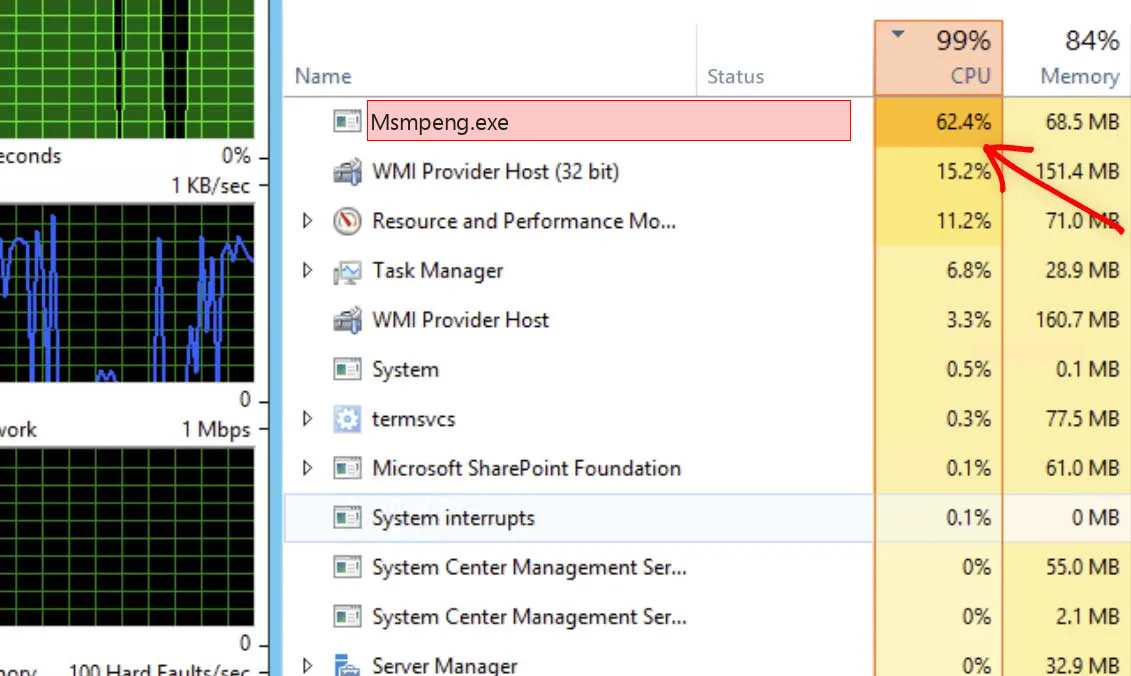
Image source: Bing (Web (fair-use with source credit))
How Windows Defender Scans Work (And Why It Hangs)
Windows Defender scans files in stages: preparation, detection, and cleanup. The "Preparing" phase is where Defender indexes files and loads virus definitions. On systems with large file counts or slow drives, this can take longer than expected.
Conflicts often arise from third-party antivirus software or system resource constraints. Defender uses the MsMpEng.exe process, which can consume significant CPU and disk I/O. If your system is low on resources, the scan may appear frozen.
Image source: Bing (Web (fair-use with source credit))
Step-by-Step Troubleshooting: From Simple to Advanced
If quick fixes don’t work, follow this workflow to isolate the issue.
Basic checks:
- Open Task Manager and look for
Antimalware Service Executable(MsMpEng.exe). If it’s using 100% CPU or disk, your system may be overwhelmed. - Run a quick scan instead of a full scan to reduce the load.
Intermediate steps:
- Disable third-party antivirus temporarily. Conflicts are a common cause of hangs.
- Update Defender manually via Windows Security > Virus & threat protection > Check for updates.
Advanced fixes:
- Reset Defender via Settings > Apps > Optional features > Windows Defender.
- Run
sfc /scannowin Command Prompt to repair corrupted system files.
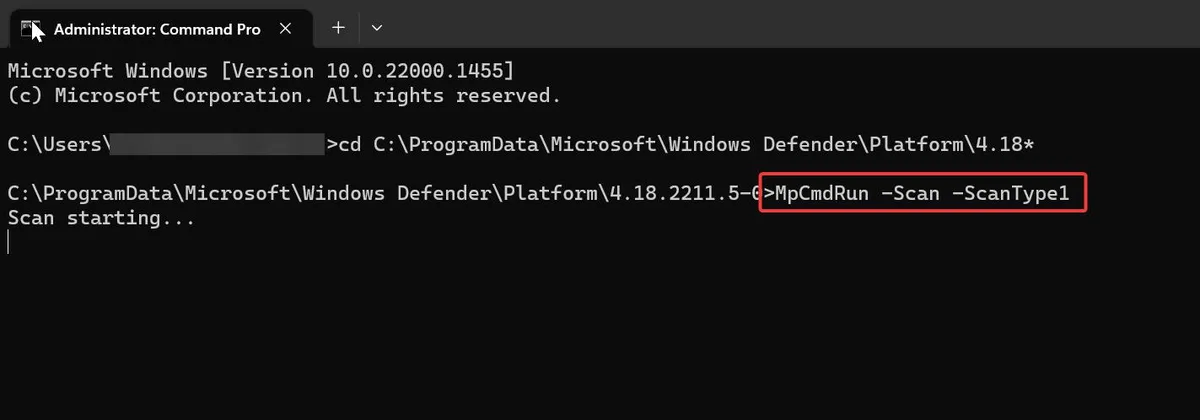
Image source: Bing (Web (fair-use with source credit))
When to Escalate (And What Not to Do)
If the scan remains stuck after all troubleshooting, the issue may be deeper. Corrupted system files or hardware problems (like a failing drive) could be the culprit.
Do not:
- Disable Defender permanently. This leaves your system vulnerable.
- Delete Defender files manually. This can break Windows security features.
- Ignore repeated hangs. Persistent issues may indicate malware or hardware failure.
Escalate if:
- The scan never completes, even after multiple restarts.
- You see error codes like
0x80070005or0x80070643in Event Viewer. - Other system functions are also slow or unresponsive.
For official guidance, refer to Microsoft’s Defender troubleshooting page.
Preventing Future Scan Freezes
Schedule scans during off-peak hours to avoid resource conflicts. Windows Defender lets you set custom scan times in Virus & threat protection settings.
Exclude large or trusted folders from scans. This reduces the workload and speeds up preparation. Common exclusions include game files, video libraries, and development project folders.
Keep your system updated. Regular Windows updates ensure Defender has the latest virus definitions and performance improvements. As of 2026, Microsoft releases Defender updates at least once daily.
Monitor system health. Use Task Manager to check for unusual CPU or disk usage. High usage during scans can indicate a need for hardware upgrades.
Frequently Asked Questions
Why does Defender take so long to prepare?
The preparation phase indexes files and loads definitions. On systems with many files or slow drives, this can take several minutes. A full scan on a 1TB drive may need 10-15 minutes just to prepare.
Can I stop a stuck scan safely?
Yes. Open Windows Security, go to Virus & threat protection, and click "Stop scan." This won’t harm your system. If the button is unresponsive, restart your PC.
Does a stuck scan mean my PC is infected?
Not necessarily. Hangs are often caused by resource conflicts or large file counts. However, if scans repeatedly fail, run an offline scan or use a secondary antivirus to check.
How do I check Defender logs for errors?
Open Event Viewer and navigate to Applications and Services Logs > Microsoft > Windows > Windows Defender. Look for errors with red icons. Common codes include 0x80070005 for access issues.
Is it safe to disable Defender temporarily?
Yes, but only for short periods. Go to Virus & threat protection settings and toggle "Real-time protection" off. Re-enable it as soon as possible to avoid vulnerabilities.
What’s the difference between Quick and Full scans?
Quick scans check common infection areas and take minutes. Full scans examine every file and can take hours. Use Quick scans for routine checks and Full scans if you suspect malware.

Similar Posts