Fix BitLocker Recovery Key After BIOS Update
Founder & Lead Technology Analyst at Techny Tech · IEEE Senior Member, Certified Information Systems Security Professional (CISSP) · 13+ years in embedded systems benchmarking, machine learning hardware acceleration, and consumer electronics
The BitLocker recovery key screen after BIOS update is a common but fixable issue. It happens because BitLocker ties your device’s encryption to hardware settings, and a BIOS update can make it think something’s been tampered with.
BitLocker uses a 48-digit recovery key and relies on the Trusted Platform Module (TPM) 2.0 standard to verify system integrity. When BIOS changes disrupt this, Windows locks the drive until you prove it’s still you.
BitLocker recovery key screen after BIOS update
This screen appears because BitLocker detects a change in your system’s boot environment. A BIOS update often resets TPM or Secure Boot settings. The recovery key is required to unlock your drive.
You’ll need to enter it to regain access.
How BitLocker and BIOS Updates Are Connected
BitLocker encrypts your drive and uses the TPM chip to store encryption keys securely. The TPM checks your system’s state at every boot, ensuring no unauthorized changes have occurred.
When you update the BIOS, it can reset or alter TPM-related settings. This triggers BitLocker’s security protocol, assuming a potential threat. The result is the recovery key prompt, as the system can no longer verify its integrity automatically.
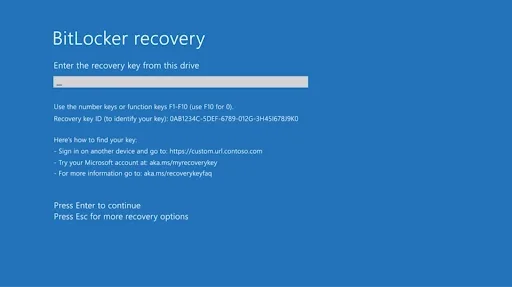
Image source: Bing (Web (fair-use with source credit))
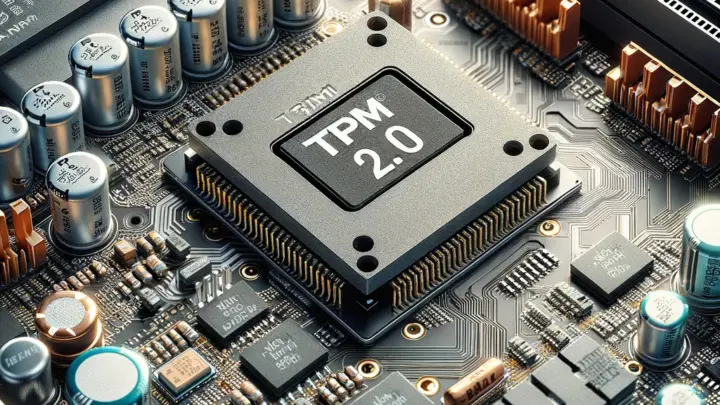
The TPM chip is a physical component on your motherboard that works with BitLocker. If the BIOS update clears the TPM, BitLocker loses its reference point and demands the recovery key.
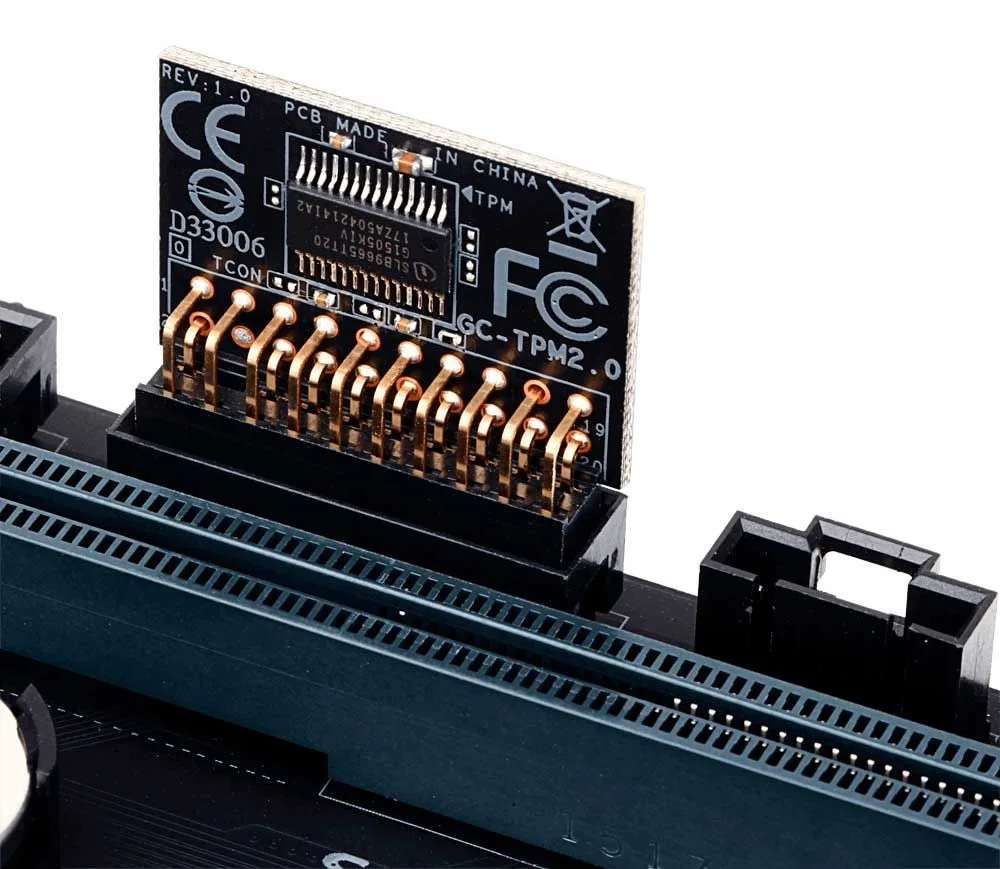
Image source: Bing (Web (fair-use with source credit))
Secure Boot, another UEFI feature, also plays a role. If disabled or reset during the BIOS update, BitLocker may treat the system as compromised. As of 2026, most modern Windows devices use TPM 2.0, which is more resilient but still sensitive to firmware changes.
Step-by-Step Fixes to Regain Access to Your Device
First, locate your 48-digit recovery key. It’s often saved to your Microsoft account if you enabled this during setup. Check your email for a backup or look for a printed copy if you created one.
If you have the key, enter it on the recovery screen. The system will unlock and boot normally. If the key isn’t accepted, double-check for typos, each group of 6 digits must be exact.
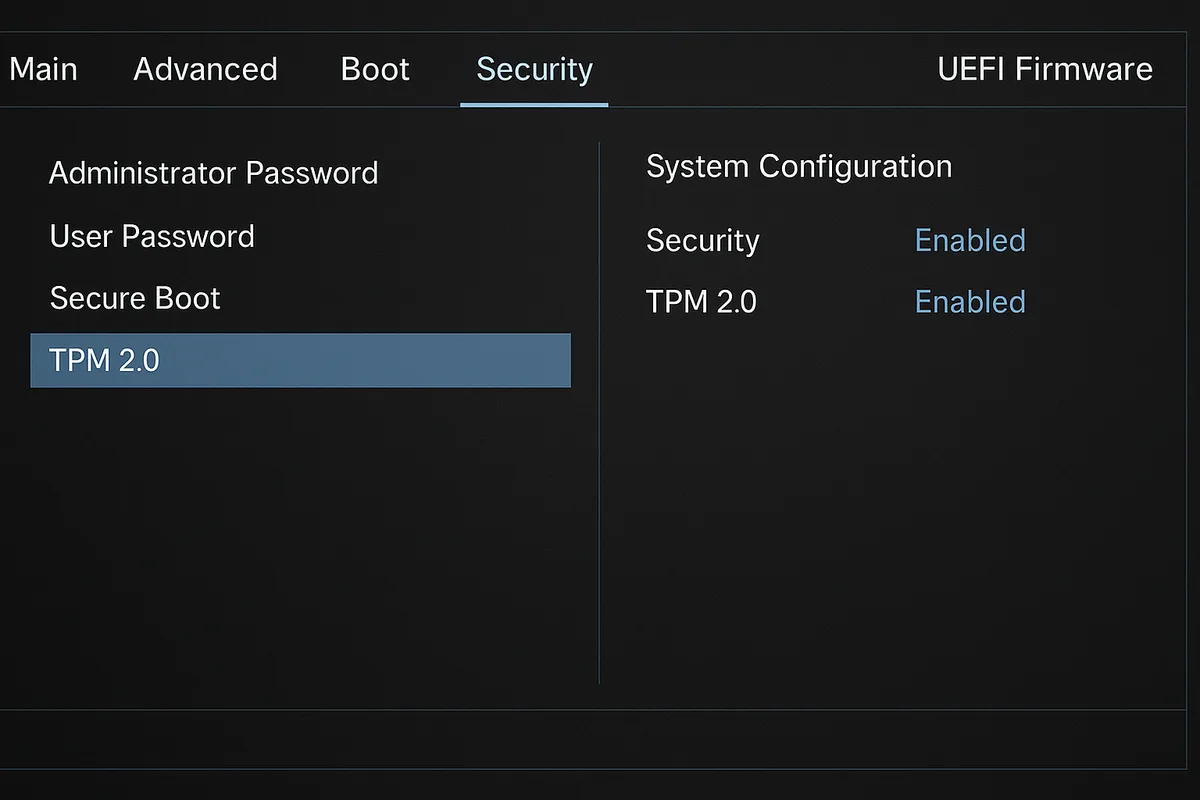
Image source: Bing (Web (fair-use with source credit))
If you don’t have the key, try signing in to your Microsoft account on another device. Navigate to the BitLocker recovery key page to retrieve it. For work or school devices, contact your IT administrator, they may have the key stored.
If the key is truly lost, you’ll need to reset the device, which erases all data. This is a last resort, as BitLocker’s encryption is designed to prevent access without the key. Always back up your recovery key in multiple locations to avoid this scenario.
Where to Find Your BitLocker Recovery Key (If You Don’t Have It)
Your Microsoft account is the most common place to find the recovery key. If you signed in with a Microsoft account when setting up BitLocker, the key is automatically backed up. To access it, go to Microsoft’s BitLocker recovery page.
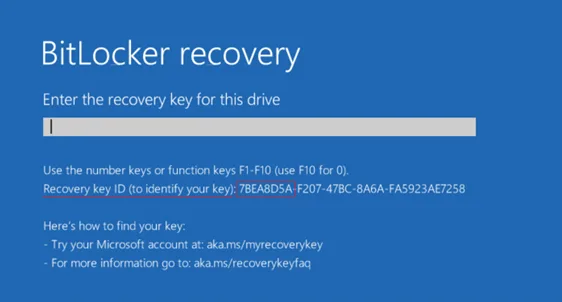
Image source: Bing (Web (fair-use with source credit))
If you’re using a work or school device, the recovery key may be stored in your organization’s IT system. Contact your administrator for assistance. They can provide the key or reset BitLocker for you.
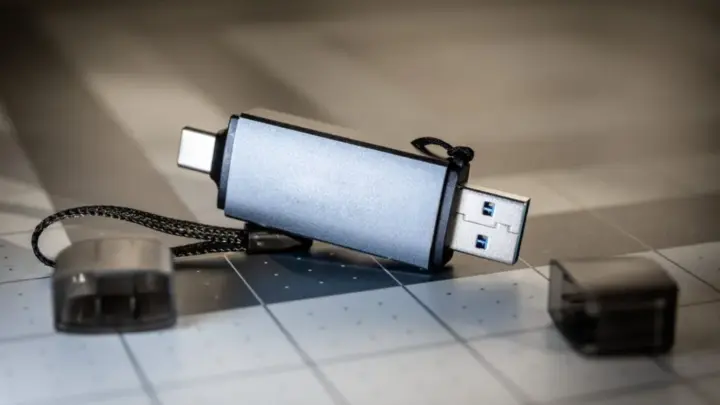
For personal devices, check any printed backups or USB drives where you may have saved the key. If you used a third-party encryption tool alongside BitLocker, the key might be stored there. Always label and secure these backups to avoid confusion.
If you’ve exhausted all options and still can’t find the key, the only remaining solution is to reset the device. This will erase all encrypted data, so it’s critical to have backups. As of 2026, Microsoft recommends storing the recovery key in at least two separate locations.
How to Prevent This From Happening Again
Back up your recovery key before making any BIOS or firmware updates. Store it in your Microsoft account, print a copy, or save it to a secure USB drive. The more backups you have, the lower the risk of being locked out.
Enable TPM and Secure Boot in your BIOS/UEFI settings. These features help BitLocker verify your system’s integrity. If they’re disabled, BitLocker may trigger the recovery screen unnecessarily.
Before updating the BIOS, check the manufacturer’s documentation for any notes about TPM or BitLocker. Some updates explicitly warn about encryption issues. If in doubt, temporarily disable BitLocker, perform the update, then re-enable it afterward.
Regularly verify that your recovery key backups are accessible. Test retrieving the key from your Microsoft account or other storage locations. If you’ve changed devices or accounts, update your backups accordingly.
Educate anyone who uses your device about BitLocker and the importance of the recovery key. If multiple people have access, ensure they know where the key is stored. This prevents accidental lockouts due to unawareness.
Common Mistakes That Make the Problem Worse
Ignoring the recovery key prompt and restarting your device won’t solve the issue. Each reboot will bring you back to the same screen until you enter the correct key.
Assuming the key is stored only in one place is risky. If you saved it only in your Microsoft account and can’t access that account, you’re locked out. Always have at least two backup methods.
Disabling TPM or Secure Boot in BIOS without understanding the consequences can trigger BitLocker again. These settings are tied to your system’s encryption state. Changing them without the recovery key may worsen the problem.
Attempting to reset the device without backing up data first will erase everything. BitLocker’s encryption is designed to prevent access without the key, so a reset is irreversible. Only do this if you’ve exhausted all other options.
Using third-party tools to bypass BitLocker is unreliable and unsafe. These tools often fail or introduce malware. Stick to official recovery methods to avoid permanent data loss.
Frequently Asked Questions
Why does a BIOS update trigger BitLocker?
A BIOS update can reset or alter TPM and Secure Boot settings. BitLocker detects this as a potential security threat and locks the drive until you verify your identity with the recovery key.
Can I bypass the BitLocker recovery key screen?
No, you cannot bypass it without the key. BitLocker’s encryption is designed to prevent unauthorized access. The only way to unlock the drive is to enter the correct 48-digit recovery key.
What if I never set up BitLocker?
Some Windows devices enable BitLocker automatically if they meet certain hardware requirements. Check your Microsoft account or contact your IT admin to confirm if BitLocker was active.
How do I know if my device uses TPM 1.2 or 2.0?
Open the TPM management console in Windows. Press Win + R, type tpm.msc, and hit Enter. The version will be listed under "The TPM is ready for use."
Will a factory reset remove BitLocker?
Yes, a factory reset will erase all data, including BitLocker encryption. However, you’ll lose all files on the drive. Only use this as a last resort if you can’t recover the key.

Similar Posts