Mouse Cursor Moving on Its Own? Fix It Now
Founder & Lead Technology Analyst at Techny Tech · IEEE Senior Member, Certified Information Systems Security Professional (CISSP) · 13+ years in embedded systems benchmarking, machine learning hardware acceleration, and consumer electronics
Your mouse cursor moves on its own, and it’s driving you nuts. One second you’re typing, the next your pointer’s halfway across the screen like it’s got a mind of its own. This usually boils down to a few common culprits: hardware dirt, driver glitches, or interference, especially with wireless setups.
Most optical mice as of 2026 use sensors rated between 800 and 1600 DPI, and even a speck of dust can throw off tracking. Let’s start by narrowing down what’s actually causing the chaos.
mouse cursor moves on its own
It’s usually a hardware or software issue. Dirty sensors, faulty USB ports, or wireless interference can cause erratic movement. Outdated drivers or OS settings like pointer acceleration may also be to blame.
Malware is less common but worth checking if the problem persists.
Why Your Mouse Cursor Moves on Its Own (And How to Tell What’s Causing It)
The root cause falls into three buckets: physical, environmental, or digital.
Physical issues include dirt on the sensor, a failing cable, or a dying battery in wireless models. Environmental factors like reflective surfaces or nearby electronics can disrupt optical or Bluetooth mice. Digital causes range from outdated drivers to malware or even conflicting software like remote desktop tools.
A quick way to test: unplug the mouse and use the touchpad or a different mouse. If the problem stops, your original mouse is the likely culprit.

Image source: Bing (Web (fair-use with source credit))
Quick Fixes to Try First (30-Second Solutions)
Start with the simplest fixes before diving deeper.
First, clean the sensor. Turn the mouse over and wipe the lens with a dry, lint-free cloth. Even a tiny speck of dust can scatter the laser and cause jumps.
Next, switch USB ports. A faulty port can send erratic signals. If you’re on a laptop, try a USB hub or a different side of the machine.
For wireless mice, replace the battery. Low power can cause lag or erratic movement. Also, move the receiver closer to the mouse, distance and obstacles can weaken the signal.
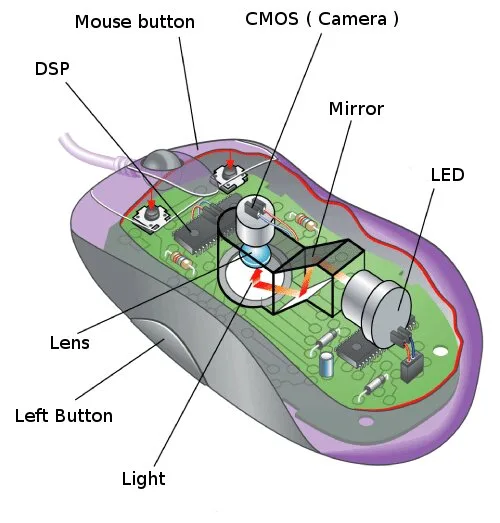
Image source: Bing (Web (fair-use with source credit))
Step-by-Step Troubleshooting: Hardware vs. Software Causes
Hardware Checks
Inspect the cable for fraying or bends, especially near the connectors. A damaged cable can send intermittent signals.
Test the mouse on a different surface. Glass or glossy desks can confuse optical sensors. Use a mouse pad or a matte surface.
If you have a spare mouse, plug it in. If the issue disappears, your original mouse is likely faulty.
Software Checks
Update your mouse driver. In Windows, open Device Manager, find your mouse under "Mice and other pointing devices," right-click, and select "Update driver." macOS users can check for updates via System Preferences > Software Update.
Disable pointer acceleration. In Windows, go to Control Panel > Mouse > Pointer Options and uncheck "Enhance pointer precision." This setting can cause inconsistent cursor movement.
Check for conflicting software. Some apps, like remote desktop tools or gaming macros, can take control of the cursor. Close background apps one by one to identify the culprit.
Wireless Mouse? Check These Specific Issues
Wireless mice add a layer of complexity. Interference is a common cause of cursor drift.
First, move the USB receiver closer to the mouse. Distance and physical barriers like walls or metal objects can weaken the signal. Ideally, keep it within 3 feet.
Next, check for wireless interference. Other devices like keyboards, routers, or even cordless phones can disrupt the signal. Try moving them farther away or switching to a different USB port.
If your mouse uses Bluetooth, ensure it’s properly paired. Go to your OS’s Bluetooth settings and reconnect if necessary. Some mice also support multiple Bluetooth channels, switching channels can resolve interference.
Low battery is another frequent issue. Replace the battery even if the mouse seems to be working. Some wireless mice slow down or behave erratically as the battery dies.
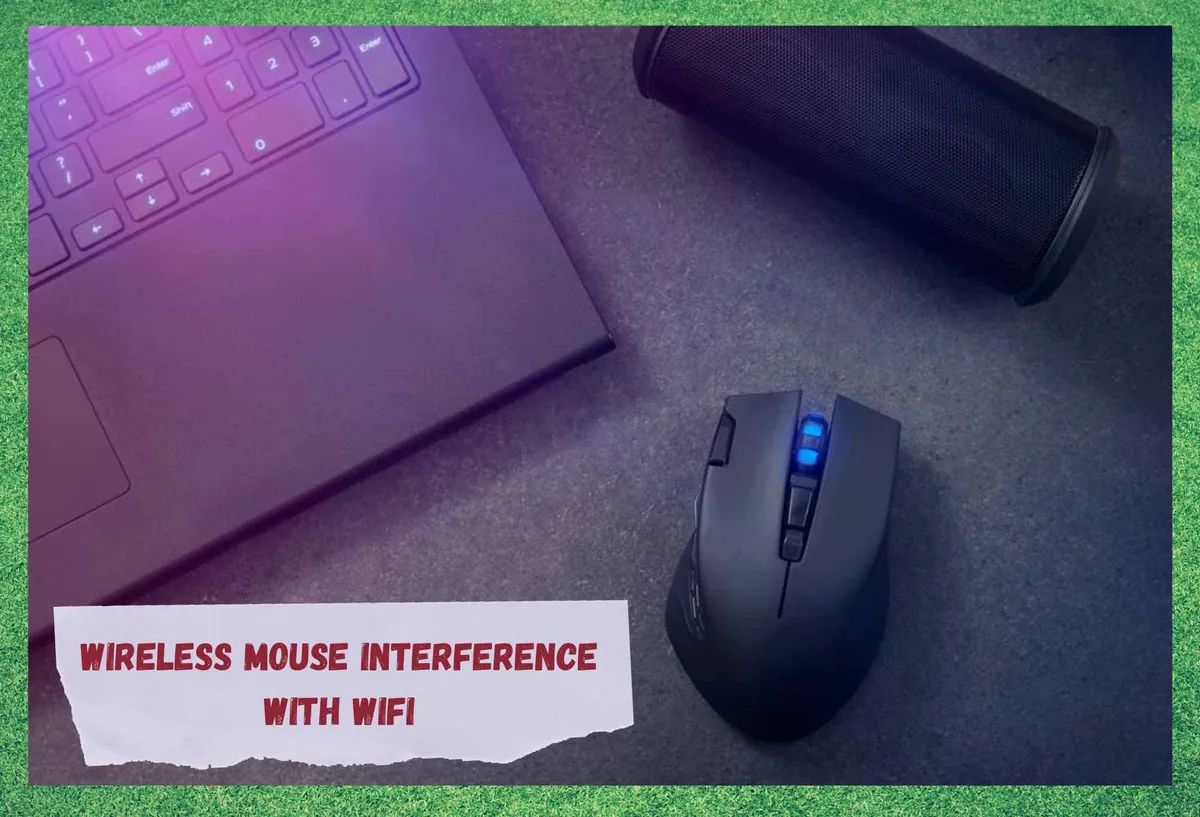
Image source: Bing (Web (fair-use with source credit))
When It’s Not the Mouse: OS Settings, Drivers, and Malware
Sometimes the problem lies deeper in your system.
Outdated or corrupt drivers can cause the cursor to behave unpredictably. Reinstalling the driver often fixes this. In Windows, right-click the mouse in Device Manager and select "Uninstall device," then restart your computer to let Windows reinstall the driver automatically.
Malware can also hijack your cursor. Run a scan with your antivirus software. According to NIST, malware like spyware or keyloggers can manipulate input devices.
If you don’t have antivirus software, use a trusted free tool like Windows Defender.
Check your OS settings. In Windows, go to Settings > Devices > Mouse and adjust the pointer speed. If it’s set too high, the cursor may move erratically.
Also, ensure "Scroll inactive windows when I hover over them" is turned off, this can sometimes cause unintended movement.
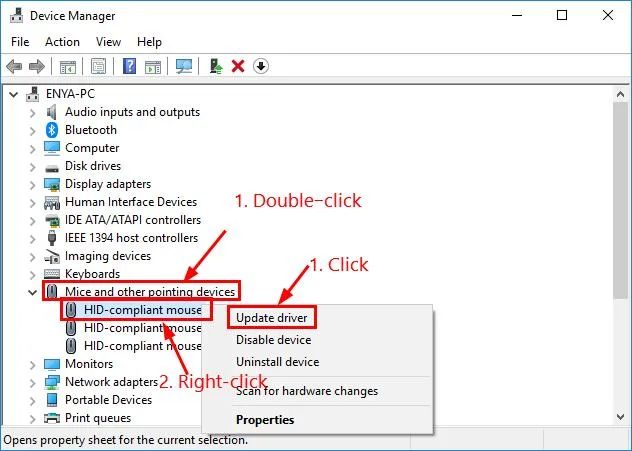
Image source: Bing (Web (fair-use with source credit))
How to Prevent It from Happening Again
Regular maintenance keeps your mouse working smoothly. Clean the sensor weekly if you use it on bare desks or rough surfaces. A quick wipe with a microfiber cloth removes dust and smudges that can disrupt tracking.
For wireless mice, replace batteries before they die completely. Most models start behaving erratically below 20 percent power. Keep spare batteries or a charging cable nearby if your mouse is rechargeable.
Update drivers automatically. Enable Windows Update or macOS Software Update to handle driver updates in the background. Manufacturer apps like Logitech Options or Razer Synapse can also manage firmware updates for compatible mice.
Avoid reflective or glass surfaces. Optical and laser sensors struggle with transparency or high gloss. Use a mouse pad with a matte finish for consistent performance.
If you must use a glass desk, place a piece of paper or a thin cloth underneath the mouse.
Frequently Asked Questions
Why does my cursor jump when I type?
This is often caused by your palm or wrist brushing against the touchpad. Disable the touchpad while typing in your OS settings. In Windows, go to Settings > Devices > Touchpad and enable "Leave touchpad on when a mouse is connected" or "Disable touchpad when typing."
Can a virus make my mouse cursor move on its own?
Yes, but it’s rare. Some malware can take control of input devices. Run a full system scan with your antivirus.
If the issue persists, check for other causes like hardware or driver problems.
How do I stop my wireless mouse from lagging?
Move the receiver closer to the mouse and remove obstacles. Switch to a different USB port or try a wired mouse to rule out interference. Low battery can also cause lag, so replace or recharge as needed.
Why does my cursor drift slowly on its own?
This is usually a hardware issue. Clean the sensor and check for dirt or debris. If the mouse is old, the sensor may be failing.
Test with a different mouse to confirm.
Is pointer acceleration causing my cursor to jump?
Possibly. Pointer acceleration changes cursor speed based on movement. Disable it in your OS settings.
In Windows, uncheck "Enhance pointer precision" in Control Panel > Mouse > Pointer Options.
Can a faulty USB port cause cursor issues?
Yes. A damaged or loose USB port can send erratic signals. Try a different port or test the mouse on another computer.
If the problem stops, the original port may need repair.

Similar Posts