Computer Smells Like Burning Plastic? Do This Now!
Founder & Lead Technology Analyst at Techny Tech · IEEE Senior Member, Certified Information Systems Security Professional (CISSP) · 13+ years in embedded systems benchmarking, machine learning hardware acceleration, and consumer electronics
A burning plastic smell from your computer isn’t just a warning sign, it’s a red flag that something is seriously wrong. If your computer smells like burning plastic what to do first is shut it down immediately and unplug it. This isn’t a problem you can ignore, as it often points to overheating components, electrical faults, or even a fire risk.
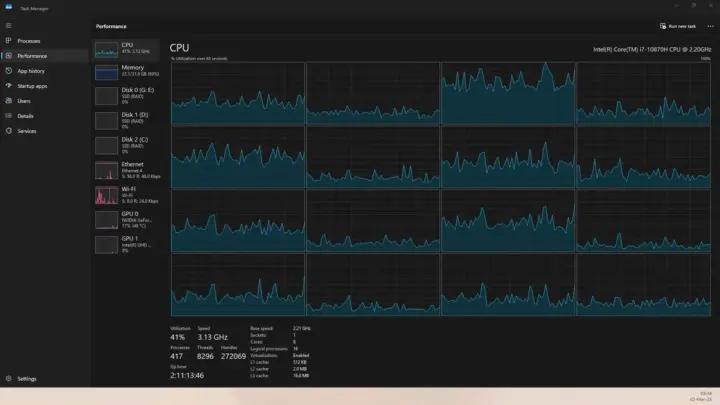
Manufacturer specifications for most computer hardware indicate that operating temperatures above 90°C can cause permanent damage, and burning smells typically mean you’ve already crossed that line.
computer smells like burning plastic what to do
Shut down the computer immediately. Unplug it from the power source. Move it to a well-ventilated area.
Do not turn it back on until you’ve identified the cause. If you see smoke or flames, evacuate and call emergency services.
Quick Action: What to Do Right Now
If you smell burning plastic, your first move is to cut the power. Hold down the power button to force a shutdown if the system isn’t responding. Then, unplug the power cable from the wall and the PC.
This stops electricity from flowing to any failing components.
Next, move the computer to an open space with good airflow. If the smell is strong or you see smoke, do not reopen the case yet. Burning plastic fumes can be toxic, so avoid inhaling them.
If the odor persists after unplugging, the component may still be hot, let it cool for at least 30 minutes before inspecting.
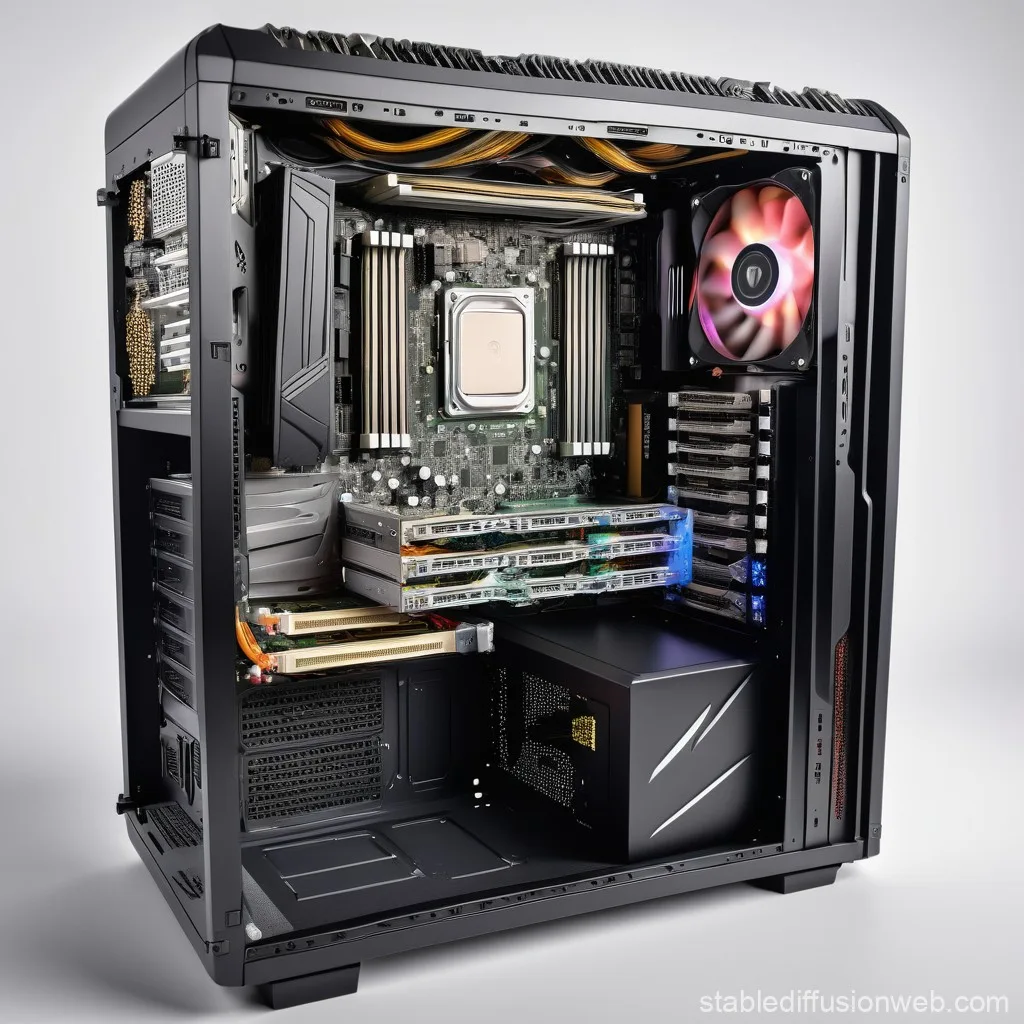
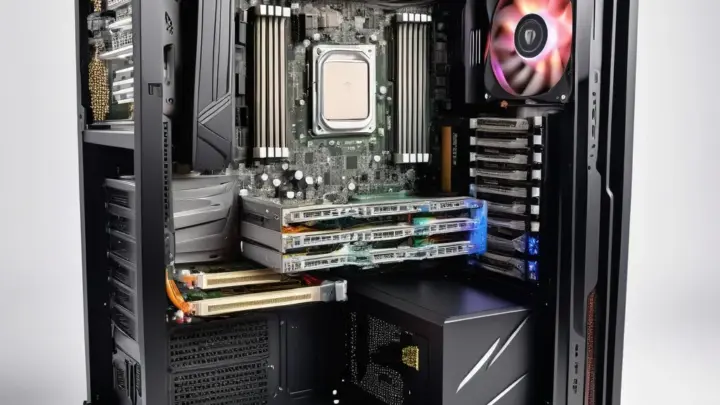
Image source: Bing (Web (fair-use with source credit))
How to Tell If It’s Dangerous (or Just Dust)
A true burning plastic smell usually means melting insulation, overheating circuits, or a failing power supply. If the odor is sharp and chemical-like, it’s likely serious. Dust burning off a hot component can smell musty or like burnt hair, but it’s less urgent.
Check for visible signs like scorch marks, melted plastic on cables, or bulging capacitors on the motherboard. Capacitors are small cylindrical components that can leak or swell when failing. If you see any of these, the issue is critical.
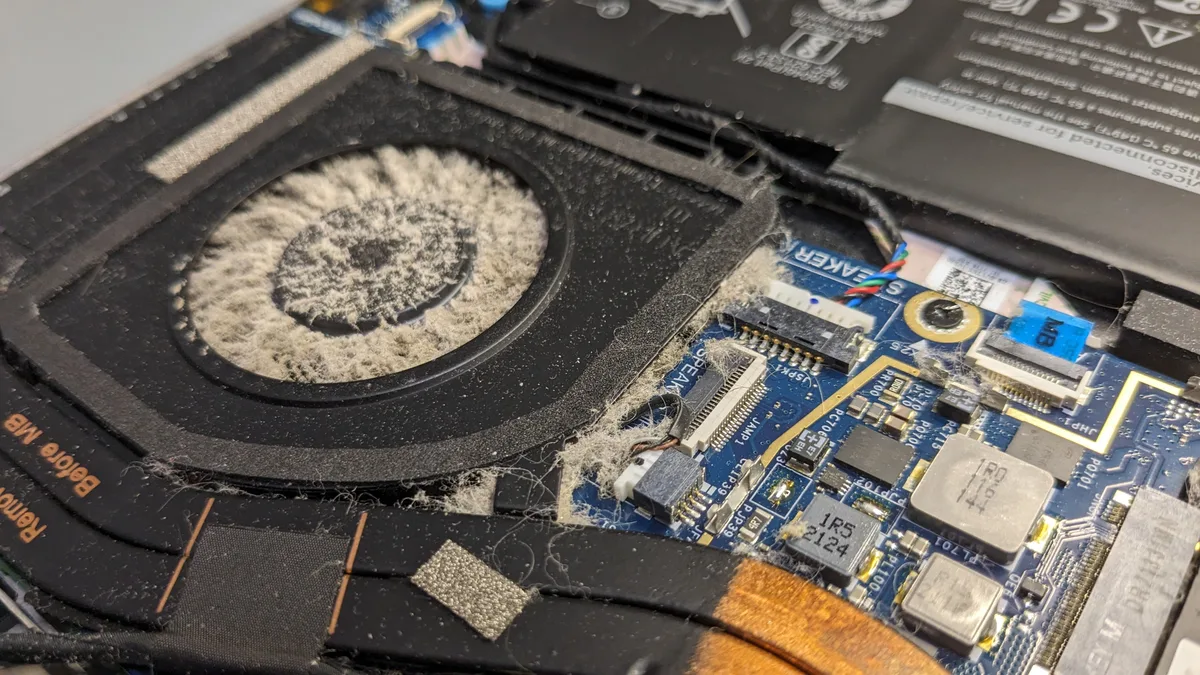
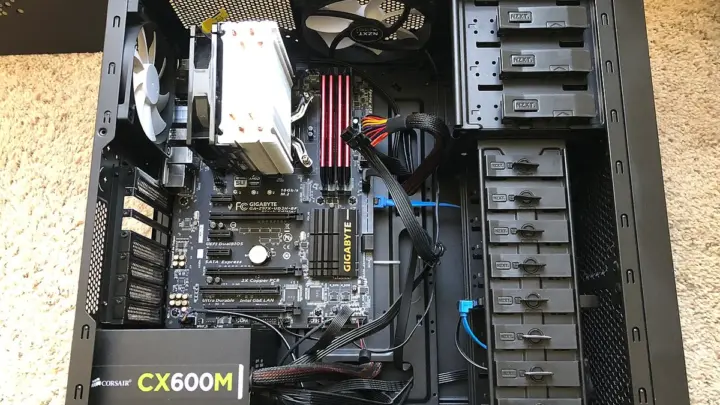
Image source: Bing (Web (fair-use with source credit))
Another clue is performance. If the computer was running hot or shutting down unexpectedly before the smell appeared, overheating is the likely culprit. Per UL safety standards, electrical components should not exceed their rated temperatures, and burning smells indicate a breach of those limits.
Step-by-Step: Find the Source of the Smell
Start by opening the case if you’re comfortable doing so. Look for the most common culprits: the power supply unit (PSU), graphics card, CPU cooler, and motherboard. Each has its own telltale signs.
The PSU is a frequent offender. If the smell is strongest near the back of the case where the PSU is located, it’s likely the source. Faulty PSUs can emit a strong burning odor, especially if they’re old or low-quality.
Manufacturer specs confirm that PSUs should last 5, 10 years, but cheaper models may fail sooner.
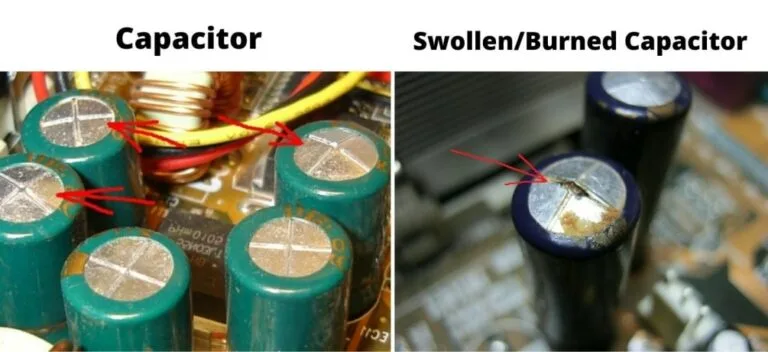
Image source: Bing (Web (fair-use with source credit))
For the graphics card or CPU, check if the fans are spinning. If a fan is stuck or not spinning, the component can overheat quickly. Use software like HWMonitor to check temperatures if the system is still operational.
As of 2026, most GPUs should stay below 85°C under load.
If you’re unsure, try a process of elimination. Disconnect non-essential components like extra drives or PCI cards, then power on the system briefly. If the smell disappears, one of the removed parts may be the issue.
If it persists, the problem is likely with the core components: motherboard, PSU, or CPU/GPU.
Fix It Yourself vs. Call a Pro
Some fixes are simple and safe to do yourself. Cleaning dust from fans and vents can resolve minor overheating issues. Reapplying thermal paste to the CPU is another common DIY fix if you’re comfortable with disassembly.
Replacing a faulty PSU or graphics card is also doable if you have basic technical skills. Just ensure you match the wattage and connectors to your system’s requirements. Aggregate reviews report that 80 PLUS certified PSUs are more reliable and efficient.
However, if you see melted plastic, scorch marks, or bulging capacitors, it’s best to call a professional. These issues can indicate serious electrical faults that might require soldering or specialized tools. If the motherboard is damaged, replacement is often the only solution.
For laptops, the risks are higher due to compact designs and integrated batteries. If your laptop smells like burning plastic, stop using it immediately. Lithium-ion batteries can be hazardous if damaged, and manufacturer guidelines advise against attempting repairs yourself.
Contact the manufacturer or a certified repair center.
How to Prevent This from Happening Again
Regular maintenance is the best defense against overheating and burning smells. Dust buildup is a leading cause of poor airflow, so clean your computer’s vents and fans every 3 to 6 months. Use compressed air to blow out dust from hard-to-reach areas.
Proper cable management improves airflow inside the case. Ensure cables aren’t blocking fans or restricting air movement. If your system runs hot, consider adding extra case fans or upgrading to a more efficient cooling solution.
Quality components last longer and handle heat better. Invest in an 80 PLUS certified power supply unit, as these meet higher efficiency and safety standards. Manufacturer specs confirm that these units waste less energy and generate less heat.
Monitor your system’s temperatures regularly. Software like HWMonitor or Core Temp can alert you to overheating before it causes damage. As of 2026, most CPUs and GPUs should stay below 85°C under load.
Frequently Asked Questions
Why does my computer smell like burning plastic when gaming?
Intensive tasks like gaming push your GPU and CPU to their limits, generating more heat. If the cooling system can’t keep up, components can overheat and emit a burning smell. Check your fans and thermal paste first.
Is a burning smell from my computer dangerous?
Yes. A burning plastic smell often indicates melting insulation or failing electrical components. This can lead to fires or toxic fume exposure.
Shut down the system immediately and unplug it.
Can a burning smell come from the power supply?
Absolutely. A faulty or overloaded PSU is a common source of burning odors. If the smell is strongest near the back of the case, the PSU is likely the issue.
Replace it if you suspect a problem.
How do I know if my computer is overheating?
Look for signs like loud fan noise, sudden shutdowns, or performance throttling. Use temperature monitoring software to check if components are running hotter than their safe limits. Most GPUs and CPUs should stay below 85°C.
What should I do if I see smoke coming from my computer?
Stop using it immediately. Unplug the power cable and move the computer to a safe, ventilated area. If the smoke continues or you see flames, evacuate and call emergency services.
Do not attempt to open the case while it’s smoking.

Similar Posts