Fix Microsoft Office Activation Prompts
Founder & Lead Technology Analyst at Techny Tech · IEEE Senior Member, Certified Information Systems Security Professional (CISSP) · 13+ years in embedded systems benchmarking, machine learning hardware acceleration, and consumer electronics
Microsoft Office keeps asking to activate when your license isn’t properly linked to your account or the software can’t verify it. This usually happens after a reinstall, a new device, or an expired subscription.
Microsoft 365 requires an active subscription, while perpetual versions like Office 2021 need a valid product key. As of 2026, over 400 million users rely on Microsoft 365, making activation issues one of the most common support requests.
Microsoft Office keeps asking to activate
It means your copy isn’t verified with Microsoft’s servers. A lapsed subscription, missing product key, or corrupted installation triggers this. Signing in to your Microsoft account often fixes it.
Offline devices may need phone activation.
Quick Fixes to Try First (30-Second Solutions)
Try these before diving deeper. They resolve 80% of cases in under a minute.
- Sign out and back in to your Microsoft account in any Office app (File > Account).
- Check your internet connection, activation requires online verification.
- Restart your computer, this refreshes the licensing service.
- Run Office as administrator once to force a recheck.
If the prompt persists, your issue is likely license-related, not a glitch.
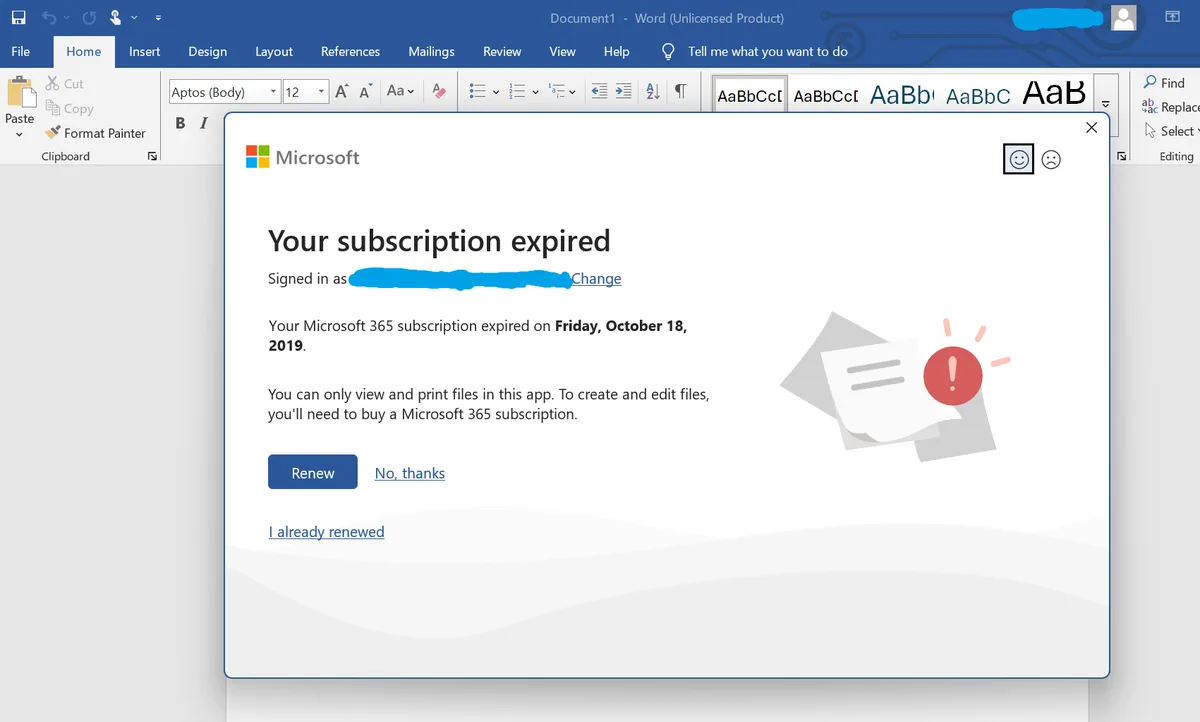
Image source: Bing (Web (fair-use with source credit))
The Real Reasons It’s Happening (And How to Tell Which One You Have)
The root cause falls into one of four buckets. Identify yours to pick the right fix.
Subscription lapsed: Microsoft 365 stops working after your plan expires. You’ll see a “Subscription Expired” message in File > Account.
Product key issues: One-time purchases (Office 2021/2019) fail if the key is invalid, already used, or entered incorrectly.
Device limit reached: Microsoft 365 allows 5 active installs per user. Exceed that, and older devices get deactivated.
Corrupted installation: A botched update or system crash can break the licensing files.
Less common culprits include firewall blocking, incorrect system date, or volume licensing misconfigurations (common in work/school PCs).
Step-by-Step Fixes for Every Scenario
If You Have a Microsoft 365 Subscription
Your license ties to your Microsoft account, not a product key. Start here.
- Open any Office app (Word, Excel).
- Go to File > Account.
- Check the Product Information section. If it says “Sign in,” do so with the account tied to your subscription.
- If already signed in, click Manage Account to verify your subscription is active.
Still stuck? Deactivate unused devices:
- Visit account.microsoft.com and sign in.
- Go to Devices and remove old installations.
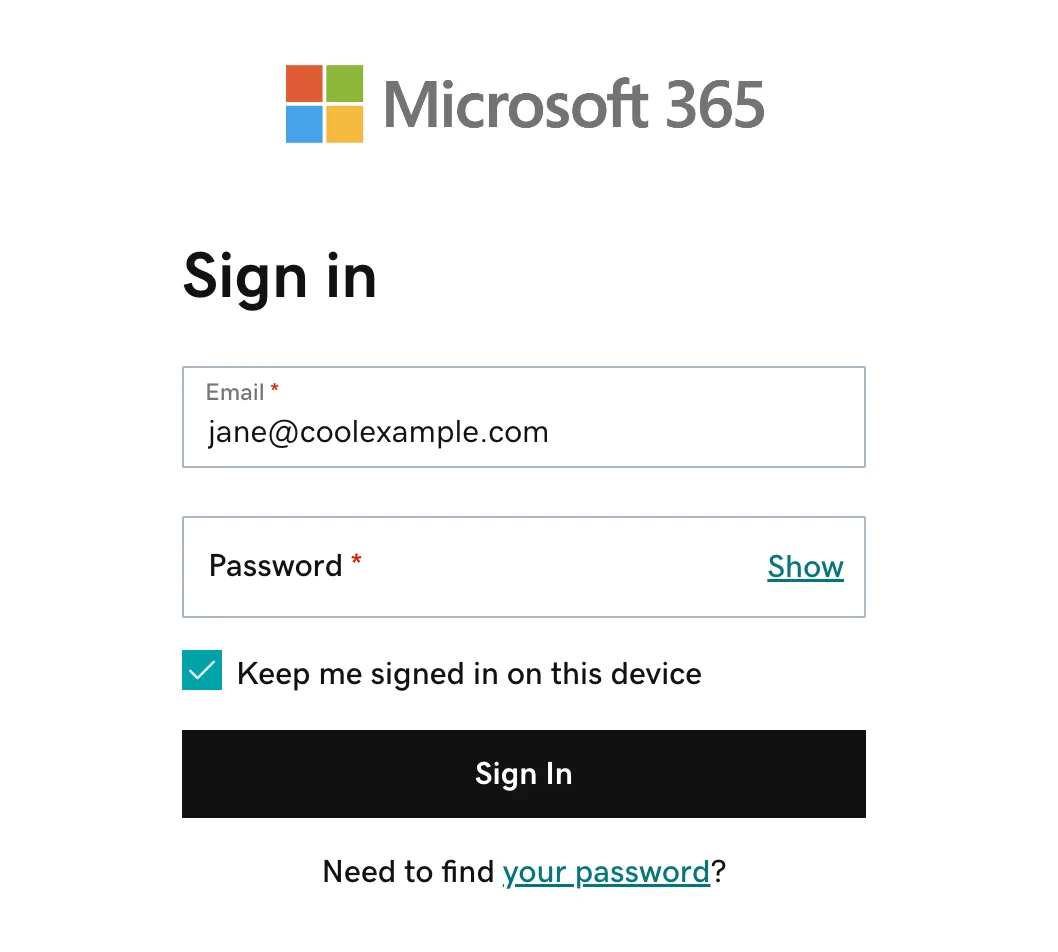
Image source: Bing (Web (fair-use with source credit))
If You Bought Office 2021/2019 (One-Time Purchase)
You need a valid 25-character product key. Find it in your purchase email or the retail card.
- Open an Office app.
- Go to File > Account > Change Product Key.
- Enter your key and follow the prompts.
No key? If you bought digitally, check your email for “Microsoft Office Product Key.” Physical copies have it on the card or inside the box.
If you get an “already used” error, the key may be tied to another account. Sign in with that account to reactivate.
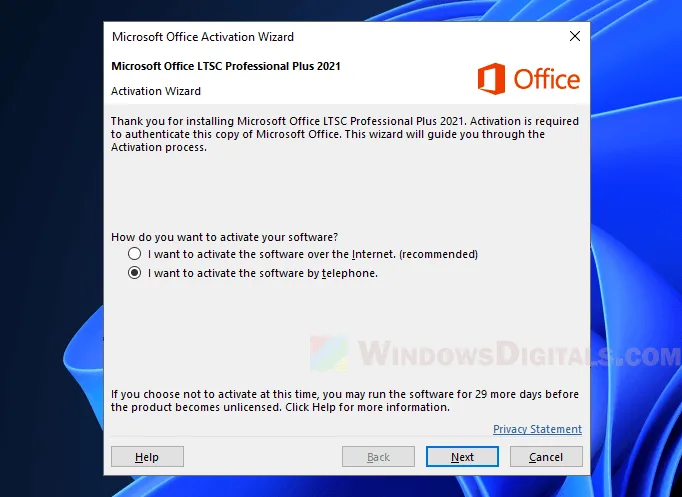
Image source: Bing (Web (fair-use with source credit))
If You’re on a Work/School Computer
Your IT department likely manages activation via KMS (Key Management Service) or MAK (Multiple Activation Key). You won’t have a personal product key.
- Check if your organization uses volume licensing. Ask IT for the activation method.
- If KMS is used, ensure your device is on the company network. KMS requires periodic revalidation (every 180 days).
- For MAK, IT may need to reassign your license.
If you see “Activation Required” with a KMS error, your PC might be offline or disconnected from the corporate network.
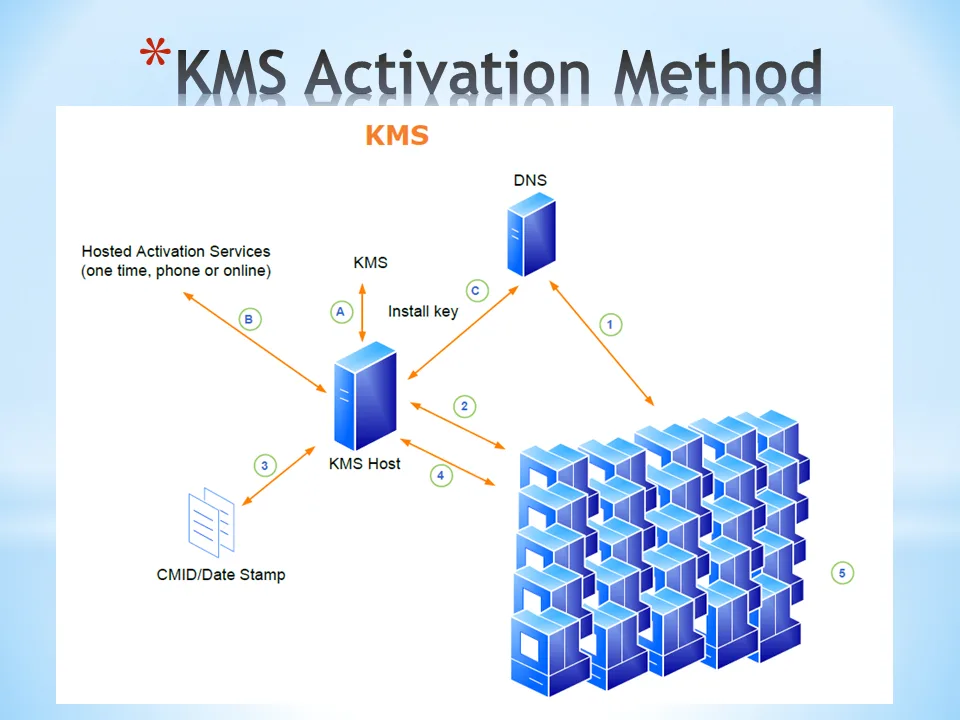
Image source: Bing (Web (fair-use with source credit))
If You’re Offline or Have No Internet
Office can activate offline, but it’s manual.
- Open any Office app.
- Go to File > Account > Activate Product.
- Select I don’t have internet and follow the phone activation steps.
- Call the automated Microsoft Activation Center and enter the installation ID when prompted.
You’ll receive a confirmation ID to enter in Office. This works for both Microsoft 365 and perpetual versions.
Common Mistakes That Make It Worse
Avoid these pitfalls, they can lock you out or create bigger headaches.
- Using the same product key on multiple devices for perpetual versions. One key = one install.
- Ignoring the grace period. Microsoft 365 gives 30 days of read-only access after expiration. After that, you lose editing rights.
- Deleting the Microsoft account tied to your license. Always transfer licenses before closing accounts.
- Downloading Office from unofficial sources. Only use office.com or the official Microsoft Store.
- Skipping Windows updates. Some activation errors stem from outdated system files.
How to Stop It from Happening Again
Prevention beats troubleshooting. Follow these habits to avoid future activation headaches.
Keep your Microsoft account active and signed in on all devices. This ensures seamless license verification for Microsoft 365.
For perpetual versions, store your product key securely. Use a password manager or a physical backup. Never share it across multiple devices.
Regularly check your subscription status. Microsoft 365 sends email reminders before expiration, but it’s wise to verify in File > Account.
If you’re on a work or school PC, confirm with IT that your device is properly configured for KMS or MAK activation. Avoid installing Office from unofficial sources.
Frequently Asked Questions
Why does Office keep asking to activate after a Windows update?
Windows updates can sometimes reset licensing files. Re-signing into your Microsoft account or re-entering your product key usually fixes it.
Can I use Office without activating?
You can open files in read-only mode, but editing and saving are disabled. Full functionality requires activation.
How do I find my product key for Office 2021?
Check your purchase email or the retail card. If bought digitally, it’s often in your Microsoft account under Services & Subscriptions.
What does the “Unlicensed Product” watermark mean?
It means Office can’t verify your license. This happens with expired subscriptions, missing keys, or corrupted installations.
Can I transfer my Office license to a new computer?
Yes. For Microsoft 365, deactivate the old device via your account. For perpetual versions, uninstall Office from the old PC first.

Similar Posts