How to Find Your Motherboard Model in Windows
Founder & Lead Technology Analyst at Techny Tech · IEEE Senior Member, Certified Information Systems Security Professional (CISSP) · 13+ years in embedded systems benchmarking, machine learning hardware acceleration, and consumer electronics
Need to find your motherboard model in Windows but don’t want to crack open your PC? You’re not alone. Knowing where to find motherboard model in Windows saves time when upgrading parts, troubleshooting, or checking compatibility.
The good news: Windows has built-in tools like Command Prompt and System Information that reveal this in seconds. As of 2026, these methods work across Windows 10 and 11 without extra software.
where to find motherboard model in Windows
Open Command Prompt and run wmic baseboard get product,manufacturer. This returns the model instantly.
System Information (msinfo32) lists it under "BaseBoard Product".
Check BIOS/UEFI during boot if Windows tools show generic labels.
These are the three most reliable methods for any modern Windows PC.
Why You’d Need Your Motherboard Model (And When It Matters)
Your motherboard model determines what CPUs, RAM, and storage your system supports. Without it, you risk buying incompatible upgrades or missing critical driver updates.
Manufacturer specs confirm that motherboard models also affect BIOS updates, warranty claims, and even overclocking potential. Whether you’re a gamer, IT pro, or casual user, this info is non-negotiable for smooth operation.
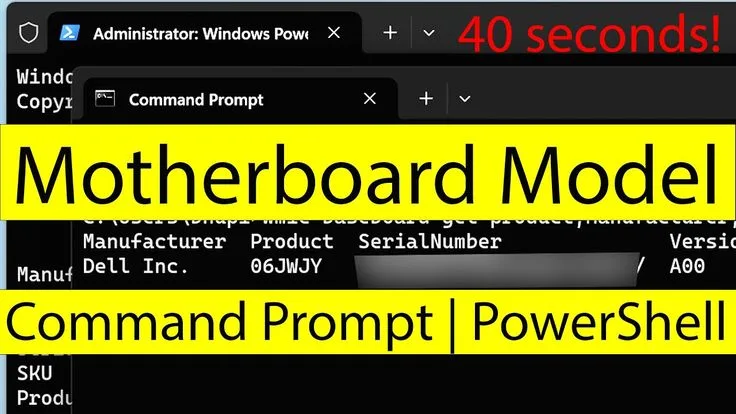
Image source: Bing (Web (fair-use with source credit))
3 Reliable Methods to Check Your Motherboard Model Without Opening Your PC
Method 1: Command Prompt (WMIC) – The Universal Fix
Press Win + R, type cmd, and hit Enter. In the Command Prompt window, run:
wmic baseboard get product,manufacturer,version,serialnumber
This pulls the motherboard model, manufacturer, version, and serial number in one go. It works on nearly all Windows systems, including OEM machines where other methods fail.
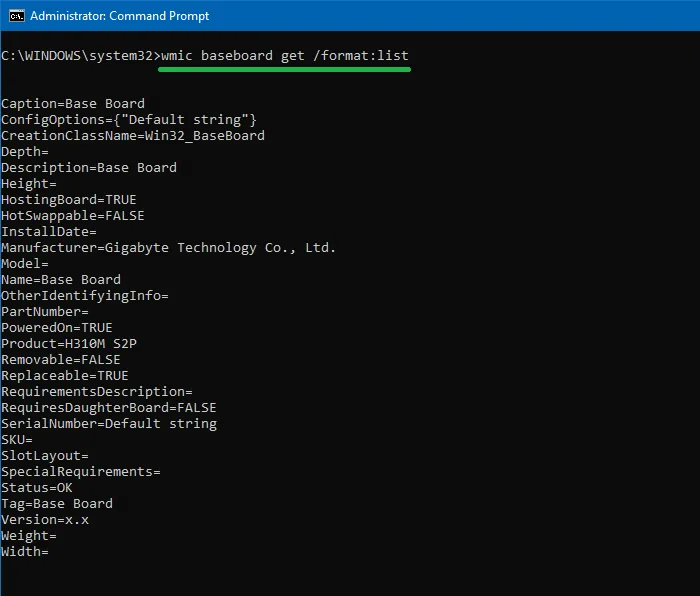
Image source: Bing (Web (fair-use with source credit))
Method 2: System Information (msinfo32) – Built-In and Simple
Open the Run dialog (Win + R), type msinfo32, and press Enter. In the System Information window, look for "BaseBoard Manufacturer" and "BaseBoard Product" under the System Summary section.
This method is beginner-friendly and doesn’t require memorizing commands. However, some OEM systems may show generic labels instead of the exact model.
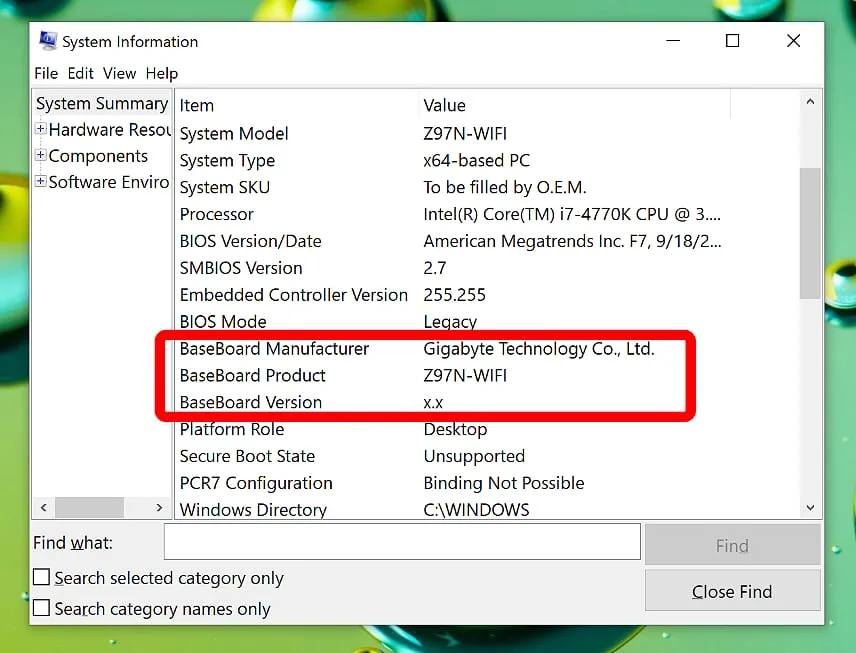
Image source: Bing (Web (fair-use with source credit))
Method 3: BIOS/UEFI – The Last Resort for Stubborn Systems
Restart your PC and enter BIOS/UEFI by pressing the designated key (often F2, DEL, or ESC) during boot. The motherboard model is usually displayed on the main screen or under a "System Information" tab.
This is the most reliable method for prebuilt systems where Windows tools return vague results. Just note that the key to access BIOS varies by manufacturer.
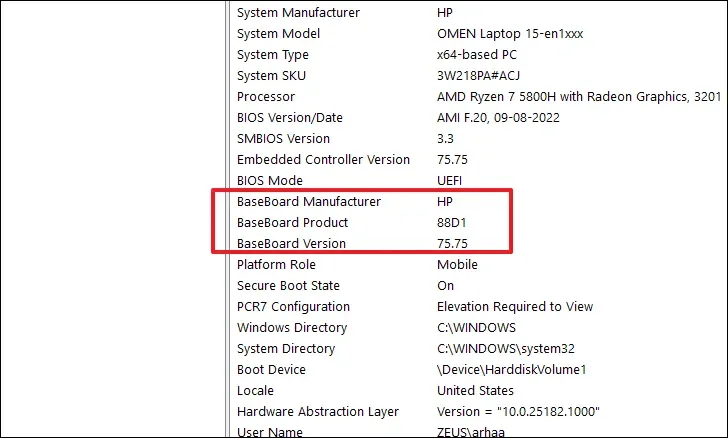
Image source: Bing (Web (fair-use with source credit))
What If Windows Doesn’t Show the Model? (OEMs, Generic Labels, and Workarounds)
OEMs like Dell or HP often hide the actual motherboard model behind custom names. If msinfo32 or wmic returns something like "Standard ATX Motherboard," try these fixes:
Use PowerShell with Get-WmiObject Win32_BaseBoard | Select-Object Manufacturer, Product. This sometimes reveals more details than Command Prompt.
Check the physical motherboard for a printed model number if you’re comfortable opening the case.
For Dell systems, the service tag (found in BIOS or on the chassis) can be entered on Dell’s official support site to retrieve exact specs.
For HP systems, use the HP Support Assistant or enter the product number from the BIOS.
If all else fails, third-party tools like CPU-Z can extract the model, but built-in Windows methods are safer and don’t require additional downloads.
Common Mistakes That Lead to Wrong or Missing Info
Using Device Manager won’t help. It lists the motherboard under "System devices" but rarely shows the actual model number.
Ignoring BIOS access keys can leave you stuck. If you miss the prompt during boot, you’ll need to restart and try again.
Assuming all OEM systems report the model accurately is a mistake. Many prebuilt PCs use custom motherboards with non-standard naming, so cross-check with the manufacturer’s documentation.
Frequently Asked Questions
Why does my motherboard show as "Not Available" in System Information?
This usually happens with OEM systems where the manufacturer doesn’t expose the model to Windows. Try the WMIC command or check BIOS for the actual details.
Can I find the motherboard model in Device Manager?
No. Device Manager lists the motherboard under "System devices" but typically only shows generic names like "Motherboard" or "ACPI" without the actual model number.
Does the motherboard model affect driver installation?
Yes. Some drivers, especially chipset or BIOS updates, are model-specific. Installing the wrong version can cause stability issues or hardware failures.
What if my PC uses a custom motherboard from an OEM?
Use the service tag or product number with the manufacturer’s support site. Dell, HP, and Lenovo all provide model details when you input these identifiers.
Is there a way to check the motherboard model remotely?
Yes, if you have admin access. Use PowerShell remotely with Get-WmiObject Win32_BaseBoard to pull the model from another machine on the same network.
Will these methods work on Windows 7 or older?
Most will, but support for WMIC and WMI varies. The BIOS method is the most reliable for legacy systems.

Similar Posts