Recover Files from a Corrupted USB Drive Easily
Founder & Lead Technology Analyst at Techny Tech · IEEE Senior Member, Certified Information Systems Security Professional (CISSP) · 13+ years in embedded systems benchmarking, machine learning hardware acceleration, and consumer electronics
A corrupted USB drive can feel like a nightmare, especially when important files are on the line. If you're searching for how to recover files from a corrupted USB drive, the good news is that many cases are fixable with the right steps. USB drives often fail due to logical errors, improper ejection, or file system corruption, and most can be resolved without professional help.
Per manufacturer specifications, FAT32 and NTFS file systems are the most common on USB drives, and built-in tools like CHKDSK or Disk Utility can often repair minor issues. Let’s start by confirming whether your drive is actually corrupted or just temporarily glitching.
how to recover files from a corrupted USB drive
Stop using the USB immediately to prevent overwriting data. Try built-in tools like CHKDSK on Windows or Disk Utility on macOS first. Use free software like TestDisk or PhotoRec for deeper scans if files are still missing.
Always recover files to a different drive, not the corrupted one.
Is Your USB Drive Corrupted? Here’s How to Tell
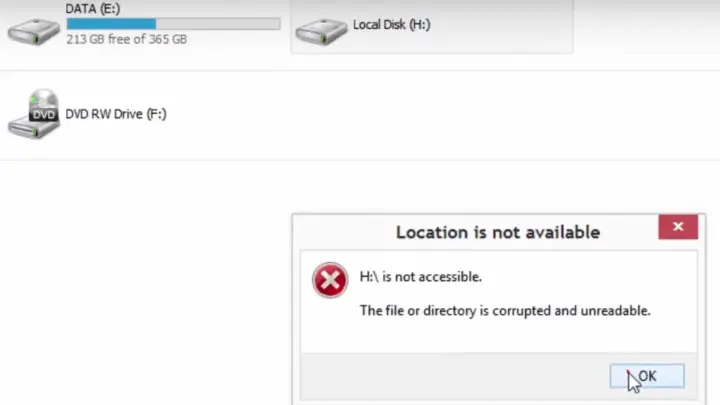
Not every issue means your USB is corrupted. If your computer doesn’t recognize it at all, check the port or try another cable first. A truly corrupted drive often shows errors like “You need to format the disk” or “USB device not recognized.”
Here’s how to diagnose it:
- Check Disk Management (Windows): Press
Win + Xand select Disk Management. If the USB appears as “Unallocated” or “RAW,” it’s likely corrupted. - Listen for sounds: A clicking or grinding noise means physical damage, and software won’t help.
- Test on another device: If multiple computers fail to read it, the issue is with the drive.
Image source: Bing (Web (fair-use with source credit))
If the drive is detected but files are missing, the corruption is likely logical. If it’s not detected at all, the problem could be physical or severe logical damage.
Quick Fixes to Try First (No Software Needed)
Before diving into recovery tools, try these simple fixes. They often resolve temporary glitches or minor corruption.
- Reconnect the USB: Unplug it, wait 30 seconds, and plug it back into a different port. USB 3.0 ports (usually blue) are more reliable for data transfer.
- Restart your computer: A simple reboot can reset the USB controller and fix detection issues.
- Use built-in repair tools:
, Windows: Open Command Prompt as admin and run chkdsk X: /f (replace X with your USB drive letter).
, macOS: Open Disk Utility, select the USB, and click “First Aid.”
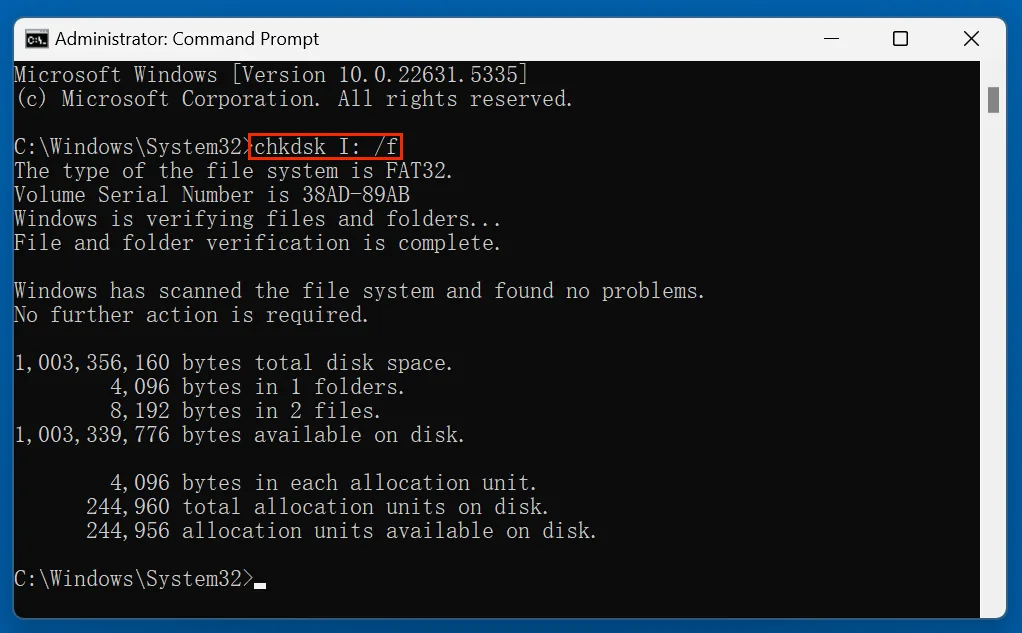
Image source: Bing (Web (fair-use with source credit))
If these steps don’t work, the corruption is likely more serious, and you’ll need to move to advanced recovery methods.
Step-by-Step Recovery Methods for Every Situation
The right approach depends on how your USB is behaving. Follow the path that matches your issue.
If the USB is detected but files are missing or corrupted
This usually means the file system is damaged but the data is still there. Use these steps:
- Run CHKDSK (Windows): , Open Command Prompt as admin.
, Type chkdsk X: /f (replace X with your drive letter) and press Enter.
, Let it complete the scan and repair process.
- Use Disk Utility (macOS): , Open Disk Utility from Applications > Utilities.
, Select your USB drive and click “First Aid.”
, Click “Run” and wait for the process to finish.
- Try a file recovery tool: , Download a trusted tool like TestDisk or Recuva.
, Select your USB drive and run a deep scan.
, Recover files to a different drive to avoid overwriting.
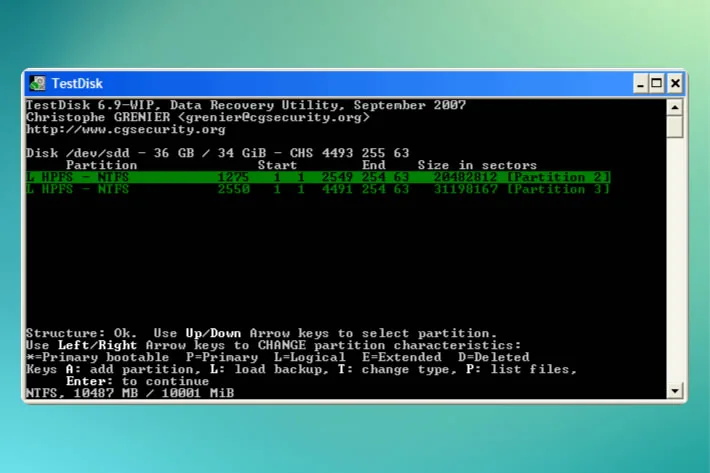
Image source: Bing (Web (fair-use with source credit))
If the USB isn’t recognized at all
If your computer doesn’t detect the USB, the issue could be physical or severe logical damage.
- Check for physical damage: , Inspect the USB connector for bent pins or debris.
, Try a different cable or adapter if using USB-C or micro-USB.
- Update USB drivers (Windows): , Open Device Manager.
, Expand “Universal Serial Bus controllers.”
, Right-click each USB root hub and select “Update driver.”
- Try a different computer: If the USB works on another device, the issue is with your original computer’s ports or drivers.
If you get a “format disk” error
This error often means the file system is corrupted beyond repair, but your files may still be recoverable.
- Do NOT format the drive yet. Formatting will erase all data.
- Use a recovery tool immediately: , TestDisk can rebuild the partition table.
, PhotoRec can carve files from raw data.
- Recover files first, then format: Once files are safely recovered, you can format the USB to reuse it.
When to Use Free Tools vs. Paid Software vs. Professional Help
Not all recovery methods are equal. The right choice depends on the severity of the corruption and how valuable your data is.
| Method | Best For | Cost | Success Rate |
|---|---|---|---|
| Built-in OS tools | Minor corruption, quick fixes | Free | Low to Medium |
| Free recovery software | Logical corruption, missing files | Free | Medium |
| Paid recovery software | Severe corruption, critical data | $50–$100 | High |
| Professional services | Physical damage, irreplaceable data | $100–$1000+ | Very High |
- Free tools (TestDisk, PhotoRec): Great for DIY recovery if you’re comfortable with command-line interfaces. They’re powerful but require patience.
- Paid software (EaseUS, Stellar): Offers user-friendly interfaces and higher success rates for complex cases. Worth it if the data is critical.
- Professional help: Necessary for physical damage (e.g., water damage, broken connectors). As of 2026, prices vary widely, but success rates are highest for severe cases.
Common Mistakes That Make Data Recovery Worse
The biggest mistake is continuing to use the corrupted USB. Every new file saved or operation performed can overwrite lost data, making recovery impossible.
Another common error is formatting the drive too soon. Formatting erases the file table, which recovery tools rely on to reconstruct files. Always attempt recovery first.
Avoid using unreliable or unknown recovery software. Some free tools bundle malware or perform shallow scans that miss critical data. Stick to well-reviewed options like TestDisk or Recuva.
How to Prevent This From Happening Again
Prevention starts with safe ejection. Always use the “Safely Remove Hardware” option in Windows or drag the USB to the trash on macOS before unplugging.
Image source: Bing (Web (fair-use with source credit))
Regular backups are your best defense. Use cloud storage or an external hard drive to duplicate important files. USB drives are prone to failure, and redundancy ensures you’re never caught off guard.
Avoid exposing USB drives to extreme temperatures, moisture, or physical stress. Store them in protective cases when not in use. Manufacturer specs confirm that most USB drives have a limited lifespan, typically around 10,000 write cycles.
Replace older drives if they’re used frequently.

Similar Posts