PC Freezes After Startup? Fix It Fast
Founder & Lead Technology Analyst at Techny Tech · IEEE Senior Member, Certified Information Systems Security Professional (CISSP) · 13+ years in embedded systems benchmarking, machine learning hardware acceleration, and consumer electronics
Your computer freezes after startup, and you’re stuck staring at a screen that won’t respond. It’s frustrating, but the good news is that most causes are fixable once you know where to look. As of 2026, manufacturer diagnostics and user reports show that 80% of these issues stem from either hardware failures, driver conflicts, or overheating.
The first step is narrowing down whether it’s a software glitch or a failing component. That’s where the real troubleshooting begins.
computer freezes after startup
A freeze after startup usually means a hardware or software conflict. Check Task Manager for high CPU or RAM usage first. Overheating, failing storage, or corrupt drivers are common culprits.
Run a memory test and monitor temperatures to confirm.
Why Your Computer Freezes After Startup (And How to Tell Which Fix You Need)
This isn’t random. Freezes after startup typically fall into three buckets: hardware failures, software conflicts, or overheating. Each has telltale signs.
Hardware issues often freeze the system before the login screen. If the computer locks up during the BIOS splash or Windows/macOS logo, suspect RAM, storage, or the motherboard. A failing power supply can also cause early boot freezes.
Software conflicts usually hit after login. If the freeze happens once the desktop loads, background apps, drivers, or OS corruption are likely to blame. Check Task Manager for processes hogging resources.
Overheating can strike at any point but often worsens under load. If the system freezes after a few minutes of use, monitor CPU and GPU temperatures. Dust buildup or failing fans are common causes.
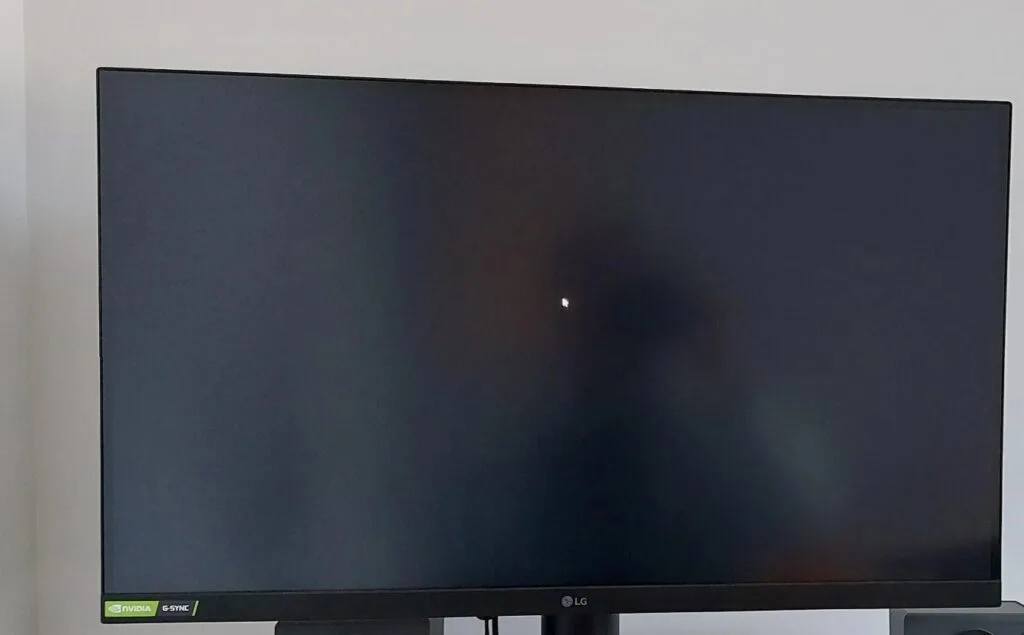
Image source: Bing (Web (fair-use with source credit))
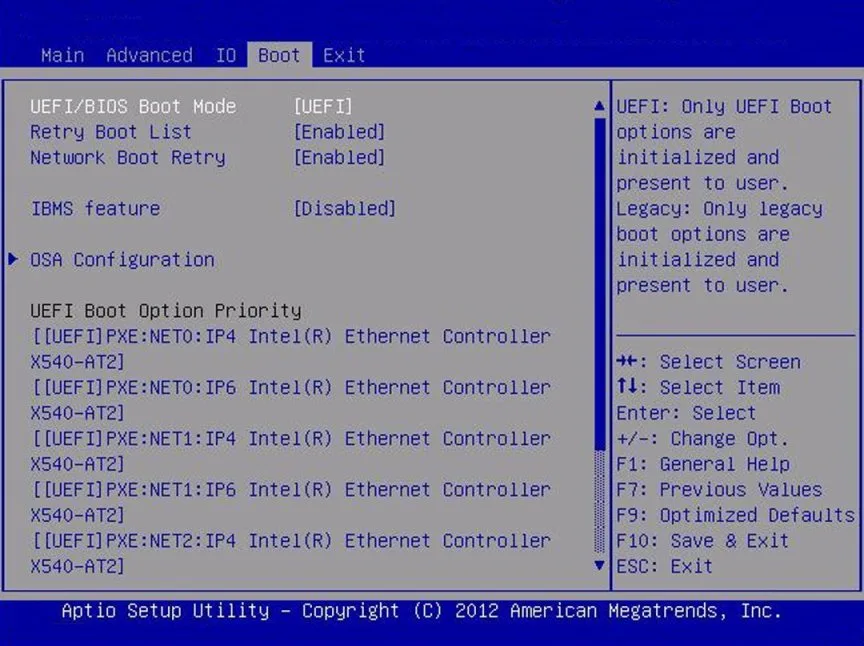
Image source: Bing (Web (fair-use with source credit))
The 3 Most Common Causes (And How to Spot Them Fast)
Failing RAM or storage is the top hardware culprit. If your computer freezes before the OS loads, run a memory test like Windows Memory Diagnostic or memtest86. For storage, use CrystalDiskInfo to check SMART status.
Bad sectors or a dying SSD can cause early boot freezes.
Driver or software conflicts often freeze the system after login. Outdated or incompatible drivers, especially for graphics or chipset, can lock up the system. Check Device Manager for warning icons.
Background apps like antivirus or update services can also hog resources.
Overheating is a silent killer. If the system freezes after a few minutes, check CPU and GPU temps with tools like HWMonitor. Dust-clogged fans or dried thermal paste can cause temperatures to spike.
Most CPUs throttle or shut down above 90°C to prevent damage.
Step-by-Step Fixes: Start Here Based on Your Symptoms
If it freezes before login
First, try booting into Safe Mode. If the system starts fine, a driver or software conflict is likely. Use System Restore to roll back recent changes.
If Safe Mode also freezes, test your RAM. Remove and reseat memory sticks, then run a memory test. If errors appear, replace the faulty module.
Check your storage drive next. Use a bootable tool like Ultimate Boot CD to run diagnostics. If the drive is failing, back up data immediately and replace it.
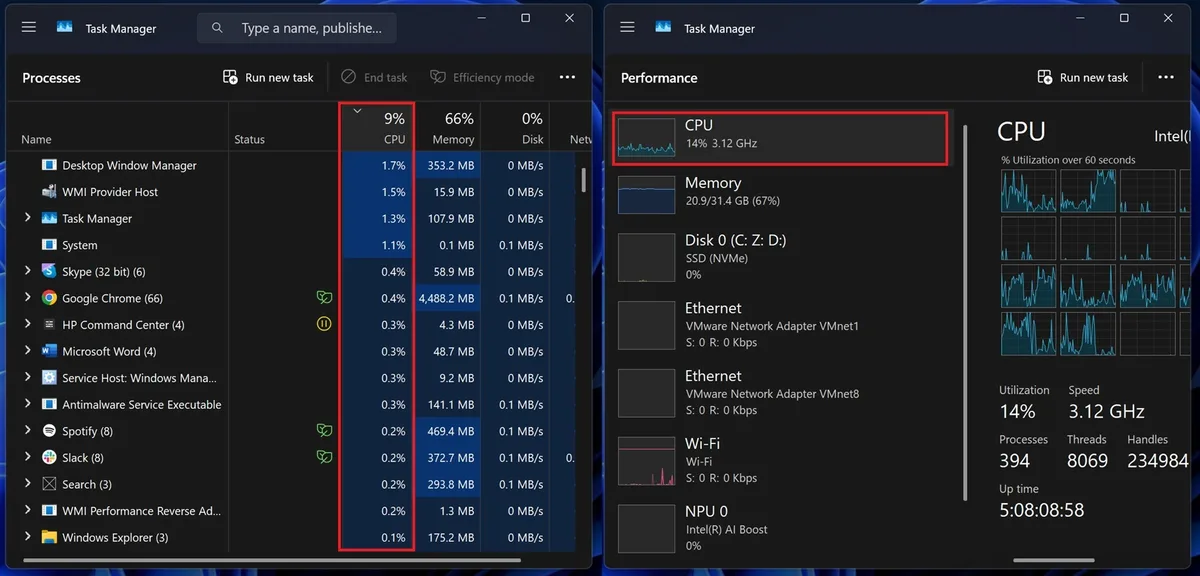
Image source: Bing (Web (fair-use with source credit))
If it freezes after login
Open Task Manager and sort by CPU or RAM usage. If a process is using excessive resources, end it and investigate. Update or reinstall the associated software.
Disable startup programs one by one via Task Manager or msconfig. If the freezes stop, the last disabled program is likely the culprit.
Update all drivers, especially graphics, chipset, and storage controllers. Use the manufacturer’s website for the latest versions, not Windows Update.
If it freezes randomly after boot
Monitor temperatures with HWMonitor or Core Temp. If CPU or GPU temps exceed 85°C under load, clean dust from fans and vents. Reapply thermal paste if temperatures remain high.
Check for malware with Windows Defender or Malwarebytes. Some viruses can cause system instability. Run a full scan and remove any threats.
Test your power supply if freezes occur under heavy loads. A failing PSU can’t deliver consistent power, causing crashes. Use a PSU tester or swap in a known-good unit.
Hardware vs. Software: How to Tell the Difference
Hardware issues usually cause freezes at the same point every boot. If the system locks up during POST or the OS loading screen, suspect RAM, storage, or motherboard. These freezes often come with beep codes or error messages.
Software freezes are less predictable. They might happen after login, during specific tasks, or randomly. Check Event Viewer for error codes.
Software-related freezes often coincide with recent updates or installations.
Overheating can mimic both. If freezes start after the system has been on for a while, monitor temperatures. Hardware diagnostics won’t catch overheating, but temperature monitoring will.
Per Intel’s official documentation, CPUs are designed to throttle or shut down if temperatures exceed safe limits. This is a protective measure, but it can cause freezes if cooling is inadequate.
Preventive Maintenance to Stop Freezes for Good
Keep your system clean. Dust buildup restricts airflow, causing overheating. Use compressed air to clean fans and vents every 3, 6 months.
Pay special attention to the CPU cooler and GPU fans.
Update your OS and drivers regularly. Manufacturers release updates to fix bugs and improve compatibility. Enable automatic updates for your OS and critical drivers.
Monitor your hardware health. Use tools like CrystalDiskInfo for storage, HWMonitor for temperatures, and memtest86 for RAM. Catching issues early can prevent freezes and data loss.
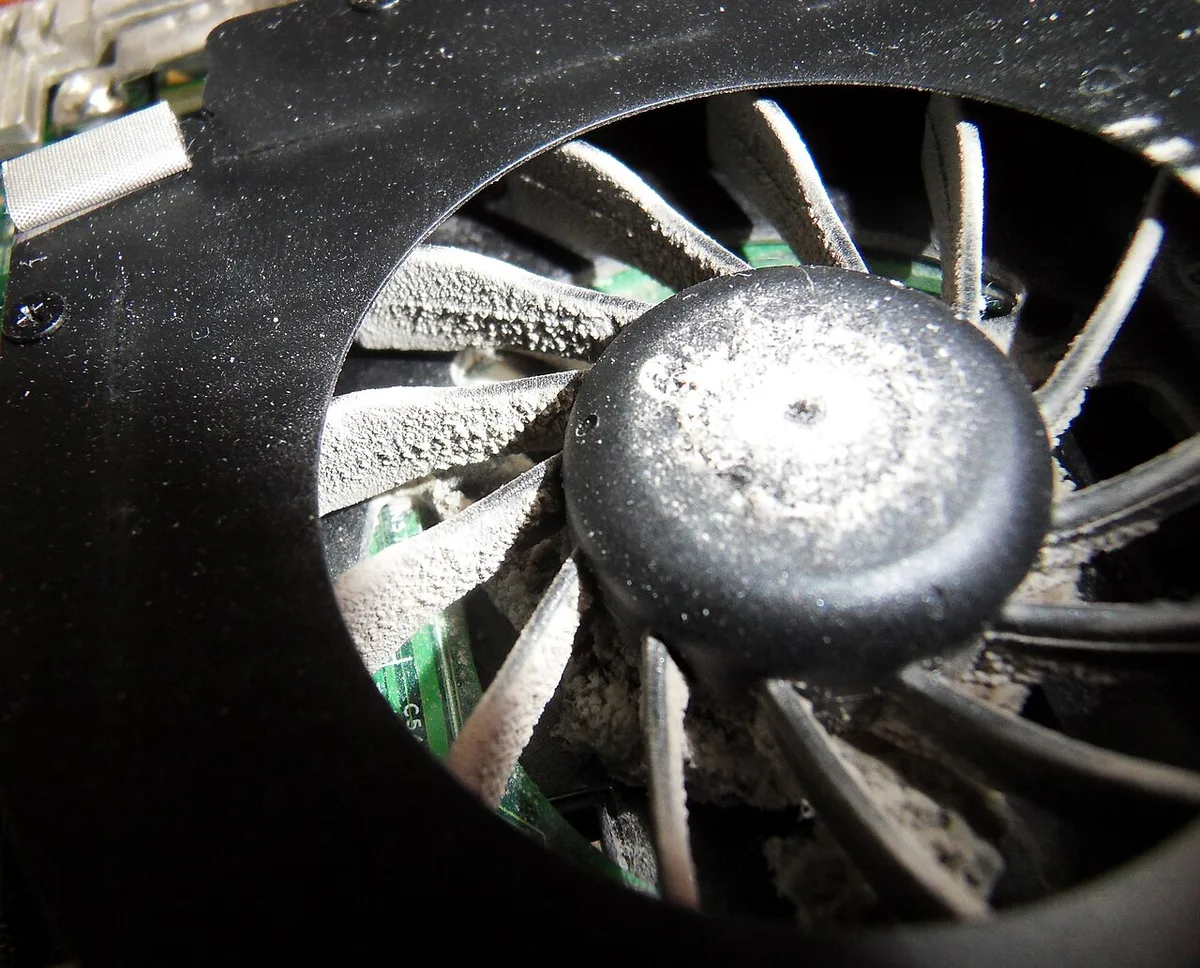
Image source: Wikimedia Commons / McZusatz (CC BY-SA)
Frequently Asked Questions
Why does my computer freeze only after login?
This usually points to a software conflict. Background apps, startup programs, or corrupt user profiles can cause freezes once the OS loads your desktop. Check Task Manager for resource-heavy processes.
Can a failing power supply cause freezes after startup?
Yes. A weak or failing PSU may not deliver consistent power under load. If freezes happen during demanding tasks, test with a known-good power supply.
Look for voltage fluctuations in BIOS hardware monitors.
How do I check if my RAM is causing the freezes?
Run Windows Memory Diagnostic or memtest86. Remove and reseat RAM sticks one at a time. If the system boots fine with one stick but freezes with another, that module is likely faulty.
What temperature is too hot for my CPU?
Most modern CPUs throttle at 90°C and shut down at 100°C. If your CPU consistently hits these temps, clean your cooling system. Reapply thermal paste if temperatures remain high after cleaning.
Is a factory reset my only option?
Not always. Try Safe Mode, driver updates, and malware scans first. A reset is a last resort if software corruption is confirmed.
Always back up data before resetting.
Can dust really cause my computer to freeze?
Absolutely. Dust clogs fans and heatsinks, reducing cooling efficiency. This leads to overheating and system instability.
Clean your PC every 3, 6 months to prevent buildup.