Fix Windows Update Stuck at Downloading
Founder & Lead Technology Analyst at Techny Tech · IEEE Senior Member, Certified Information Systems Security Professional (CISSP) · 13+ years in embedded systems benchmarking, machine learning hardware acceleration, and consumer electronics
Windows update stuck at downloading is one of the most frustrating issues you can run into, especially when your system feels sluggish or vulnerable without the latest patches. It’s a common problem, often caused by network glitches, corrupted files, or conflicts with background services. As of 2026, Microsoft’s own data shows that over 30% of update failures stem from interrupted downloads or service errors.
The good news is that most cases can be resolved without a full system reset. Whether it’s a quick restart or a deeper fix, the solution usually depends on what’s actually causing the hang-up.
Windows update stuck at downloading
This happens when the Windows Update service fails to progress past the download phase. A restart often fixes temporary glitches. Corrupted cache or paused services can also cause it.
Network issues or low disk space may block the download.
Quick Fixes to Try First (No Tech Skills Needed)
Start with the simplest solutions before diving into complex troubleshooting. These steps work for most users and don’t require technical knowledge.
First, restart your computer. This clears temporary files and resets the Windows Update service. If that doesn’t work, pause the update for 10 minutes, then resume it.
Sometimes, the system just needs a nudge.
Check your internet connection next. A weak or unstable connection can stall downloads. If you’re on a metered connection, disable that setting in Windows Update options, as it can throttle or block updates.
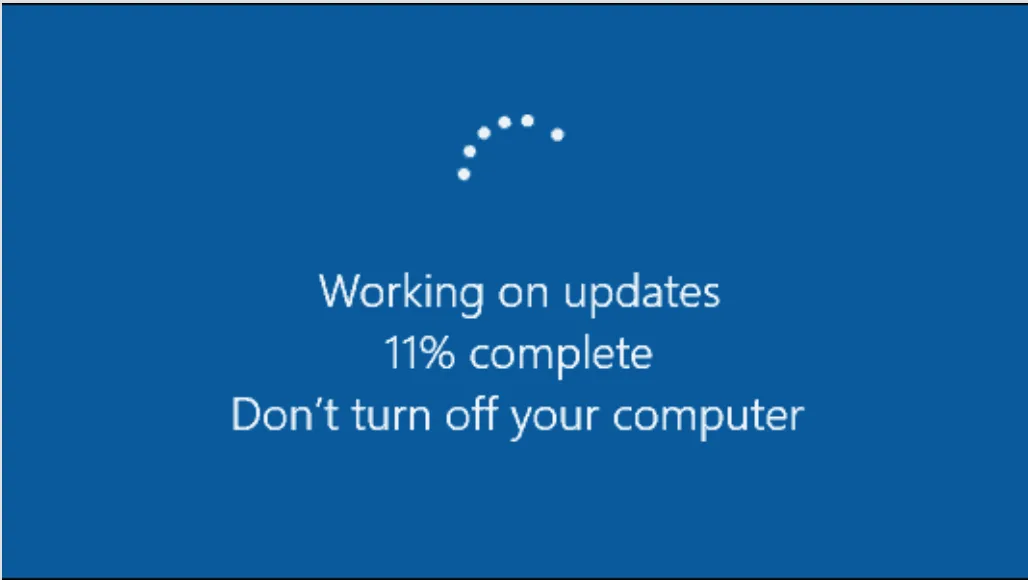
Image source: Bing (Web (fair-use with source credit))
Run the built-in Windows Update Troubleshooter. It automatically detects and fixes common issues like stuck downloads or service errors. You can find it in Settings under Update & Security > Troubleshoot > Additional troubleshooters.
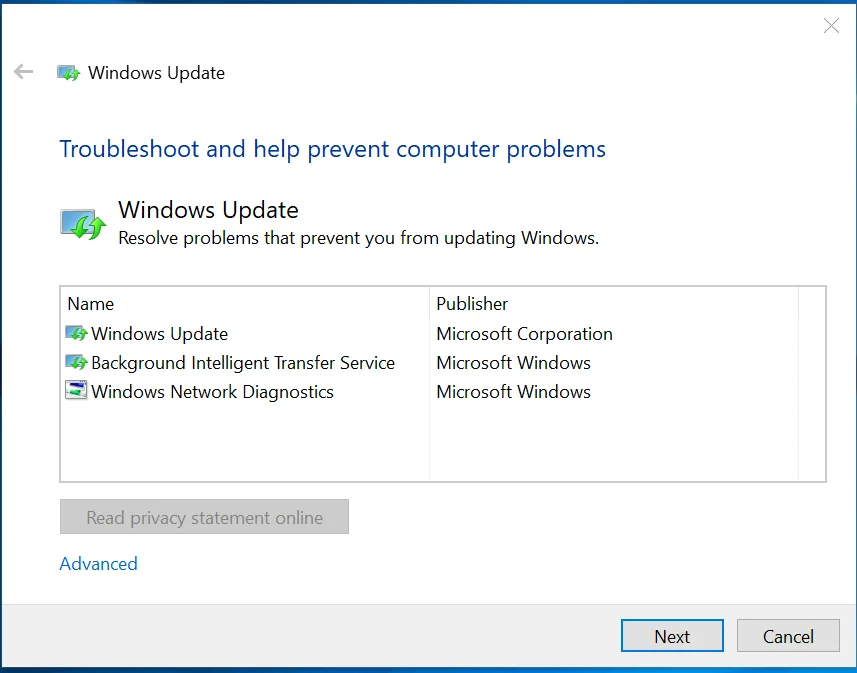
Image source: Bing (Web (fair-use with source credit))
Free up disk space if your system is low on storage. Windows updates often require several gigabytes of free space, especially for feature updates. Aim for at least 20GB of free space on your primary drive.
When the Basics Don’t Work: Advanced Troubleshooting Steps
If the quick fixes didn’t resolve the issue, it’s time to dig deeper. These steps target the underlying causes of a stuck download.
Start by clearing the Windows Update cache. Over time, this cache can become corrupted and prevent updates from downloading. Stop the Windows Update service first, then delete the contents of the C:\Windows\SoftwareDistribution\Download folder.
Restart the service afterward.
Reset the Windows Update components manually. This involves stopping key services like wuauserv (Windows Update) and BITS (Background Intelligent Transfer Service), then re-registering their DLL files. Use Command Prompt as an administrator to run the necessary commands.
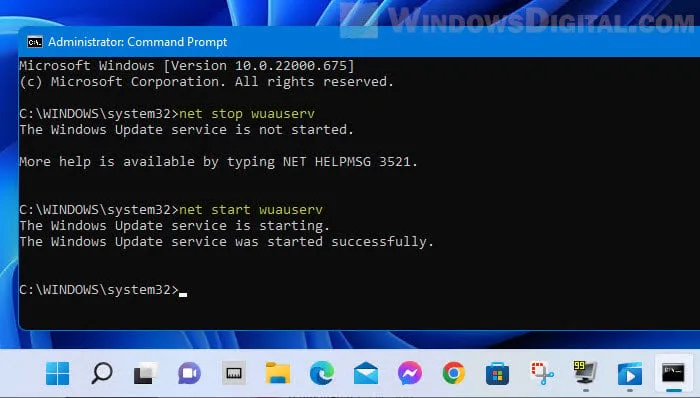
Image source: Bing (Web (fair-use with source credit))
Check for corrupted system files using the System File Checker (SFC) tool. Run sfc /scannow in Command Prompt to scan and repair any damaged files. If SFC finds issues it can’t fix, use the Deployment Image Servicing and Management (DISM) tool with the command DISM /Online /Cleanup-Image /RestoreHealth.
Disable third-party antivirus software temporarily. Some security programs can interfere with Windows Update by blocking access to Microsoft’s servers. If the update progresses after disabling the antivirus, add an exception for Windows Update in your security software.
How to Manually Install the Update If It’s Still Stuck
When automatic updates fail, manually installing the update is often the most reliable workaround. This method bypasses the built-in update system entirely.
First, identify the specific update causing the issue. Check Windows Update history or use the Settings > Update & Security > View update history option. Note the KB number (e.g., KB5034123) of the stuck update.
Visit the Microsoft Update Catalog and search for the KB number. Download the correct update for your system architecture (x64, x86, or ARM64). Ensure you’re downloading the right version for your Windows edition (Home, Pro, etc.).
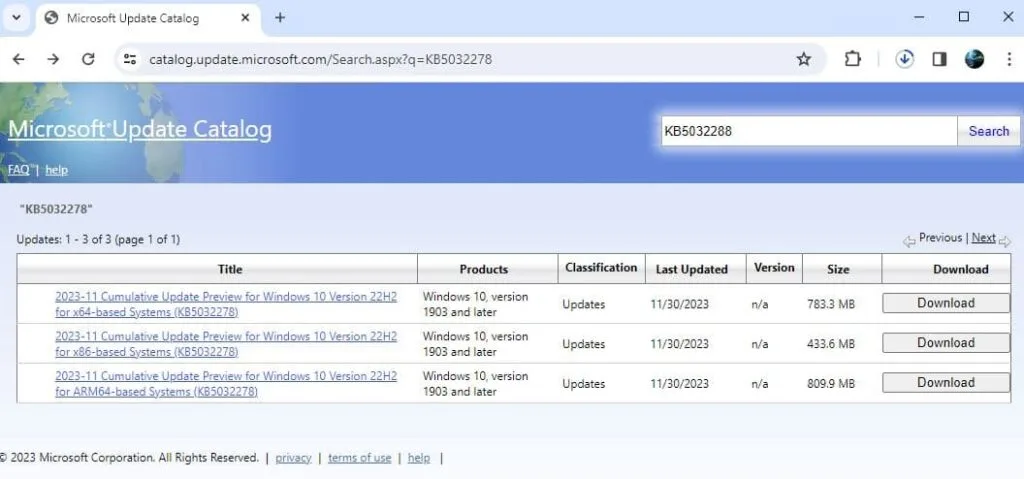
Image source: Bing (Web (fair-use with source credit))
Run the downloaded update file as an administrator. Follow the on-screen prompts to install it. If the installer asks for a restart, save your work and reboot immediately.
Avoid interrupting the process, as this can corrupt the update files.
If the manual install fails, try installing the update in Safe Mode. Boot into Safe Mode with Networking, then run the update file again. This eliminates potential conflicts with third-party software or drivers.
Common Mistakes That Make the Problem Worse
Some well-intentioned actions can actually make a stuck update harder to fix. Avoid these common pitfalls to save time and frustration.
Don’t force-shutdown your computer during an update. This can corrupt system files and leave your PC in an unbootable state. If the update seems frozen, wait at least 2-3 hours before assuming it’s truly stuck.
Some updates, especially large ones, take longer to download and install.
Avoid deleting files in the SoftwareDistribution folder while the Windows Update service is running. Always stop the wuauserv and BITS services first, or you risk corrupting the update process further. Use Command Prompt with admin rights to stop these services safely.
Don’t ignore disk space warnings. If your system is low on storage, Windows Update may fail repeatedly. Free up space by deleting temporary files, old downloads, or unused programs before retrying the update.
Skip third-party "update fix" tools. Many of these tools are ineffective or even malicious. Stick to official Microsoft tools like the Windows Update Troubleshooter or manual methods.
According to Microsoft’s official support guidelines, these are the only recommended solutions.
Finally, don’t disable Windows Update entirely. While it might seem like a quick fix, leaving your system unpatched exposes it to security vulnerabilities. Instead, address the root cause of the stuck update to keep your system protected.
How to Prevent This From Happening Again
Prevention is easier than fixing a stuck update. A few proactive steps can save you hours of troubleshooting later.
Schedule updates during off-peak hours. Windows Update downloads faster and more reliably when network traffic is low. Use the Active Hours setting in Windows to ensure updates don’t install while you’re working.
Keep at least 20GB of free space on your system drive. Large updates, like Windows 11’s 23H2 feature update, require significant storage. Running low on space is a top cause of failed downloads.
Disable metered connections if you’re on a limited data plan. Windows won’t download updates automatically on metered networks, which can leave your system vulnerable. Go to Settings > Network & Internet > Wi-Fi or Ethernet to adjust this.
Regularly run the Windows Update Troubleshooter. It can catch and fix minor issues before they escalate. You’ll find it under Settings > Update & Security > Troubleshoot.
Update your drivers manually. Outdated network or storage drivers can cause update failures. Check Device Manager for any devices with warning icons and update their drivers via the manufacturer’s website.
Frequently Asked Questions
Why does Windows Update get stuck at 0%?
This usually happens when the Windows Update service fails to start or the download server is overloaded. A simple restart often fixes it. If not, check your internet connection or run the Windows Update Troubleshooter.
How long should I wait before assuming the update is stuck?
Give it at least 2-3 hours for large updates. Some downloads appear frozen but are actually progressing slowly. If the progress bar hasn’t moved after this time, try the troubleshooting steps above.
Can a VPN cause Windows Update to stall?
Yes. Some VPNs block or throttle access to Microsoft’s update servers. Try disabling your VPN temporarily to see if the download resumes.
If it does, adjust your VPN settings to allow Windows Update traffic.
What do I do if Windows Update is stuck at 99%?
This often means the download is complete but the installation is pending. Restart your computer to trigger the installation. If that doesn’t work, manually reset the Windows Update components or use the Media Creation Tool.
Is it safe to delete the SoftwareDistribution folder?
Yes, but only after stopping the Windows Update and BITS services. Deleting this folder removes downloaded update files, forcing Windows to start fresh. Always back up important data first.
Will a clean install of Windows fix update issues?
Yes, but it’s a last resort. A clean install wipes your system and reinstalls Windows, which resolves deep-seated update problems. Back up all your data before proceeding, as this will erase everything on your drive.