Fix Windows Shared Folder Access Error Easily
Founder & Lead Technology Analyst at Techny Tech · IEEE Senior Member, Certified Information Systems Security Professional (CISSP) · 13+ years in embedded systems benchmarking, machine learning hardware acceleration, and consumer electronics
You’ve just tried to open a shared folder on your network, and Windows slaps you with an error. The message is clear: Windows cannot access shared folder. It’s frustrating, but it’s also fixable.
This issue usually boils down to permissions, network settings, or the SMB protocol. As of 2026, Windows 10 and 11 disable the older SMBv1 by default for security, which can break access to older shares.
Windows cannot access shared folder
This error means your PC can’t connect to a shared folder on another device. It’s often caused by disabled network discovery, blocked firewall ports, or mismatched SMB versions. Check your network settings first.
Permissions or credentials may also be the culprit.
Why You’re Seeing “Windows Cannot Access Shared Folder”
The error pops up when Windows fails to establish a connection to a shared resource. This could be due to a disabled service, incorrect permissions, or a network misconfiguration.
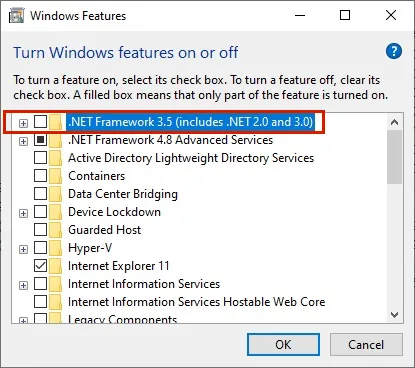
Network Discovery and File and Printer Sharing must be enabled for local sharing to work. If either is off, your PC won’t see or access shared folders. SMB, the protocol Windows uses for sharing, might also be blocked by your firewall or disabled in Windows Features.
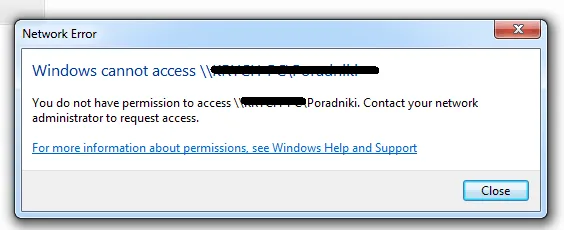
Image source: Bing (Web (fair-use with source credit))
Another common issue is using outdated SMB versions. Windows 10 and 11 disable SMBv1 by default due to security risks like EternalBlue. If the shared folder is on an older device, this mismatch can cause the error.
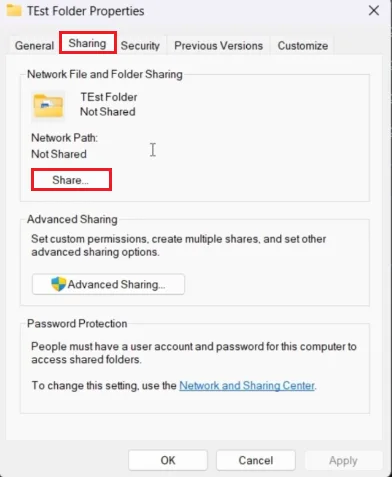
Image source: Bing (Web (fair-use with source credit))
Quick Fixes to Try First (30-Second Solutions)
Start with the simplest fixes before diving deeper. These steps often resolve the issue in under a minute.
Restart your router and both PCs. This clears temporary network glitches that might block access. Then, ensure both devices are on the same network profile, like Private, not Public.
Enable Network Discovery and File and Printer Sharing. Open Control Panel > Network and Sharing Center > Advanced sharing settings and turn them on for your current profile.
Try accessing the share using the target PC’s IP address instead of its name. For example, use \\192.168.1.100\SharedFolder in File Explorer. This bypasses potential DNS or hostname resolution issues.
The 5 Most Common Causes (And How to Diagnose Yours)
Not all causes are equal. Here’s how to identify which one is blocking your access.
Network Discovery or File Sharing is disabled. If you can’t see the other PC in File Explorer under Network, this is likely the issue. Check Advanced sharing settings in the Control Panel.
Firewall is blocking SMB traffic. Windows Defender Firewall or third-party firewalls can block the ports SMB uses. SMB typically requires TCP port 445, along with UDP 137-138 and TCP 139 for NetBIOS.
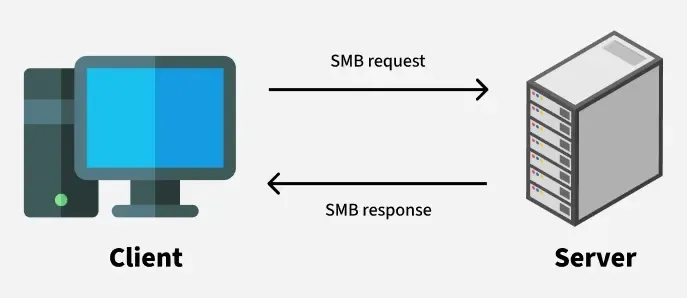
Image source: Bing (Web (fair-use with source credit))
Incorrect permissions. Even if you can see the shared folder, you might lack the rights to access it. Check both Share Permissions and NTFS Permissions on the target PC.
SMB version mismatch. If the host uses SMBv1 and your PC has it disabled, you’ll get this error. Windows 10 and 11 disable SMBv1 by default for security reasons.
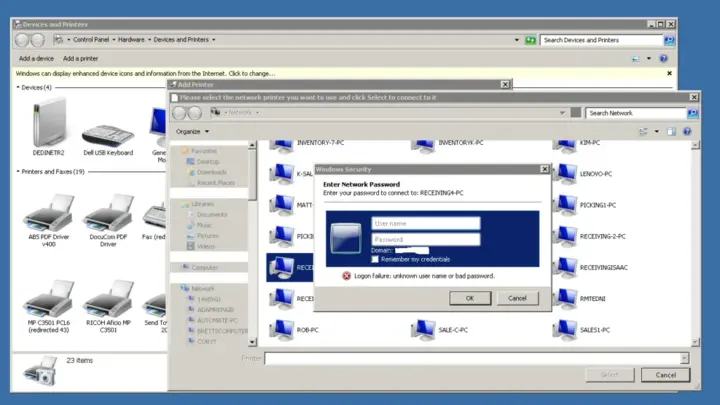
Credential issues. If the shared folder requires a username and password, Windows might be using cached or incorrect credentials. Clear them in Credential Manager and re-enter the correct ones.
Step-by-Step Fixes for Each Scenario
Follow these targeted fixes based on the cause you’ve identified.
If Network Discovery or File Sharing is disabled:
Open Control Panel > Network and Sharing Center > Advanced sharing settings. Select Turn on network discovery and Turn on file and printer sharing for your current profile. Click Save changes and restart both PCs.
If the firewall is blocking SMB:
Open Windows Defender Firewall > Advanced settings > Inbound Rules. Ensure File and Printer Sharing (SMB-In) is enabled for your network profile. If using a third-party firewall, add an exception for SMB traffic on TCP 445.
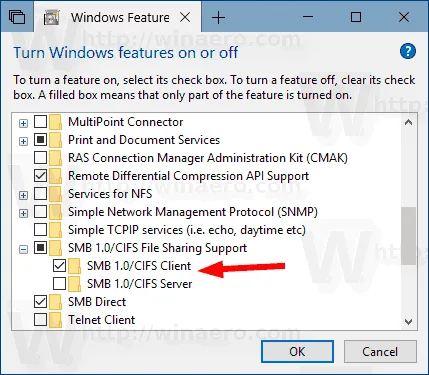
Image source: Bing (Web (fair-use with source credit))
If permissions are incorrect:
On the host PC, right-click the shared folder and select Properties > Sharing > Advanced Sharing. Verify the correct users have Read/Write or Full Control permissions. Then, go to the Security tab and ensure NTFS permissions match the share permissions.
If SMB version is the issue:
On your PC, open Turn Windows features on or off and ensure SMB 1.0/CIFS File Sharing Support is unchecked. For older devices, enable SMBv2 or higher. You can also force SMBv2 via PowerShell with Set-SmbClientConfiguration -RequirePrivacy $true.
If credentials are the problem:
Open Credential Manager > Windows Credentials and remove any saved credentials for the target PC. Then, try accessing the share again. You’ll be prompted to enter the correct username and password.
How to Prevent This From Happening Again
Set static IP addresses for devices hosting shared folders. This avoids connection drops when DHCP reassigns addresses.
Enable SMB Encryption for sensitive shares. Go to Server Manager > File and Storage Services > Shares and edit encryption settings. This protects data in transit.
Regularly update Windows. Microsoft patches SMB vulnerabilities frequently, and outdated systems are prime targets for exploits.
Use a consistent naming convention for shares. Avoid spaces or special characters in folder names, as these can cause access issues on some networks.
Document permissions for each shared folder. Keep a simple spreadsheet listing which users or groups have access and their permission levels. This makes troubleshooting easier.

Similar Posts