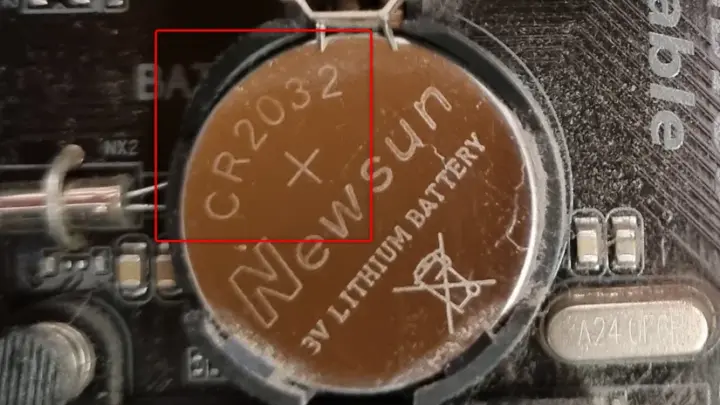
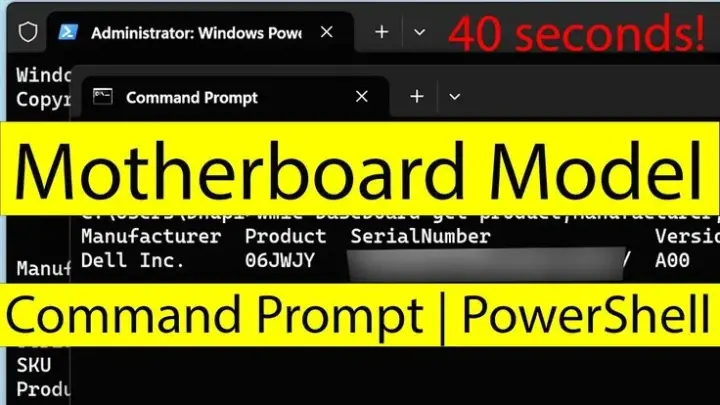
PC Shuts Down While Copying Files? Fix It Now
Founder & Lead Technology Analyst at Techny Tech · IEEE Senior Member, Certified Information Systems Security Professional (CISSP) · 13+ years in embedded systems benchmarking, machine learning hardware acceleration, and consumer electronics
Your computer shuts down during file copying because it’s hitting a critical limit, usually heat, power, or a failing component. This isn’t random; it’s a protective shutdown to prevent damage. Most systems cut power at around 90, 100°C for CPUs, or when the power supply unit (PSU) can’t handle the load.
The good news is that the cause is almost always traceable. Overheating, a weak PSU, or corrupted system files are the usual suspects, and each leaves clues in error logs or hardware monitors.
computer shuts down during file copying
It’s usually a thermal or power issue. CPUs and GPUs trigger shutdowns at high temps. A failing PSU can’t sustain power under load.
Corrupted drivers or OS files may also crash the system. Check temperatures and power supply first.
Quick Fixes to Try First (Before Digging Deeper)
Start with the simplest fixes before diving into hardware. These take minutes and often resolve the issue.
- Close background apps. Resource-heavy programs (video editors, games) can push your system over the edge during file transfers.
- Check ventilation. Ensure fans aren’t blocked and the system has airflow. Dust buildup is a common culprit.
- Switch power plans. Set Windows to "High Performance" to prevent aggressive power-saving from cutting off mid-transfer.
- Test with a different drive or port. A failing USB port or external drive can cause instability.
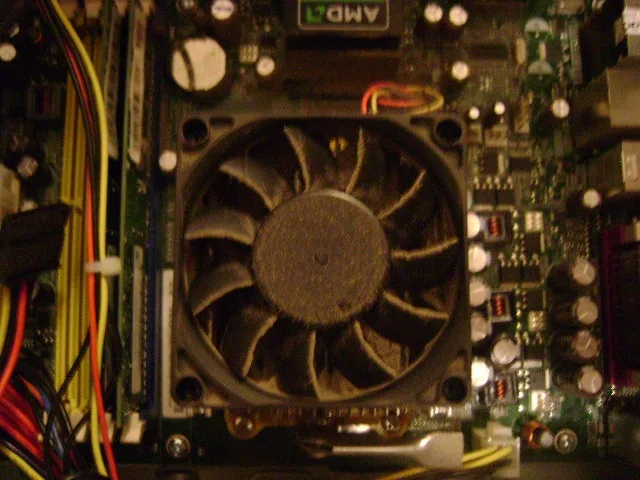
Image source: Bing (Web (fair-use with source credit))
If these don’t work, the problem is likely deeper.
Hardware Causes: Overheating, Power, or Failing Parts
Hardware issues are the most common triggers. Here’s what to check and why.
Overheating
CPUs and GPUs throttle or shut down at critical temps (often 90, 100°C). Dust, failing fans, or dried thermal paste can spike temperatures. Monitor temps with tools like HWMonitor or Core Temp.
Power Supply Unit (PSU) Failure
A weak or failing PSU can’t deliver consistent power under load. If your system shuts down during high-demand tasks (like copying large files), the PSU may be the culprit. A multimeter can test voltage output.
Failing RAM or Storage
Bad RAM can cause crashes, while a dying HDD/SSD may corrupt data mid-transfer. Run Windows Memory Diagnostic or manufacturer tools like SeaTools for drives.
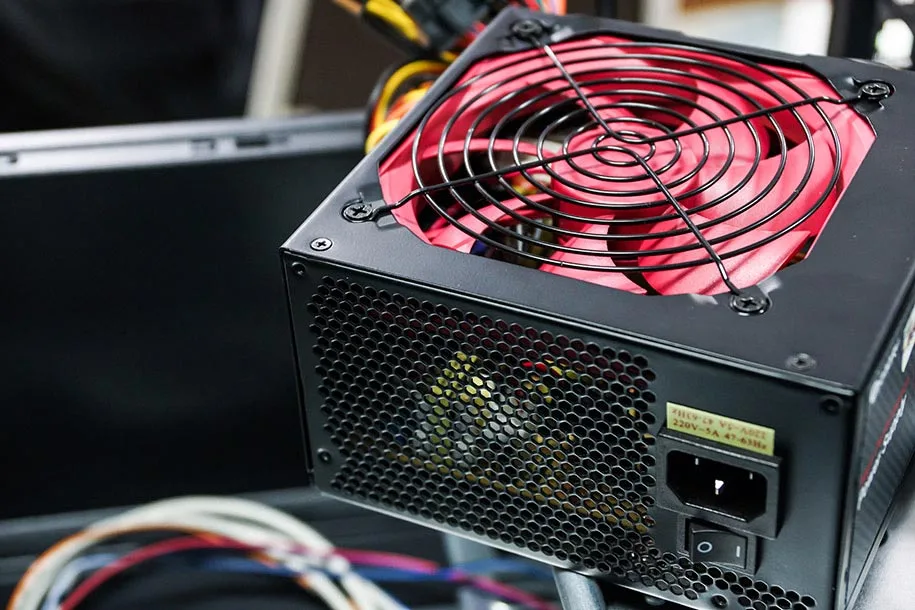
Image source: Bing (Web (fair-use with source credit))
Motherboard Issues
Faulty capacitors or power delivery problems can also cause shutdowns. These are harder to diagnose and often require professional help.
Software & System Issues: Drivers, Corruption, or Conflicts
Software problems can mimic hardware failures. These are easier to fix but often overlooked.
Driver Conflicts
Outdated or corrupted drivers (especially for storage controllers or chipsets) can cause instability. Update drivers via Device Manager or the manufacturer’s website.
Corrupted System Files
Windows has built-in tools to repair corrupted files. Run sfc /scannow and DISM /Online /Cleanup-Image /RestoreHealth in Command Prompt as admin.
Malware or Viruses
Malicious software can hog resources or interfere with system operations. Run a full scan with Windows Defender or Malwarebytes.
Power Management Settings
Aggressive power-saving settings can cut power to critical components. Disable USB selective suspend and adjust advanced power settings.
Step-by-Step Diagnosis: How to Pinpoint the Exact Problem
Follow this workflow to isolate the cause. Start with the easiest checks and move to the more involved ones.
1. Check Error Logs
Windows Event Viewer logs system errors. Look for critical errors (red icons) around the time of the shutdown. Common codes include:
- Kernel-Power (Event ID 41): Sudden power loss, often PSU or overheating.
- WHEA-Logger (Event ID 18): Hardware-related, often CPU or RAM.
- Disk (Event ID 7): Storage drive issues.
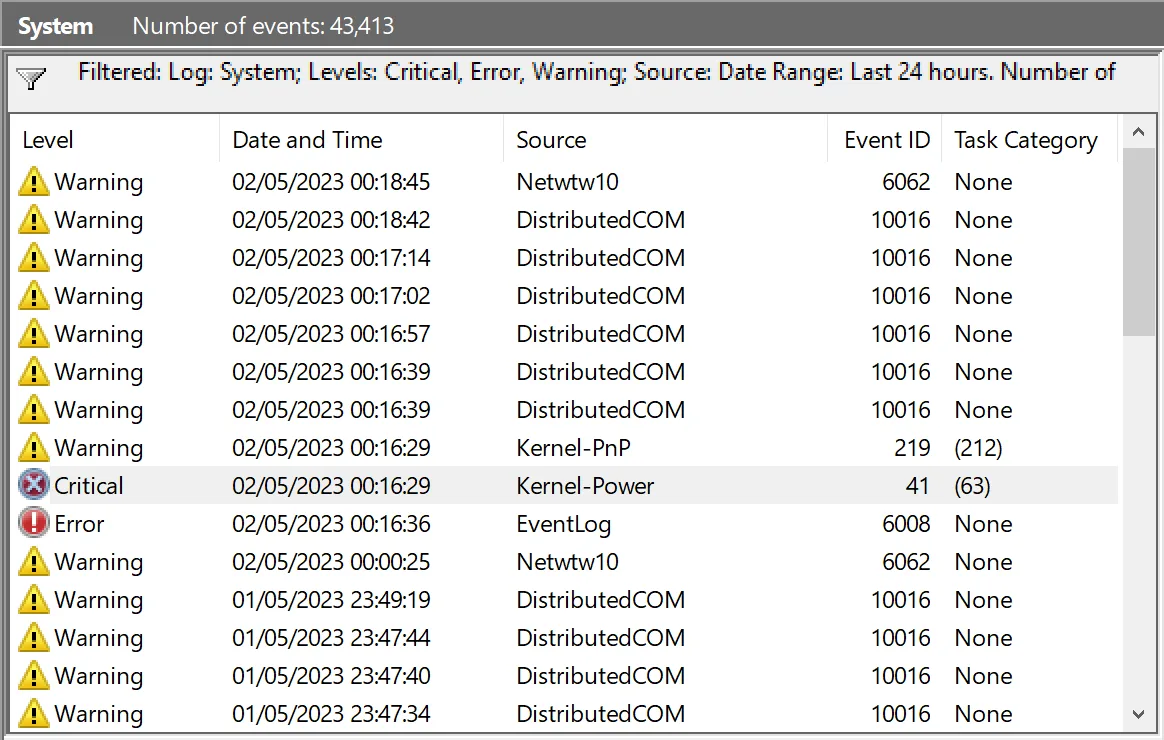
Image source: Bing (Web (fair-use with source credit))
2. Monitor Temperatures
Use HWMonitor, Core Temp, or Open Hardware Monitor to track CPU/GPU temps during file transfers. If temps spike near 90°C, overheating is likely.
3. Test Power Supply
A PSU tester or multimeter can check voltage rails. If voltages are unstable or below spec, replace the PSU.
4. Run Hardware Diagnostics
- RAM: Use Windows Memory Diagnostic or MemTest86.
- Storage: Run CHKDSK (
chkdsk /f /r) or manufacturer tools like SeaTools. - CPU: Use Prime95 to stress-test (but stop if temps spike).
5. Check for Malware
Run a full scan with Windows Defender or a trusted antivirus tool.
Fixes for Each Root Cause (With Clear Actions)
Overheating Fixes
Clean dust from fans and vents with compressed air. Reapply thermal paste if temps remain high. Ensure proper airflow in your case.
PSU Fixes
Replace the PSU if it’s underpowered or failing. Use a wattage calculator to match your system’s needs. Test with a known-good PSU if possible.
RAM/Storage Fixes
Replace faulty RAM sticks. For drives, back up data immediately and replace failing units. Use manufacturer tools to check health.
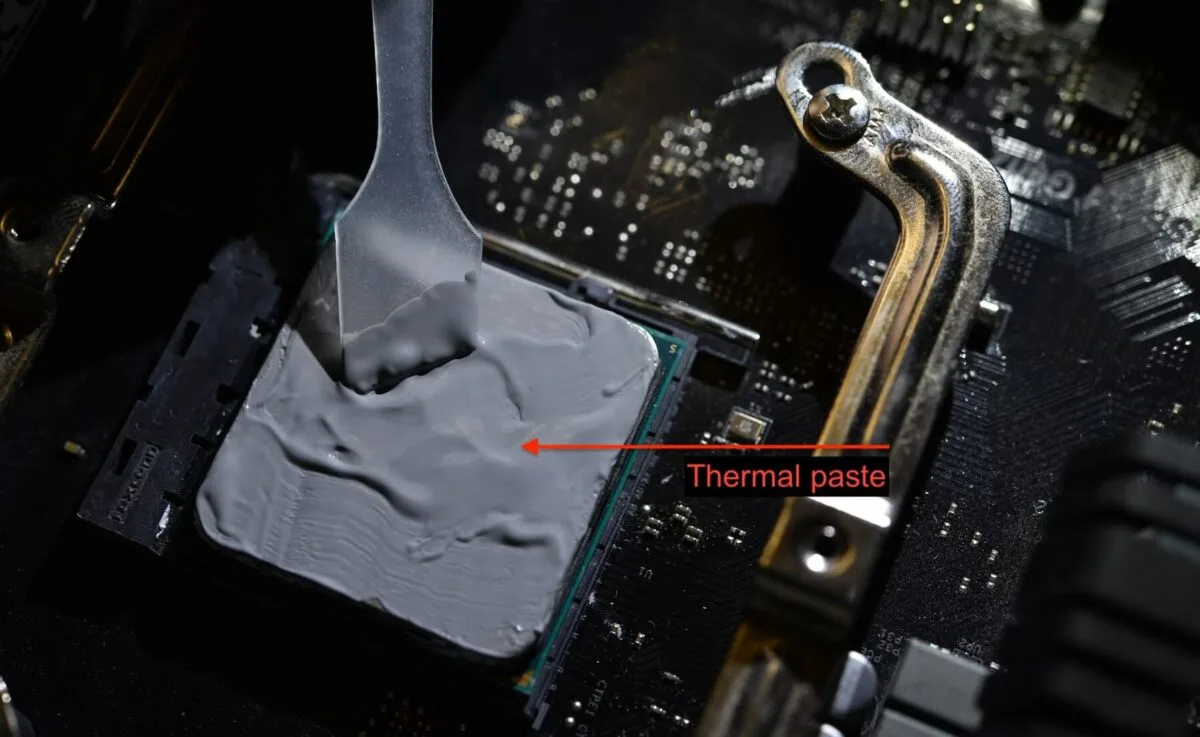
Image source: Bing (Web (fair-use with source credit))
Software Fixes
Update all drivers via Device Manager. Run sfc /scannow and DISM commands to repair system files. Scan for malware with trusted tools.
How to Prevent This From Happening Again
Regular maintenance prevents most shutdowns. Clean your system every 3, 6 months. Monitor temps and replace thermal paste every 2, 3 years.
Use a UPS to protect against power surges. Avoid overloading your system with too many tasks during file transfers.
Keep drivers and OS updated. Enable automatic updates for critical components.
Frequently Asked Questions
Why does my computer shut down only during large file transfers?
Large transfers stress your storage, CPU, and RAM. If any of these components are failing or overheating, the system shuts down to prevent damage.
Can a virus cause my computer to shut down during file copying?
Yes. Some malware overloads your system or corrupts files, triggering protective shutdowns. Run a full antivirus scan to rule this out.
How do I check if my PSU is failing?
Use a PSU tester or multimeter to check voltage rails. Look for unstable readings or voltages outside the 5% tolerance range.
Is overheating the most common cause of shutdowns during file copying?
Yes. Overheating is the leading cause, especially in systems with poor airflow or old thermal paste. Monitor temps to confirm.
What’s the first thing I should check if my computer shuts down during file copying?
Check Event Viewer for error codes. Then monitor temperatures and power supply stability during the transfer.

Similar Posts