Fix Network Printer Repeated Credential Prompts
Founder & Lead Technology Analyst at Techny Tech · IEEE Senior Member, Certified Information Systems Security Professional (CISSP) · 13+ years in embedded systems benchmarking, machine learning hardware acceleration, and consumer electronics
Your network printer asks for credentials repeatedly because it’s stuck in an authentication loop, usually triggered by cached credentials, driver issues, or misconfigured network settings. This happens most often with shared printers on Windows domains or macOS networks where the system can’t verify stored login details.
Per IETF RFC 8011, the Internet Printing Protocol (IPP) requires valid authentication for each session, and if the printer or client can’t sync those details, the prompt keeps popping up. Let’s start with the most likely culprits.
network printer asks for credentials repeatedly
This typically means stored credentials are outdated or corrupted. The printer or print server can’t validate them, so it keeps asking. Clear cached credentials in your OS credential manager.
Update or reinstall the printer driver if the issue persists.
Why Your Network Printer Keeps Asking for Credentials
The root cause usually falls into one of three buckets: authentication, configuration, or connectivity.
Authentication issues often stem from cached or incorrect credentials in Windows Credential Manager or macOS Keychain. If the printer was previously accessed with different login details, the system may keep retrying the old ones.
Configuration problems include wrong printer drivers, incorrect port settings (like using port 9100 for IPP instead of 631), or misconfigured print servers. Connectivity issues, such as DHCP assigning a new IP to the printer or firewall blocking print traffic, can also trigger repeated prompts.
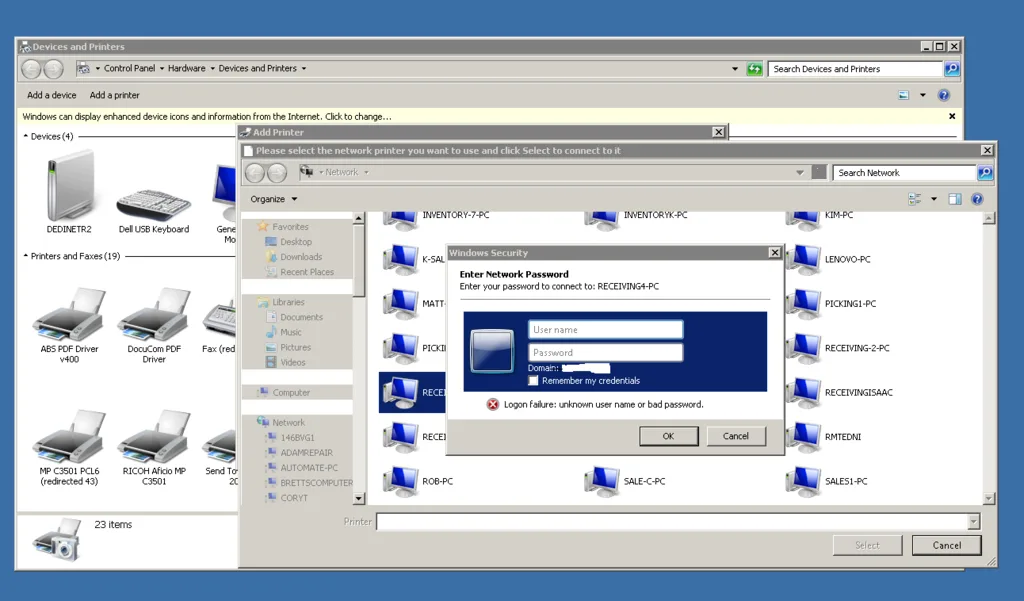
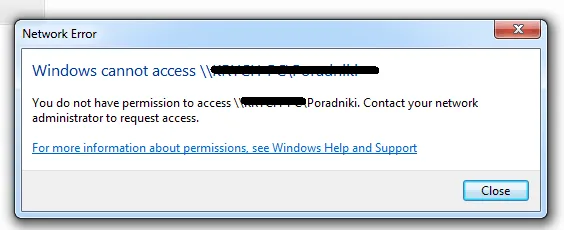
Image source: Bing (Web (fair-use with source credit))
Quick Fixes to Try First
Start with the simplest solutions before diving deeper.
Clear cached credentials. On Windows, open Credential Manager and remove any entries related to the printer or print server. On macOS, open Keychain Access and delete stored printer passwords.
Restart the print spooler. On Windows, open Services, find Print Spooler, and restart it. This often resolves stuck print jobs or authentication loops.
Reinstall the printer driver. Outdated or corrupted drivers can cause authentication failures. Download the latest driver from the manufacturer’s site and reinstall it.
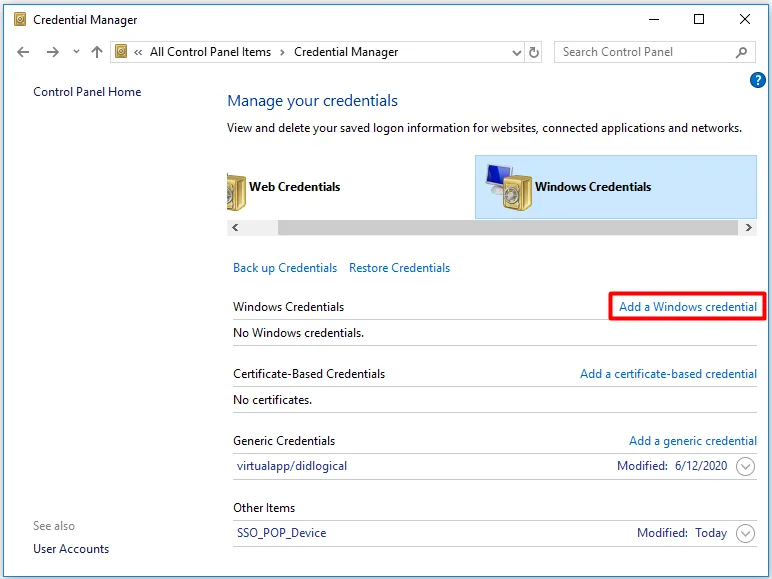
Image source: Bing (Web (fair-use with source credit))
Root Causes: Why This Happens
Understanding the underlying issue helps prevent future headaches.
Cached credentials conflict. If the printer’s credentials were changed (e.g., a new password for the shared account), but the old ones are still cached, the system will keep prompting.
Driver or port misconfiguration. Using the wrong driver (e.g., a generic PostScript driver for a printer that requires PCL) or incorrect port settings (e.g., using LPD port 515 for an IPP printer) can break authentication.
Network changes. If the printer’s IP address changed due to DHCP, or if the printer was moved to a different subnet, the stored connection details become invalid.
Print server issues. In enterprise environments, misconfigured print servers or Group Policy settings can force repeated authentication.
Step-by-Step Troubleshooting by Scenario
The fix depends on your setup. Follow the path that matches your situation.
Windows Users
First, clear cached credentials in Credential Manager. Open Control Panel > User Accounts > Credential Manager, then remove any entries tied to the printer or print server.
Next, check the printer’s port settings. Open Devices and Printers, right-click the printer, select Printer Properties, then Ports. Ensure the correct port (e.g., Standard TCP/IP for IPP) is selected and the IP address is current.
If the issue persists, reinstall the driver. Download the latest from the manufacturer’s site, then remove the existing printer and add it again with the new driver.
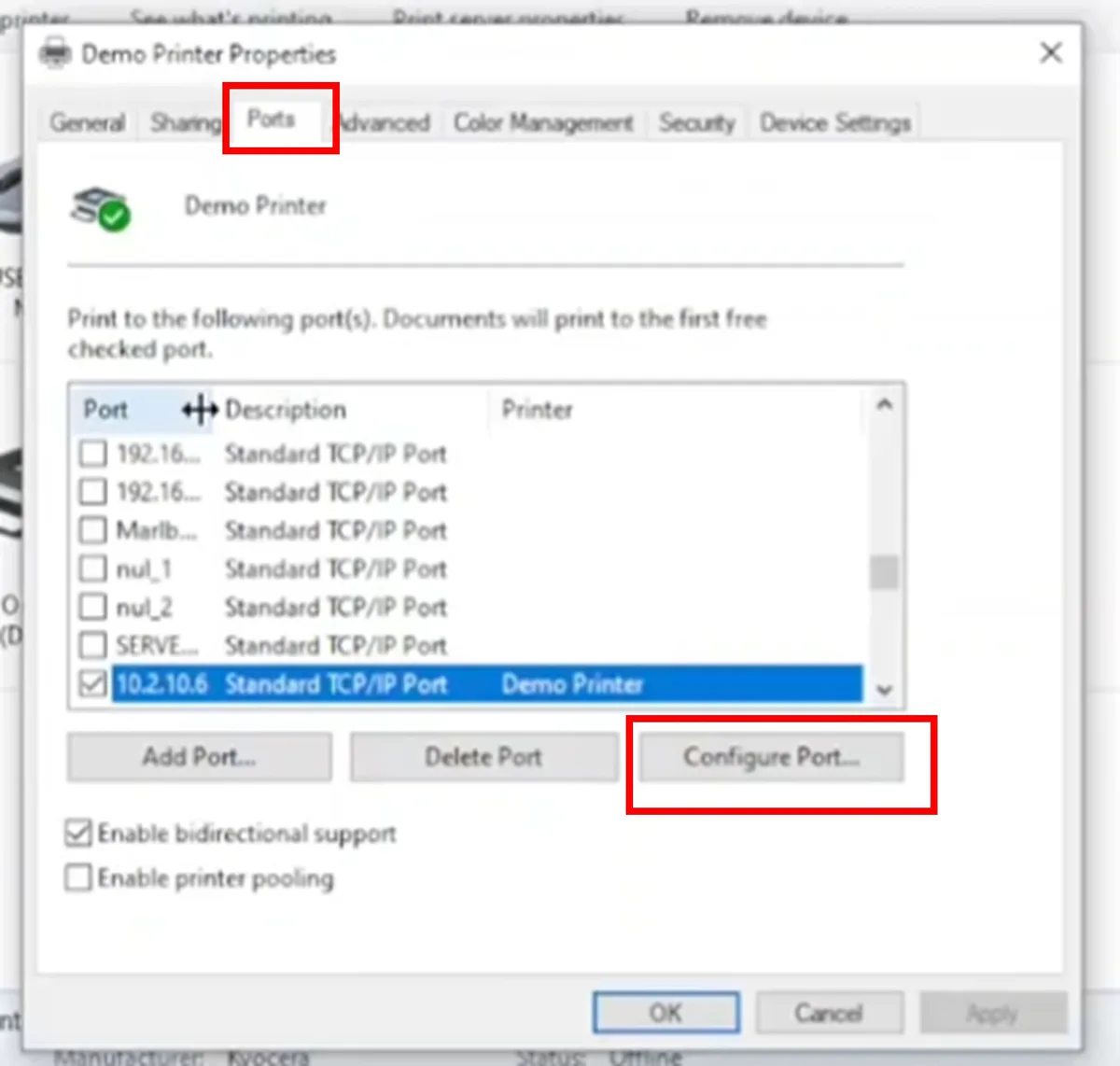
Image source: Bing (Web (fair-use with source credit))
macOS Users
Open Keychain Access and search for the printer’s hostname or IP. Delete any stored passwords tied to it.
Next, check the printer’s connection settings. Open System Settings > Printers & Scanners, select the printer, then click Options & Supplies. Ensure the correct protocol (IPP, LPD, or AirPrint) is selected.
If the issue persists, reset the printing system. Open Printers & Scanners, right-click in the list, and select Reset printing system. This clears all printers and drivers, so you’ll need to re-add the printer afterward.
Enterprise/Active Directory Setups
In domain environments, the issue often ties to Group Policy or print server misconfigurations.
First, verify the printer is properly published in Active Directory. Open Print Management on the server, check the printer’s properties, and ensure it’s listed in the directory.
Next, check Group Policy settings. Open Group Policy Management, then navigate to User Configuration > Policies > Windows Settings > Scripts. Look for any login scripts that might be interfering with printer authentication.
If users are still prompted repeatedly, check the print server’s authentication settings. Open Print Server Properties, go to the Security tab, and ensure the correct permissions are set for the users or groups.
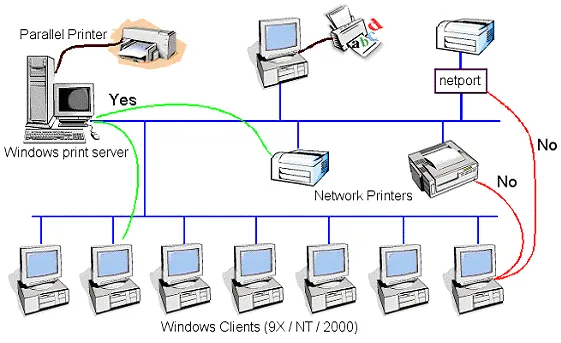
Image source: Bing (Web (fair-use with source credit))

Similar Posts