Recover Deleted Files from Recycle Bin Easily
Founder & Lead Technology Analyst at Techny Tech · IEEE Senior Member, Certified Information Systems Security Professional (CISSP) · 13+ years in embedded systems benchmarking, machine learning hardware acceleration, and consumer electronics
Accidentally deleted a file and need it back? Here’s how to restore deleted files from Recycle Bin in just a few clicks. Windows keeps your deleted files in the Recycle Bin until you empty it or the storage limit is reached, so there’s a good chance your file is still there.
The Recycle Bin holds up to 5-10% of your drive’s space by default, so if you act fast, recovery is simple. Let’s start with the quickest method.
how to restore deleted files from Recycle Bin
Open Recycle Bin from your desktop. Find the file you want to recover. Right-click it and select Restore.
The file returns to its original location.
Quick Answer: The Fastest Way to Get Your Files Back
If your file is still in the Recycle Bin, recovery takes seconds. Double-click the Recycle Bin icon on your desktop, locate the file, right-click it, and choose Restore. That’s it, the file reappears in its original folder.
For bulk recovery, select multiple files with Ctrl+Click, then right-click and pick Restore all items. No extra software is needed.
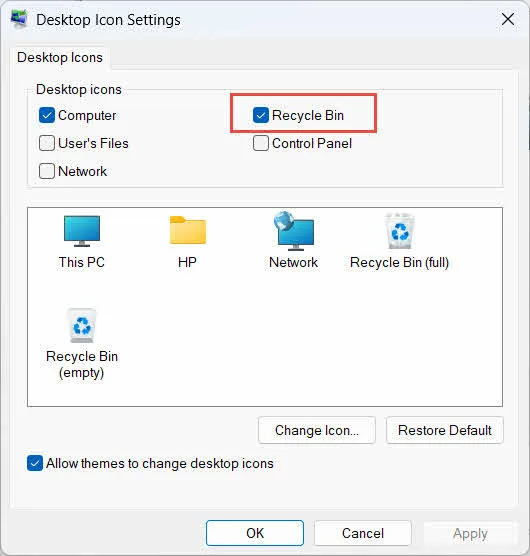
Image source: Bing (Web (fair-use with source credit))
Why Files Disappear (And Where They Really Go)
When you delete a file in Windows, it doesn’t vanish immediately. Instead, it moves to the Recycle Bin, a temporary storage folder that holds deleted items until you empty it or the system needs space. The Recycle Bin’s default size is about 5-10% of your drive’s capacity, as of 2026.
Files deleted with Shift+Delete bypass the Recycle Bin entirely, which is why they’re harder to recover. Similarly, files deleted from external drives (like USB sticks) often skip the Bin unless configured otherwise.
Step-by-Step: Restoring Files from Recycle Bin
Start by opening the Recycle Bin. You can find it on your desktop or search for it in the Start menu.
Inside the Recycle Bin, scroll or use the search bar to find your file. If you remember the original location, sort by Original Location to narrow it down.
Right-click the file and select Restore. The file will reappear in its original folder. For multiple files, hold Ctrl while clicking each one, then right-click and choose Restore.
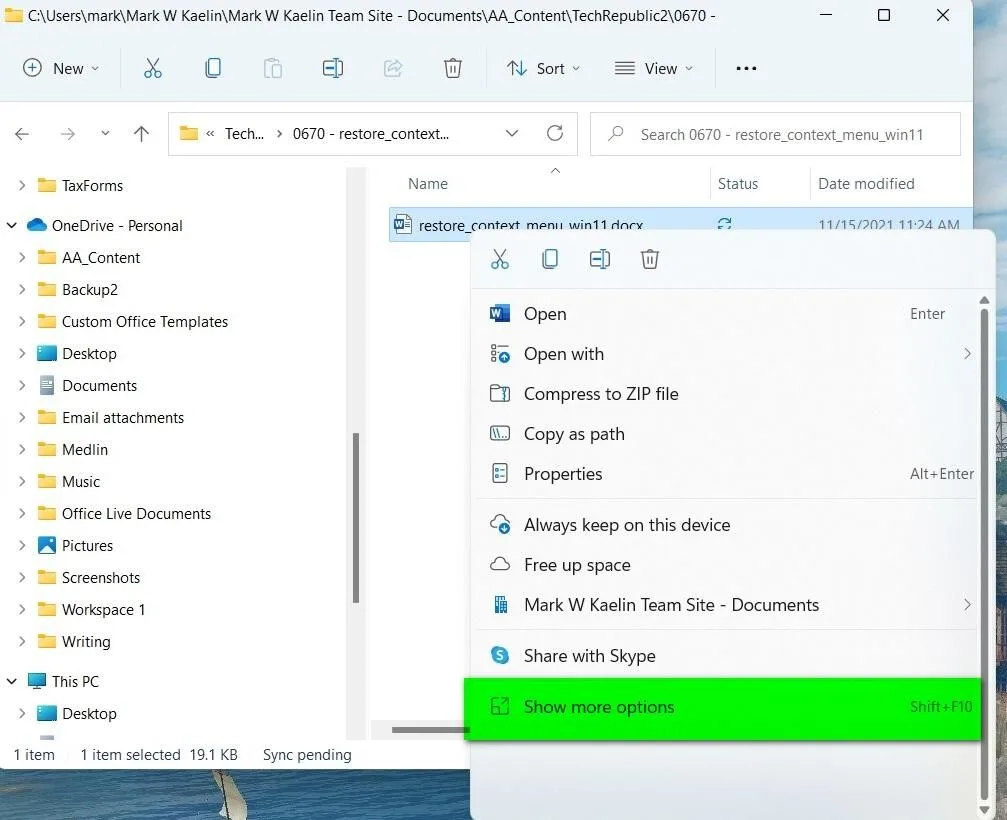
Image source: Bing (Web (fair-use with source credit))
If you don’t see the file, check if you emptied the Bin recently or used Shift+Delete. In that case, you’ll need another method.
What If the Recycle Bin Is Empty? (4 Recovery Methods)
If the Recycle Bin is empty, your file might still be recoverable. Here are four methods to try, ranked from easiest to most technical.
1. Check File History
File History is a built-in Windows backup tool that saves copies of your files. To use it, open File Explorer, right-click the folder where your file was stored, and select Restore previous versions. If File History was enabled, you’ll see a list of recoverable versions.
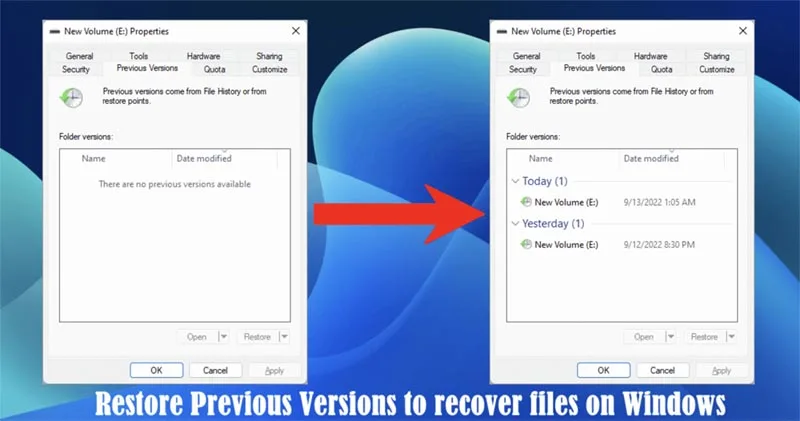
Image source: Bing (Web (fair-use with source credit))
2. Use System Restore
System Restore can revert your system to a previous state, which may bring back deleted files. Search for Create a restore point in the Start menu, then click System Restore. Follow the prompts to pick a restore point from before the file was deleted.
3. Try Third-Party Recovery Software
Tools like Recuva or EaseUS Data Recovery can scan your drive for deleted files, even after the Recycle Bin is emptied. These work best if you haven’t saved new files to the same drive, as new data can overwrite deleted files.
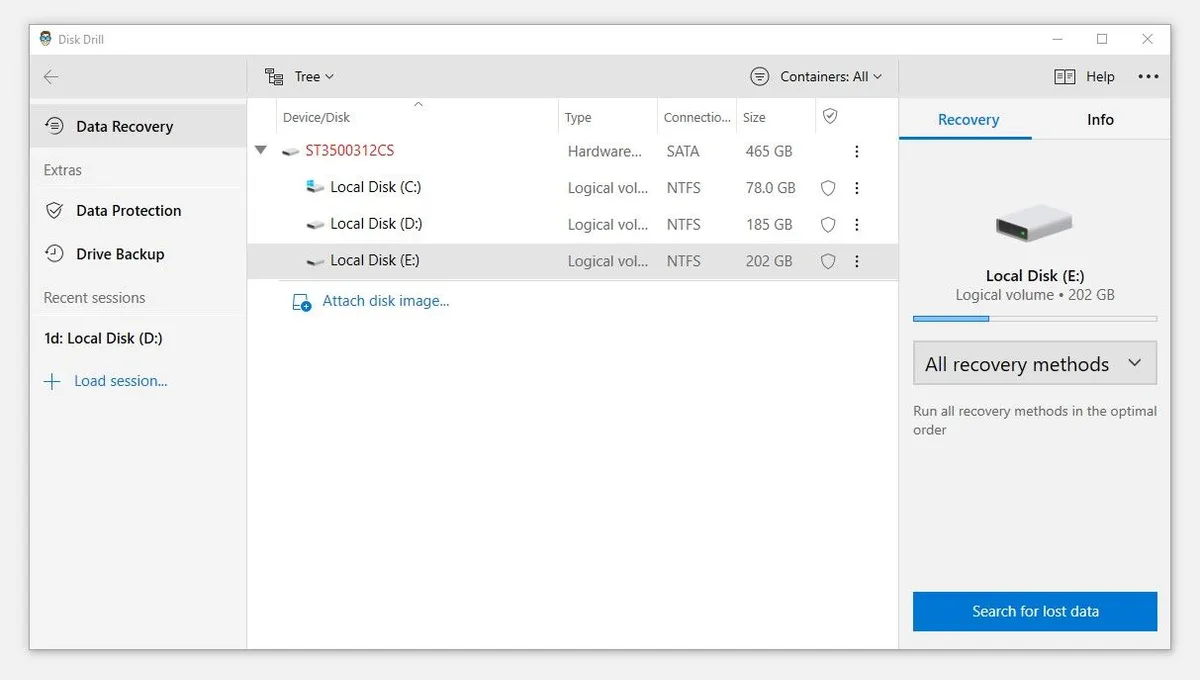
Image source: Bing (Web (fair-use with source credit))
4. Check OneDrive Recycle Bin (For Cloud Files)
If your file was saved to OneDrive, it might still be in the OneDrive Recycle Bin. Open OneDrive in your browser, go to Recycle Bin, and restore the file from there. Files stay in OneDrive’s Recycle Bin for 30 days (93 days for business accounts).
Common Mistakes That Make Files Unrecoverable
The biggest mistake is continuing to use the drive after deletion. Every new file you save can overwrite the space your deleted file occupied.
Emptying the Recycle Bin permanently removes files from its storage. Once gone, you’ll need backup or recovery tools to get them back.
Using Shift+Delete skips the Recycle Bin entirely. Without a backup, you’ll need third-party software to attempt recovery.
Ignoring File History or System Restore means missing built-in recovery options. Enable these features before you need them.
How to Prevent This Problem in the Future
Enable File History to automatically back up your files. Go to Settings > Update & Security > Backup and turn it on.
Adjust the Recycle Bin size if you work with large files. Right-click the Recycle Bin, select Properties, and increase the allocated space.
Avoid Shift+Delete unless you’re certain. Regular deletion gives you a safety net via the Recycle Bin.
Use cloud backups like OneDrive or Google Drive. These services keep their own Recycle Bins, adding an extra layer of protection.
Frequently Asked Questions
Can I recover files after emptying the Recycle Bin?
Yes, but it’s not guaranteed. Use File History, System Restore, or third-party recovery tools. The sooner you act, the better your chances.
How long do files stay in the Recycle Bin?
Files stay until you empty the Bin or the system needs space. The Recycle Bin’s default size is 5-10% of your drive’s capacity.
Does restoring a file put it back in the original folder?
Yes. When you restore a file from the Recycle Bin, it returns to the exact location it was deleted from.
Can I recover files deleted from an external drive?
Usually not via the Recycle Bin. External drives often bypass it unless configured otherwise. Use recovery software for these cases.
Why can’t I find my file in the Recycle Bin?
It might have been permanently deleted, or the drive might not use the Recycle Bin. Check File History or try recovery tools.

Similar Posts