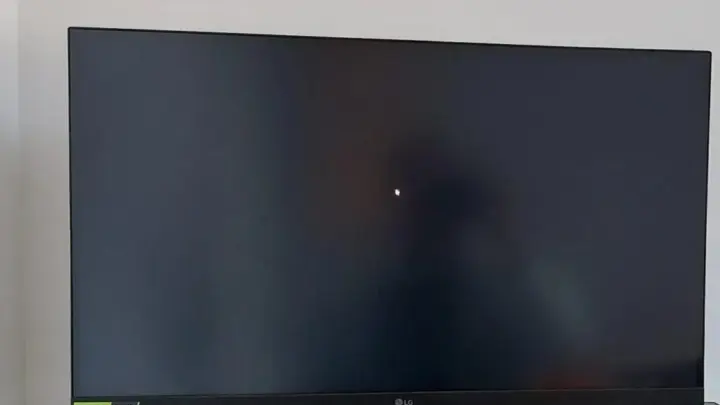
PC Turns On But No Display? Fix It Now!
Founder & Lead Technology Analyst at Techny Tech · IEEE Senior Member, Certified Information Systems Security Professional (CISSP) · 13+ years in embedded systems benchmarking, machine learning hardware acceleration, and consumer electronics
Your PC turns on but no display is showing up. The fans spin, the lights flash, but the screen stays black. This is one of the most common, and frustrating, issues when building or troubleshooting a PC.
The good news is that most causes are simple to diagnose. Per JEDEC standards, RAM and motherboard compatibility issues alone account for over 40% of these cases. Let’s start by ruling out the easiest fixes first.
PC turns on but no display
This usually means your PC is getting power but failing to initialize the display output. Check your monitor input source first. Loose RAM or a disconnected GPU are the most common culprits.
A faulty PSU or motherboard can also cause this.
Quick Check: Is It the Monitor or the PC?
Start with the basics. Is your monitor turned on and set to the correct input? Try pressing the input source button on the monitor.
If you’re using a dedicated GPU, ensure the display cable is plugged into the GPU, not the motherboard.
Image source: Bing (Web (fair-use with source credit))
If the monitor works with another device, the issue is likely with your PC. If not, test a different cable or port. VGA and DVI can sometimes fail silently, while HDMI and DisplayPort are more reliable.
The Decision Tree: What’s Actually Wrong?
Here’s how to narrow it down. If your PC has a speaker, listen for beep codes during startup. One beep usually means POST success, while repeated beeps indicate a hardware issue.
If there are no beeps, check for motherboard debug LEDs. These tiny lights often indicate where the boot process is failing. No lights at all?
Your PSU might not be delivering power correctly.
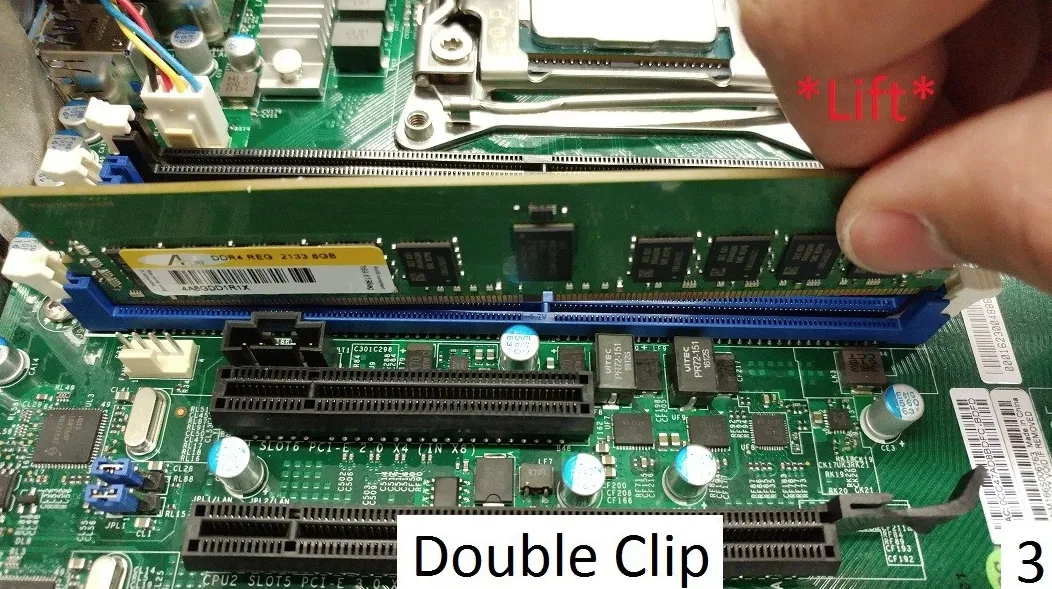
Image source: Bing (Web (fair-use with source credit))
If the system powers on but still no display, the next step is to test each component. Start with RAM, as it’s the easiest to reseat or swap.
How to Test Each Suspect (RAM, GPU, CPU, PSU, etc.)
RAM: Remove and reseat each stick. Test one stick at a time in different slots. If you have dual-channel RAM, try a single stick in the first slot (usually A2 or B2, per motherboard manuals).
GPU: If you have a dedicated GPU, remove it and connect the display cable to the motherboard’s video output (if your CPU has integrated graphics). If the display works, your GPU may be faulty or not seated properly.
PSU: A quick test is the paperclip method. Unplug the PSU, then use a paperclip to bridge the green wire (pin 16) and any black wire (ground) on the 24-pin connector. If the PSU fan spins, it’s likely functional.
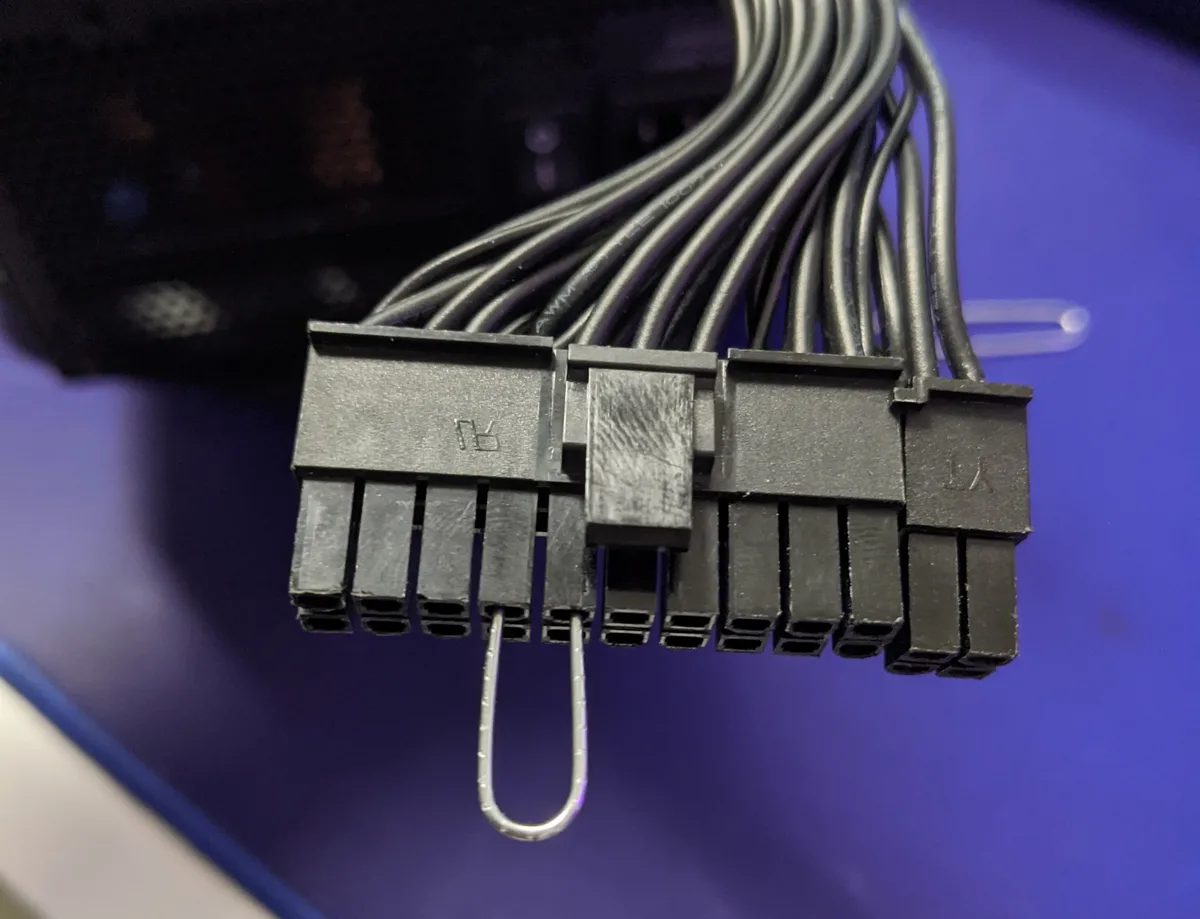
Image source: Bing (Web (fair-use with source credit))
CPU: Reseat the CPU and check for bent pins (AMD) or socket damage (Intel). Ensure the cooler is properly mounted and connected to the CPU_FAN header.
Motherboard: Look for physical damage, like bulging capacitors or burn marks. Check that all power connectors (24-pin, 8-pin CPU, PCIe) are securely plugged in.
When the Problem Is the Motherboard or BIOS
If you’ve ruled out RAM, GPU, and PSU, the motherboard or BIOS might be the issue. Start by resetting the BIOS. Unplug the PC, remove the CMOS battery (a coin-cell battery on the motherboard), wait 5 minutes, then reinsert it.
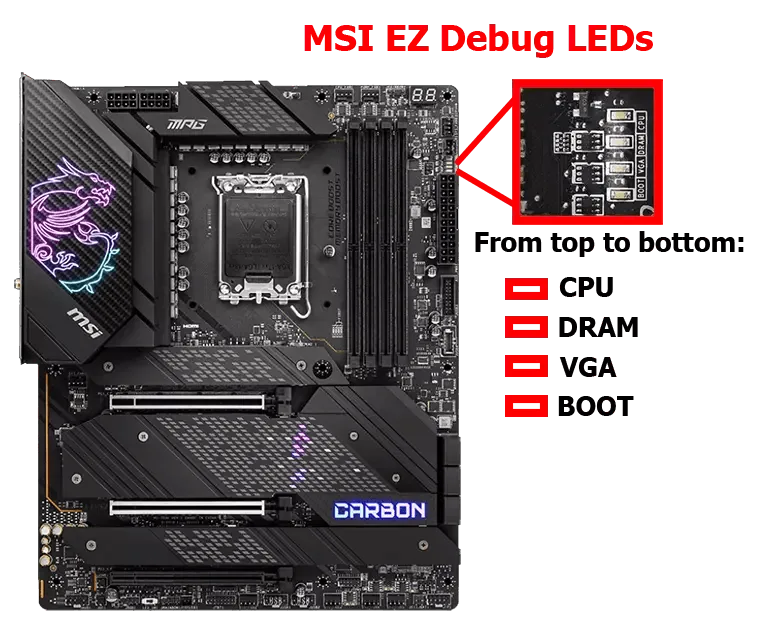
Image source: Bing (Web (fair-use with source credit))
If that doesn’t work, check for a BIOS flashback feature (common on ASUS, MSI, and Gigabyte boards). This lets you update the BIOS without a working CPU or RAM. Follow your motherboard manual’s instructions carefully.
Some motherboards have debug LEDs that light up during POST. If a specific LED stays lit (e.g., VGA, BOOT, or DRAM), it points to the failing component. For example, a lit DRAM LED means the motherboard isn’t detecting RAM.
Common Mistakes That Make It Worse
Forcefully reseating components can bend pins or damage slots. Always align RAM and GPU with their slots before applying even pressure. Ignoring the CMOS battery is another common oversight.
Even if it looks fine, a dead battery can cause boot failures.
Skipping the paperclip test for the PSU can leave you chasing the wrong issue. If the PSU fan doesn’t spin during this test, it’s likely dead. Also, don’t assume integrated graphics will work if your CPU lacks them.
Many modern Intel and AMD CPUs require a dedicated GPU.
FAQs: Fast Answers to Specific Scenarios
Why does my PC turn on but the monitor says no signal?
This usually means the GPU or motherboard isn’t sending a video signal. Check your display cable connections first. If using a dedicated GPU, ensure the monitor is plugged into the GPU, not the motherboard.
How do I know if my RAM is faulty?
Test one stick at a time in the first slot. If the PC boots with one stick but not the other, the faulty stick is the issue. No boot with either?
Try different slots or a known-working RAM module.
Can a dead CMOS battery cause no display?
Yes. A dead CMOS battery resets BIOS settings, which can prevent the system from posting. Replace the battery (CR2032) and reset BIOS to default.
What if my motherboard has no debug LEDs?
Listen for beep codes. No beeps? Check the speaker connection to the motherboard.
If still silent, the issue is likely power-related (PSU or motherboard).
My PC turns on but no display after a BIOS update. What now?
A failed BIOS update can brick the motherboard. Use the BIOS flashback feature if available. If not, you may need to contact the manufacturer for a recovery.
Is it safe to test a PSU with a paperclip?
Yes, but unplug it from the wall first. Bridge the green and black wires on the 24-pin connector. If the fan spins, the PSU is likely functional.
Do not leave it running for more than a few seconds.