What Causes Laptop Screen Ghosting?
Founder & Lead Technology Analyst at Techny Tech · IEEE Senior Member, Certified Information Systems Security Professional (CISSP) · 13+ years in embedded systems benchmarking, machine learning hardware acceleration, and consumer electronics
Seeing faint afterimages or blurry trails on your laptop screen when objects move quickly That’s ghosting, and it’s usually tied to how fast your display’s pixels can change. So what causes laptop screen ghosting Most often it’s slow pixel response times, aggressive overdrive settings, or a panel that simply can’t keep up with high refresh rates.
Manufacturer specifications indicate that TN panels often suffer more from ghosting than IPS or OLED due to their slower response times, which can exceed 5ms. As of 2026, even mid-range laptops now ship with 120Hz or 144Hz screens, but without matching response times, ghosting becomes noticeable.
what causes laptop screen ghosting
Slow pixel response time is the top cause. TN panels often ghost more than IPS or OLED.
Overdrive settings can create inverse ghosting if too aggressive.
High refresh rates without fast response times make ghosting worse.
Cheap or aging panels struggle to keep up with rapid changes.
The 5 Most Common Causes of Ghosting on Laptops
If your screen leaves trails behind moving objects, the culprit is usually one of these five issues. Each ties back to how your display handles motion, and the fix depends on the root cause.
Slow pixel response time
This is the most common cause. Response time measures how fast a pixel can change from one color to another, usually rated in milliseconds. TN panels often have slower response times (5ms or higher), while IPS and OLED panels can hit 1-4ms.
If your laptop’s panel can’t keep up with the refresh rate, ghosting appears as blurry trails.
Aggressive overdrive settings
Overdrive speeds up pixel transitions by applying extra voltage, but too much causes inverse ghosting. This is when pixels overshoot their target color, creating a faint halo effect. Many gaming laptops ship with overdrive enabled by default, which can worsen ghosting if not tuned properly.
High refresh rate with poor response time
A 144Hz or 240Hz screen sounds great, but if the panel’s response time is too slow, ghosting becomes obvious. For example, a 144Hz display refreshes every 6.94ms, so a 5ms response time means pixels are still changing when the next frame arrives. The result is visible ghosting, especially in fast-paced games or videos.
Panel type limitations
Not all panels are created equal. TN panels are the worst for ghosting due to their slower response times and poorer color accuracy. VA panels can also suffer from ghosting, especially in dark scenes.
IPS panels are better, but some budget models still struggle. OLED panels have the fastest response times (often under 1ms), but they can suffer from permanent burn-in if static images are left on screen too long.
Outdated or corrupted display drivers
Sometimes the issue isn’t the hardware but the software. Outdated GPU drivers can cause rendering issues that mimic ghosting. This is especially true if you’ve recently updated your operating system or installed new software.
A quick driver update can often resolve the problem.
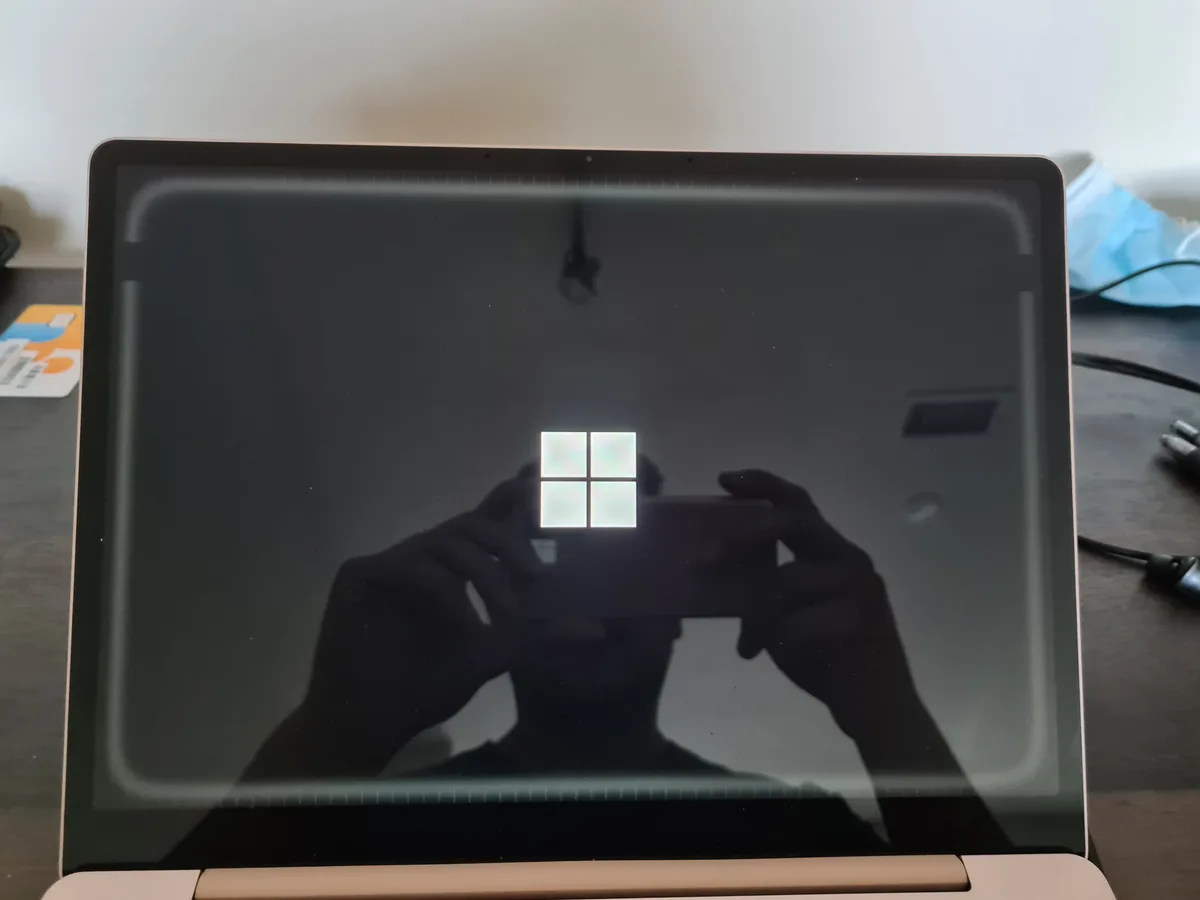
Image source: Bing (Web (fair-use with source credit))
How to Test if Your Laptop Has Ghosting (Simple Methods)
You don’t need fancy tools to check for ghosting. A few simple tests can confirm whether your laptop screen is the issue.
Use a ghosting test video
Search for “ghosting test” on YouTube and play a video with fast-moving objects, like a white square moving across a black background. If you see faint trails behind the square, your screen has ghosting. These videos are designed to push your display’s response time to its limits.
Try the UFO Test
The UFO Test by Blur Busters is a popular online tool for checking motion clarity. Open the test in your browser and watch the UFOs fly across the screen. If you see multiple UFOs or blurry trails, ghosting is present.
The test also measures your display’s response time, giving you a concrete number to work with.
Check in-game or video playback
Ghosting is most noticeable during fast motion. Play a first-person shooter or a racing game and watch for trails behind moving objects. If you don’t game, try playing a high-motion video (like a sports highlight reel) and look for the same effect.
Ghosting is often more visible on darker backgrounds.
Compare with an external monitor
If you have access to another monitor, connect it to your laptop and run the same tests. If the ghosting disappears on the external display, the issue is with your laptop’s built-in screen. This helps rule out GPU or driver issues, as those would affect both displays.
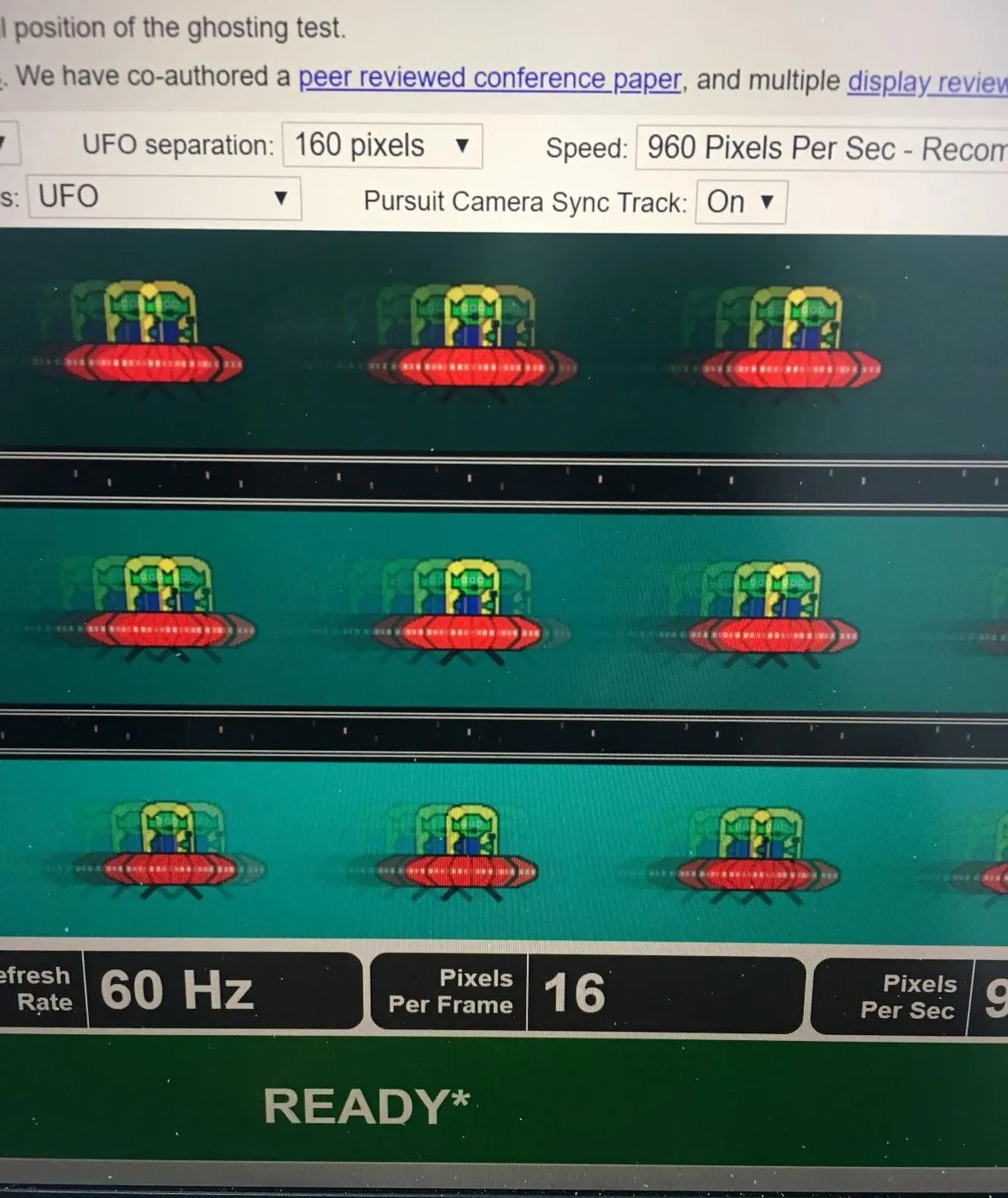
Image source: Bing (Web (fair-use with source credit))
Fixes for Ghosting Based on the Root Cause
Ghosting isn’t always a hardware flaw. Often, a few tweaks can reduce or eliminate the issue entirely.
Adjust overdrive settings
If your laptop has an overdrive option in the display settings, try turning it down. Overdrive is usually labeled as “Response Time,” “OD,” or “Overdrive” in your GPU control panel (NVIDIA Control Panel, AMD Radeon Settings, or Intel Graphics Command Center). Start with the “Normal” or “Medium” setting and test again.
If ghosting persists, try disabling it entirely.
Lower the refresh rate
If your laptop has a high refresh rate (120Hz, 144Hz, etc.), try lowering it to 60Hz. This gives pixels more time to transition between colors, reducing ghosting. You can change the refresh rate in your operating system’s display settings or through your GPU control panel.
Note that this may reduce smoothness in games and videos.
Update your display drivers
Outdated or corrupted drivers can cause ghosting-like effects. Check for updates through Windows Update, your laptop manufacturer’s support site, or your GPU vendor’s website (NVIDIA, AMD, or Intel). A fresh driver install can often resolve rendering issues.
Enable VSync or cap your FPS
If ghosting only appears in games, try enabling VSync in the game’s graphics settings. This syncs the game’s frame rate with your display’s refresh rate, reducing tearing and ghosting. Alternatively, cap your FPS to match your refresh rate (e.g., 60 FPS for a 60Hz display) using in-game settings or third-party tools like RTSS.
Replace the panel (last resort)
If none of the above works, the issue might be a faulty or low-quality panel. This is rare for newer laptops but can happen with budget models or older devices. If your laptop is still under warranty, contact the manufacturer for a repair or replacement.
For out-of-warranty devices, replacing the panel yourself is possible but requires technical skill.
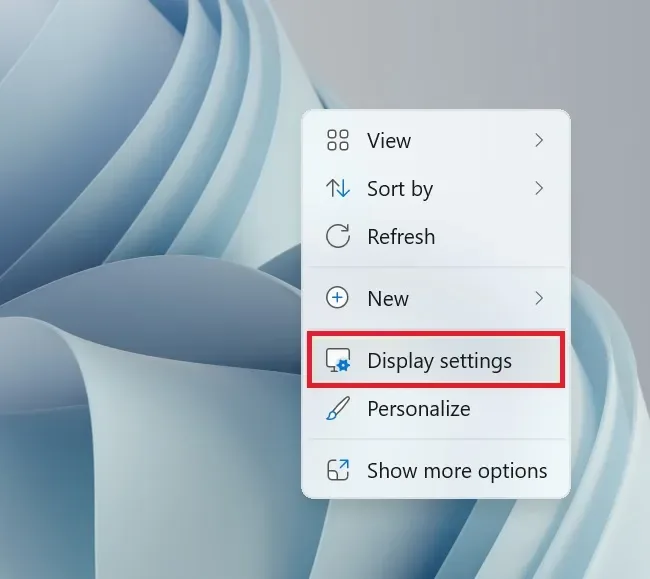
Image source: Bing (Web (fair-use with source credit))
Panel Type vs. Ghosting: IPS, TN, VA, and OLED Compared
Not all panels ghost equally. The type of panel in your laptop plays a huge role in how much ghosting you’ll see.
TN panels
TN (Twisted Nematic) panels are the most prone to ghosting due to their slower response times, often around 5ms or higher. They’re also the cheapest, which is why they’re common in budget laptops. TN panels have poor viewing angles, so ghosting may look worse if you’re not viewing the screen head-on.
IPS panels
IPS (In-Plane Switching) panels offer better color accuracy and wider viewing angles than TN panels. Their response times are usually faster, around 4ms, which reduces ghosting. However, some budget IPS panels can still suffer from ghosting, especially in fast-moving scenes.
IPS glow (a faint glow in dark scenes) can also make ghosting more noticeable.
VA panels
VA (Vertical Alignment) panels sit between TN and IPS in terms of performance. They have better contrast ratios than IPS but slower response times, often around 5-8ms. This makes them more prone to ghosting, especially in dark scenes.
VA panels are less common in laptops but can be found in some mid-range models.
OLED panels
OLED panels have the fastest response times, often under 1ms, which virtually eliminates ghosting. They also offer perfect blacks and infinite contrast ratios. However, OLED panels can suffer from permanent burn-in if static images (like taskbars or logos) are left on screen for too long.
As of 2026, OLED laptops are becoming more common but are still premium options.
| Panel Type | Avg. Response Time | Ghosting Risk | Viewing Angles | Color Accuracy | Burn-In Risk |
|---|---|---|---|---|---|
| TN | 5ms+ | High | Poor | Poor | Low |
| IPS | 4ms | Medium | Excellent | Excellent | Low |
| VA | 5-8ms | High | Good | Good | Low |
| OLED | <1ms | Low | Excellent | Excellent | Medium |
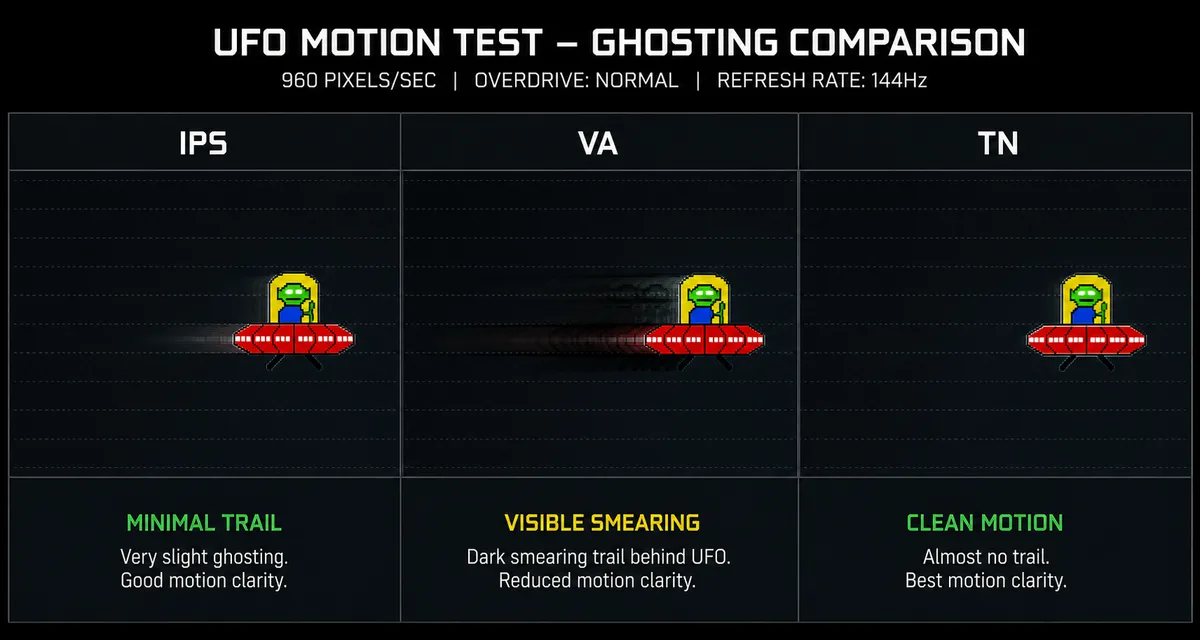
Image source: Bing (Web (fair-use with source credit))
How to Prevent Ghosting Long-Term
Preventing ghosting starts with smart settings and habits. Avoid static images on OLED screens for extended periods, as this can lead to permanent burn-in. For all panel types, keep your display drivers updated to ensure optimal performance.
Use a screensaver or sleep mode when idle. This prevents static images from lingering too long. If you game or watch high-motion content often, consider a laptop with a faster response time panel.
IPS or OLED panels with 1-4ms response times are ideal for reducing ghosting.
Adjust your in-game settings to match your display’s capabilities. Cap your FPS to your refresh rate and enable VSync if ghosting appears. Overdrive settings should be set to “Normal” or “Medium” unless you’re experiencing severe ghosting, in which case you can experiment with higher levels.
Frequently Asked Questions
Is ghosting permanent
No, ghosting is usually temporary and caused by slow pixel response times. It disappears once the pixels catch up. However, OLED burn-in is permanent and requires panel replacement.
Can ghosting be fixed with software
Sometimes. Updating drivers, adjusting overdrive, or enabling VSync can reduce ghosting. If the issue is hardware-related, like a slow panel, software fixes may not fully resolve it.
Why is ghosting worse on dark backgrounds
Ghosting is more visible on dark backgrounds because the contrast between the trailing pixels and the background is higher. VA panels, in particular, struggle with ghosting in dark scenes due to their slower response times.
Does ghosting affect all laptops
No, ghosting depends on the panel type, response time, and refresh rate. High-end laptops with fast IPS or OLED panels are less likely to ghost. Budget laptops with TN or slow VA panels are more susceptible.
Can I test ghosting without special tools
Yes. Play a fast-moving video or use a simple online test like the UFO Test. If you see trails behind moving objects, your screen has ghosting.

Similar Posts