Computer Beeps But Won’t Boot? Fix It Now
Founder & Lead Technology Analyst at Techny Tech · IEEE Senior Member, Certified Information Systems Security Professional (CISSP) · 13+ years in embedded systems benchmarking, machine learning hardware acceleration, and consumer electronics
Your computer beeps but does not boot, and that sound is actually a clue. Those beeps are error codes from your motherboard’s BIOS, telling you exactly what’s wrong before the system even starts. It’s not random, it’s a built-in diagnostic tool.
Manufacturer specifications confirm that most modern motherboards use AMI, Award, or Phoenix BIOS, each with its own beep code language. Decoding them can save you hours of guesswork.
computer beeps but does not boot
This usually means a hardware failure during POST. The BIOS detects an issue and halts booting while signaling the problem via beeps. Each pattern points to a specific component, like RAM, CPU, or GPU.
Check your motherboard manual for the exact code meaning.
Why Your Computer Beeps but Won’t Boot (And What It Means)
The beeps are your motherboard’s way of communicating a failure during the Power-On Self-Test (POST). Without a successful POST, your system won’t proceed to boot the operating system.
Different BIOS vendors use different beep patterns. AMI BIOS, for example, uses a series of short and long beeps to indicate issues like memory failure or CPU errors. Award BIOS might use a single long beep followed by short ones.
If you don’t have your motherboard manual, you can often find beep code charts online from the manufacturer.
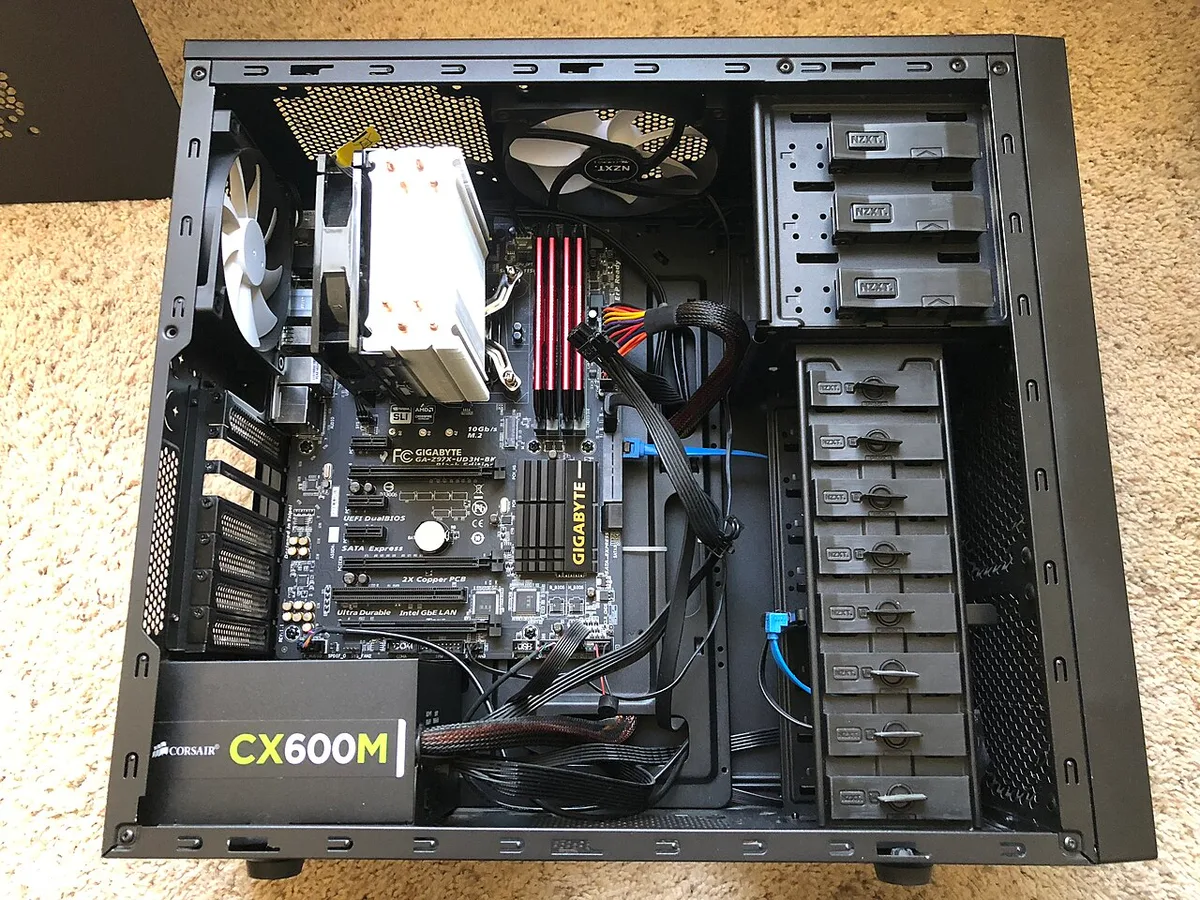
Image source: Wikimedia Commons / FASTILY (CC BY-SA)
The most critical thing to understand is that these beeps are not random. They’re a direct line to the problem, whether it’s a loose RAM stick, a dead CMOS battery, or a failing power supply.
The Most Common Beep Code Patterns and What They Indicate
Beep codes vary by BIOS, but some patterns are universal. One short beep often means the POST passed, but if your system still doesn’t boot, the issue might be elsewhere, like the display or storage.
Here’s a quick reference for common AMI BIOS beep codes:
| Beep Pattern | Likely Issue |
|---|---|
| 1 short beep | DRAM refresh failure |
| 2 short beeps | Parity circuit failure |
| 3 short beeps | Base 64K RAM failure |
| 5 short beeps | CPU failure |
| 8 short beeps | Display memory failure |
| 1 long, 2 short beeps | GPU error |
| Continuous beeps | PSU issue |
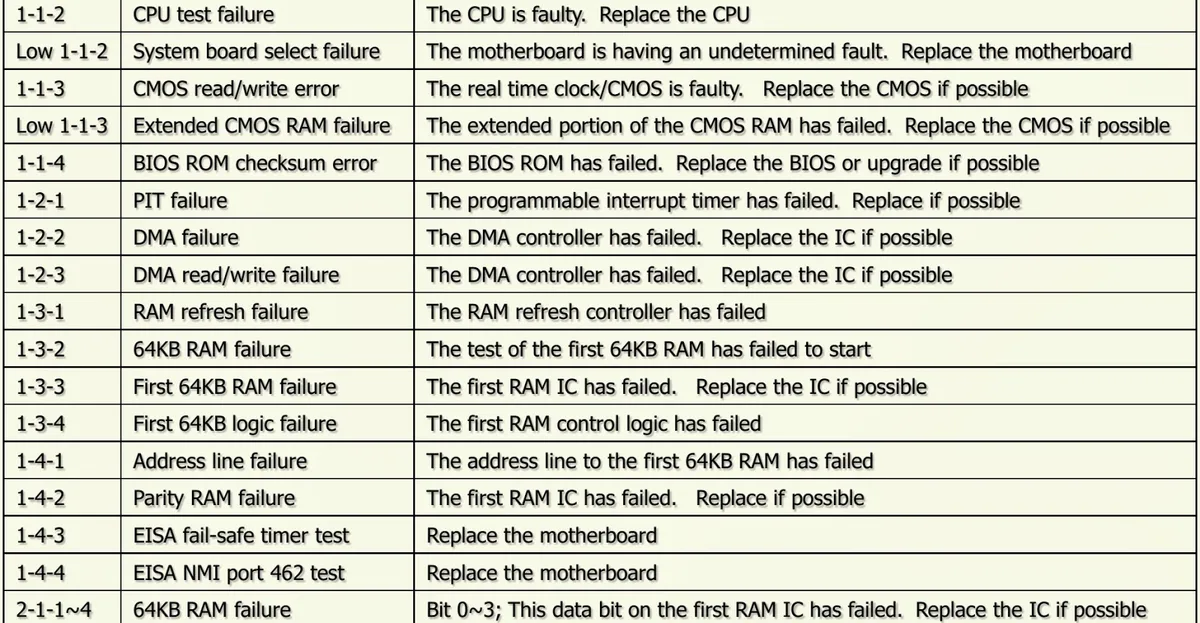
Image source: Bing (Web (fair-use with source credit))
Award BIOS uses slightly different codes. For example, 1 long and 3 short beeps typically indicate a memory error. Phoenix BIOS might repeat a beep pattern in cycles.
Always confirm with your motherboard’s documentation, as these can vary slightly by model.
If you hear no beeps at all, the issue might be with the system speaker, the motherboard itself, or the power supply not delivering enough juice to trigger the BIOS.
Step-by-Step: How to Diagnose the Problem
Start with the basics. Ensure your monitor is on and connected properly. A loose cable or wrong input can mimic a boot failure.
Next, listen carefully to the beep pattern. Count the beeps and note their length. If the pattern repeats, it’s likely a BIOS error code.
If it’s erratic or there are no beeps, the problem might be power-related.
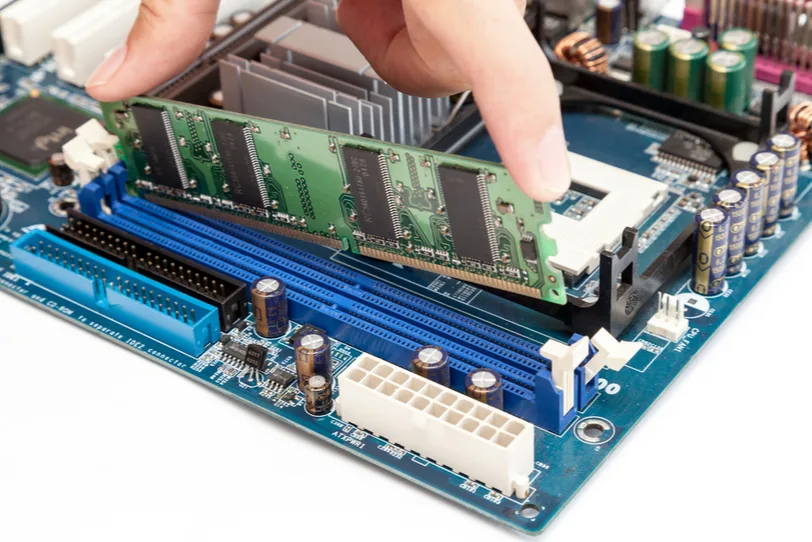
Image source: Bing (Web (fair-use with source credit))
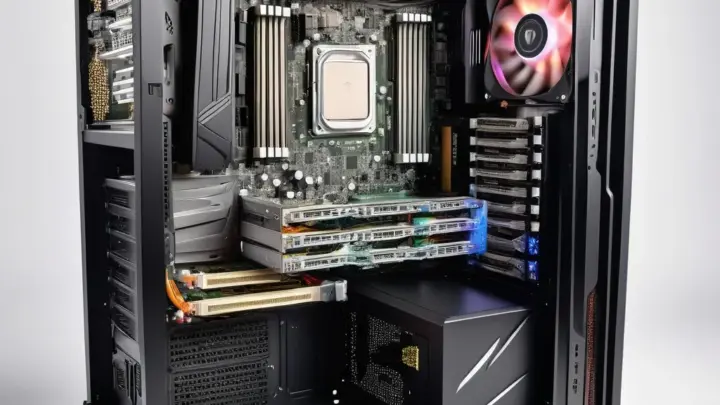
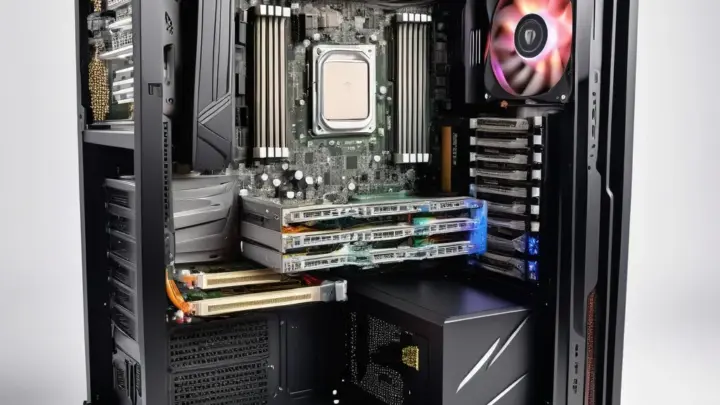
Open your case and check for obvious issues. Reseat the RAM sticks one by one, ensuring they’re fully inserted. If you have multiple sticks, try booting with just one in the primary slot.
This can isolate a faulty module.
Check the GPU next. If your system has integrated graphics, remove the GPU and connect your monitor to the motherboard’s display output. If it boots, the GPU might be the culprit.
Quick Fixes to Try Before Digging Deeper
Before you start swapping parts, try these simple fixes. They solve a surprising number of boot issues.
First, power down completely and unplug the PSU. Hold the power button for 10 seconds to discharge any residual power. Then, reseat the RAM, GPU, and all power connectors.
Loose connections are a common cause of boot failures.
Reset the CMOS. This clears any corrupted BIOS settings that might be causing the issue. You can do this by removing the CMOS battery for a few minutes or using the CMOS jumper on the motherboard.
Refer to your motherboard manual for the exact steps.
If you’ve recently added new hardware, remove it and try booting again. Incompatible or faulty components can trigger beep codes. This includes RAM upgrades, new GPUs, or even additional storage drives.
When the Issue Is Hardware: How to Test Each Component
If the quick fixes don’t work, it’s time to test each component systematically. Start with the easiest to check and work your way to the more complex.
RAM Testing:
Remove all RAM sticks and try booting with one at a time in the primary slot (usually the first or second slot, depending on the motherboard). If the system boots with one stick but not another, you’ve found a faulty module. If it doesn’t boot with any, the issue might be the motherboard or CPU.
GPU Testing:
If your CPU has integrated graphics, remove the GPU and connect your monitor to the motherboard’s display output. If the system boots, the GPU is likely the problem. If it doesn’t, try the GPU in another system if possible.
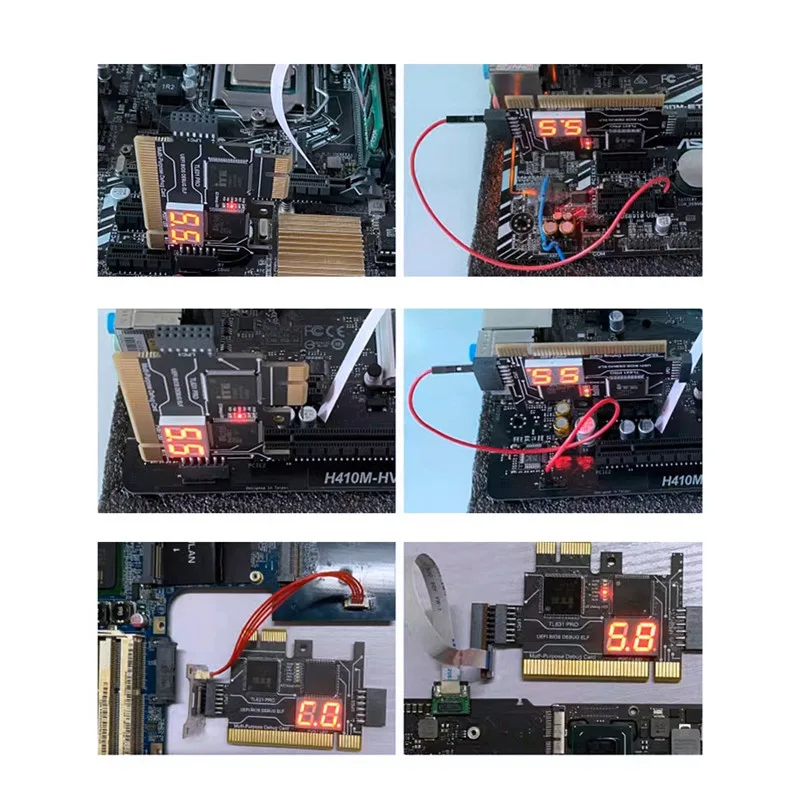
Image source: Bing (Web (fair-use with source credit))
PSU Testing:
A failing power supply can cause all sorts of issues, including beep codes. If you have a spare PSU, swap it in and try booting. If you don’t, you can use a multimeter to check the voltage on the 24-pin connector.
The ATX standard specifies that the +12V rail should read between 11.4V and 12.6V.
CPU Testing:
CPU issues are harder to diagnose without a spare. If you’ve ruled out RAM, GPU, and PSU, the CPU might be the culprit. Check that it’s seated properly and that the cooler is mounted correctly.
Overheating can also cause boot failures, so ensure the thermal paste is applied correctly.
Motherboard Testing:
If all else fails, the motherboard itself might be the issue. Look for physical damage, like burnt components or bulging capacitors. If you have a POST card, insert it into a PCI or PCIe slot to get a more precise error code.
This can help pinpoint the exact issue.
Mistakes That Make the Problem Worse (And How to Avoid Them)
Ignoring the beep pattern is the first mistake. Randomly swapping parts without decoding the error wastes time and can damage components.
Forcing RAM or GPU into slots can bend pins or crack the motherboard. Always align notches and press firmly but evenly. Static electricity is another silent killer.
Touch a grounded metal surface before handling internal parts.
Overlooking the PSU is common. A failing unit can send inconsistent power, causing intermittent beeps. If you’ve ruled out other components, test the PSU with a multimeter or a known-good spare.
Skipping the CMOS reset can leave corrupted BIOS settings in place. Even if the issue seems hardware-related, a quick reset takes seconds and can rule out software conflicts.
FAQ: Beeps but No Boot — Your Top Questions Answered
Why does my computer beep but not turn on?
The beeps come from the motherboard’s BIOS during POST, indicating a hardware failure. The system won’t boot until the issue is resolved. Check RAM, GPU, or CPU seating first.
How do I know if my RAM is causing the beeps?
Most BIOS versions use repeated short beeps for RAM errors. Try booting with one stick at a time. If the system starts with one but not the other, that stick is faulty.
What does a continuous beep mean?
A continuous beep usually signals a power supply issue. The PSU may not be delivering stable power to the motherboard. Test with a known-good PSU or check voltages with a multimeter.
Can a dead CMOS battery cause beeping?
Yes, but it’s rare. A dead CMOS battery typically causes time/date resets, not beep codes. If you suspect it, replace the CR2032 battery and reset BIOS settings.
My PC beeps but there’s no display. What should I do?
Start with the basics. Reseat the GPU and RAM. Try a different monitor or cable.
If using a dedicated GPU, test the motherboard’s display output if available.
Are beep codes the same for all motherboards?
No. Beep codes vary by BIOS vendor and even motherboard model. Always refer to your motherboard’s manual for the exact meaning.
AMI, Award, and Phoenix BIOS all use different patterns.

Similar Posts