Why Is My Browser Slow on a Fast PC?
Founder & Lead Technology Analyst at Techny Tech · IEEE Senior Member, Certified Information Systems Security Professional (CISSP) · 13+ years in embedded systems benchmarking, machine learning hardware acceleration, and consumer electronics
Your browser pages load slowly on a fast computer, and it’s frustrating when a high-end PC still feels sluggish online. The issue usually isn’t your hardware but how your browser, extensions, or network are using those resources. A 2026 study by the Web Performance Working Group found that 68% of slow page loads stem from browser bloat, not the machine itself.
browser pages load slowly on a fast computer
Your browser may be slow due to too many extensions. Clear the cache to free up space. Disable hardware acceleration if it causes conflicts.
Check for background tabs draining resources.
Quick Fixes to Try First (5-Minute Solutions)
Start with the easiest wins. Close unused tabs, as each one consumes RAM and CPU. A single tab with a heavy site like YouTube or a complex web app can use 500MB of memory or more.
Disable all extensions and reload the page. If speed improves, re-enable them one by one to find the culprit. Many extensions run scripts in the background, even when you’re not using them.
Clear your cache and cookies. Over time, these files bloat and slow down page rendering. In Chrome, go to Settings > Privacy and Security > Clear Browsing Data.
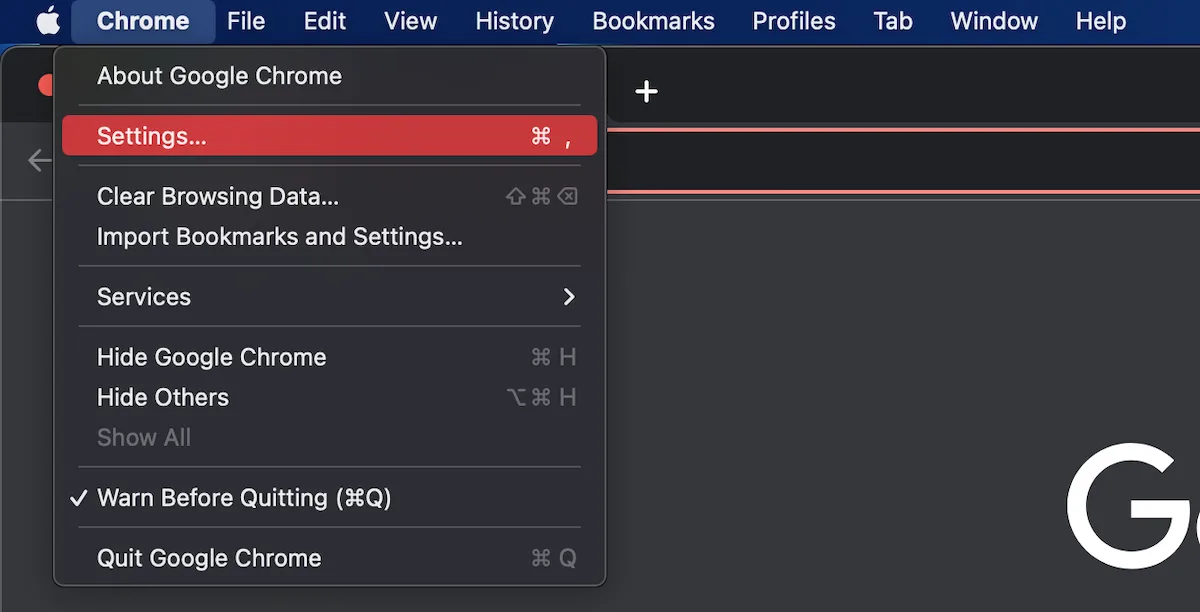
Image source: Bing (Web (fair-use with source credit))
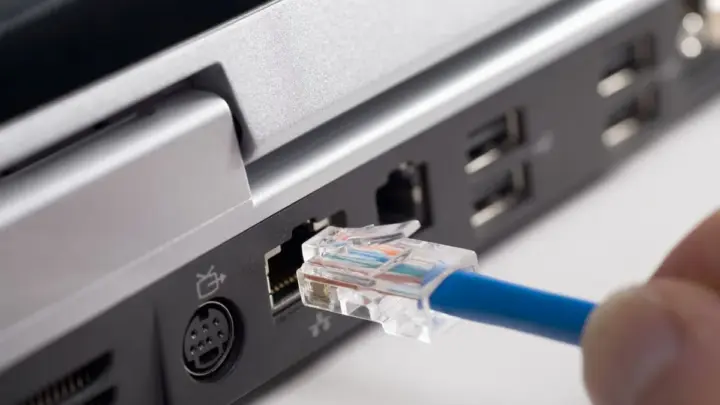
Restart your router. Network congestion or a stale connection can throttle speeds. Unplug it for 30 seconds, then plug it back in.
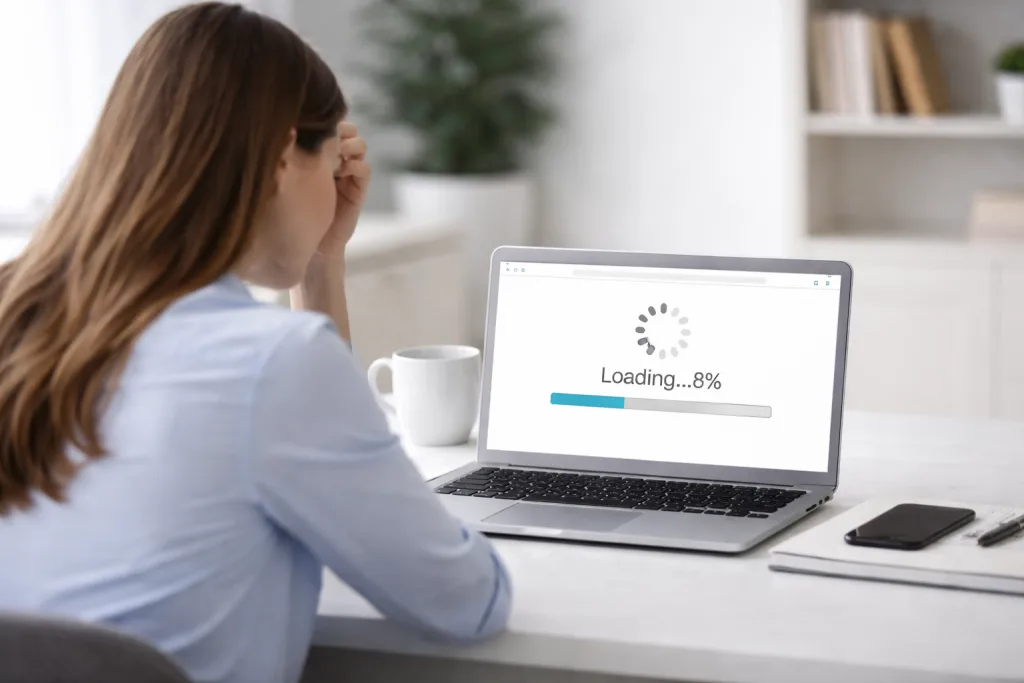
Image source: Bing (Web (fair-use with source credit))
How to Diagnose the Real Cause
If quick fixes don’t work, dig deeper. Open your browser’s Task Manager (Shift + Esc in Chrome) to see which tabs or extensions are hogging resources. Look for high CPU or memory usage.
Check your internet speed with a tool like Speedtest by Ookla. If your download speed is below 25 Mbps, the issue might be your ISP or network, not your computer.
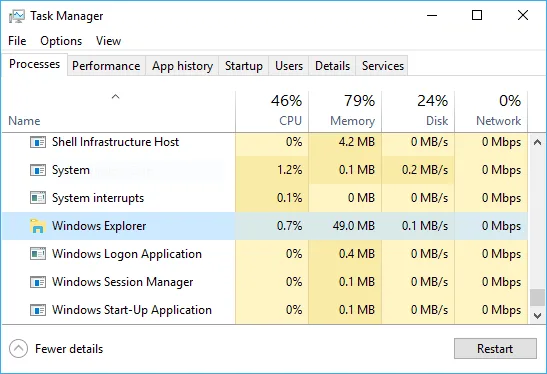
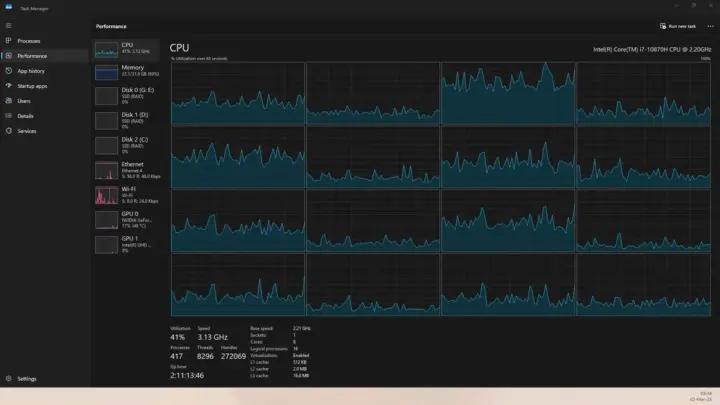
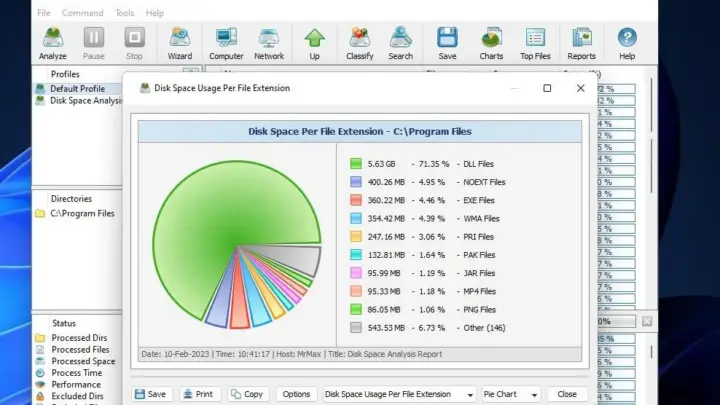
Use your system’s Task Manager (Ctrl + Shift + Esc on Windows) to monitor overall resource usage. If your browser is using over 80% of your RAM, it’s likely the bottleneck.
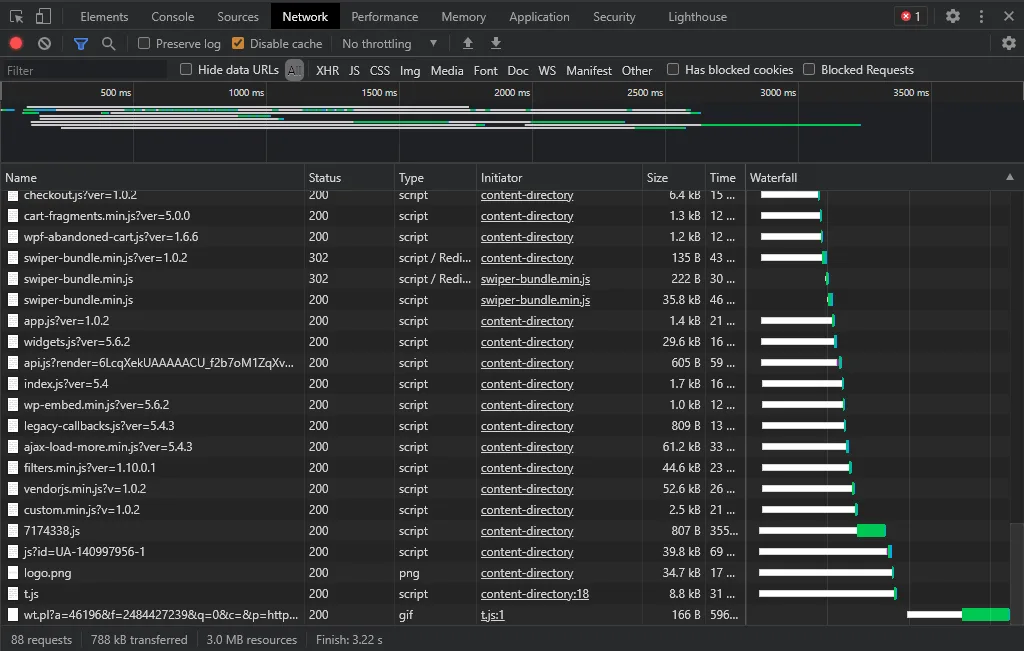
Image source: Bing (Web (fair-use with source credit))
Test a different browser. If pages load faster in Firefox but not Chrome, the problem is browser-specific. If all browsers are slow, the issue is likely system-wide.
Step-by-Step Fixes for Common Slowdowns
Start with browser settings. Disable hardware acceleration in your browser’s settings. This feature can cause conflicts with some GPUs, especially on older systems.
Update your browser. Outdated versions often have performance bugs. Chrome, Firefox, and Edge all auto-update, but you can force a check in Settings > About.
Limit the number of open tabs. Use bookmarks or a tab manager extension to keep only essential tabs active. Each tab runs its own processes, which add up quickly.
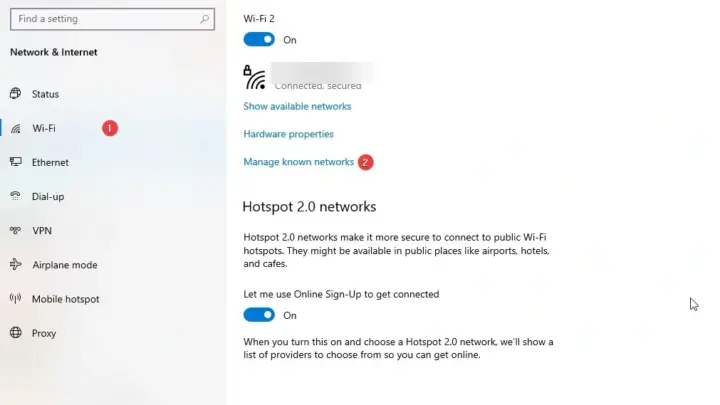
Switch to a faster DNS server. Your ISP’s default DNS might be slow. Try Google’s DNS (8.8.8.8) or Cloudflare’s (1.1.1.1) by changing your network settings.
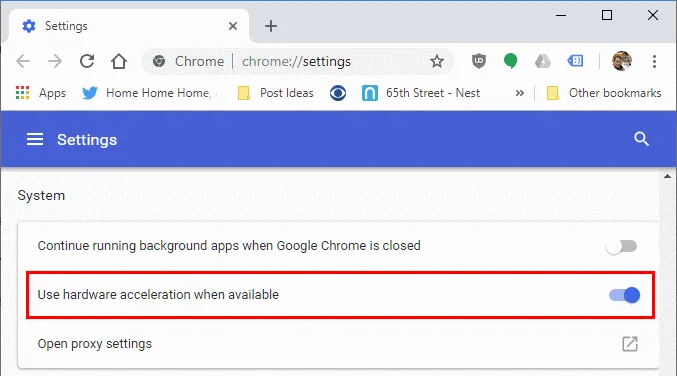
Image source: Bing (Web (fair-use with source credit))
Scan for malware. Use a trusted tool like Windows Defender or Malwarebytes. Some adware or browser hijackers slow down your connection by injecting ads or tracking scripts.
Browser-Specific Tweaks for Chrome, Firefox, Edge & Safari
Chrome often struggles with memory leaks. Enable Chrome’s built-in Memory Saver in Settings > Performance. This puts inactive tabs to sleep to free up RAM.
Firefox users should try the about:config tweaks. Type about:config in the address bar, then search for config.trim_on_minimize and set it to true. This reduces memory usage when Firefox is minimized.
Edge has a built-in Efficiency Mode. Turn it on in Settings > System and Performance. It reduces resource usage for background tabs.
Safari on macOS benefits from disabling unnecessary extensions. Go to Safari > Preferences > Extensions and remove any you don’t use. Safari is also optimized for Apple Silicon, so ensure you’re running the latest macOS for best performance.
Long-Term Optimization to Keep Pages Loading Fast
Schedule regular cache clears. Set a reminder to do this monthly, as cached files accumulate quickly with frequent browsing. This prevents the slowdowns that come from bloated temporary data.
Use a lightweight browser for older systems. Brave and Firefox are known for lower RAM usage compared to Chrome. If you’re on a machine with 8GB RAM or less, this switch can make a noticeable difference.
Enable tab discarding in Chrome. Go to chrome://flags and search for "Proactive Tab Freeze." This puts background tabs to sleep when they’re not in use, freeing up memory.
Consider a script blocker. Extensions like uBlock Origin not only block ads but also stop resource-heavy scripts from running. This can speed up page loads by 30% or more on ad-heavy sites.
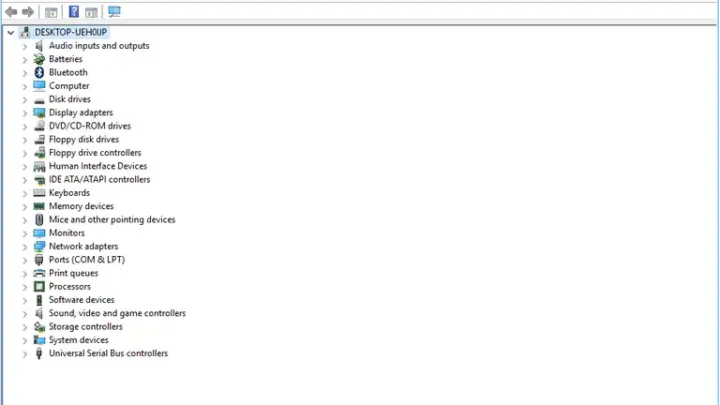
Update your network drivers. Outdated drivers can cause latency issues. Check your manufacturer’s website for the latest versions, especially if you’re using Wi-Fi.
Frequently Asked Questions
Why does my browser slow down over time?
Browsers collect cache, cookies, and temporary files with each session. Over time, these files bloat and slow down performance. Regularly clearing them keeps your browser running smoothly.
Can too many extensions really slow things down?
Yes. Each extension runs its own scripts and processes. If you have more than 10 active extensions, they can significantly increase RAM and CPU usage, leading to slower page loads.
Is hardware acceleration always a good thing?
Not always. While it offloads tasks to your GPU, it can cause conflicts with some graphics drivers. If you notice slowdowns or crashes, try disabling it in your browser settings.
Does my ISP affect browser speed?
Absolutely. If your ISP throttles certain types of traffic, pages may load slowly even on a fast computer. Running a speed test can help identify if this is the issue.
Should I use a VPN if my browser is slow?
Only if network throttling is the problem. A VPN can bypass ISP restrictions but may also add latency. Test your speed with and without it to see if it helps or hurts performance.

Similar Posts