SSD Not Showing in File Explorer? Fix It Now
Founder & Lead Technology Analyst at Techny Tech · IEEE Senior Member, Certified Information Systems Security Professional (CISSP) · 13+ years in embedded systems benchmarking, machine learning hardware acceleration, and consumer electronics
Your brand-new SSD isn’t appearing in File Explorer, and that’s frustrating. The issue SSD not showing in File Explorer usually stems from a connection problem, missing initialization, or a driver glitch. Most of the time, it’s an easy fix once you know where to look.
Windows relies on Disk Management to recognize new drives before they appear in File Explorer. As of 2026, NVMe and SATA SSDs follow the same detection rules, but the steps to resolve them differ slightly.
SSD not showing in File Explorer
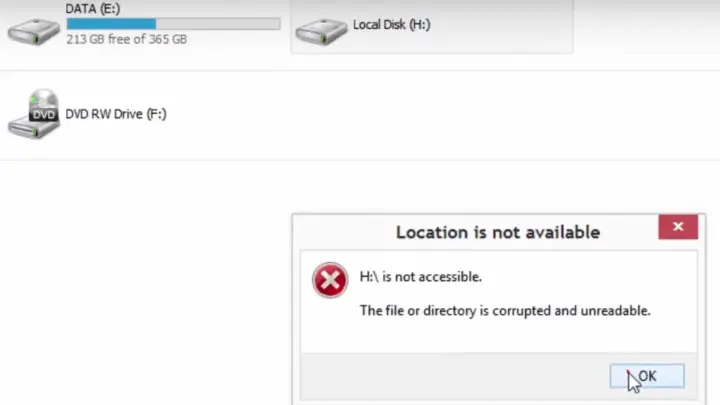
It usually means the drive isn’t initialized or lacks a drive letter. Open Disk Management to check if it appears there. If it’s unallocated, you’ll need to create a volume.
A missing drive letter can be assigned manually.
Quick Fixes to Try First
Start with the simplest solutions. Reboot your PC, this resets the hardware detection cycle. If it’s an external SSD, try a different USB port or cable.
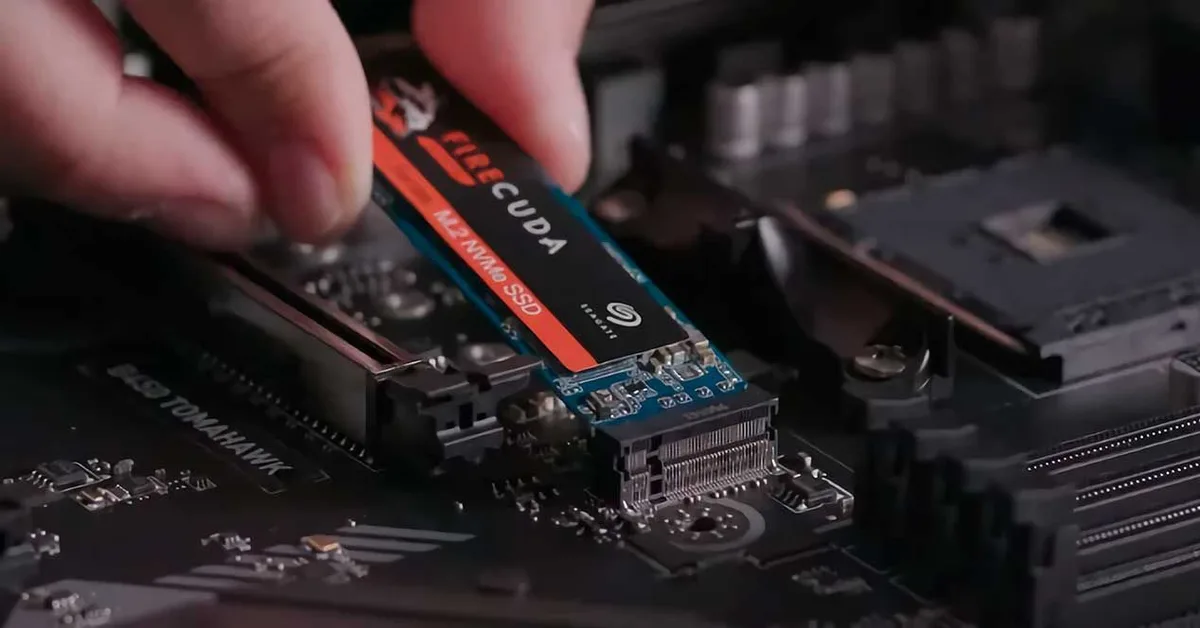
Image source: Bing (Web (fair-use with source credit))
Check if the SSD appears in Disk Management. Press Win + X and select it from the menu. If it shows as Unknown or Not Initialized, that’s your next step.
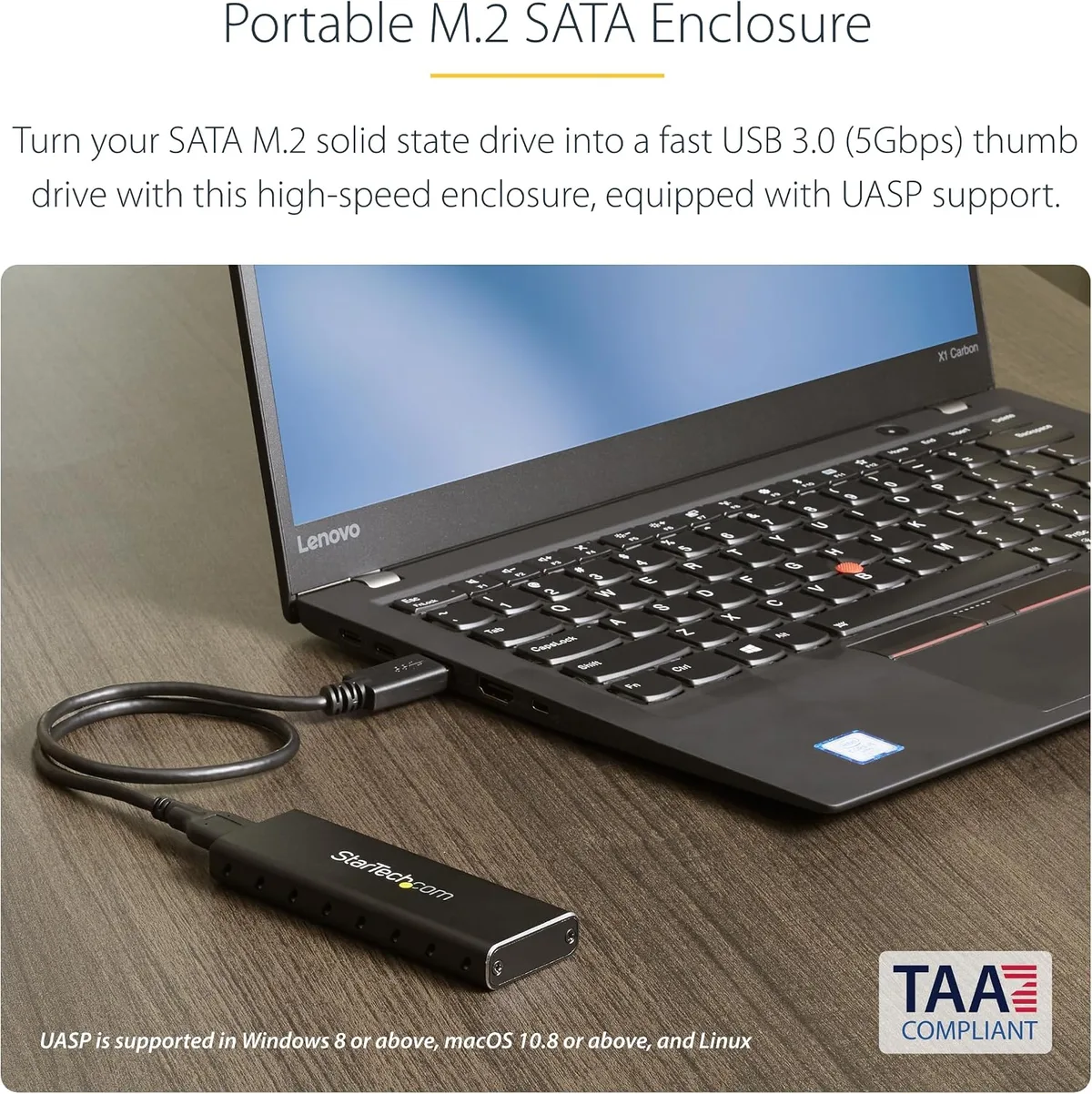
Image source: Bing (Web (fair-use with source credit))
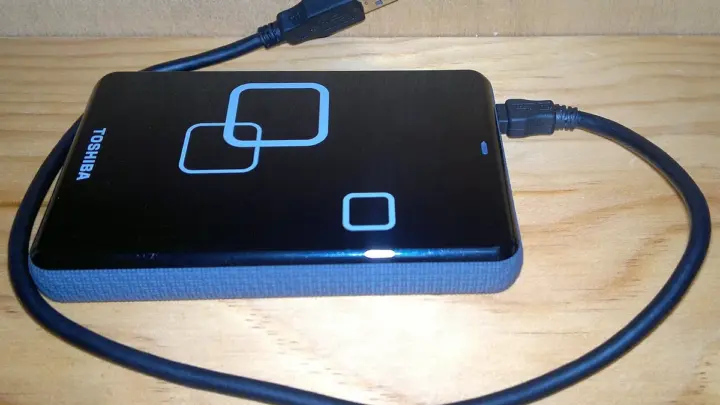
For external SSDs, test the enclosure or adapter. Some USB-to-SATA adapters don’t support UASP, which can cause detection issues. Swap to a known-working cable or port.
Why Your SSD Isn’t Showing Up (And How to Diagnose It)
The root cause falls into three categories: hardware, firmware, or software. A loose connection or dead port can make the SSD invisible to the system. Internal SSDs might not be seated properly in their slots.
Firmware issues are less common but possible. Some older BIOS versions don’t recognize NVMe SSDs without an update. Check your motherboard manufacturer’s support page for the latest BIOS, as recommended by ASUS.
Software-wise, Windows might lack the right drivers. This is rare for SATA SSDs but can happen with newer NVMe models. Outdated storage controllers in Device Manager can also block detection.
Step-by-Step Troubleshooting Workflow
If the SSD Doesn’t Appear in BIOS/UEFI
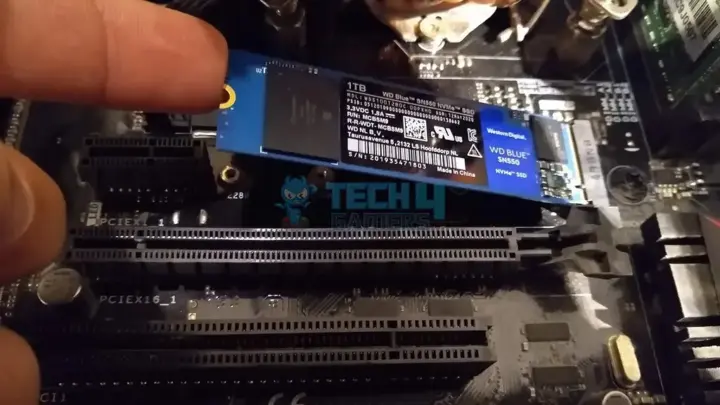
First, confirm the SSD is physically installed correctly. For M.2 drives, ensure the screw is tight and the drive is angled properly. For 2.5" SATA SSDs, check both the data and power cables.
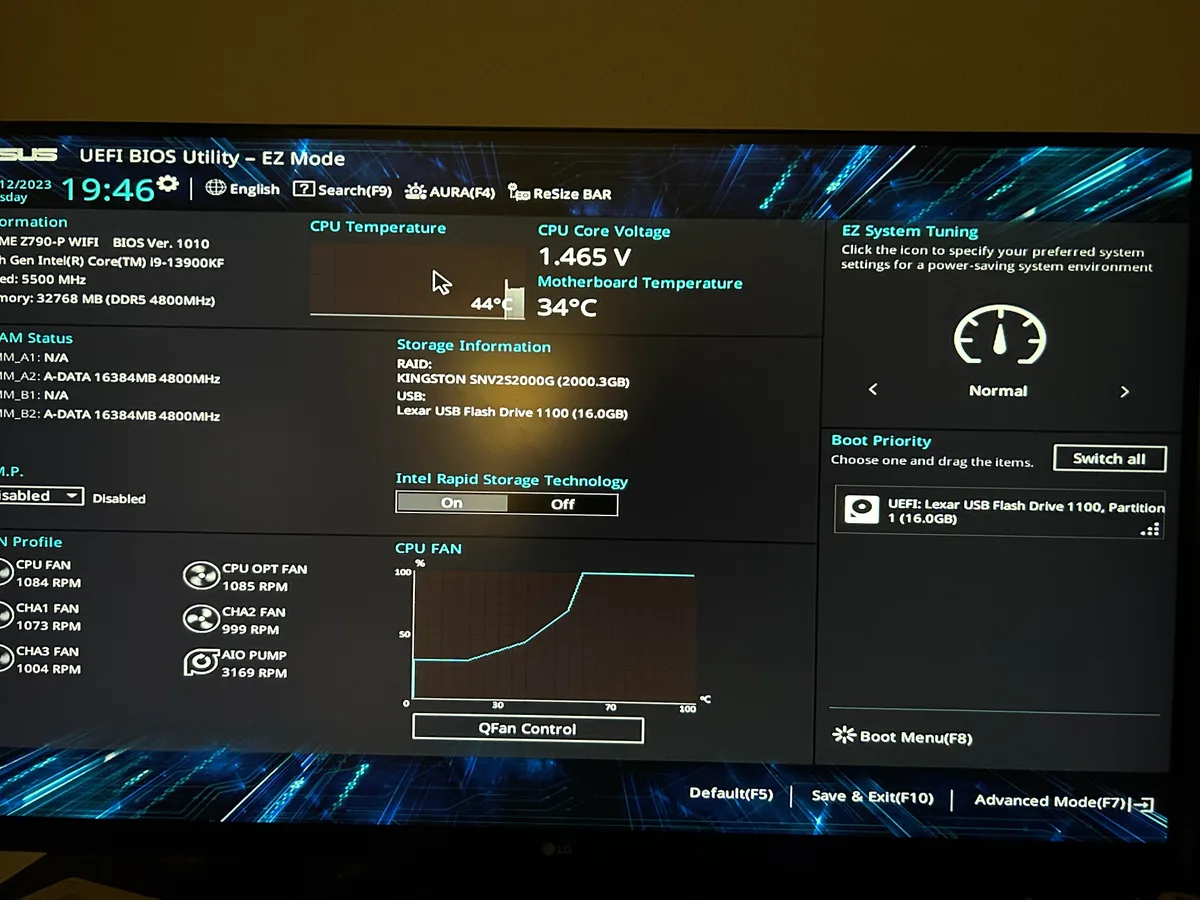
Image source: Bing (Web (fair-use with source credit))
Enter BIOS/UEFI by pressing Del, F2, or F12 during startup. Look for the SSD under Storage or Boot tabs. If it’s missing, the slot might be disabled.
Enable it in the settings.
If the SSD still doesn’t appear, try resetting BIOS to default. A corrupted BIOS setting can hide connected drives. For NVMe SSDs, ensure the M.2 slot is set to Auto or NVMe mode.
If the SSD Shows in BIOS but Not in Windows
This points to a driver or initialization issue. Open Device Manager and expand Disk drives and Storage controllers. Look for yellow warning icons.
Update the storage controller drivers. Right-click the device, select Update driver, and let Windows search automatically. For NVMe SSDs, download the latest driver from the manufacturer’s site.
If the SSD appears in Disk Management as Unknown or Not Initialized, right-click it and select Initialize Disk. Choose GPT for drives over 2TB or MBR for older systems. Then create a new simple volume and assign a drive letter.
Then format it as NTFS for Windows use. This assigns a file system the OS can read.
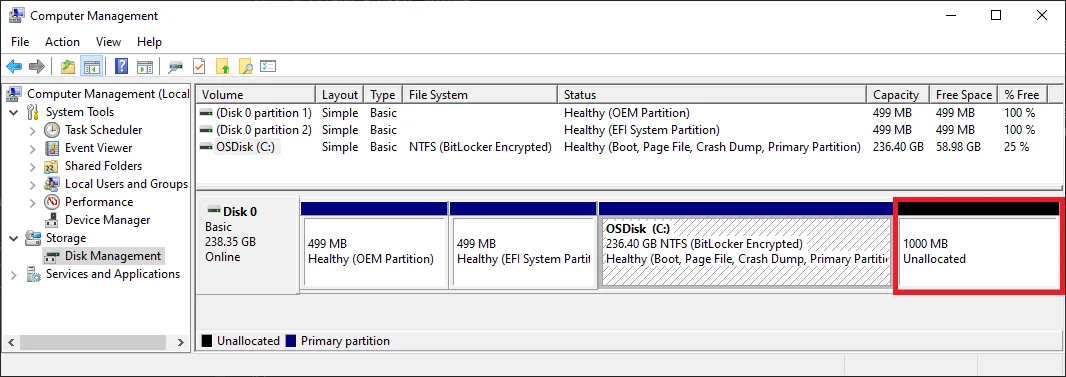
Image source: Bing (Web (fair-use with source credit))
If the SSD Appears in Disk Management but Not File Explorer
The drive likely lacks a drive letter. Right-click the volume in Disk Management and select Change Drive Letter and Paths. Assign an unused letter like D: or E:.
If the volume shows as RAW, it needs formatting. Right-click and select Format, then choose NTFS for Windows. Note that formatting erases all data, so only do this for new or empty drives.
Common Mistakes That Make the Problem Worse
Skipping the BIOS check wastes time. If the SSD isn’t detected there, Windows won’t see it either. Always verify hardware detection first.
Using the wrong partition style causes issues. GPT is required for drives over 2TB, while MBR works for smaller drives on older systems. Mixing them up can prevent the SSD from appearing.
Ignoring driver updates is another pitfall. Outdated storage controllers can’t communicate with newer SSDs. Always check Device Manager for warnings.
Formatting a drive with data erases everything. If the SSD contains files, recover them first using data recovery software before initializing or formatting.
When to Consider Hardware Failure (And What to Do Next)
If the SSD still doesn’t appear after all troubleshooting steps, hardware failure is likely. Test the drive in another PC or with a different enclosure. If it’s undetected everywhere, the SSD may be dead.
Check for physical damage. Burn marks, bent connectors, or cracked circuit boards mean replacement is the only option. For M.2 drives, inspect the gold contacts for scratches or corrosion.
Listen for unusual sounds. SSDs are silent, but a clicking or grinding noise from a 2.5" enclosure could indicate a failing power circuit. External SSDs may also suffer from faulty USB controllers.
If the drive is under warranty, contact the manufacturer. Most SSDs come with 3 to 5 years of coverage. Samsung, Crucial, and WD offer RMA processes for confirmed failures.
Frequently Asked Questions
Why does my new SSD not show up in File Explorer?
It’s usually uninitialized or lacks a drive letter. Open Disk Management and check if the SSD appears there. If it’s marked as Unknown, right-click and initialize it.
Can a dead SSD be fixed?
No. If the SSD is physically damaged or fails all detection tests, it cannot be repaired. Replace it and restore data from a backup if available.
How do I know if my SSD is detected in BIOS?
Restart your PC and enter BIOS/UEFI by pressing Del, F2, or F12. Look under the Storage or Boot tab for the SSD model. If it’s missing, the drive or connection may be faulty.
What’s the difference between MBR and GPT for SSDs?
MBR supports drives up to 2TB and is compatible with older systems. GPT handles larger drives and is required for UEFI boot. Use GPT for modern SSDs over 2TB.
Why does my external SSD keep disconnecting?
This often points to a power issue. Try a powered USB hub or a different cable. Some enclosures don’t provide enough power for larger SSDs.

Similar Posts