Stop Unwanted Startup Programs Easily
Founder & Lead Technology Analyst at Techny Tech · IEEE Senior Member, Certified Information Systems Security Professional (CISSP) · 13+ years in embedded systems benchmarking, machine learning hardware acceleration, and consumer electronics
Your computer takes forever to boot up, and half the time, it’s because of apps you never asked to launch. If you’re wondering how to remove unwanted startup programs, you’re in the right place. These background processes slow down your system, drain resources, and sometimes even hide malware.
On average, disabling just 3-4 unnecessary startup items can cut boot time by 30-50% as of 2026. Let’s start with the fastest way to fix it.
how to remove unwanted startup programs
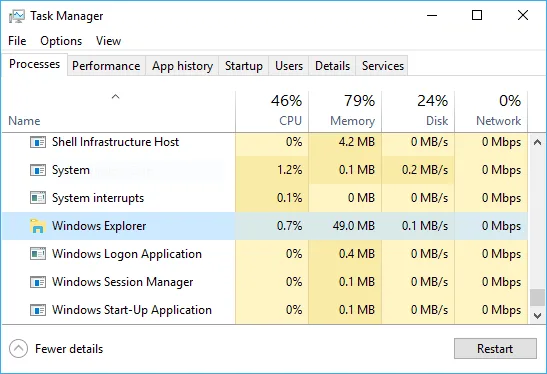
Open Task Manager on Windows or System Settings on macOS. Locate the Startup or Login Items tab. Select the unwanted program.
Click Disable or Remove. Restart your computer to apply changes.
Why Your Computer Is Slow at Startup (And How to Fix It)
Startup programs are apps that launch automatically when you turn on your computer. Some are essential, like your antivirus or hardware drivers. Others are unnecessary bloatware, leftover software, or even malware.
Each extra program adds seconds, or minutes, to your boot time. A 2022 Microsoft study found that systems with 10+ startup items can take twice as long to become usable compared to those with only 3-4. The more you disable, the faster your machine wakes up.
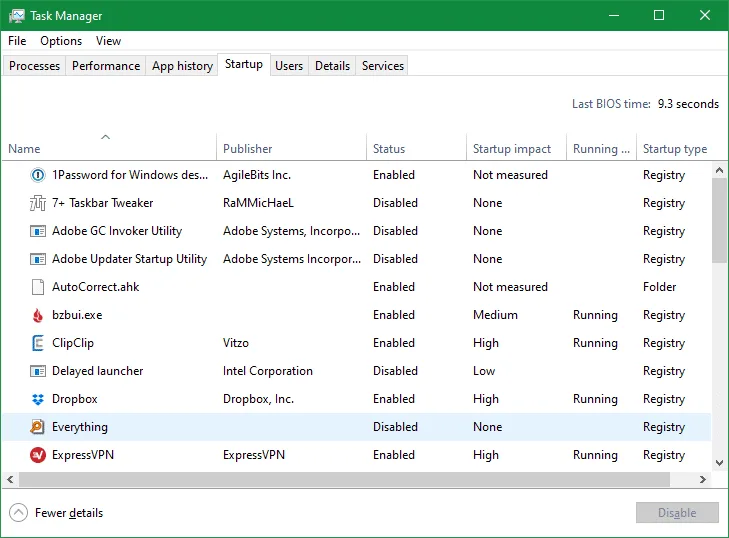
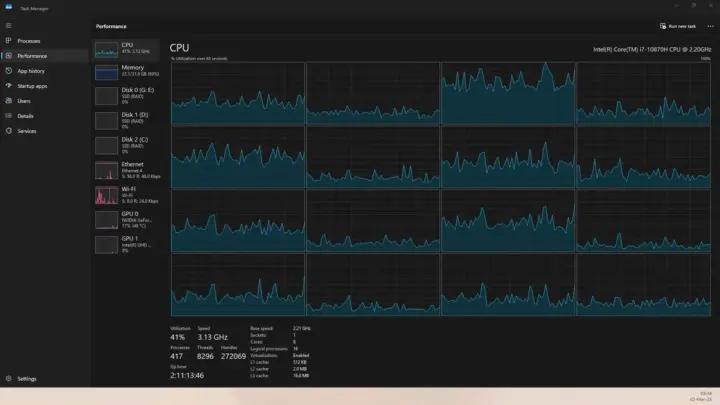
Image source: Bing (Web (fair-use with source credit))
Quick Fix: Disable Startup Programs in 30 Seconds
If you just want the fastest solution, here’s the drill:
- Windows: Press
Ctrl + Shift + Escto open Task Manager. Go to the Startup tab, right-click any non-essential app, and select Disable. - macOS: Open System Settings > General > Login Items. Click the minus (-) button next to any app you don’t need at startup.
That’s it. No restart needed to disable them, but you’ll need to reboot to feel the speed boost.
Windows vs. macOS: The Exact Steps to Remove Startup Programs
The process differs slightly depending on your operating system. Below are the precise, no-fluff steps for each.
For Windows Users
Windows gives you multiple ways to manage startup programs. The easiest is Task Manager, but power users might prefer msconfig or the Registry Editor for deeper control.
- Task Manager (Recommended for Most Users) , Press
Ctrl + Shift + Esc.
, Click the Startup tab.
, Sort by Startup impact to see the biggest offenders.
, Right-click any app and select Disable.
- System Configuration (msconfig) , Press
Win + R, typemsconfig, and hit Enter.
, Go to the Startup tab (or Services for background processes).
, Uncheck the boxes next to unwanted programs.
, Click Apply > OK and restart.
- Startup Folder (Legacy Method) , Press
Win + R, typeshell:startup, and hit Enter.
, Delete any shortcuts for programs you don’t want launching.
- Registry Editor (Advanced Users Only) , Press
Win + R, typeregedit, and hit Enter.
, Navigate to HKEY_CURRENT_USER\Software\Microsoft\Windows\CurrentVersion\Run.
, Delete any suspicious or unwanted entries (but don’t touch system-critical keys).
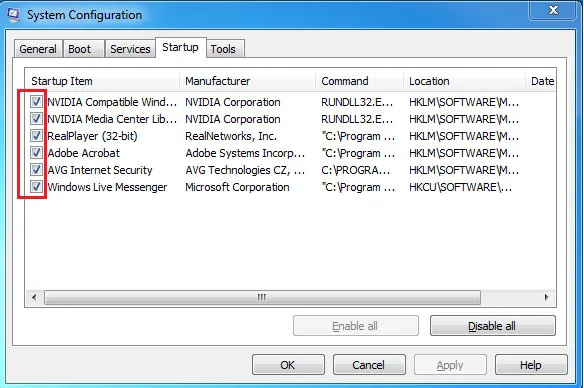
Image source: Bing (Web (fair-use with source credit))
For macOS Users
macOS handles startup programs differently, using Login Items and LaunchAgents. Here’s how to clean them up:
- Login Items (Easiest Method) , Open System Settings > General > Login Items.
, Find the app you want to remove and click the minus (-) button.
, Toggle off Open at Login for any app you want to keep but not auto-launch.
- LaunchAgents (For Hidden Startup Items) , Open Finder and press
Cmd + Shift + G.
, Type /Library/LaunchAgents/ for system-wide items or ~/Library/LaunchAgents/ for user-specific ones.
, Drag any suspicious .plist files to the Trash (but don’t delete Apple-related files).
- Terminal (For Power Users) , Open Terminal and type
launchctl listto see all startup services.
, To remove one, use launchctl remove [label] (replace [label] with the service name).
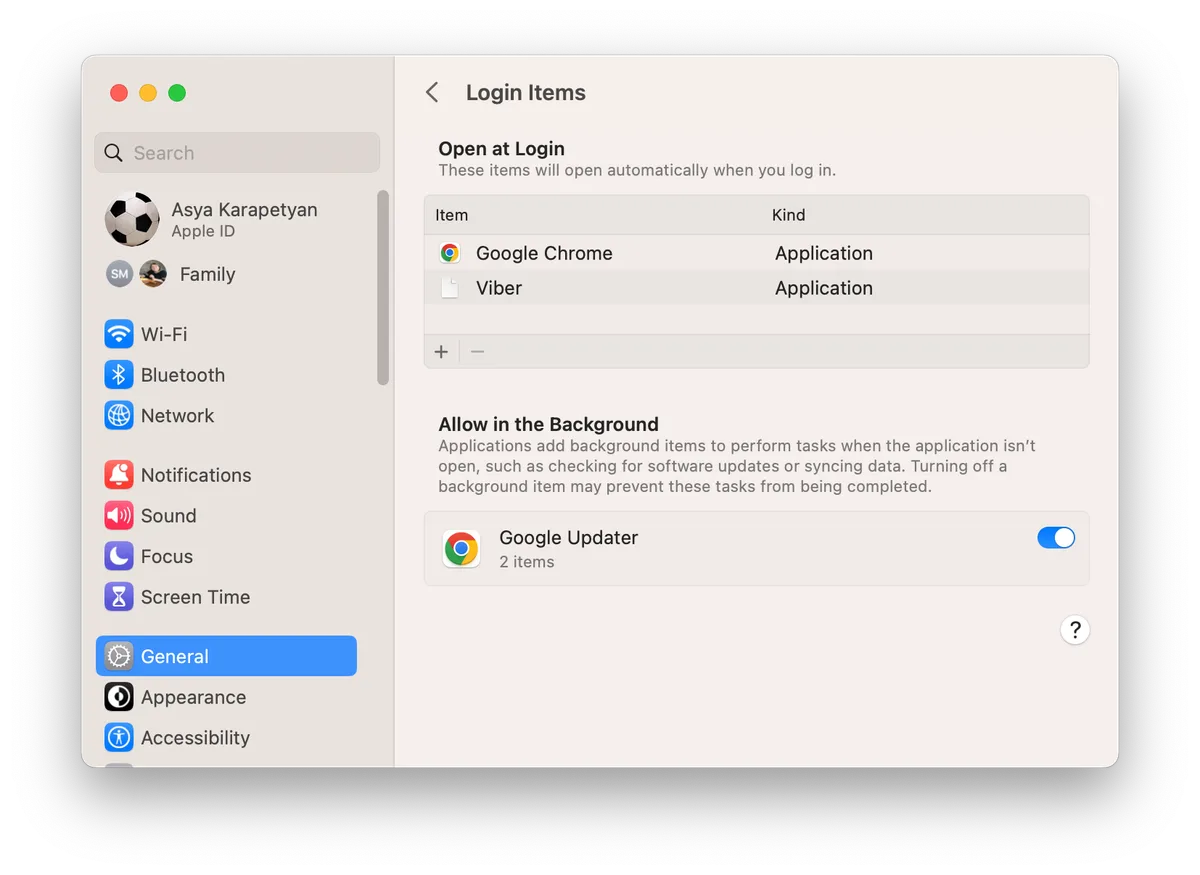
Image source: Bing (Web (fair-use with source credit))
How to Spot and Remove Hidden or Malicious Startup Items
Not all startup programs are visible in Task Manager or Login Items. Some hide in scheduled tasks, services, or obscure system folders.
Red Flags to Watch For
- Unfamiliar names: If you don’t recognize a program, it’s worth investigating.
- High CPU/memory usage: Check Task Manager for apps hogging resources at startup.
- No publisher info: Right-click the app in Task Manager. If the Publisher column is blank, it could be malware.
- Reappearing entries: If a program keeps coming back after you disable it, it’s likely malware.
How to Remove Them
Run a Malware Scan Use a trusted tool like Windows Defender or Malwarebytes. These can detect and remove hidden threats.
Check Scheduled Tasks (Windows) , Open Task Scheduler (
taskschd.msc).
, Browse the Task Scheduler Library for suspicious tasks.
, Right-click and Disable or Delete any you don’t recognize.
- Review Services (Windows) , Press
Win + R, typeservices.msc, and hit Enter.
, Look for unfamiliar services with Automatic startup type.
, Right-click and select Properties > Startup type > Manual or Disabled.
- Inspect LaunchDaemons (macOS) , In Finder, press
Cmd + Shift + Gand go to/Library/LaunchDaemons/.
, Remove any .plist files you don’t recognize (but avoid Apple files).
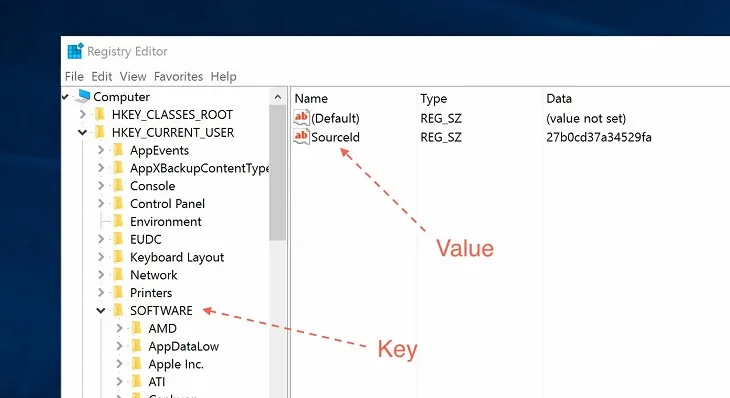
Image source: Bing (Web (fair-use with source credit))
Common Mistakes That Make Things Worse
Disabling the wrong startup items can break your system. Never touch Windows Update, antivirus software, or hardware drivers. These are critical for security and stability.
Another mistake is ignoring the Startup impact column in Task Manager. High-impact apps slow you down the most. Focus on those first.
Some users delete files from the Startup folder instead of disabling them. This can cause errors if the program expects to run. Disable first, delete only if necessary.
Pro Tips to Keep Your Startup Clean Long-Term
Regularly audit your startup programs. Aim for a monthly check. This prevents bloat from building up over time.
Use a dedicated cleanup tool if you’re not comfortable with manual edits. Tools like Autoruns from Microsoft’s Sysinternals give deeper control. They’re free and trusted.
Enable Startup Boost in Windows 11 if available. This feature prioritizes essential apps during boot. It’s a small but effective optimization.
For macOS users, keep an eye on LaunchAgents and LaunchDaemons. These folders often hide unnecessary or malicious entries. Clean them out periodically.

Similar Posts