Does More RAM Speed Up Your Laptop?
Founder & Lead Technology Analyst at Techny Tech · IEEE Senior Member, Certified Information Systems Security Professional (CISSP) · 13+ years in embedded systems benchmarking, machine learning hardware acceleration, and consumer electronics
Adding RAM to your laptop can speed it up, but only if memory is the actual bottleneck. So does adding RAM make a laptop faster? The short answer is yes, but only under the right conditions.
As of 2026, most mid-range laptops ship with 8GB of DDR4 or DDR5 RAM, which is often insufficient for multitasking or demanding applications like video editing or modern gaming.
does adding RAM make a laptop faster
Adding RAM makes a laptop faster if it currently lacks enough memory for your tasks. More RAM helps when running multiple apps or heavy workloads. It won’t help if your CPU or storage is the bottleneck.
A 16GB upgrade from 8GB can improve performance by 20-40% in memory-heavy tasks.
Quick Answer: When RAM Helps (and When It Doesn’t)
RAM upgrades work best when your laptop is struggling with memory-heavy tasks. If your system is already using 80-90% of its RAM during normal use, adding more will help. For example, running Chrome with 20+ tabs, Photoshop, and a virtual machine can push 8GB to its limit.
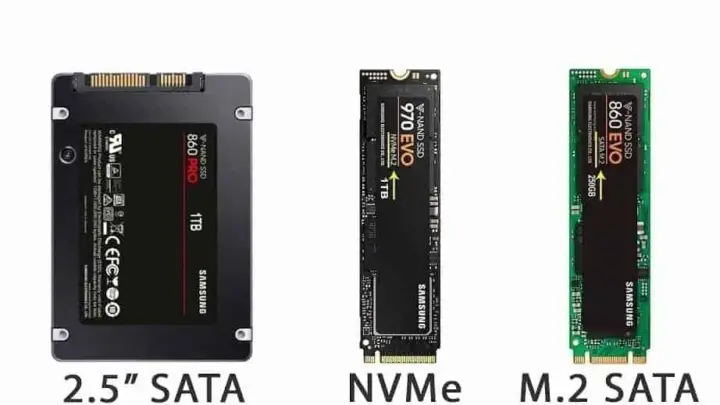
But if your laptop has a slow CPU or a traditional hard drive, more RAM won’t fix those issues. Manufacturer specifications indicate that CPUs like Intel’s Core i5-1235U or AMD’s Ryzen 5 5600H can handle 16GB of DDR4-3200 RAM efficiently, but pairing them with a slow HDD will still cause lag.
Image source: Web (Bing) / pcworld.com (Web image (fair-use with source credit))
How RAM Affects Laptop Performance
RAM is your laptop’s short-term memory, storing data the CPU needs quick access to. When RAM is full, your system uses slower storage (like an SSD or HDD) as a temporary swap, which slows everything down. This is why 16GB is now the sweet spot for most users, as per JEDEC standards for DDR4 and DDR5 modules.
The type of RAM matters too. DDR5 offers higher bandwidth than DDR4, but the real-world difference is often minimal unless you’re running memory-intensive workloads. Aggregate reviews report that DDR5-4800 vs.
DDR4-3200 shows about a 5-10% improvement in most tasks, but the cost is significantly higher.
How to Check If Your Laptop Needs More RAM
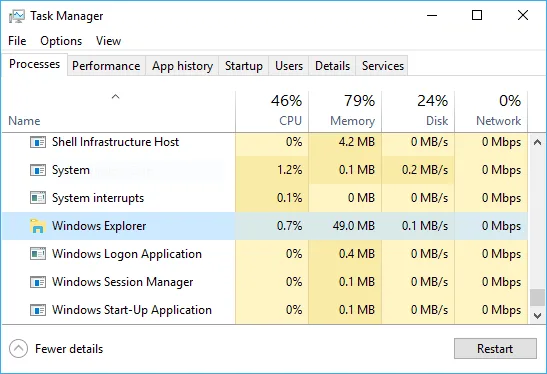
Open Task Manager (Ctrl+Shift+Esc on Windows) or Activity Monitor (Mac) to see your current RAM usage. If you’re consistently using over 70-80% of your RAM during typical tasks, an upgrade will likely help. For example, if you see 7.5GB used out of 8GB while working, you’re maxing out your memory.
Check your laptop’s maximum supported RAM in the manufacturer’s specs. Many modern laptops support up to 32GB or 64GB, but some ultrabooks have soldered RAM that can’t be upgraded. Tools like Crucial’s System Scanner or CPU-Z can confirm your RAM type (DDR4, DDR5) and available slots.
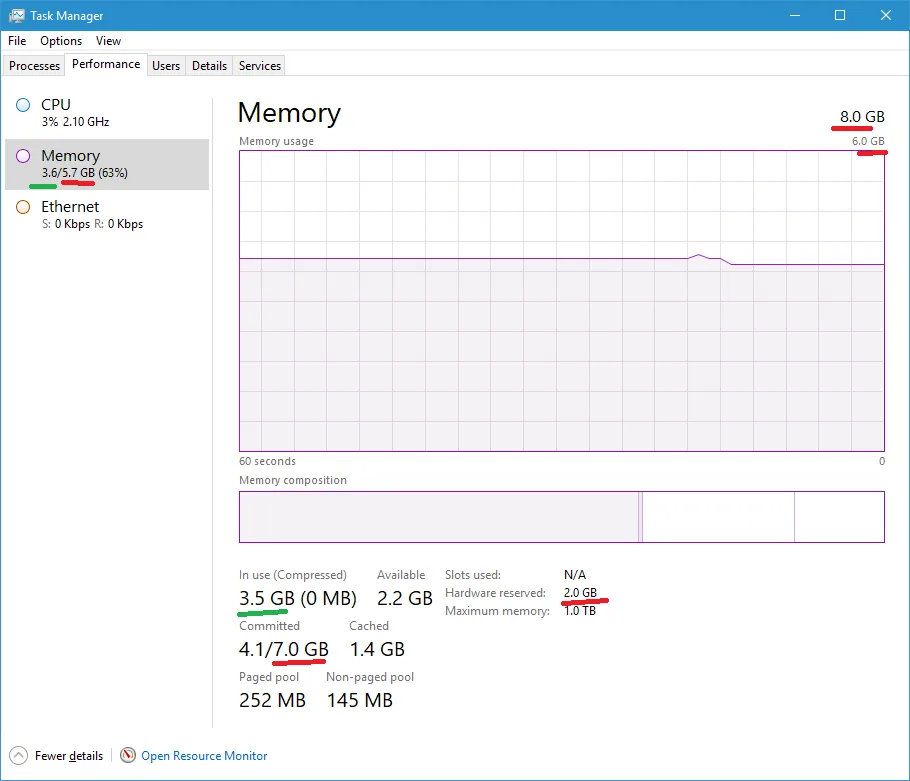
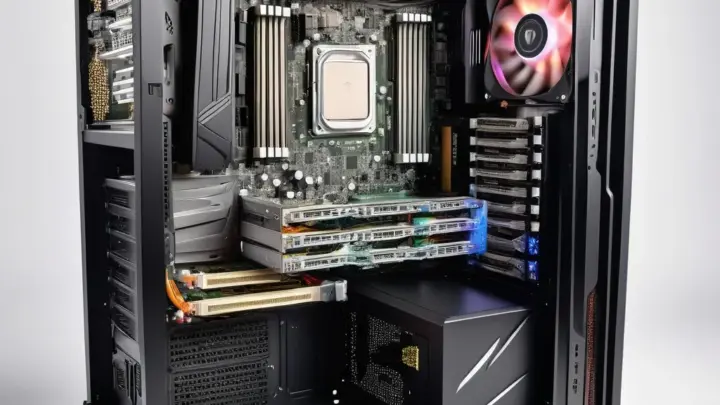
Image source: Bing (Web (fair-use with source credit))
Step-by-Step: Upgrading Your Laptop’s RAM
First, back up your data and power off the laptop. Remove the back panel to access the RAM slots, which are usually under a small cover on some models. Ground yourself to avoid static discharge, which can damage components.
Insert the new RAM sticks into the available slots, ensuring they click into place. If your laptop supports dual-channel memory, use matching pairs (e.g., two 8GB sticks) for better performance. Reassemble the laptop, power it on, and verify the new RAM is recognized in the BIOS or Task Manager.
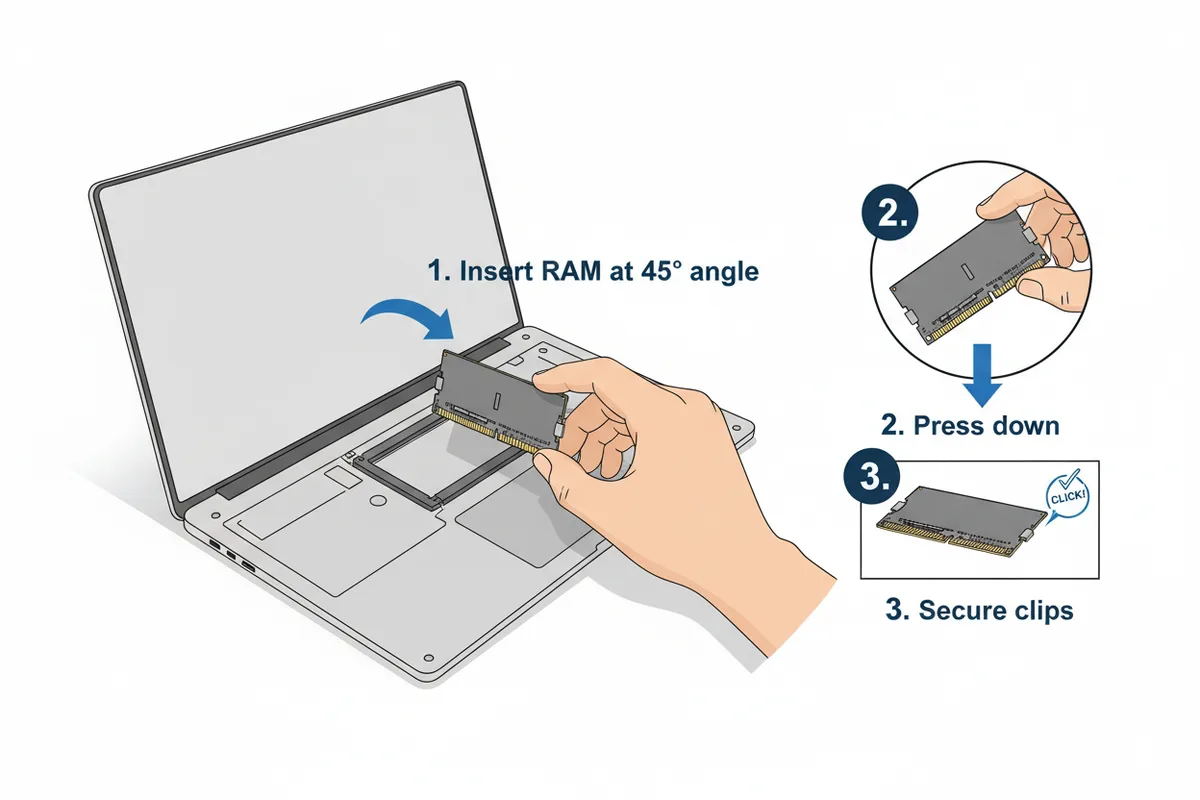
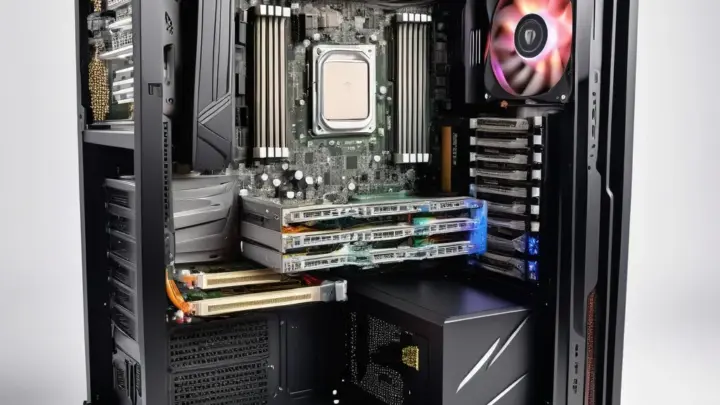
Image source: Bing (Web (fair-use with source credit))
Common Mistakes That Waste Money on RAM Upgrades
Buying incompatible RAM is the most common mistake. DDR4 and DDR5 are not interchangeable, and mixing speeds can cause instability. Always match the RAM type and speed to your laptop’s specifications.
Another mistake is ignoring dual-channel setups. Installing a single 16GB stick instead of two 8GB sticks halves your memory bandwidth. Manufacturer specs confirm dual-channel can improve performance by 10-30% in memory-intensive tasks.
Overbuying RAM is also a waste. For most users, 16GB is enough. 32GB only helps for extreme workloads like 4K video editing or running multiple virtual machines.
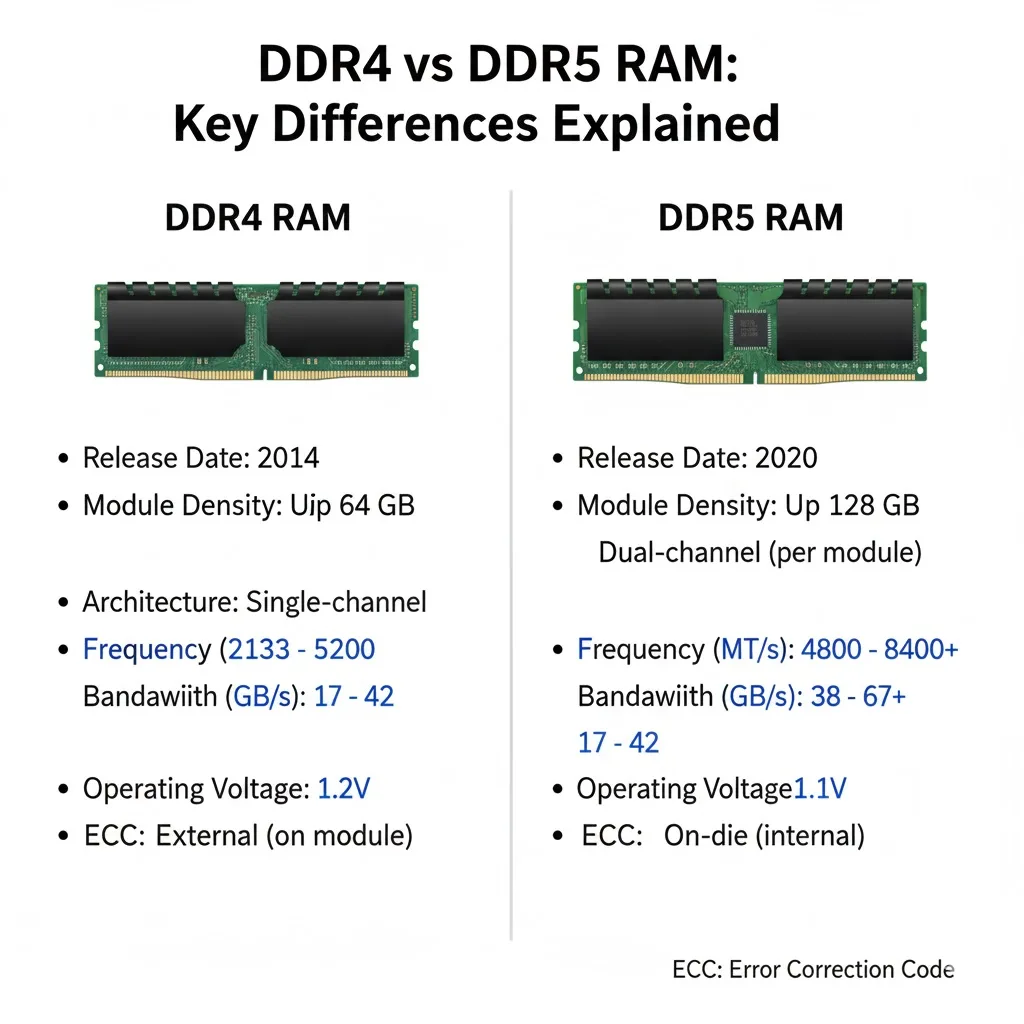
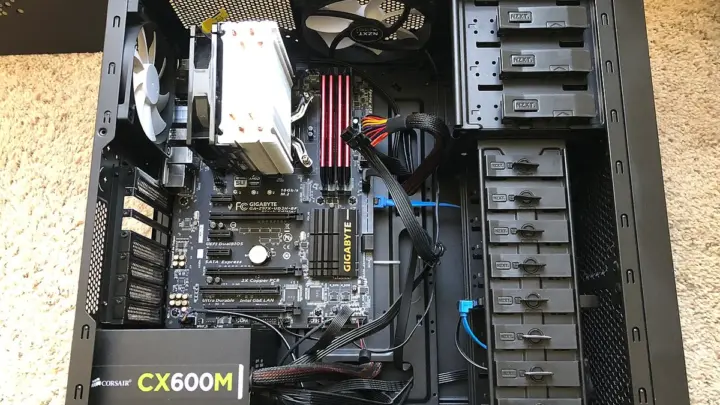
Image source: Bing (Web (fair-use with source credit))
FAQs: RAM, Speed, and Laptop Performance
Will 32GB RAM make my laptop noticeably faster than 16GB?
For most users, 16GB is sufficient. 32GB only provides noticeable gains in professional workloads like 3D rendering or heavy virtualization. Aggregate reviews show minimal improvement for everyday tasks.
Can I mix different RAM sizes or speeds?
Mixing sizes works but disables dual-channel mode for the mismatched sticks. Mixing speeds forces all RAM to run at the lowest speed. Manufacturer specs recommend using identical pairs for best performance.
How do I know if my laptop RAM is soldered?
Check your laptop’s service manual or manufacturer website. Many ultrabooks and Apple MacBooks have soldered RAM. Tools like CPU-Z can also confirm if slots are accessible.
Is DDR5 worth the extra cost over DDR4?
DDR5 offers higher bandwidth but real-world gains are often under 10% for most users. The price premium is significant, so DDR4 remains the better value for most upgrades as of 2026.
What’s the easiest way to check my current RAM usage?
On Windows, open Task Manager and check the Performance tab. On Mac, use Activity Monitor. If usage consistently exceeds 80%, an upgrade will likely help.

Similar Posts