Set Default Apps in Windows 11 Easily
Founder & Lead Technology Analyst at Techny Tech · IEEE Senior Member, Certified Information Systems Security Professional (CISSP) · 13+ years in embedded systems benchmarking, machine learning hardware acceleration, and consumer electronics
Tired of Windows 11 asking which app to use every time you open a file? Here’s how to set a default app in Windows 11 and stop the prompts for good. Whether it’s PDFs, photos, or links, Windows lets you pick your preferred app for each file type or protocol.
As of 2026, Windows 11 still uses the same core system for file associations, but the UI has shifted. The Settings app now centralizes these controls, though some power users still prefer the registry for bulk changes.
how to set a default app in Windows 11
Open Settings and go to Apps then Default apps.
Search for the file type or protocol.
Click the current app and pick your preferred one.
Windows will now use it automatically.
Why Windows 11 Keeps Asking You to Choose a Default App
Windows 11 doesn’t always respect your choices. Updates, app installations, or even a restart can reset defaults. This happens because some apps aggressively reassign themselves during updates.
Another common culprit is conflicting file associations. If two apps claim the same file type, Windows may prompt you to choose each time. The system also resets defaults if an app is uninstalled or corrupted.
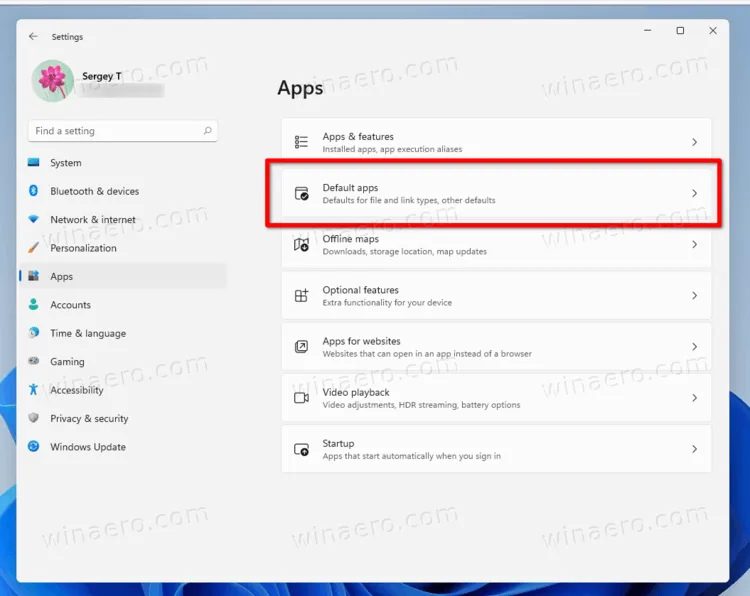
Image source: Bing (Web (fair-use with source credit))
Quick Fix: Set a Default App in 3 Steps
First, open Settings with Win + I. Navigate to Apps then Default apps. Scroll or search for the file type you want to change.
Click the current app listed under that file type. A list of available apps will appear. Select your preferred app, and Windows will update the default immediately.
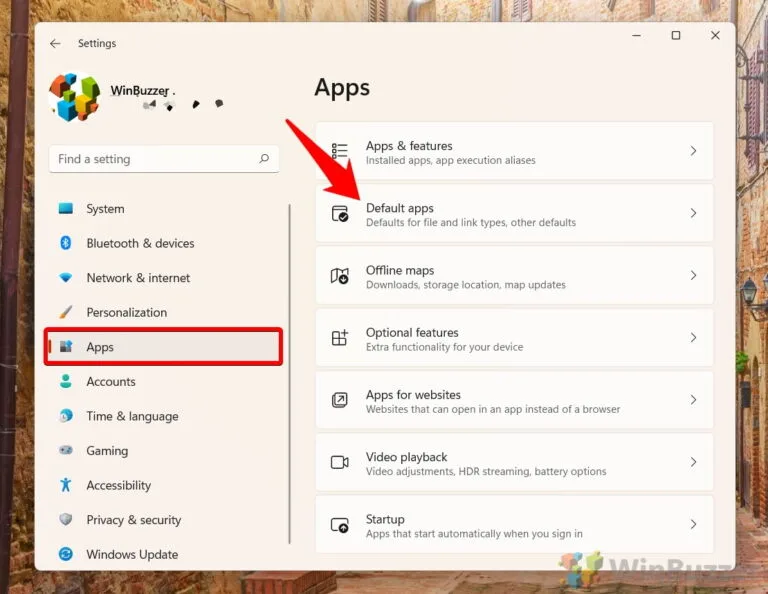
Image source: Bing (Web (fair-use with source credit))
For protocols like HTTP or MAILTO, the process is the same. Just search for the protocol instead of a file type. This works for browsers, email clients, and other protocol-based defaults.
When the Default App Won’t Stick (And How to Fix It)
If your default app resets after an update, try this. Open Settings then Apps then Default apps. Click Reset all default apps at the bottom of the page.
This reverts everything to Microsoft’s recommended defaults.
Next, reassign your preferred apps manually. This often resolves conflicts caused by updates or app installations. If the issue persists, the app itself may be reassigning defaults on launch.
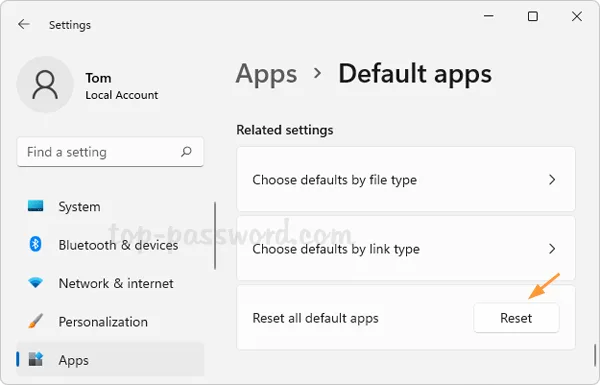
Image source: Bing (Web (fair-use with source credit))
For stubborn cases, check if the app has its own default settings. Some apps, like browsers or PDF readers, include options to set themselves as the default during installation or in their settings menu.
Default Apps for Common File Types (PDF, Photos, Music, etc.)
Here’s a quick reference for popular file types and their typical defaults in Windows 11:
| File Type | Common Default Apps | How to Change |
|---|---|---|
| Microsoft Edge, Adobe Acrobat | Settings > Apps > Default apps > .pdf | |
| .jpg, .png | Photos, Paint, IrfanView | Settings > Apps > Default apps > .jpg |
| .mp3, .mp4 | Groove Music, Windows Media Player | Settings > Apps > Default apps > .mp3 |
| .docx | Microsoft Word, LibreOffice | Settings > Apps > Default apps > .docx |
| .html | Microsoft Edge, Chrome, Firefox | Settings > Apps > Default apps > .html |
For protocols, the most common are HTTP/HTTPS for browsers and MAILTO for email clients. The process is identical: search for the protocol in Default apps and select your preferred app.
Advanced Methods: Command Line & Registry Tweaks
For power users, the Command Prompt offers a faster way. Use ftype to define file types and assoc to link extensions. For example, assoc .txt=txtfile ties the .txt extension to the txtfile type.
The registry is where Windows stores all file associations. Open Registry Editor with regedit and navigate to HKEY_CLASSES_ROOT. Here, you’ll find keys for each file type and protocol.
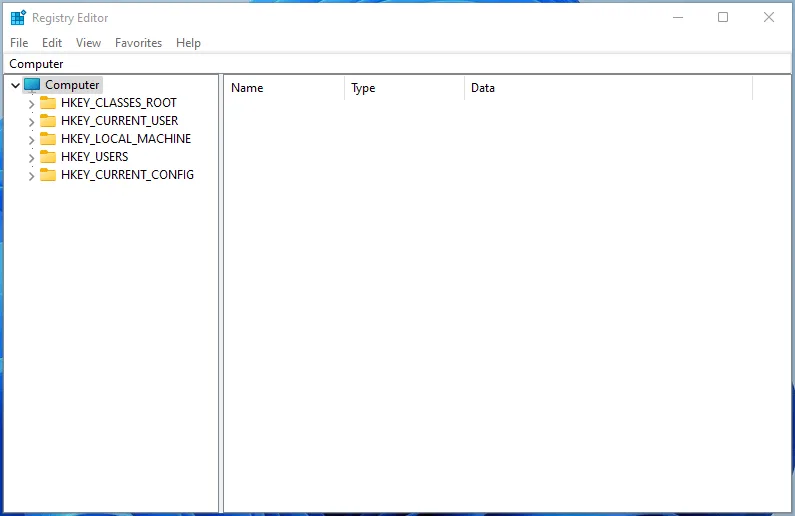
Image source: Bing (Web (fair-use with source credit))
Editing the registry directly can break your system if done incorrectly. Always back up the registry before making changes. Microsoft’s documentation on file associations provides official guidance.
Mistakes That Break Default Apps (And How to Avoid Them)
One common mistake is deleting an app without reassigning its file types first. This can leave orphaned associations that Windows can’t resolve. Always reassign defaults before uninstalling an app.
Another issue is using third-party tools that override Windows settings. Some apps force themselves as defaults during installation. Always check the installation options to avoid this.
Avoid manually editing the registry unless you’re confident. Incorrect changes can make files unopenable or even crash Windows. Stick to the Settings app for most users.

Similar Posts