USB Hub Keeps Disconnecting Devices? Fix It Now
Founder & Lead Technology Analyst at Techny Tech · IEEE Senior Member, Certified Information Systems Security Professional (CISSP) · 13+ years in embedded systems benchmarking, machine learning hardware acceleration, and consumer electronics
Your USB hub disconnects multiple devices because it’s either starved for power, overwhelmed by data demands, or hitting a compatibility snag. The fix usually starts with checking whether your hub is powered or not, since unpowered models can’t handle more than a couple of low-draw devices. USB 3.0 ports alone can pull up to 900 mA each, so a hub without its own power supply will choke fast.
Manufacturer specs confirm that most disconnections trace back to power limits, driver glitches, or a single faulty device dragging the whole chain down. As of 2026, even mid-range laptops often ship with USB-C ports that don’t deliver enough juice for a multi-device hub without external power.
USB hub disconnects multiple devices
It happens when the hub lacks sufficient power for all connected devices. Unpowered hubs max out at 500 mA per port under USB 2.0. USB 3.0 devices need 900 mA each.
Daisy-chaining hubs compounds the problem. A powered hub solves most cases.
The 3 Most Common Causes (and How to Spot Yours)
Power starvation is the top culprit. Unpowered hubs share a single 500 mA to 900 mA upstream allocation across all ports. Plug in a hard drive and a webcam, and the hub can’t supply enough current.
Your devices drop out one by one as the hub hits its limit.

Image source: Bing (Web (fair-use with source credit))
Data bandwidth overload is next. USB 2.0 hubs cap at 480 Mbps total, shared among every device. A 4K webcam and an external SSD will fight for bandwidth, causing timeouts.
USB 3.0 hubs offer 5 Gbps, but only if the host port and cable support it.
Driver or chipset conflicts round out the list. Outdated USB drivers, especially on Windows, can miscommunicate with the hub’s controller. Some cheap hubs use no-name chipsets that lack proper driver support. macOS and Linux handle most hubs natively, but even they stumble with non-compliant hardware.

Image source: Bing (Web (fair-use with source credit))
Powered vs. Unpowered: Which One Do You Actually Need?
An unpowered hub works fine for low-draw devices like a mouse, keyboard, or flash drive. It pulls all its power from the host port, so you’re limited to what that port can provide. USB 2.0 ports deliver 500 mA, while USB 3.0 ports offer 900 mA.
That’s enough for one or two small peripherals, but not much more.
A powered hub has its own AC adapter, typically supplying 2A to 4A across all ports. This lets you connect power-hungry devices like external hard drives, fast-charging phones, or multiple accessories at once. If you’re running more than two devices, or any device with its own power needs, a powered hub is non-negotiable.
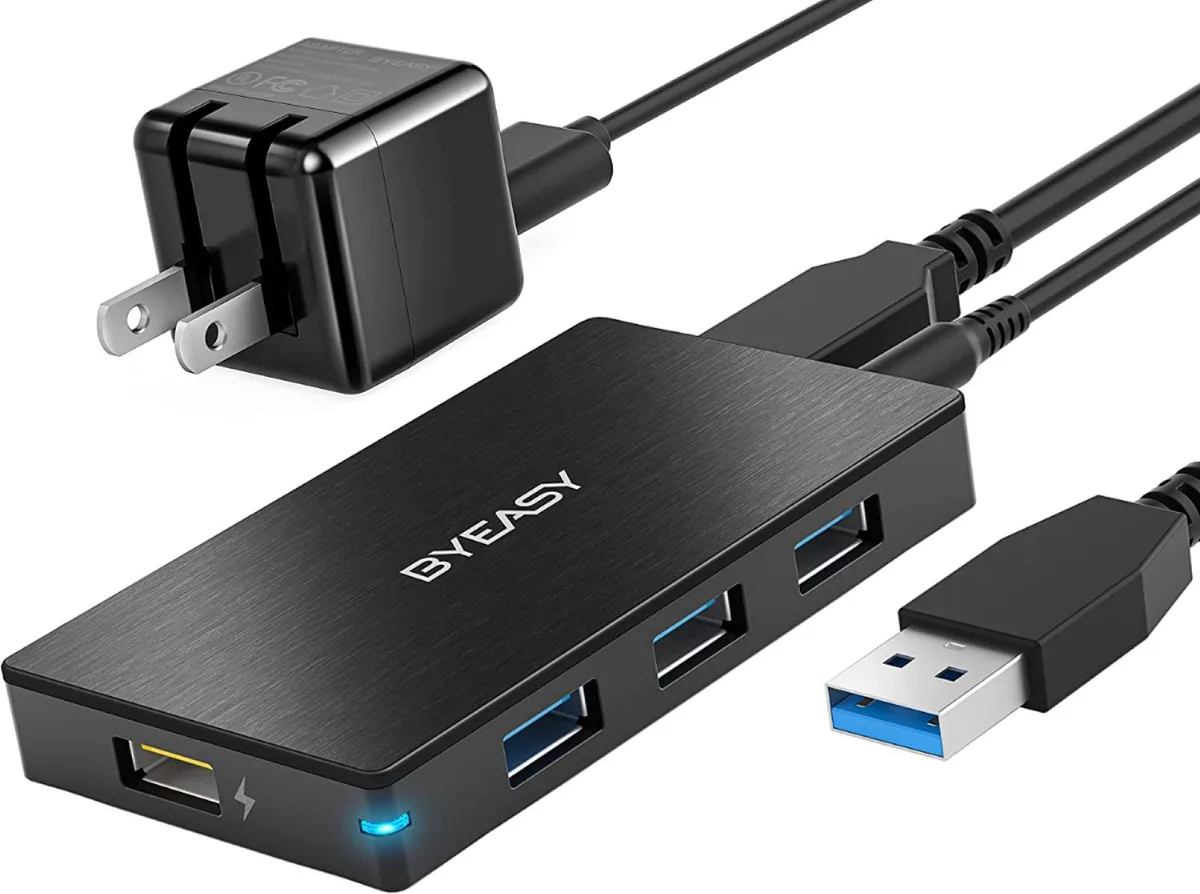
Image source: Bing (Web (fair-use with source credit))
Here’s a quick comparison:
| Feature | Unpowered Hub | Powered Hub |
|---|---|---|
| Power Source | Host port only | AC adapter + host port |
| Max Current per Port | 500–900 mA (shared) | 1A–2.4A (dedicated) |
| Device Limit | 1–2 low-power devices | 4–7+ high-power devices |
| Use Case | Mouse, keyboard, flash drives | HDDs, charging, multiple peripherals |
Step-by-Step Fixes for Each Scenario
If your hub is unpowered, the solution is simple: switch to a powered model. Unplug everything, connect the powered hub directly to a host port, then plug in devices one by one. If the disconnections stop, power was the issue.
If your hub is powered but still failing, check the power adapter. Some hubs ship with underpowered adapters. A 2A adapter might not cut it for four high-draw devices.
Upgrade to a higher-amperage adapter if your hub supports it.
Image source: Bing (Web (fair-use with source credit))
If only certain devices disconnect, isolate the problem. Unplug everything and reconnect devices one at a time. If a specific device causes the hub to drop others, it’s likely drawing too much power or has a faulty connection.
Try a different cable or port.
For persistent issues, update your USB drivers. On Windows, open Device Manager, expand Universal Serial Bus controllers, right-click each USB Root Hub, and select Update driver. On macOS, reset the NVRAM and SMC, which often clears USB glitches.
Linux users can check dmesg for USB errors and reload the usb kernel module if needed.
How to Prevent This from Happening Again
Start by matching your hub to your devices. If you’re running external drives, a 7-port powered hub with a 4A adapter is a safe bet. Avoid daisy-chaining hubs, as each layer adds latency and power loss.
Use high-quality, shielded cables. Cheap cables can cause signal degradation, especially over longer runs. USB 3.0+ cables should be no longer than 3 meters to avoid data loss.
For USB 2.0, stick to 5 meters or less.
Enable USB selective suspend only when necessary. This power-saving feature can interrupt connections. On Windows, disable it in Device Manager under each USB Root Hub’s Power Management tab.
On macOS, check Energy Saver settings to ensure USB devices aren’t being put to sleep.
Regularly update your OS and drivers. Manufacturers release patches for USB controller issues, and keeping your system current prevents many disconnection problems. As of 2026, most modern operating systems handle USB hubs well, but legacy hardware may need manual driver updates.
When to Replace Your Hub (and What to Buy Instead)
If your hub keeps disconnecting devices even after trying all the fixes, it’s likely faulty. Cheap no-name hubs often use low-quality chipsets that overheat or fail under load. Look for hubs with recognized chipset brands like VIA, ASMedia, or Renesas for better reliability.
A hub with overcurrent protection is a must. This feature automatically cuts power to a port if it detects a short circuit or excessive draw, preventing damage to the hub and connected devices. USB-IF certified hubs meet strict standards for power delivery and data integrity.
For future-proofing, consider a USB-C hub with Power Delivery (PD). These can charge laptops while also providing data and additional ports. A good USB-C hub with PD can deliver up to 100W, enough to power a laptop and multiple peripherals simultaneously.
Frequently Asked Questions
Why does my USB hub disconnect when I plug in a hard drive?
Hard drives draw more power than most other peripherals, often exceeding what an unpowered hub can provide. A 2.5-inch HDD can pull 500 mA to 900 mA, while a 3.5-inch drive may need even more. Switch to a powered hub to handle the load.
Can a faulty cable cause disconnections?
Yes. Damaged or low-quality cables can cause intermittent connections or data errors. USB 3.0+ cables are especially sensitive to poor shielding, which leads to signal degradation.
Always use certified cables that match the USB standard of your devices.
How do I know if my hub is powered or unpowered?
Check for an AC power adapter. If your hub has a power input and comes with a wall adapter, it’s powered. If it only connects to your computer via USB, it’s unpowered.
Powered hubs also tend to be larger and heavier due to the internal circuitry.
Does the USB standard affect disconnections?
Absolutely. USB 2.0 hubs have lower bandwidth and power limits compared to USB 3.0 or higher. Mixing USB standards can also cause issues if the hub or host port doesn’t support backward compatibility properly.
Stick to matching standards where possible.
Can too many devices on a hub cause overheating?
Yes. Overloading a hub, especially an unpowered one, can cause it to overheat and shut down. Powered hubs with proper ventilation handle heat better, but it’s still wise to avoid maxing out all ports simultaneously.

Similar Posts