Fix Remote Desktop Timeout Issues Fast
Founder & Lead Technology Analyst at Techny Tech · IEEE Senior Member, Certified Information Systems Security Professional (CISSP) · 13+ years in embedded systems benchmarking, machine learning hardware acceleration, and consumer electronics
Your remote desktop connection keeps timing out because something is breaking the link between your device and the remote PC. Most of the time, it’s a network hiccup, a firewall blocking the signal, or the remote machine going to sleep.
The default Remote Desktop Protocol (RDP) uses port 3389, and if that’s closed or throttled, the session drops. As of 2026, Microsoft’s own guidance still flags this port as a common attack vector, so many ISPs and firewalls block it by default.
remote desktop connection keeps timing out
It usually means the connection can’t stay alive. Network timeouts, firewall blocks, or idle session limits cut the link. RDP needs port 3389 open and a stable connection.
Check your firewall and remote PC power settings first.
Quick Fixes to Try First (5-Minute Solutions)
Start with the simplest fixes before diving deeper. Restart both devices, this clears temporary glitches in the RDP service or network stack. If that doesn’t work, disable the firewall on both ends temporarily to test if it’s blocking the connection.
Next, verify the remote PC is awake and not in sleep mode. Windows power settings often put machines to sleep after 10-15 minutes of inactivity, which kills active RDP sessions. Also, ensure the remote PC has a static IP or a Dynamic DNS (DDNS) service if you’re connecting over the internet.
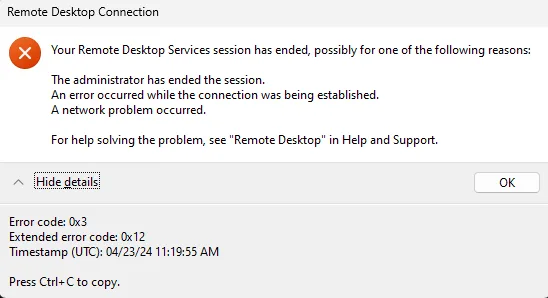
Image source: Bing (Web (fair-use with source credit))
If you’re on a corporate network, a VPN might be interfering. Try disconnecting it or switching to a different network. For home setups, reboot your router, ISP throttling or IP conflicts can cause timeouts.
The 3 Most Common Causes (And How to Diagnose Yours)
Network Instability
If your ping to the remote PC spikes or drops packets, the connection will time out. Use ping [remote-IP] in Command Prompt to check for latency or packet loss. Anything over 150ms latency or consistent packet loss means your network is the culprit.
Firewall or Port Blocking
RDP uses port 3389 by default. If your router, Windows Defender Firewall, or ISP blocks this port, the connection fails. Test this by temporarily disabling firewalls or checking router logs for blocked attempts.
Remote PC Settings
The remote machine might be set to sleep, hibernate, or turn off the display after inactivity. Windows also enforces session timeouts via Group Policy or local settings. If the remote PC locks or logs off, your RDP session dies with it.
Step-by-Step Fixes for Each Scenario
Network & Firewall Issues
First, confirm port 3389 is open. On the remote PC, open Command Prompt and run netstat -ano | findstr 3389. If nothing appears, RDP isn’t listening.
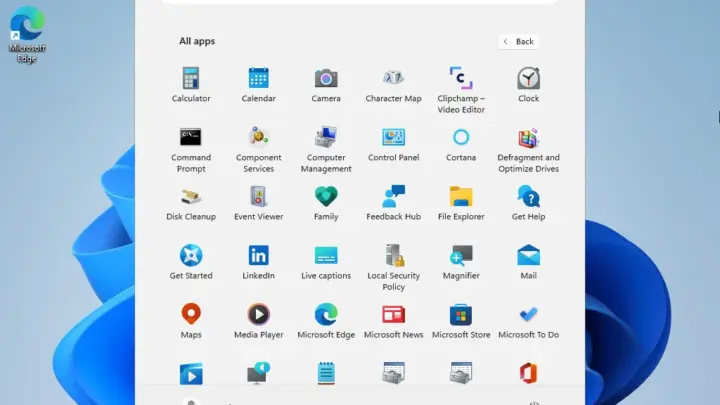
Enable it via Settings > System > Remote Desktop and toggle the switch to On.
On your router, forward port 3389 to the remote PC’s local IP. Log in to your router’s admin panel (usually 192.168.1.1 or 192.168.0.1), find Port Forwarding, and add a rule for TCP port 3389 pointing to the remote PC’s IP. If your ISP blocks this port, try using a VPN or switching to a different port (e.g., 3390) and update the RDP listener via registry.
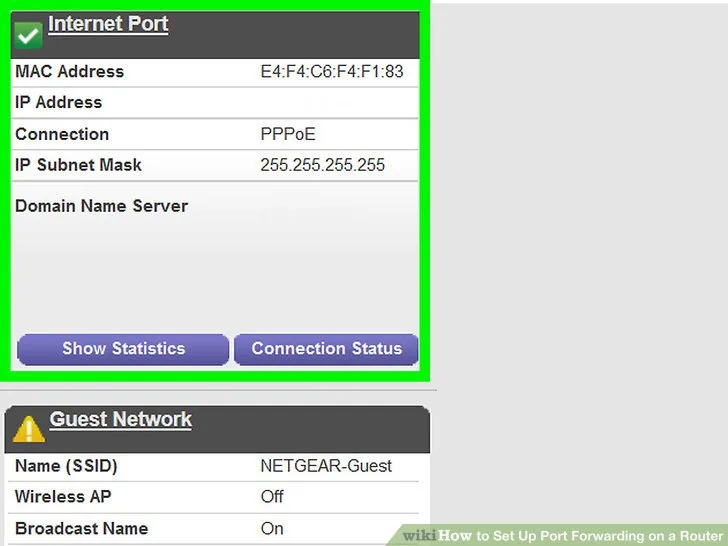
Image source: Bing (Web (fair-use with source credit))
For firewalls, add an inbound rule on the remote PC. Open Windows Defender Firewall > Advanced Settings > Inbound Rules > New Rule. Select Port, enter 3389, allow TCP, and apply it to all profiles.
If you’re using third-party security software, check its settings for RDP blocks.
Remote PC Settings
Prevent the remote PC from sleeping. Go to Control Panel > Power Options > Choose when to turn off the display. Set both Turn off the display and Put the computer to sleep to Never.
Also, disable Fast Startup in Power Options > Choose what the power buttons do, as it can interfere with RDP.
Check RDP session timeout settings. Open Group Policy Editor (gpedit.msc) on the remote PC and navigate to Computer Configuration > Administrative Templates > Windows Components > Remote Desktop Services > Remote Desktop Session Host > Session Time Limits. Set End session when time limits are reached to Disabled or adjust the timeout values.
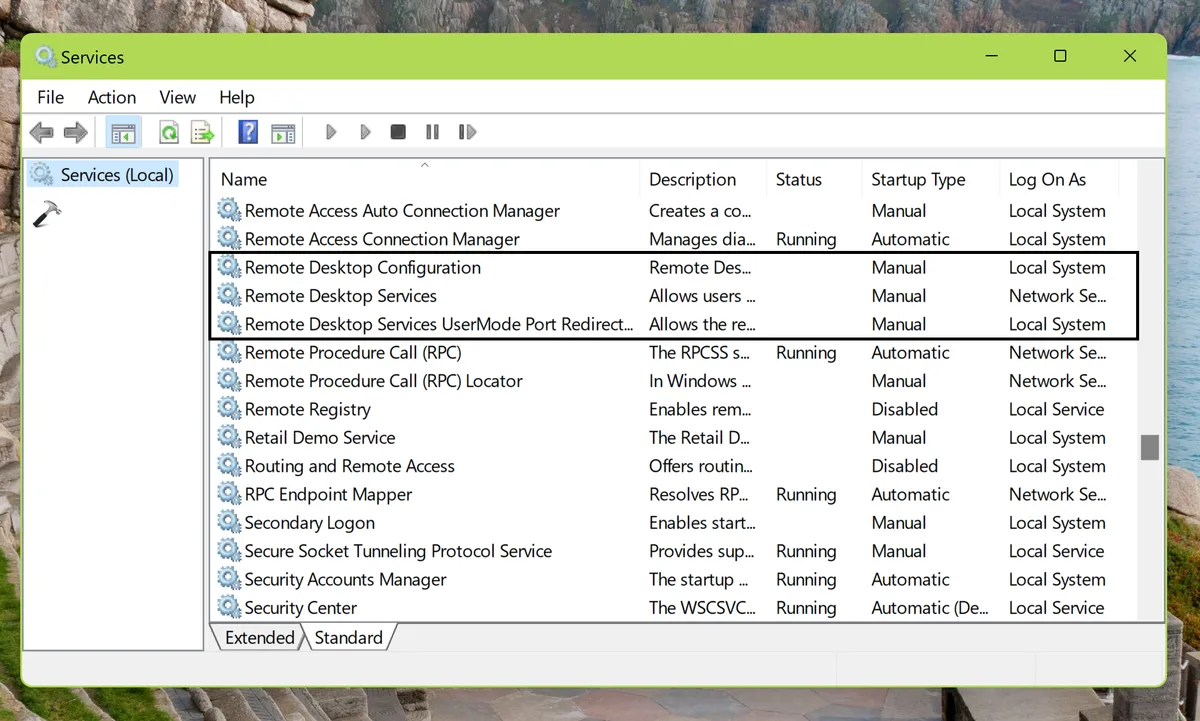
Image source: Bing (Web (fair-use with source credit))
If Group Policy isn’t available (Home editions), edit the registry. Open Regedit, go to HKEY_LOCAL_MACHINE\SYSTEM\CurrentControlSet\Control\Terminal Server, and modify MaxIdleTime (in milliseconds) to a higher value or 0 for no timeout.
Restart the remote PC after making these changes to apply them.
RDP Configuration Tweaks
If the connection still drops, adjust the RDP client settings. Open Remote Desktop Connection (mstsc.exe), click Show Options, then go to the Experience tab. Select Detect quality automatically or manually choose a lower setting if your network is slow.
Disable Persistent bitmap caching if you’re experiencing graphical glitches.
For advanced users, tweak the RDP timeout via Group Policy. Open gpedit.msc and navigate to Computer Configuration > Administrative Templates > Windows Components > Remote Desktop Services > Remote Desktop Session Host > Connections. Set Configure keep-alive timeout to Enabled and enter a value (e.g., 1 minute) to prevent idle disconnections.
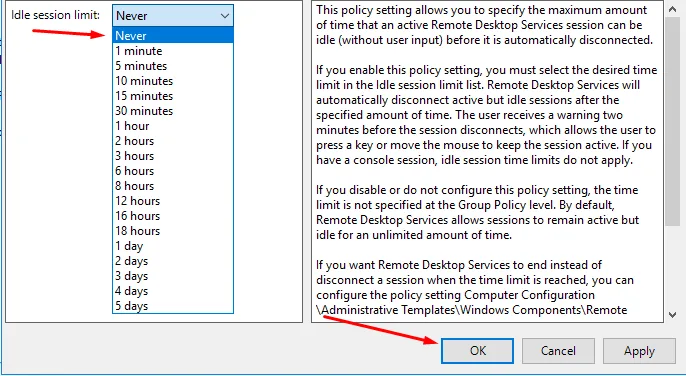
Image source: Bing (Web (fair-use with source credit))
If you’re using a custom port, update the RDP listener. Open Regedit, go to HKEY_LOCAL_MACHINE\SYSTEM\CurrentControlSet\Control\Terminal Server\WinStations\RDP-Tcp, and change PortNumber to your new port (e.g., 3390 in hexadecimal: 0xD3A). Update your router’s port forwarding rule to match.
How to Prevent Future Timeouts (Long-Term Fixes)
Use a VPN for secure, stable connections. A VPN encrypts traffic and bypasses ISP throttling or port blocks. Set up a VPN server on your network or use a trusted provider.
This is especially critical for remote access over the internet, as exposing RDP directly (port 3389) is a security risk per NIST guidelines.
Enable Remote Desktop Gateway (RD Gateway) for enterprise setups. This routes RDP traffic through HTTPS (port 443), which is less likely to be blocked by firewalls. Configure it via Server Manager > Remote Desktop Services > Overview > Tasks > Edit Deployment Properties.
Set up Dynamic DNS (DDNS) if your remote PC has a dynamic IP. Services like No-IP or DuckDNS provide a domain name that updates automatically when your IP changes. This avoids manual IP updates in your RDP client.
Monitor bandwidth usage. RDP requires at least 1 Mbps for basic tasks, but 10+ Mbps ensures smooth performance. Use a speed test tool to verify your connection meets these requirements.
If multiple users access the same remote PC, allocate sufficient bandwidth to avoid timeouts.
Schedule regular reboots for the remote PC to clear memory leaks or service hangs. Use Task Scheduler to automate this during off-hours. This prevents performance degradation that can lead to timeouts.
When to Use an Alternative (And Which One to Pick)
RDP isn’t always the best tool for the job. If you’re on a restricted network that blocks port 3389, alternatives like TeamViewer or AnyDesk bypass this by using their own ports and encryption. These tools work well for one-off support sessions or non-Windows devices.
For enterprise environments, a Remote Desktop Gateway (RD Gateway) or VPN is more secure than direct RDP. RD Gateway routes traffic over HTTPS (port 443), which is rarely blocked. VPNs encrypt all traffic, making them ideal for sensitive data access.
| Tool | Best For | Port Used | Encryption |
|---|---|---|---|
| Windows RDP | Internal networks, IT pros | 3389 | TLS (if configured) |
| TeamViewer | Quick support, cross-platform | Dynamic | AES-256 |
| AnyDesk | Lightweight remote access | 80, 443 | TLS 1.2 |
| Chrome Remote Desktop | Casual users, browser-based | 443 | HTTPS |
If you need file transfers or chat alongside remote control, TeamViewer or AnyDesk are better choices. For pure speed and integration with Windows, RDP is still the most efficient option when properly configured.
Frequently Asked Questions
Why does my RDP session disconnect after a few minutes?
Your remote PC’s power settings or Group Policy may enforce idle timeouts. Check Power Options to disable sleep and Group Policy for session limits. Adjusting these settings usually resolves the issue.
Can I use RDP over the internet without a VPN?
Yes, but it’s risky. Exposing port 3389 to the internet makes your PC a target for brute-force attacks. Use a strong password, change the default port, and restrict access via firewall rules.
A VPN or RD Gateway is safer.
How do I check if port 3389 is open?
Use telnet [remote-IP] 3389 from Command Prompt. If the screen goes blank, the port is open. If you get a connection error, it’s blocked.
Alternatively, use online port checkers.
What’s the minimum bandwidth for smooth RDP?
Microsoft recommends at least 1 Mbps for basic tasks. For high-resolution displays or video playback, 10+ Mbps is ideal. Lower bandwidth can cause lag or timeouts.
Why does RDP work on my local network but not over the internet?
Your router likely isn’t forwarding port 3389. Set up port forwarding in your router’s admin panel. Also, check if your ISP blocks this port.
Is RDP secure for remote work?
RDP is secure if properly configured with encryption and strong passwords. However, exposing it directly to the internet is risky. Use a VPN, RD Gateway, or change the default port for better security.

Similar Posts