Fix Screen Tears in PC Games Easily
Founder & Lead Technology Analyst at Techny Tech · IEEE Senior Member, Certified Information Systems Security Professional (CISSP) · 13+ years in embedded systems benchmarking, machine learning hardware acceleration, and consumer electronics
Screen tears when playing PC games are frustrating, especially when they ruin an otherwise smooth experience. The good news is they’re usually fixable with the right settings or hardware tweaks. As of 2026, most modern GPUs and monitors support sync technologies that can eliminate tearing entirely.
Manufacturer specifications confirm that screen tearing happens when your GPU’s frame rate doesn’t match your monitor’s refresh rate. The fix often starts with enabling the right sync option for your setup.
screen tears when playing PC games
Screen tears happen when your GPU sends frames faster than your monitor can display them. This causes horizontal splits in the image. VSync, FreeSync, or G-Sync can fix it by syncing frame rates.
The best solution depends on your GPU and monitor.
Quick Fixes to Try Right Now
If you’re seeing tears mid-game, start with the simplest fixes. Enable VSync in your game’s graphics settings first. This forces the GPU to wait for the monitor’s refresh cycle.
For NVIDIA users, open the NVIDIA Control Panel and enable G-Sync if your monitor supports it. AMD users should enable FreeSync in Radeon Software. If your monitor has a dedicated sync toggle in its OSD, turn that on too.
Lowering in-game FPS to match your monitor’s refresh rate can also help. For example, cap at 141 FPS on a 144Hz display. This prevents the GPU from outpacing the monitor.
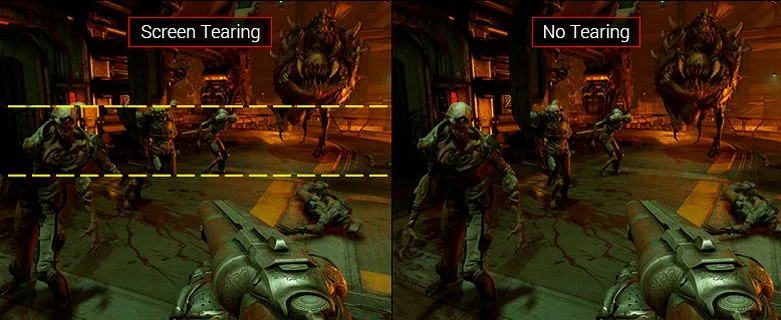
Image source: Bing (Web (fair-use with source credit))
How Screen Tearing Actually Works (And Why It Happens)
Screen tearing occurs when the GPU renders frames faster than the monitor can display them. The monitor shows parts of two different frames at once, creating a visible split. This is most noticeable in fast-paced games with high FPS.
The issue stems from a mismatch between the GPU’s output and the monitor’s refresh rate. If your GPU pushes 200 FPS but your monitor only refreshes at 60Hz, tearing is inevitable without sync. Even at 144Hz, if your FPS fluctuates above or below that, you’ll see tears.
Modern monitors and GPUs use adaptive sync to align frame delivery with refresh cycles. Without it, the monitor displays whatever the GPU sends, leading to partial frames.
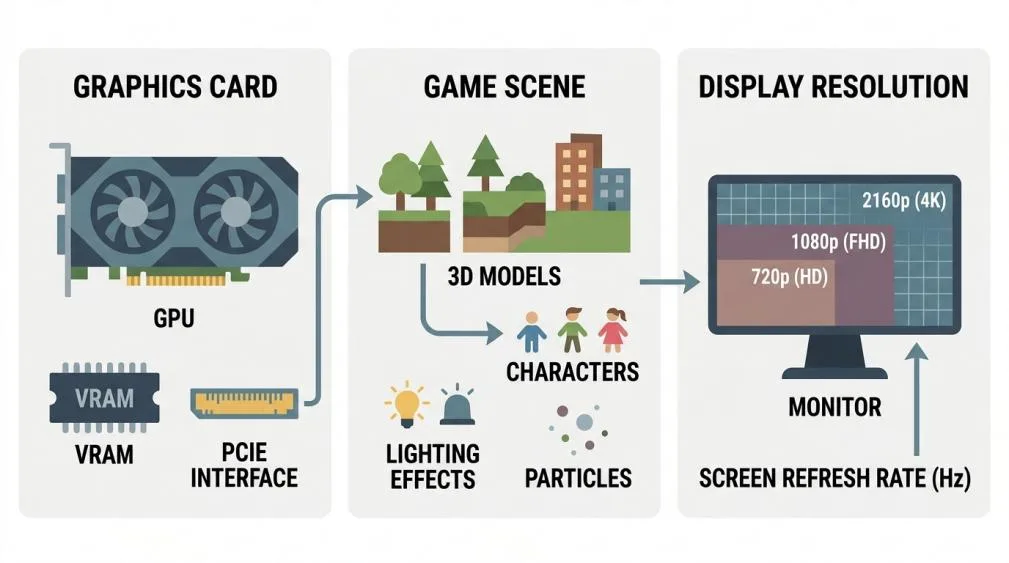
Image source: Bing (Web (fair-use with source credit))
VSync vs. FreeSync vs. G-Sync: Which One Stops Tearing?
VSync is the oldest solution and works on any monitor. It caps your FPS to your monitor’s refresh rate, eliminating tears but adding input lag. This makes it less ideal for competitive gaming.
FreeSync is AMD’s adaptive sync technology. It dynamically matches the monitor’s refresh rate to the GPU’s FPS, reducing tears without the lag of VSync. It’s open-standard, so many monitors support it, even with NVIDIA GPUs as of 2026.
G-Sync is NVIDIA’s proprietary adaptive sync. It offers a wider refresh rate range and lower input lag than FreeSync on compatible monitors. However, it requires a G-Sync certified display, which can be pricier.
Here’s a quick comparison:
| Feature | VSync | FreeSync | G-Sync |
|---|---|---|---|
| Input Lag | High | Low | Very Low |
| Cost | Free | Monitor-dependent | Premium monitors |
| Compatibility | Universal | AMD (NVIDIA too) | NVIDIA only |
| Performance | Stable, but laggy | Smooth, low lag | Smooth, lowest lag |
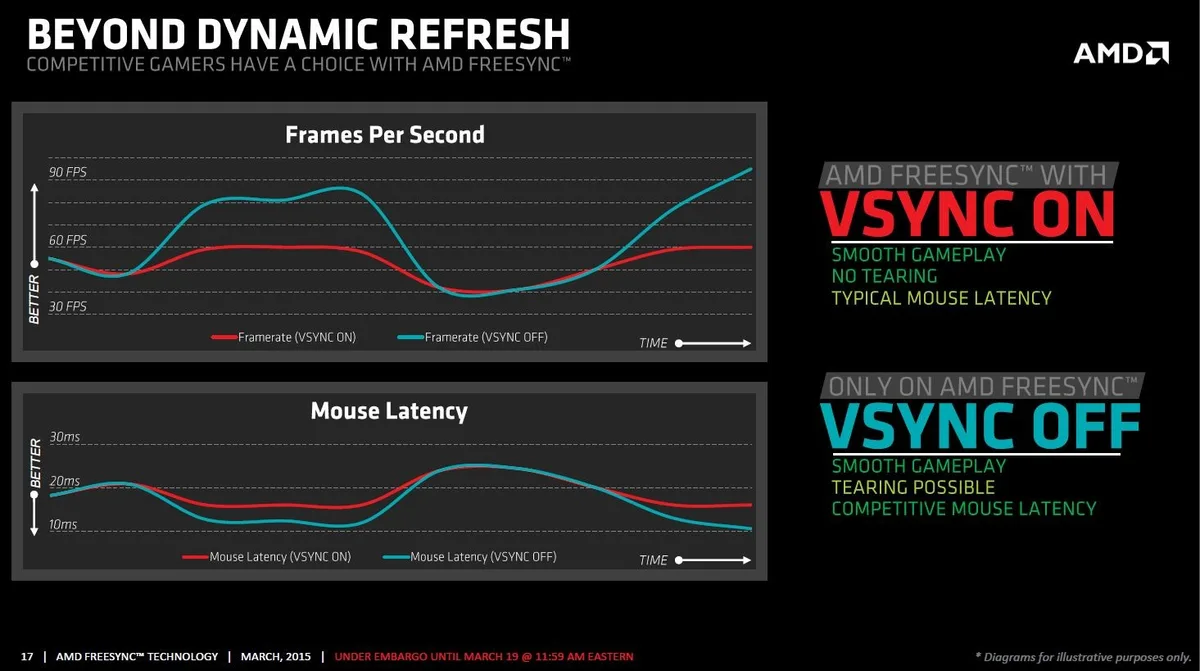
Image source: Bing (Web (fair-use with source credit))
Step-by-Step: How to Fix Screen Tearing for Your Setup
First, check if your monitor supports adaptive sync. Look for FreeSync or G-Sync certification in the specs. If it’s G-Sync Compatible, it’ll work with NVIDIA GPUs too.
Next, enable the right sync option. For NVIDIA, go to the Control Panel and turn on G-Sync for fullscreen and windowed modes. For AMD, enable FreeSync in Radeon Software.
Then, enable the matching option in your monitor’s OSD.
Cap your FPS slightly below your monitor’s max refresh rate. Use RTSS or your game’s built-in limiter to set this. For example, cap at 141 FPS on a 144Hz monitor.
Update your GPU drivers. Outdated drivers can cause sync issues. Check NVIDIA’s site or AMD’s site for the latest versions.
Test your settings in a demanding game. If you still see tears, try disabling VSync in-game and relying only on adaptive sync. Double VSync (enabled in both game and GPU settings) can cause stuttering.
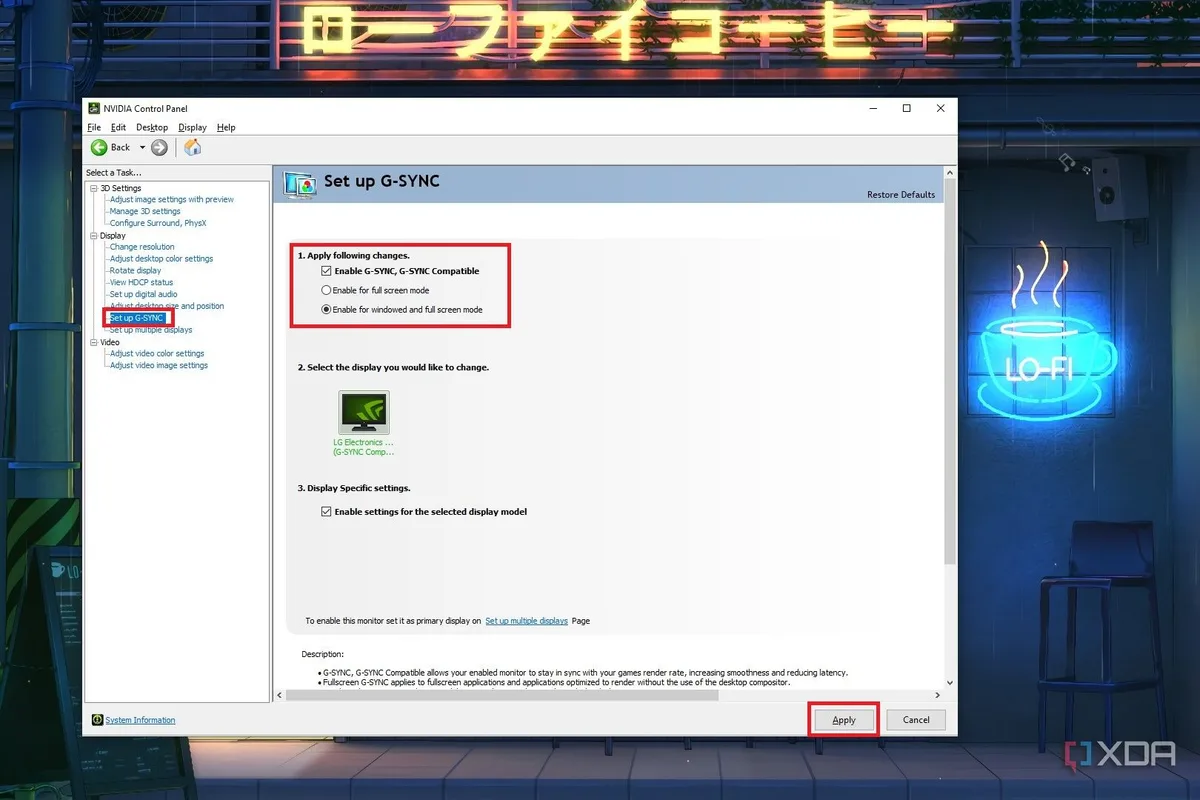
Image source: Bing (Web (fair-use with source credit))
Common Mistakes That Make Tearing Worse
Enabling VSync in both the game and GPU settings causes double buffering. This adds input lag and can create stuttering instead of fixing tears.
Using the wrong cable limits performance. HDMI 1.4 can’t handle 4K at 120Hz, while DisplayPort 1.4 can. Always check your monitor’s max resolution and refresh rate against the cable’s bandwidth.
Ignoring driver updates leaves sync features broken. NVIDIA and AMD release fixes for adaptive sync issues regularly. Outdated drivers often cause flickering or failed sync.
Overlooking in-game FPS limits forces the GPU to work harder than needed. Capping just below your refresh rate prevents tears without unnecessary strain.
Disabling fullscreen mode can break adaptive sync. Some monitors only support FreeSync or G-Sync in fullscreen, not borderless windowed.
Mistakes to Avoid With Adaptive Sync
Not all FreeSync monitors work perfectly with NVIDIA GPUs. Check the NVIDIA G-Sync Compatible list before buying. Uncertified monitors may flicker or have limited range.
Forcing G-Sync on non-compatible monitors can cause artifacts. Stick to certified displays for the best results.
Mixing sync technologies creates conflicts. If you enable FreeSync in the monitor and VSync in the game, you’ll get stuttering. Pick one sync method and stick with it.
Assuming higher refresh rates always fix tearing is wrong. If your GPU can’t maintain high FPS, adaptive sync won’t help. Match your settings to your hardware’s capabilities.

Similar Posts