Fix USB Headphone Audio Crackling for Good
Founder & Lead Technology Analyst at Techny Tech · IEEE Senior Member, Certified Information Systems Security Professional (CISSP) · 13+ years in embedded systems benchmarking, machine learning hardware acceleration, and consumer electronics
Hearing audio crackling through USB headphones is frustrating, especially when you’re in the middle of a call or listening to music. This issue usually stems from driver conflicts, power delivery problems, or interference, but the fix depends on your setup.
USB audio supports sample rates up to 192kHz and 24-bit depth, but even high-end setups can suffer from crackling if the configuration is off. Let’s start with the fastest solutions.
audio crackling through USB headphones
USB headphones crackle due to driver issues, power delivery problems, or interference. Outdated drivers often cause distortion. USB 3.0 ports can interfere with audio signals.
Insufficient power to the headphones creates static. Background apps may also disrupt audio processing.
Quick Fixes to Try First
If your USB headphones are crackling, start with the simplest fixes. Switch to a different USB port, preferably USB 2.0, as USB 3.0 can introduce interference with audio signals. USB 2.0 ports are less likely to cause electromagnetic issues with sensitive audio devices.
Next, unplug other USB devices to rule out power conflicts. High-power devices like external drives can starve your headphones of the power they need. If the crackling stops, a powered USB hub can help distribute power more evenly.
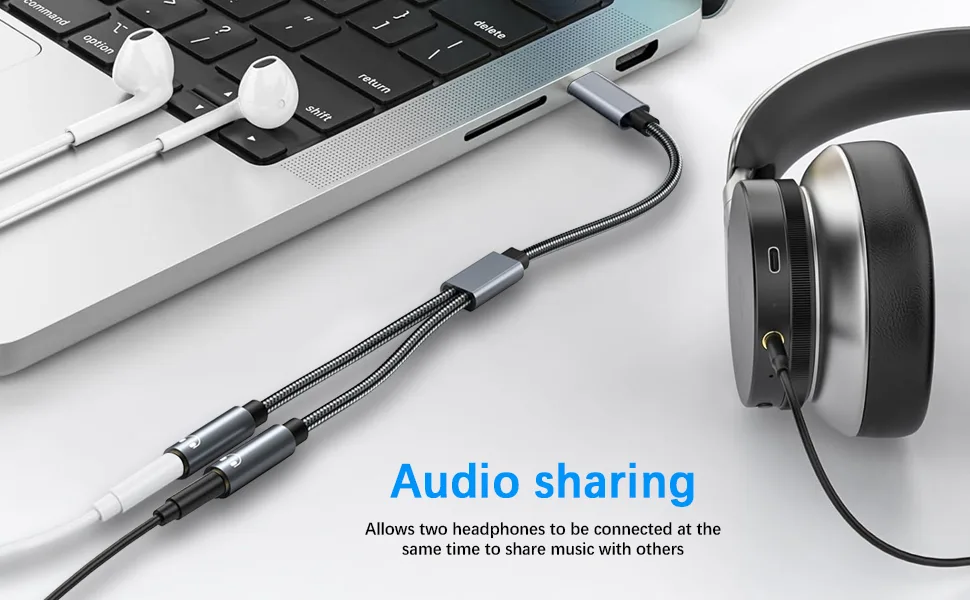
Image source: Bing (Web (fair-use with source credit))
Disable audio enhancements in your OS settings. On Windows, right-click the speaker icon, select Sounds, then Properties, and uncheck all enhancements under the Enhancements tab. These features can sometimes distort the audio signal.
Finally, test your headphones on another device. If the crackling persists, the issue is likely with the headphones themselves. If it stops, the problem is with your original setup.
The Root Causes of USB Audio Crackling
USB audio crackling usually comes down to a few key culprits. Driver conflicts are a common cause, especially if your system has outdated or incompatible audio drivers. Realtek, ASIO, and other audio drivers can clash with USB headphone drivers, leading to distortion.
Power delivery is another frequent issue. USB ports provide limited power, typically 500mA for USB 2.0 and 900mA for USB 3.0. If your headphones require more power than the port can supply, you’ll hear crackling or static.
This is especially true for high-impedance headphones or those with built-in DACs.
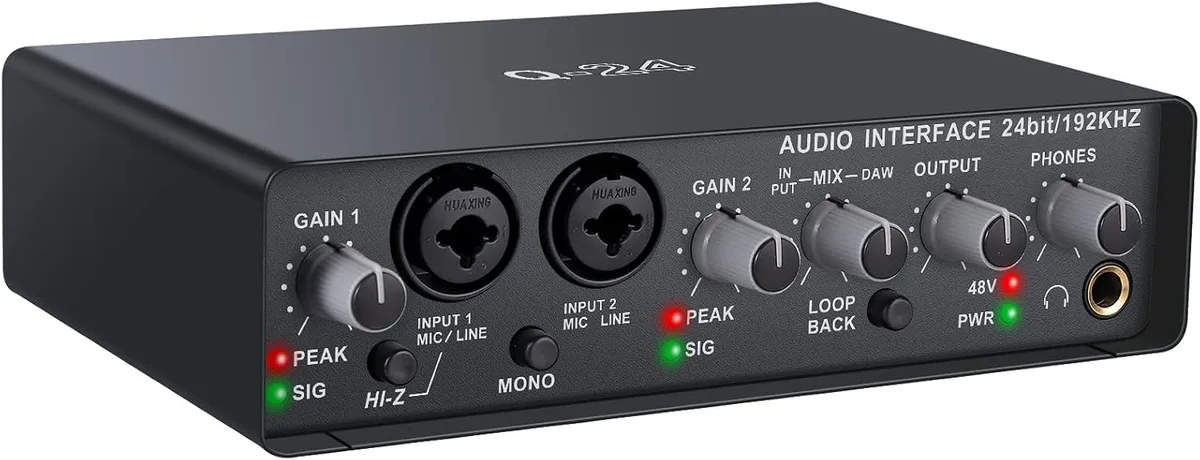
Image source: Bing (Web (fair-use with source credit))
Electromagnetic interference (EMI) can also disrupt USB audio. USB 3.0 ports, in particular, can interfere with 2.4GHz wireless signals from devices like Wi-Fi routers or wireless mice. Even poorly shielded USB cables can pick up interference from nearby electronics.
Ground loops are another potential cause. These occur when there’s a difference in electrical potential between two grounded components, creating a hum or crackling sound. This is more common in desktop setups with multiple audio devices.
Lastly, software settings can cause issues. Incorrect sample rate or bit depth settings in your OS can lead to audio distortion. For example, if your headphones support 48kHz/24-bit but your system is set to 44.1kHz/16-bit, you might experience crackling.
Step-by-Step Troubleshooting for Windows & macOS
Start with the basics. On Windows, open the Device Manager and expand the Sound, video, and game controllers section. Right-click your USB headphones and select Update driver.
If that doesn’t work, uninstall the driver and restart your computer to let Windows reinstall it automatically.
For macOS users, open Audio MIDI Setup in Utilities. Check if your USB headphones are recognized and set as the default output device. If they’re not listed, try reconnecting them or restarting your Mac.
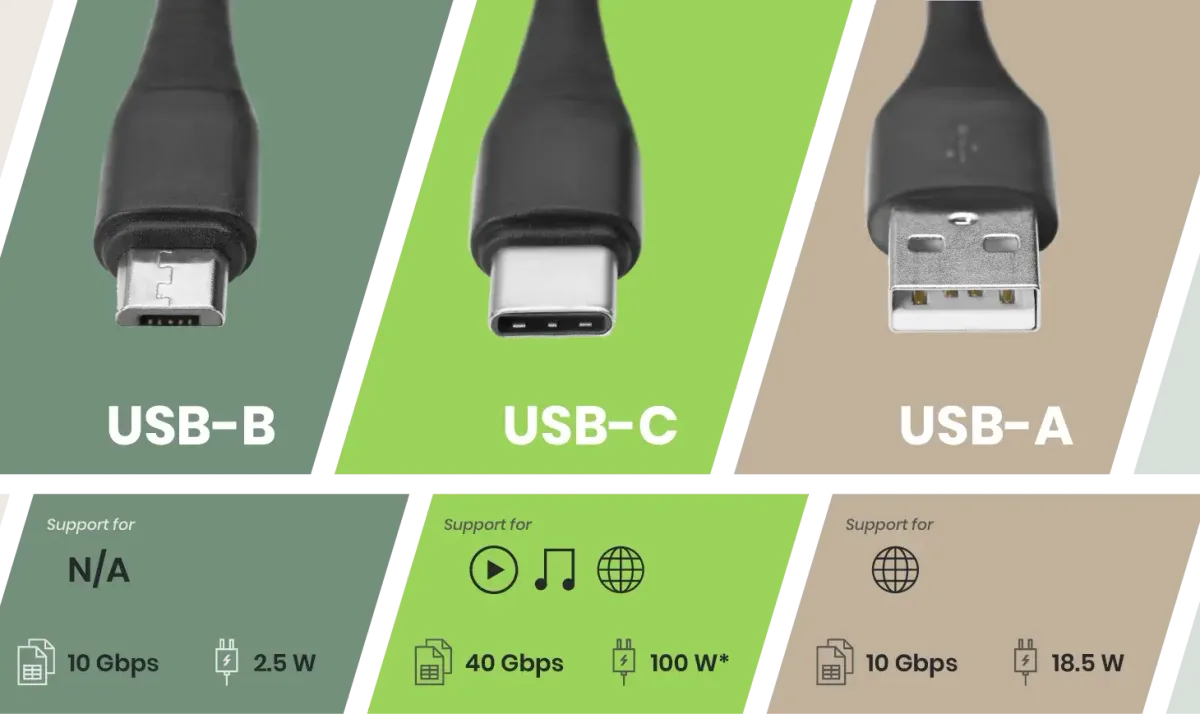
Image source: Bing (Web (fair-use with source credit))
Next, adjust your audio settings. On Windows, go to the Sound settings, select your USB headphones, then click Properties. Under the Advanced tab, try different default formats (sample rate and bit depth) to see which one eliminates the crackling.
Start with 48kHz/24-bit, as this is widely supported.
On macOS, open System Settings, go to Sound, and select your USB headphones. Click the gear icon and check the input/output settings. Ensure the sample rate matches your headphones’ specifications.
If the issue persists, disable exclusive mode on Windows. Open Sound settings, select your USB headphones, click Properties, then go to the Advanced tab. Uncheck the boxes for Allow applications to take exclusive control and Give exclusive mode applications priority.
For both Windows and macOS, close background apps that might be using audio. Apps like Discord, VoIP software, or even browser tabs with audio can interfere with your headphones’ performance.
When It’s a Hardware Problem (And How to Tell)
Hardware issues can cause crackling, but they’re often harder to diagnose. Start by testing your headphones on another device. If the crackling persists, the headphones themselves may be faulty.
Check the USB cable for damage or try a different cable if your model supports it.
If the crackling only happens on one device, the issue might be with the USB port. Try a different port, preferably USB 2.0, as USB 3.0 ports can sometimes cause interference. If you’re using a desktop, try the ports on the back of the computer, as they’re often more stable than front-panel ports.
A powered USB hub can help if the issue is power-related. These hubs provide additional power to connected devices, which can resolve crackling caused by insufficient power delivery. Connect your headphones to the hub and see if the problem disappears.
If you’re still experiencing issues, the problem might be with your computer’s sound card or USB controller. On desktops, try using an external USB sound card or DAC to bypass the internal audio hardware. This can help isolate whether the issue is with your computer’s built-in components.
Lastly, check for physical damage to the USB port or headphone connector. Bent pins, dirt, or debris can cause poor connections and lead to crackling. Clean the port and connector gently with a dry, soft brush or compressed air.
Pro Tips to Prevent Future Audio Issues
Use shielded USB cables to minimize electromagnetic interference. These cables have an extra layer of protection that blocks signal disruption from nearby devices. Poorly shielded cables often pick up noise from Wi-Fi routers or other electronics.
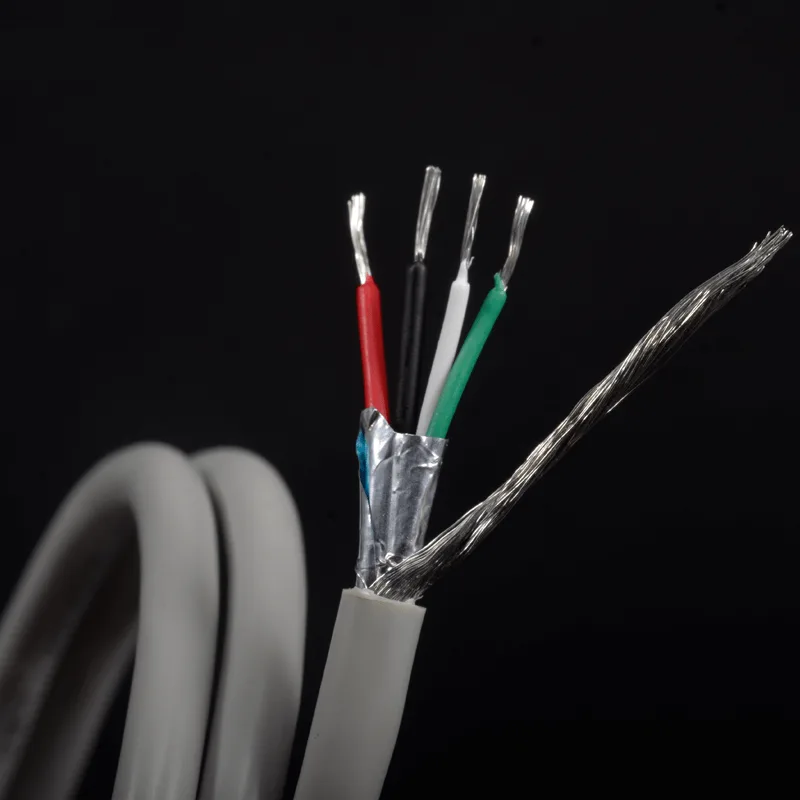
Image source: Bing (Web (fair-use with source credit))
Avoid USB 3.0 ports for audio devices when possible. USB 3.0 can interfere with 2.4GHz wireless signals, which may cause crackling. Stick to USB 2.0 ports for a more stable connection.
Keep your audio drivers updated. Manufacturer updates often include fixes for known issues that could cause distortion. Set your system to automatically check for driver updates to stay ahead of potential problems.
Close unnecessary background apps that use audio. Programs like Discord, video players, or browser tabs with audio can compete for resources. This can lead to crackling if your system struggles to process multiple audio streams.
Use a powered USB hub if you connect multiple devices. This ensures your headphones get enough power, especially if they have built-in DACs or high impedance. A powered hub can prevent power-related crackling issues.
Frequently Asked Questions
Why do my USB headphones crackle only in certain apps?
Some apps use different audio APIs that may conflict with your USB headphones. For example, an app using ASIO might work fine while one using DirectSound causes crackling. Check the app’s audio settings and try switching the output format.
Can a faulty USB port cause audio crackling?
Yes, a damaged or dirty USB port can cause poor connections. Try a different port or clean the current one with compressed air. If the issue persists, the port itself may need repair.
Does USB cable length affect audio quality?
Longer USB cables can introduce signal degradation, especially if they’re not shielded. Stick to cables under 3 meters for best results. Shorter, high-quality cables reduce the risk of interference.
How do I know if my USB headphones are defective?
Test them on multiple devices. If the crackling happens everywhere, the headphones are likely faulty. If it only happens on one device, the issue is with that setup.
Is there a way to reduce latency with USB headphones?
Use ASIO drivers on Windows for lower latency. On macOS, Core Audio is already optimized for low-latency performance. Avoid Bluetooth if latency is a concern, as it introduces more delay than wired USB.
Can ground loops cause USB headphone crackling?
Yes, ground loops can create hum or crackling sounds. This happens when there’s a voltage difference between grounded components. Use a ground loop isolator or disconnect other grounded devices to test.

Similar Posts