Fix External Monitor Resolution Resets on Reboot
Founder & Lead Technology Analyst at Techny Tech · IEEE Senior Member, Certified Information Systems Security Professional (CISSP) · 13+ years in embedded systems benchmarking, machine learning hardware acceleration, and consumer electronics
Your external monitor resolution resets after reboot because the system fails to retain display settings, usually due to driver conflicts, EDID handshake issues, or power management quirks. It’s a common frustration, especially with multi-monitor setups or mixed connection types like HDMI and DisplayPort.
Per VESA standards, monitors and GPUs exchange EDID data to negotiate resolution, and when this fails, Windows, macOS, or Linux may default to a basic 1024×768 or 1280×720 output. Let’s break down why this happens and how to spot your specific issue.
external monitor resolution resets after reboot
This happens when the OS or GPU driver doesn’t save or reapply your custom resolution on startup. A faulty EDID handshake is the top cause. Driver updates or power settings can also trigger it.
Windows and macOS handle this differently.
The 3 Most Common Causes (and How to Spot Yours)
If your monitor resets to a low resolution after a reboot, the culprit is usually one of three things: a driver issue, a connection problem, or an EDID mismatch.
Driver issues often surface after a Windows update or GPU driver change. Your system might roll back to a generic display driver, losing your custom settings. Check Device Manager for warnings under "Display adapters" or "Monitors."
Connection problems are sneaky. A loose HDMI or DisplayPort cable can disrupt the signal just enough to reset your resolution. Try a different cable or port to rule this out.
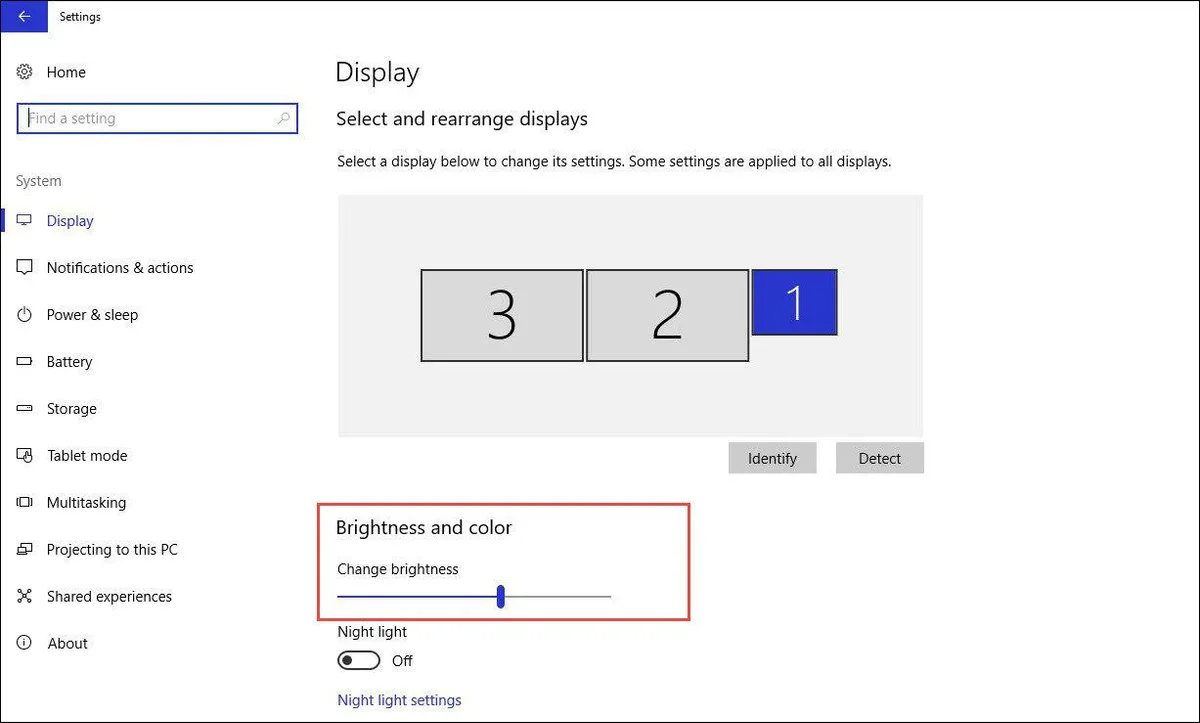
Image source: Bing (Web (fair-use with source credit))
EDID mismatches occur when your monitor and GPU fail to communicate properly. This is common with older monitors or non-standard resolutions. If your monitor’s native resolution isn’t listed in the OS display settings, EDID is likely the issue.
Quick Fixes to Try First (No Tech Skills Needed)
Start with the simplest solutions before diving into advanced troubleshooting.
Unplug and reconnect the monitor. Power cycle both the monitor and your computer. This often resets the connection and restores the correct resolution.
Update your GPU drivers. Manufacturer sites like NVIDIA or AMD offer the latest versions, which may include fixes for resolution retention. Avoid generic drivers from Windows Update for GPUs.
Check your connection type. HDMI 1.4, for example, maxes out at 4K/30Hz, while HDMI 2.0 supports 4K/60Hz. If your monitor supports higher resolutions, use DisplayPort or HDMI 2.1 for better bandwidth.
Deep Dive: Fixes for Windows, macOS, and Linux
Windows users should first try the built-in display settings. Right-click the desktop, select "Display settings," and manually set your preferred resolution. If it reverts, the issue is likely driver-related.
For macOS, navigate to System Settings > Displays. If your resolution resets, reset the NVRAM or PRAM, which stores display settings. Shut down your Mac, then power it on and immediately hold Command + Option + P + R for about 20 seconds.
Linux users often face this issue due to X11 or Wayland session mismatches. Try switching to the other display server or editing your Xorg configuration file to force the correct resolution.
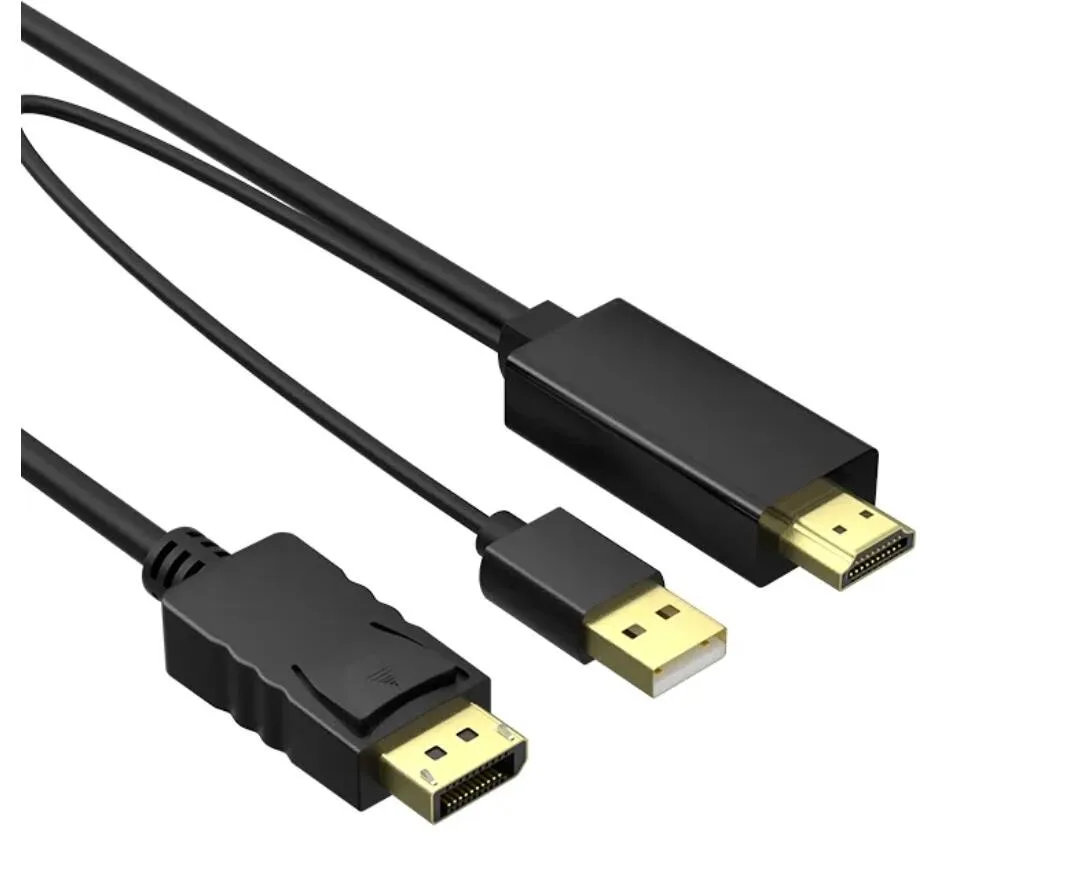
Image source: Bing (Web (fair-use with source credit))
GPU-Specific Solutions (NVIDIA, AMD, Intel)
NVIDIA users can force a resolution using the NVIDIA Control Panel. Open it, go to "Change resolution," and select your monitor’s native resolution. If it’s not listed, create a custom resolution under "Customize."
AMD users should use Radeon Software. Navigate to the Display tab, select your monitor, and manually set the resolution. If the issue persists, try disabling "GPU Scaling" or "Virtual Super Resolution."
Intel integrated graphics users can use the Intel Graphics Command Center. Check for updates and manually set the resolution. If the problem continues, roll back to a previous driver version via Device Manager.
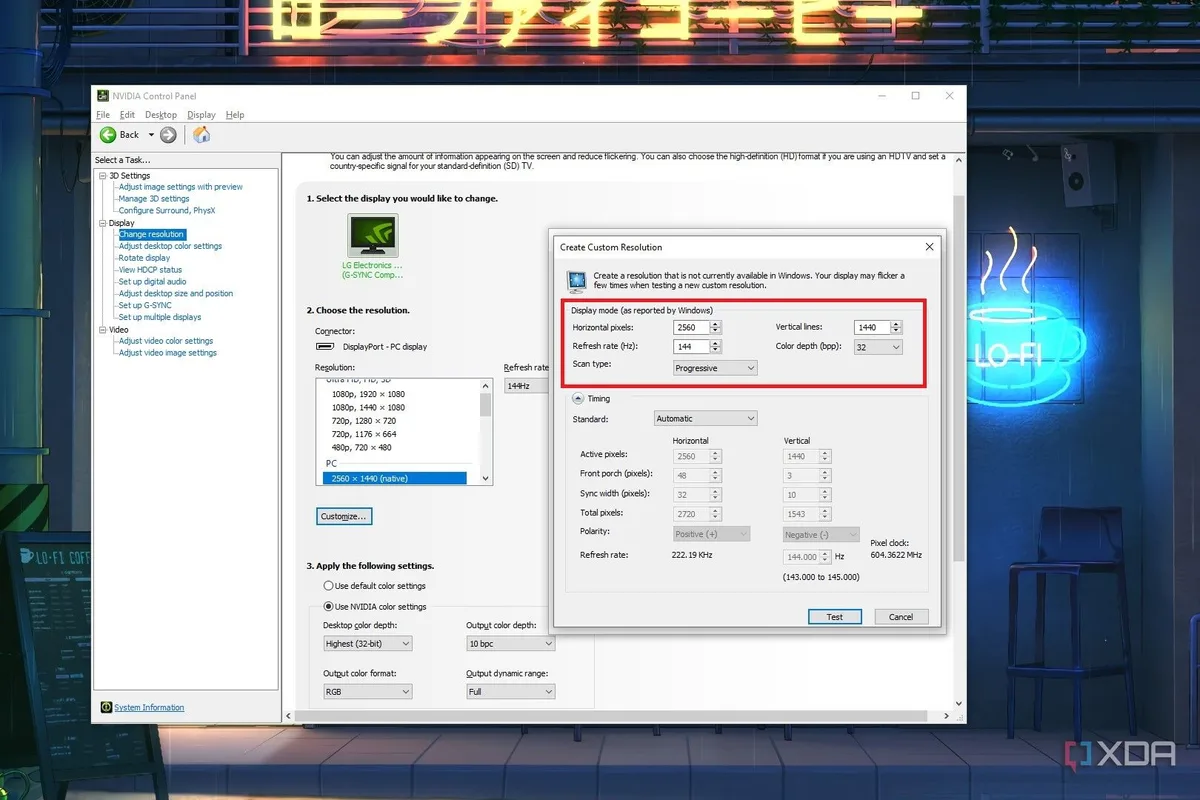
Image source: Bing (Web (fair-use with source credit))
Advanced Fixes: EDID Overrides, Registry Tweaks, and More
If basic fixes fail, the issue might be a corrupted EDID. Windows stores this data in the registry. You can manually override it using a tool like Custom Resolution Utility (CRU) to force your monitor’s native resolution.
For registry tweaks, navigate to HKEY_LOCAL_MACHINE\SYSTEM\CurrentControlSet\Control\GraphicsDrivers\Configuration. Look for your monitor’s entry and verify the resolution settings. Backup the registry before making changes.
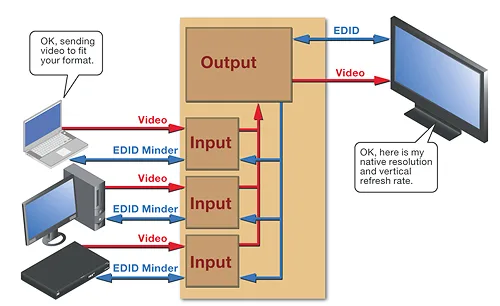
Image source: Bing (Web (fair-use with source credit))
On macOS, reset the NVRAM again if the issue persists. For Linux, edit the X11 configuration file at /etc/X11/xorg.conf to manually set the resolution. This requires root access and a restart of the X server.
How to Prevent This From Happening Again
Use high-quality cables that match your monitor’s bandwidth needs. A cheap HDMI 1.4 cable won’t reliably support 4K at 60Hz. DisplayPort is often more stable for high resolutions.
Disable power-saving features that might interrupt the display signal. In Windows, go to Power Options and set "PCI Express > Link State Power Management" to "Off." This prevents the GPU from entering a low-power state that can disrupt EDID handshakes.
Update your monitor’s firmware if available. Manufacturers like Dell and LG provide firmware updates for known issues. Check their support sites for your model.
Frequently Asked Questions
Why does my monitor keep reverting to 1024×768?
This is the default resolution Windows uses when it can’t detect your monitor’s EDID. It often happens with older monitors or faulty cables. Try a different cable or port first.
Can a bad HDMI cable cause resolution resets?
Yes. A damaged or low-quality HDMI cable can disrupt the signal, causing the OS to fall back to a default resolution. Test with a certified high-speed HDMI cable.
How do I force a custom resolution in Windows?
Use the NVIDIA Control Panel, AMD Radeon Software, or Intel Graphics Command Center to create a custom resolution. If it’s not listed, use CRU to add it manually.
Does macOS handle external monitors differently?
Yes. macOS relies on NVRAM for display settings. Resetting it often fixes resolution issues. Also, some older Macs have limited support for non-Apple monitors.
Will updating my GPU drivers fix this?
Often, yes. Manufacturer drivers include fixes for resolution retention. Always download drivers directly from NVIDIA, AMD, or Intel, not Windows Update.

Similar Posts