Map a Network Drive in Windows 11 Easily
Founder & Lead Technology Analyst at Techny Tech · IEEE Senior Member, Certified Information Systems Security Professional (CISSP) · 13+ years in embedded systems benchmarking, machine learning hardware acceleration, and consumer electronics
Mapping a network drive in Windows 11 lets you access shared folders like they’re local storage, saving time and hassle. If you’ve ever struggled to find files on a network share, learning how to map a network drive in Windows 11 is the fix. It’s a built-in feature that ties remote storage directly into File Explorer.
The process uses the Server Message Block (SMB) protocol, the standard for Windows file sharing over a local network. As of 2026, Windows 11 defaults to SMBv3 for security and speed. Now let’s get you set up.
how to map a network drive in Windows 11
Open File Explorer and click "This PC." Select "Map network drive" from the ribbon. Choose a drive letter and enter the UNC path (e.g., \\Server\Share). Check "Reconnect at sign-in" for persistence.
Click Finish and enter credentials if prompted.
When and Why You’d Map a Network Drive
You’d map a drive when you frequently access files on another PC, NAS, or server. It’s ideal for teams sharing documents, home users with a media library, or anyone tired of navigating to the same network folder repeatedly.
For remote work, a mapped drive can sync with VPNs, though performance depends on your connection. SMB is optimized for local networks, so expect slower speeds over the internet.
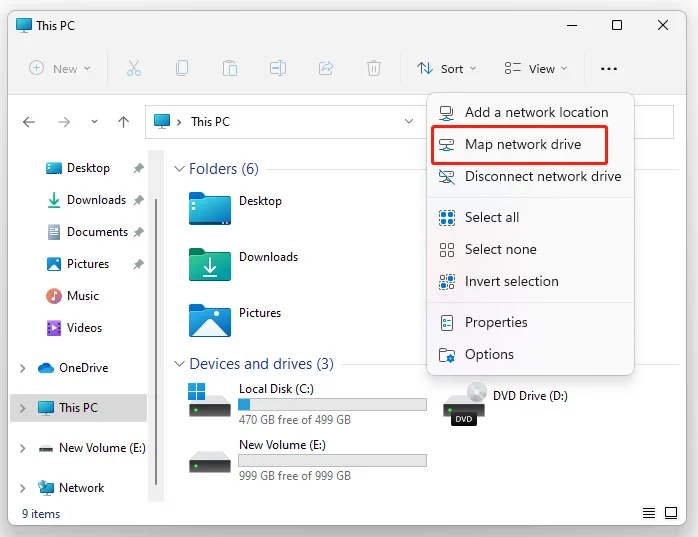
Image source: Bing (Web (fair-use with source credit))
Step-by-Step: Map a Network Drive in Windows 11
Basic Method (File Explorer)
Start by opening File Explorer and clicking "This PC" in the left sidebar. In the ribbon at the top, click "Map network drive." A dropdown will appear with drive letter options.
Select a letter (Z: or Y: are common for network drives). In the "Folder" field, enter the UNC path of the shared folder, like \\192.168.1.100\Shared. If you don’t know the path, browse for it by clicking "Browse" and navigating the network.
Check "Reconnect at sign-in" to keep the drive mapped after restarts. Check "Connect using different credentials" if you need to log in with a specific username and password. Click "Finish" to complete the process.
Advanced Method (Command Line)
For more control, use the Command Prompt. Open it as administrator and type:
net use Z: \\Server\Share /persistent:yes
Replace Z: with your preferred drive letter and \\Server\Share with the actual UNC path.
Add /user:Username Password if you need to specify credentials. For example:
net use Z: \\192.168.1.100\Shared /user:John MyPassword /persistent:yes
To remove a mapped drive later, use:
net use Z: /delete
Persistent vs. Temporary Mapping
A persistent drive reconnects automatically when you sign in. This is best for drives you use daily, like a work server or home NAS.
Temporary mappings disappear after a reboot. Use these for one-time access, like grabbing files from a colleague’s shared folder. In File Explorer, uncheck "Reconnect at sign-in" for a temporary map.
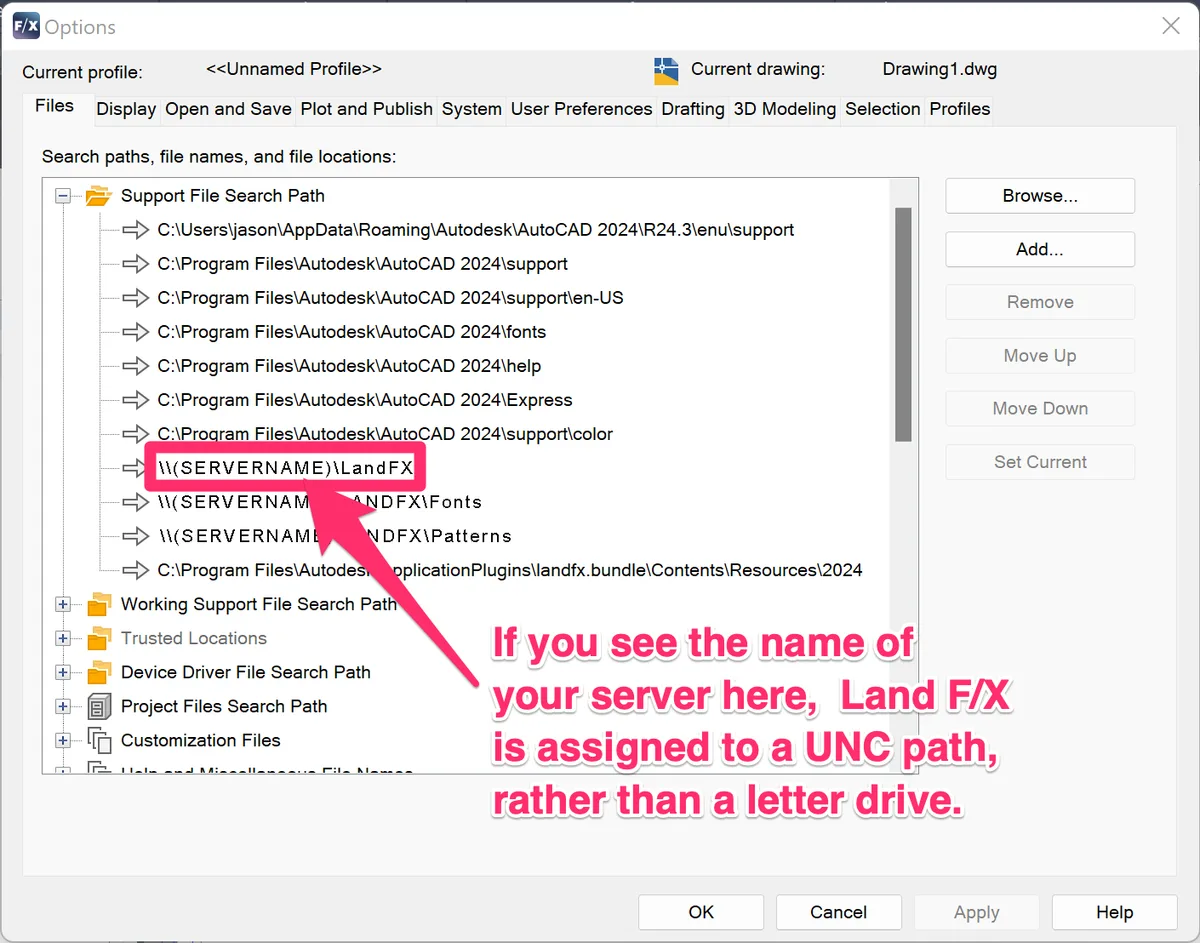
Image source: Bing (Web (fair-use with source credit))
Common Problems and How to Fix Them
If the drive doesn’t appear, check Network Discovery. Open Settings, go to Network & Internet, then Advanced sharing settings. Ensure "Turn on network discovery" is selected for your profile.
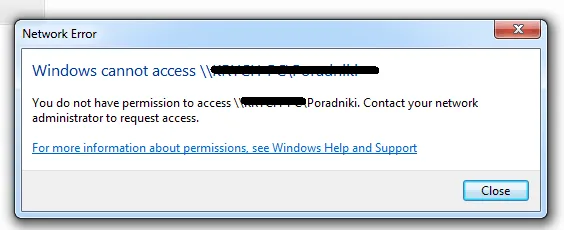
Permission errors often mean you lack access. Ask the share owner to grant you read or write permissions. If you’re on a work PC, your IT team may need to adjust Active Directory settings.
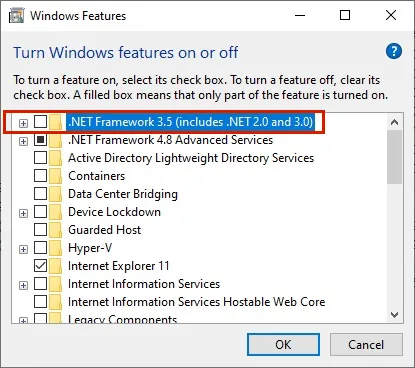
A "network path not found" error can stem from a wrong UNC path or disabled SMB. Verify the path and ensure SMB is enabled in Windows Features. Open "Turn Windows features on or off" and check "SMB 1.0/CIFS File Sharing Support" is off (it’s insecure) but SMB Direct is on.
Drives disconnecting frequently may be due to power settings. Open Device Manager, expand Network adapters, right-click your adapter, and disable "Allow the computer to turn off this device to save power."
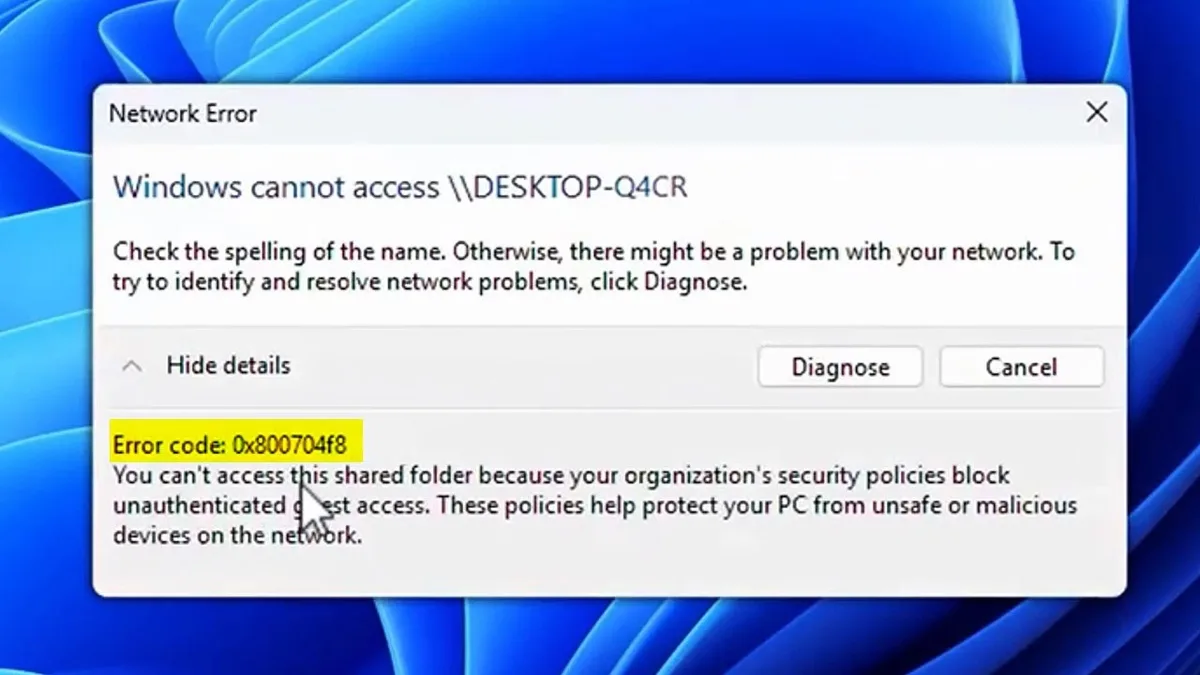
Image source: Bing (Web (fair-use with source credit))
Pro Tips for Smoother Network Drives
Use static IPs for servers or NAS devices to avoid path changes. If your router assigns dynamic IPs, the UNC path may break after a reboot.
For faster access, use a wired Ethernet connection instead of Wi-Fi. SMB is sensitive to latency, and Wi-Fi can introduce delays, especially with large files.
Enable offline files if you need access without a network. In File Explorer, right-click the mapped drive, select "Always available offline," and let Windows cache the files. Changes will sync when you’re back online.
If security is a concern, disable SMBv1 in Windows Features. As per Microsoft’s guidance, SMBv1 is outdated and vulnerable. Stick to SMBv2 or SMBv3 for better encryption and performance.
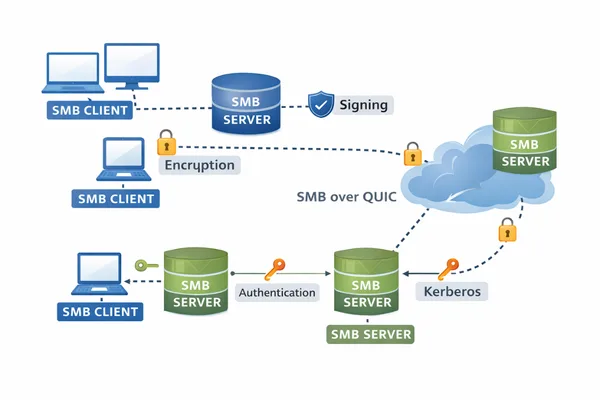
Image source: Bing (Web (fair-use with source credit))
Alternatives to Mapping a Drive
If you need occasional access, use the UNC path directly in File Explorer. Type \\Server\Share in the address bar and press Enter. This avoids drive letter conflicts and doesn’t require mapping.
For cloud storage, OneDrive or Google Drive offer similar convenience. Files sync automatically and are accessible from any device. These are better for remote teams or users who need offline access without a local network.
Shortcuts to network folders work like mapped drives but don’t assign a drive letter. Right-click the folder in File Explorer and select "Create shortcut." Place the shortcut on your desktop or Quick Access for easy access.
FAQs
Why does my mapped drive disappear after restart?
This happens if you didn’t check "Reconnect at sign-in" during setup. Remap the drive with this option enabled. Also verify your network connection is stable before logging in.
Can I map a drive to a cloud service like OneDrive?
No, OneDrive doesn’t support traditional drive mapping. Use the OneDrive desktop app to sync files locally instead. For network drives, stick to SMB shares or NAS devices.
What’s the difference between SMB and FTP?
SMB is faster and more secure for Windows networks. FTP is older, less secure, and typically used for web servers. SMB integrates seamlessly with Windows permissions and File Explorer.
How do I find the UNC path for a shared folder?
Open File Explorer and navigate to the shared folder. Right-click the folder and select "Properties." The UNC path appears under the "Location" tab or in the address bar when browsing the network.
Is SMBv1 still safe to use?
No. As per Microsoft’s security guidance, SMBv1 has known vulnerabilities. Disable it in Windows Features and use SMBv2 or SMBv3 instead.
Can I map a drive on a Mac or Linux machine?
Yes, but the process differs. On macOS, use Finder > Go > Connect to Server. On Linux, use the mount command with cifs support.
Windows 11’s method only works for Windows PCs.

Similar Posts