Why Is Windows 11 Using So Much RAM?
Founder & Lead Technology Analyst at Techny Tech · IEEE Senior Member, Certified Information Systems Security Professional (CISSP) · 13+ years in embedded systems benchmarking, machine learning hardware acceleration, and consumer electronics
Windows 11 can feel sluggish when it’s chewing through more RAM than expected. If you’re wondering why is Windows 11 using so much RAM, the short answer is that modern Windows versions aggressively cache and preload data to speed up performance, but background apps, memory leaks, or even hardware limits can push usage too high. As of 2026, even a fresh install can use 4GB+ at idle on mid-range systems.
The good news is that most causes are fixable without deep technical know-how. Start by checking what’s actually using your memory, then work through the most likely culprits.
why is Windows 11 using so much RAM
Windows 11 preloads apps and caches data for speed. Background processes like Windows Security and widgets add overhead. Memory leaks in apps or drivers can spike usage.
Insufficient RAM for your workload forces heavy paging.
Quick Fixes to Try First (5-Minute Solutions)
Close unused browser tabs and apps. Chrome and Edge are notorious for gobbling RAM, especially with multiple tabs open.
Restart your PC. This clears temporary memory leaks and resets background services.
Disable startup apps. Press Ctrl+Shift+Esc, go to the Startup tab in Task Manager, and disable non-essential programs.
Check for Windows updates. Pending updates can sometimes cause abnormal memory usage as they run in the background.
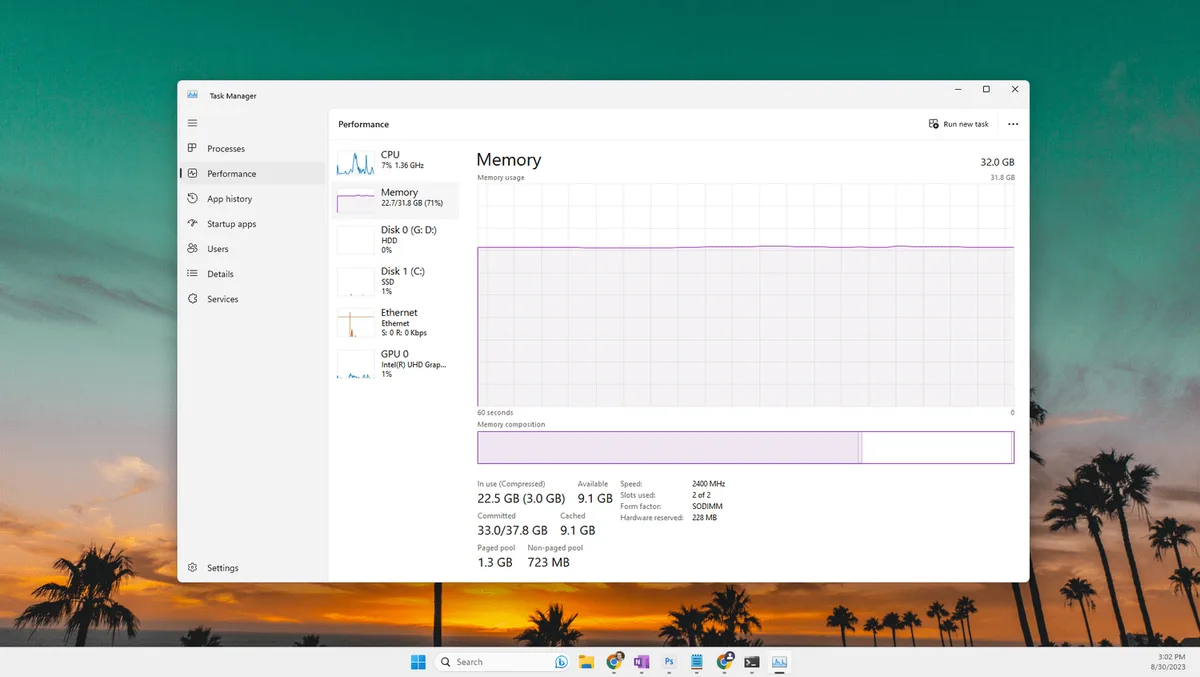
Image source: Bing (Web (fair-use with source credit))
Run a quick malware scan. Use Windows Defender (built-in) to rule out malicious processes hogging resources.
Adjust virtual memory. If your system is low on RAM, increasing the page file size can help, but it’s not a permanent fix.
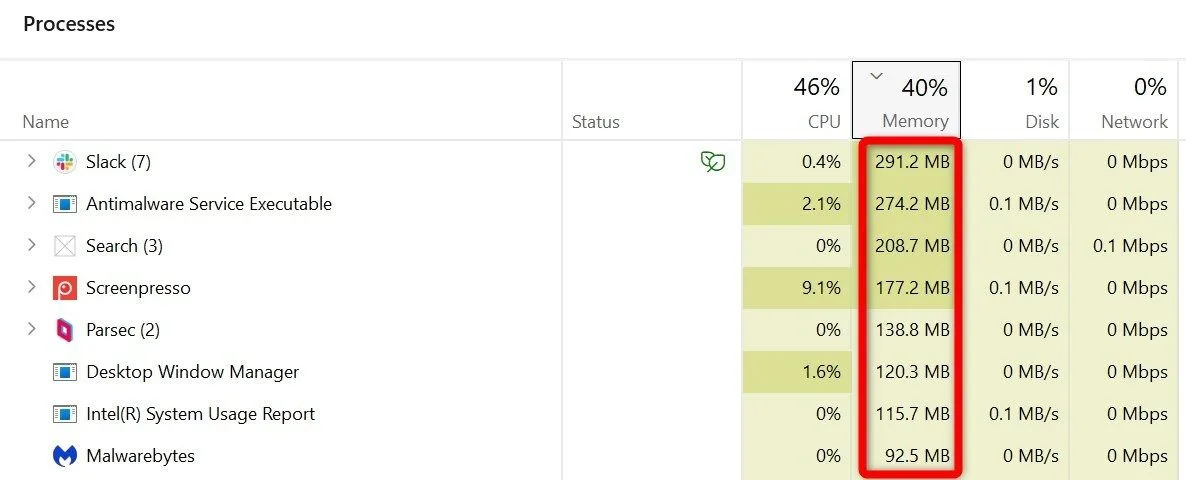
Image source: Bing (Web (fair-use with source credit))
How to Diagnose High RAM Usage in Windows 11
Open Task Manager with Ctrl+Shift+Esc and click the Performance tab. Here, you’ll see real-time RAM usage and how much is cached or in use by apps.
Switch to the Processes tab and sort by Memory to identify the biggest consumers. Look for unfamiliar or unusually high entries.
Use Resource Monitor for deeper insights. Press Win + R, type resmon, and check the Memory tab. This shows which processes are using the most RAM and how much is allocated to each.
Check for memory leaks. If a process keeps growing in memory usage over time, it’s likely leaking. Common culprits include outdated drivers or poorly coded apps.
Look at the Details tab in Task Manager. This gives a more granular view of memory usage per process, including background services.
The Most Common Causes (And How to Fix Each One)
Windows Superfetch (now called SysMain) preloads frequently used apps into RAM. While this speeds up performance, it can sometimes over-allocate memory. To disable it, open Services (services.msc), find SysMain, and set it to Disabled.
Windows Security (Microsoft Defender) runs constant scans in the background. While essential, it can use a significant amount of RAM. If you have third-party antivirus, disable Defender’s real-time protection to avoid duplication.
Too many startup apps slow down your system from the get-go. Use Task Manager’s Startup tab to disable unnecessary programs. Aim to keep startup items under 5-6 for best performance.
Memory leaks in apps or drivers can cause RAM usage to climb over time. Update all drivers via Device Manager and check for app updates. If a specific app is the issue, try reinstalling or using an alternative.
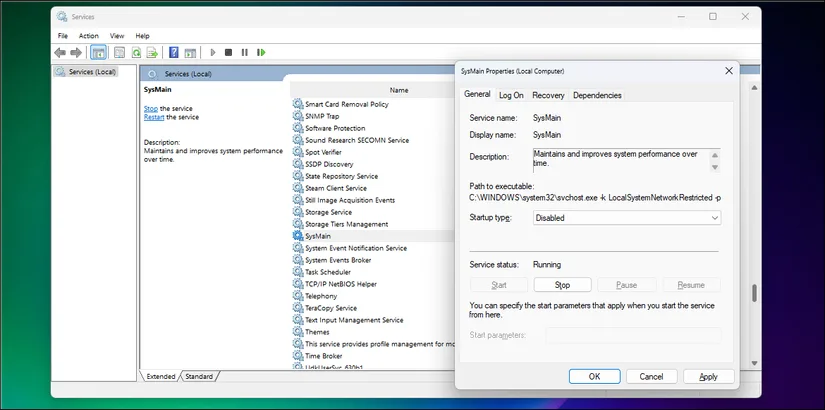
Image source: Bing (Web (fair-use with source credit))
Browser tabs and extensions are silent RAM hogs. Chrome, Edge, and Firefox can each use hundreds of MBs per tab. Use extensions like The Great Suspender to free up memory from inactive tabs.
Windows widgets and background processes add overhead. Disable widgets you don’t use via Settings > Personalization > Widgets. Also, review background apps in Settings > Privacy > Background apps.
Advanced Fixes for Stubborn Memory Issues
If basic fixes don’t work, check for corrupted system files. Open Command Prompt as admin and run sfc /scannow. This scans and repairs system files that might be causing memory issues.
Adjust your page file size manually. Go to System > Advanced system settings > Performance Settings > Advanced > Virtual Memory. Set a custom size (1.5x your RAM is a good starting point) or let Windows manage it.
Disable memory integrity in Core Isolation if it’s causing conflicts. Go to Windows Security > Device Security > Core Isolation and toggle Memory Integrity off. Note that this may reduce security slightly.
Upgrade your RAM if you consistently max out. 8GB is the bare minimum for Windows 11 in 2026, but 16GB is ideal for multitasking. Check your motherboard’s max capacity and compatibility before buying.
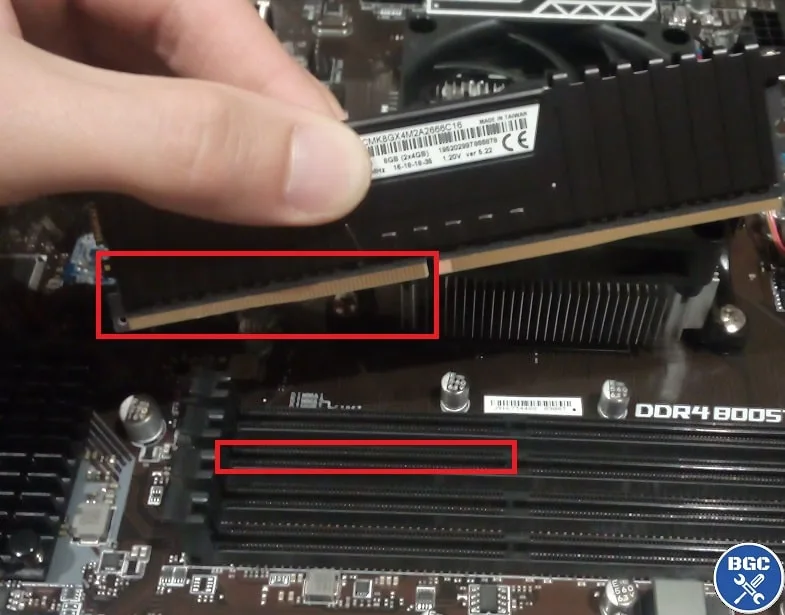
Image source: Bing (Web (fair-use with source credit)
Check for hardware issues. Faulty RAM modules can cause system instability and high usage. Run Windows Memory Diagnostic (mdsched.exe) to test your RAM.
Reset Windows as a last resort. If all else fails, a clean install can resolve deep-seated issues. Back up your data first, then use Settings > Recovery > Reset this PC.
How to Prevent High RAM Usage Long-Term
Limit background apps and processes. Go to Settings > Privacy > Background apps and disable anything you don’t need running constantly.
Keep your system and drivers updated. Windows 11 often patches memory leaks in updates, so regular checks help. Use Windows Update and Device Manager to stay current.
Monitor RAM usage regularly. Use Task Manager or third-party tools like Process Explorer to catch issues early. Set a reminder to check every few weeks.
Use lightweight alternatives to heavy apps. Swap Chrome for Firefox or Edge with efficiency modes enabled. For office work, try LibreOffice instead of Microsoft 365 if RAM is tight.
Adjust power settings for better efficiency. Switch to Power Saver mode on laptops to reduce background activity. For desktops, use Balanced or High Performance only when needed.
Frequently Asked Questions
Is 8GB RAM enough for Windows 11 in 2026?
8GB is the minimum for basic tasks like browsing and office work. For gaming, video editing, or heavy multitasking, 16GB is recommended. Windows 11 itself can use 4GB+ at idle on some systems.
Why does my RAM usage keep increasing over time?
This is often caused by memory leaks in apps or drivers. Restarting your PC clears temporary leaks. If the issue persists, update or reinstall the problematic software.
Can I disable Windows Superfetch (SysMain) safely?
Yes, but expect slightly slower app launches. SysMain preloads frequently used apps into RAM for faster access. Disabling it frees up memory but may reduce performance for some tasks.
Does adding more RAM always fix high usage?
Not always. If a specific app or process is leaking memory, adding RAM won’t solve the root issue. Fix the leak first, then consider upgrading if you still need more capacity.
How do I check if my RAM is faulty?
Use Windows Memory Diagnostic (mdsched.exe). This tool tests your RAM for errors during a reboot. Faulty RAM can cause crashes, freezes, and high usage.
Should I use a RAM optimizer app?
No. Most RAM optimizers are ineffective or even harmful. Windows 11 manages memory efficiently on its own.
Focus on fixing leaks and upgrading hardware if needed.