Can You Upgrade Your Laptop SSD?
Founder & Lead Technology Analyst at Techny Tech · IEEE Senior Member, Certified Information Systems Security Professional (CISSP) · 13+ years in embedded systems benchmarking, machine learning hardware acceleration, and consumer electronics
Your laptop feels sluggish, and you’re running out of space. So you’re wondering: can a laptop SSD be upgraded? The short answer is it depends on your laptop’s design, but many models do allow it.
As of 2026, most mid-range and business laptops still include replaceable M.2 or 2.5" SSDs, while ultrabooks and some premium models solder the storage directly to the motherboard. Manufacturer specs confirm this split, so the first step is checking your exact model.
can a laptop SSD be upgraded
Yes, many laptops allow SSD upgrades. Some have soldered storage that cannot be replaced. Others support M.2, SATA, or 2.5" drives.
Always check your laptop’s service manual first.
Quick Answer: Yes, No, or Maybe
If your laptop has an M.2 slot or a 2.5" bay, you can upgrade the SSD. If the SSD is soldered (BGA), you cannot replace it. Ultrabooks and thin-and-light models often use soldered storage.
Check your laptop’s service manual or manufacturer website. Look for terms like “replaceable,” “upgradable,” or “M.2 slot.” If unsure, a quick search for your model plus “SSD upgrade” usually clarifies.
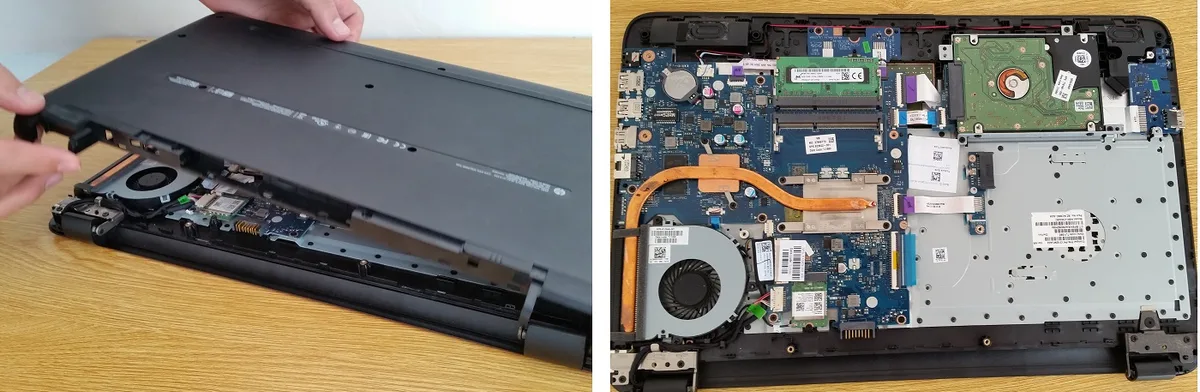
Image source: Bing (Web (fair-use with source credit))
How to Tell If Your Laptop’s SSD Is Upgradable
Start by identifying your laptop’s model number. This is usually on a sticker on the bottom or in the BIOS. Once you have it, look up the service manual or specs on the manufacturer’s site.
Next, check the current SSD type. Open Task Manager (Ctrl+Shift+Esc), go to the Performance tab, and select your disk. It will show if it’s SATA, NVMe, or another type.
If it’s M.2 or 2.5", it’s likely replaceable.
If you don’t see a slot, the SSD might be soldered. Some laptops hide the slot under the keyboard or a panel. A quick online search for your model plus “SSD upgrade” can confirm.
The 3 Types of Laptop SSD Upgrades (And Which One Fits Yours)
Replace the primary SSD. This is the most common upgrade. You swap the existing drive for a larger or faster one. Works if your laptop has a removable M.2 or 2.5" SSD.
Add a secondary SSD. Some laptops have an extra M.2 slot or a 2.5" bay. You can add a second SSD for more storage without removing the original.
Upgrade from HDD to SSD. If your laptop still has a hard drive, you can replace it with an SSD for better speed. Most 2.5" HDD bays support SATA SSDs.
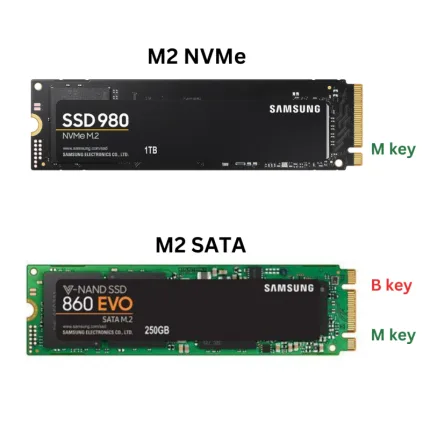
Image source: Bing (Web (fair-use with source credit))
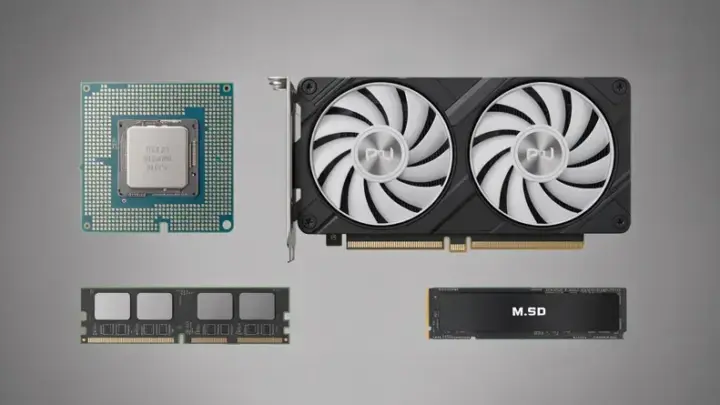
Check your laptop’s form factor. M.2 SSDs come in sizes like 2230, 2242, 2260, and 2280. The numbers refer to the dimensions in millimeters.
A 2280 SSD is 22mm wide and 80mm long.
Step-by-Step: How to Upgrade Your Laptop SSD
Prepare your laptop. Back up all your data. You’ll need a USB drive or external storage. Use cloning software like Macrium Reflect or Samsung Data Migration to copy your old drive to the new one.
Gather tools. You’ll need a precision screwdriver set, a plastic pry tool, and an anti-static wrist strap. Some laptops require a Torx screwdriver.
Open the laptop. Power off and unplug the laptop. Remove the back panel or keyboard, depending on the model. Refer to your laptop’s service manual for exact steps.
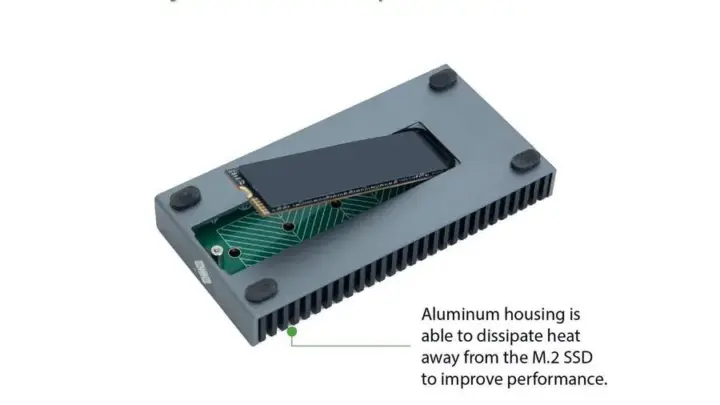
Locate the SSD. If it’s an M.2 SSD, it will be a small, flat chip. If it’s a 2.5" SSD, it will look like a small rectangular drive. Gently remove the old SSD if you’re replacing it.
Install the new SSD. Align the new SSD with the slot and secure it with the screw. For M.2 SSDs, insert it at a 30-degree angle and press down until it clicks.
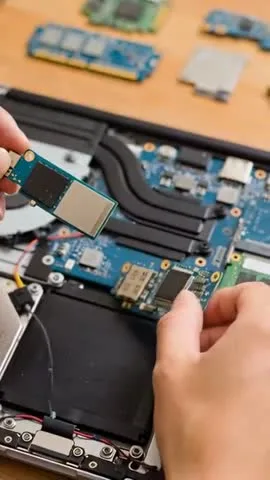
Image source: Bing (Web (fair-use with source credit))
Common Mistakes That Brick Your Upgrade (And How to Avoid Them)
Using the wrong form factor. A 2280 SSD won’t fit in a 2230 slot. Measure your existing SSD or check the manual. Mismatched sizes can damage the slot or the drive.
Skipping the backup. If you don’t clone your old drive, you’ll lose everything. Use free tools like Macrium Reflect or Clonezilla before touching the hardware.
Forgetting the screw. Many M.2 slots require a tiny standoff screw to secure the SSD. Without it, the drive can disconnect under vibration. Check your laptop’s manual for the right screw size.
Ignoring BIOS settings. Some older laptops need a BIOS update to recognize NVMe SSDs. If the new drive isn’t detected, check for firmware updates on the manufacturer’s site.
Static electricity damage. Touching components without grounding can fry them. Use an anti-static wrist strap or touch a metal part of the chassis before handling the SSD.
Costs, Speeds, and What to Expect After Upgrading
A 1TB SATA SSD costs around $60 to $90 as of 2026. NVMe drives are faster but pricier, with 1TB models running $80 to $120. Expect to pay more for higher capacities or Gen 4/5 speeds.
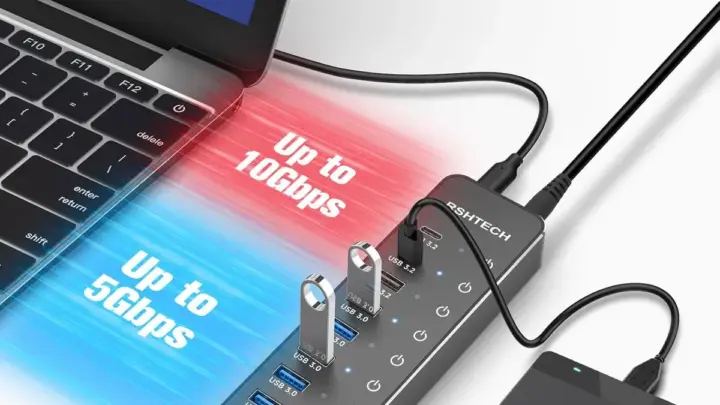
Speed gains are noticeable. SATA SSDs max out at ~550 MB/s. NVMe Gen 3 hits 3000 MB/s, while Gen 4 reaches 5000 to 7000 MB/s.
Boot times drop from 20-30 seconds to under 10. Apps and games load faster too.
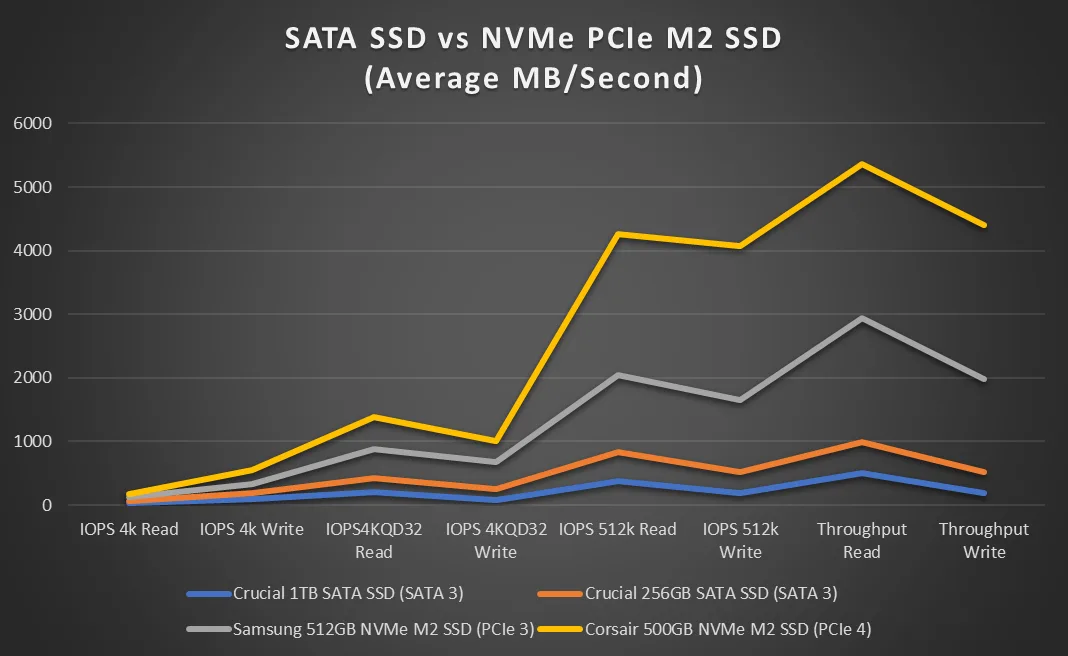
Image source: Bing (Web (fair-use with source credit))
Lifespan improves with SSDs. They have no moving parts, so they’re more durable than HDDs. Most consumer SSDs last 3-5 years under normal use, with endurance ratings of 150-600 TBW.
Frequently Asked Questions
Can I upgrade any laptop SSD?
No. Ultrabooks and some premium models solder the SSD to the motherboard. Check your laptop’s service manual or manufacturer specs to confirm.
Do I need to reinstall Windows after upgrading?
Not if you clone your old drive. Use software like Macrium Reflect or Samsung Data Migration to copy everything to the new SSD.
What’s the difference between SATA and NVMe SSDs?
SATA SSDs use the older SATA interface, maxing out at ~550 MB/s. NVMe SSDs use PCIe, offering speeds up to 7000 MB/s or more. NVMe is faster but may not be compatible with older laptops.
How do I know if my laptop has an M.2 slot?
Check the service manual or look for a small, flat slot on the motherboard. Some laptops hide it under a panel or the keyboard.
Will upgrading my SSD void the warranty?
It might. Some manufacturers void warranties for self-upgrades. Check your warranty terms before opening the laptop.

Similar Posts