How to Check Your PC for Malware
Founder & Lead Technology Analyst at Techny Tech · IEEE Senior Member, Certified Information Systems Security Professional (CISSP) · 13+ years in embedded systems benchmarking, machine learning hardware acceleration, and consumer electronics
Your PC might be infected if it’s running slower than usual, crashing often, or showing strange pop-ups. Knowing how to check whether a PC has malware is the first step to fixing the problem before it gets worse. As of 2026, independent labs like AV-Test report that even basic scans catch over 95% of common threats if done correctly.
The good news is you don’t need to be a tech expert to spot the red flags. A few quick checks can reveal whether your system is compromised, and the right tools can confirm it.
how to check whether a PC has malware
Start with a visual scan for unusual activity in Task Manager. Run a quick scan using built-in tools like Windows Defender. Check for unfamiliar programs in your installed apps list.
Look for browser redirects or new toolbars. Use a trusted anti-malware tool for a deeper scan.
Quick Signs Your PC Might Be Infected
A sudden slowdown is the most common red flag. If your PC takes forever to boot or apps freeze for no reason, malware could be hogging resources in the background.
Watch for unexpected pop-ups, especially if they appear even when you’re not browsing. These often come from adware, a type of malware that bombards you with ads.
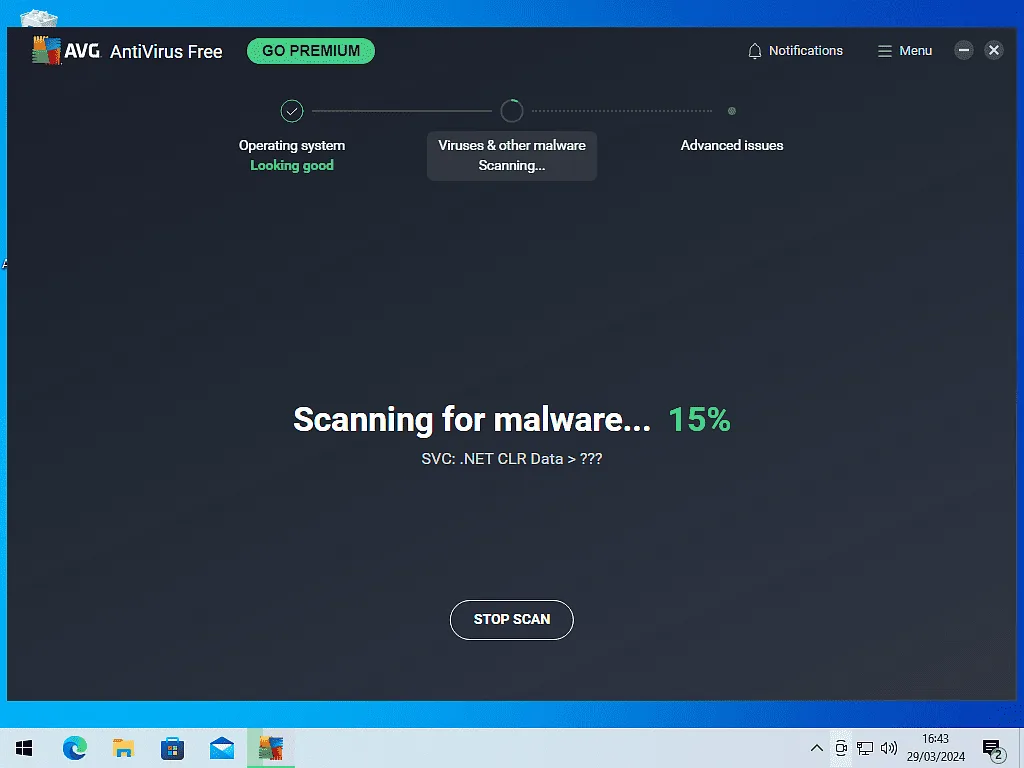
Image source: Bing (Web (fair-use with source credit))
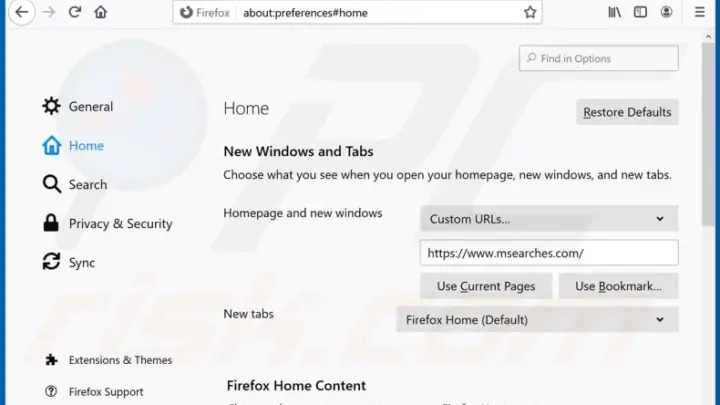
Another telltale sign is your browser acting strangely. If your homepage changes without your input or you’re redirected to sketchy sites, a browser hijacker might be at work. Check your browser extensions and remove anything you don’t recognize.
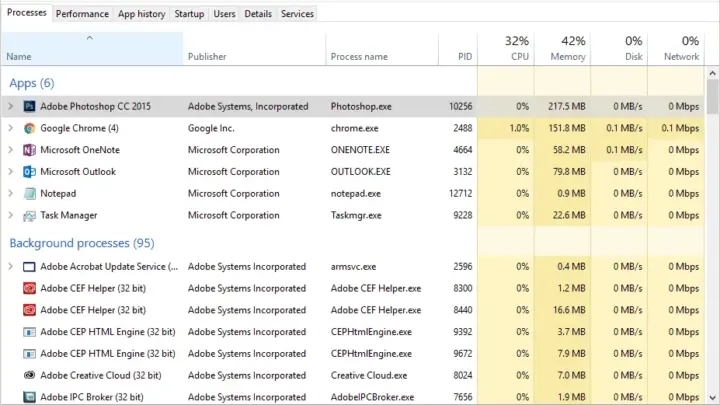
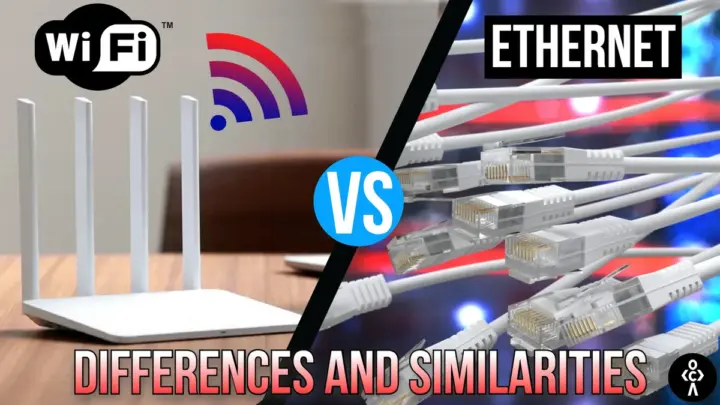
Unusual network activity is a less obvious but critical sign. If your internet is slow yet Task Manager shows high data usage from an unknown process, malware could be communicating with a remote server.
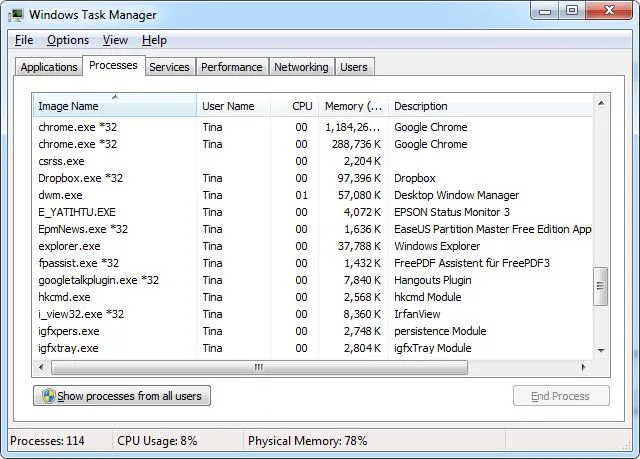
Image source: Bing (Web (fair-use with source credit))
The Fastest Way to Check for Malware (No Tools Needed)
Open Task Manager and sort by CPU or memory usage. If an unfamiliar process is using a lot of resources, it could be malicious. Right-click and search the process name online to verify.
Check your installed programs list. On Windows, go to Settings > Apps > Installed Apps. Look for anything you don’t remember installing.
Uninstall suspicious entries immediately.
Review your browser extensions. In Chrome, Edge, or Firefox, go to the extensions menu and remove anything unfamiliar. Many malware infections start with a rogue extension.
Inspect your startup programs. Press Ctrl + Shift + Esc, go to the Startup tab in Task Manager, and disable anything suspicious. Malware often sets itself to run at startup to persist.
Best Free & Paid Tools to Scan for Malware
Windows Defender is built into Windows and offers real-time protection. It’s free, regularly updated, and effective against most common threats. For a quick scan, open Windows Security and run a scan.
Malwarebytes is a popular free tool for on-demand scans. It specializes in detecting adware, spyware, and other nuisances that traditional antivirus might miss. The free version lets you scan manually, while the paid version adds real-time protection.
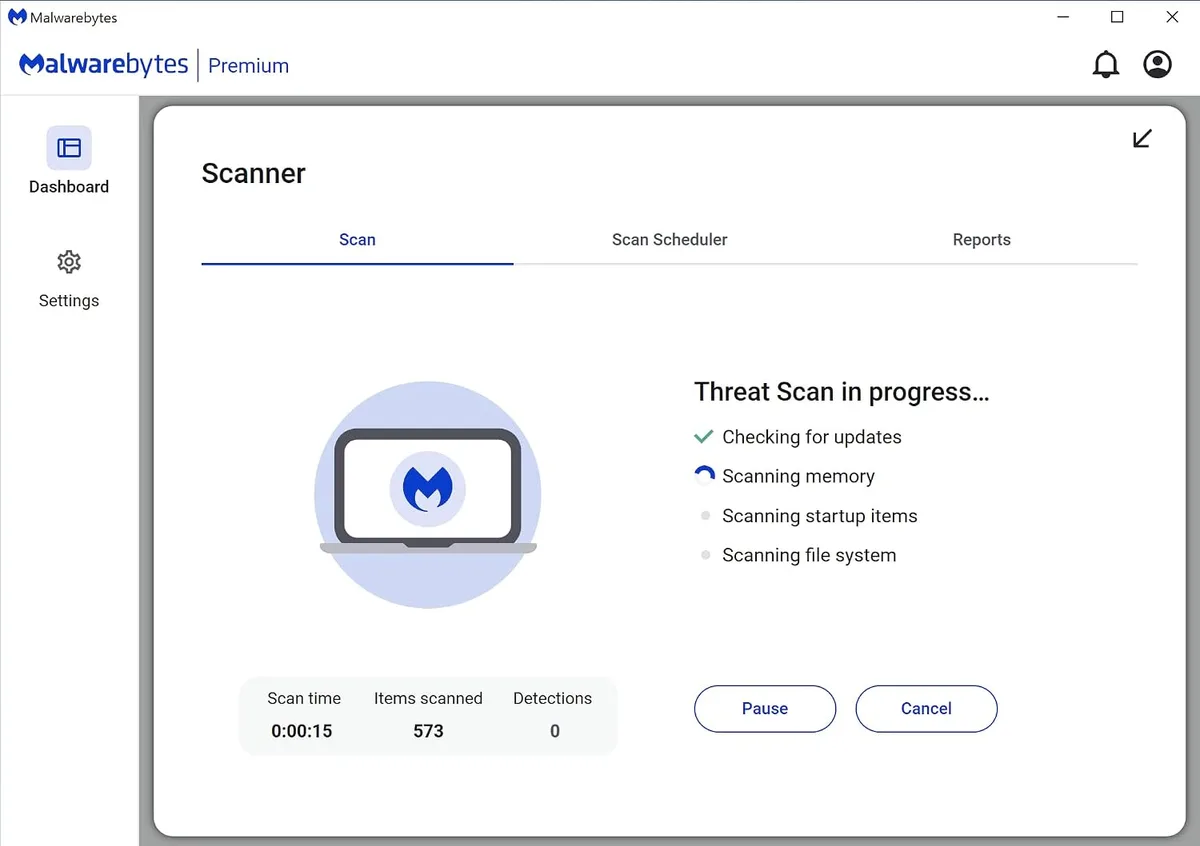
Image source: Bing (Web (fair-use with source credit))
Bitdefender and Kaspersky are top-tier paid options. Both offer high detection rates, minimal system impact, and additional features like ransomware protection. They’re best for users who want comprehensive, set-and-forget security.
For advanced users, HitmanPro and Spybot Search & Destroy can root out deep infections. These tools are lightweight and designed to catch what others might miss. Use them as a second opinion if you suspect a persistent threat.
| Tool | Type | Best For | Cost |
|---|---|---|---|
| Windows Defender | Built-in | Basic protection | Free |
| Malwarebytes | On-demand | Adware, spyware | Free (Premium: $40/year) |
| Bitdefender | Full suite | Comprehensive security | $60/year |
| Kaspersky | Full suite | High detection rates | $50/year |
What to Do If You Find Malware (Step-by-Step Removal)
Disconnect from the internet immediately. This prevents malware from communicating with its server or spreading to other devices on your network.
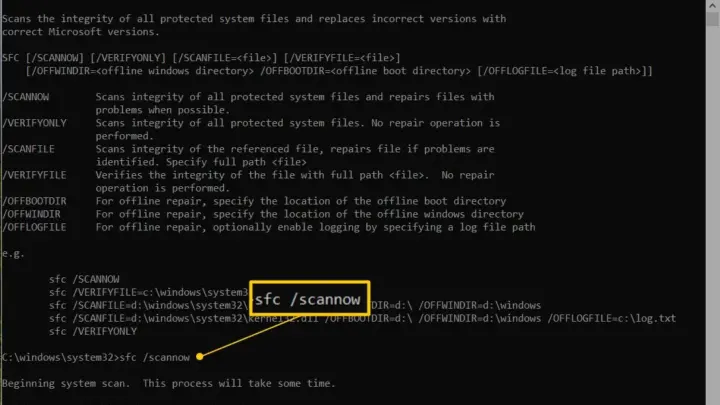
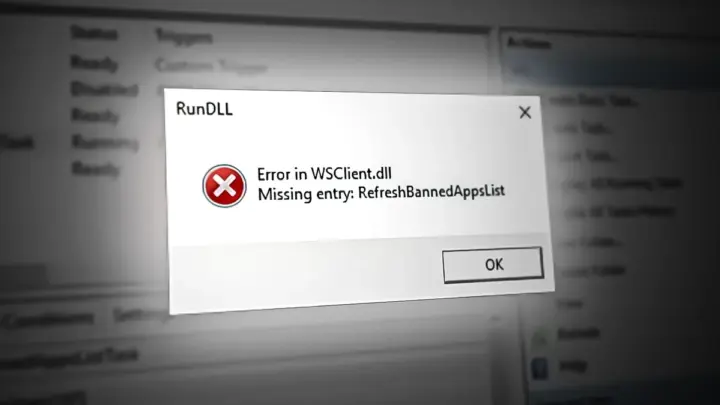
Run a full scan with your antivirus or anti-malware tool. Quarantine or remove any threats it finds. If the tool can’t remove the malware, try a different scanner for a second opinion.
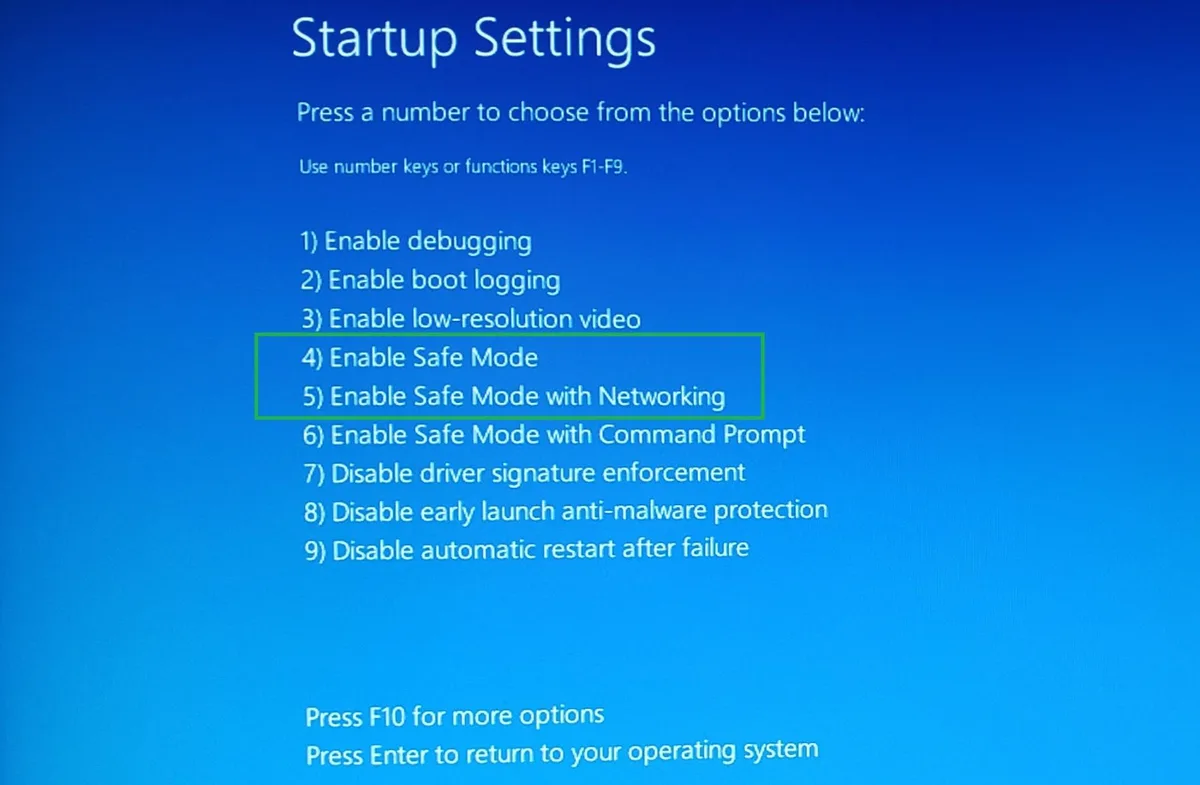
Image source: Bing (Web (fair-use with source credit))
Restart your PC in Safe Mode. This loads only essential processes, making it easier to remove stubborn malware. In Safe Mode, run another scan and delete any remaining threats.
Check for and remove any suspicious startup programs. Malware often reinfects your system if it’s allowed to run at startup. Use Task Manager or msconfig to disable unknown entries.
If the malware persists, consider using a bootable antivirus tool. Kaspersky Rescue Disk or Bitdefender Rescue CD can scan your system before Windows loads, catching rootkits and other deep infections.
Common Mistakes That Let Malware Hide
Skipping updates is a major oversight. Outdated antivirus definitions can’t catch new threats. Always enable automatic updates for your security software.
Ignoring browser security is another common mistake. Many users install extensions without checking their permissions. Stick to trusted sources like the Chrome Web Store or Firefox Add-ons.
Overlooking startup programs lets malware persist. If you don’t disable suspicious startup entries, malware can reinstall itself after every reboot. Use Task Manager to review and disable unknown programs.
Assuming free tools are enough can be risky. While free antivirus software is better than nothing, it often lacks advanced features like ransomware protection. For high-value data, consider a paid suite.
Not scanning external drives is a frequent error. USB drives and external hard drives can carry malware. Always scan them before accessing files.
How to Prevent Future Infections
Use strong, unique passwords for all accounts. A password manager can help generate and store them securely. Avoid reusing passwords across multiple sites.
Enable multi-factor authentication (MFA) wherever possible. This adds an extra layer of security, making it harder for attackers to access your accounts. Most services offer MFA via text, email, or authenticator apps.
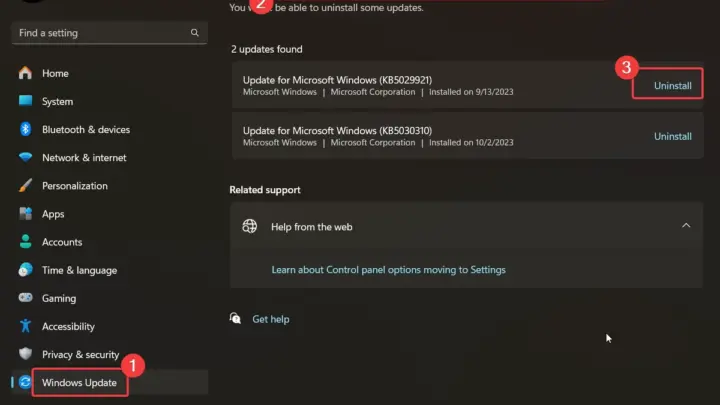
Keep your operating system and software up to date. Patches often fix security vulnerabilities that malware exploits. Enable automatic updates for your OS and critical applications.
Be cautious with email attachments and links. Phishing emails often contain malicious attachments or links to fake login pages. Verify the sender’s address and hover over links before clicking.
Avoid pirated software and cracked games. These often come bundled with malware. Stick to official sources like the Microsoft Store, Apple App Store, or reputable developers.
Frequently Asked Questions
Can malware hide from antivirus scans?
Yes, some advanced malware like rootkits can hide from standard scans. Use specialized tools like TDSSKiller or GMER to detect them. Bootable antivirus disks can also catch hidden threats before your OS loads.
How often should I scan my PC for malware?
Run a quick scan weekly and a full scan monthly. If you notice suspicious activity, scan immediately. Real-time protection from tools like Windows Defender or Bitdefender can catch threats as they appear.
What’s the difference between a virus and malware?
All viruses are malware, but not all malware is a virus. Malware is a broad term for any malicious software, including viruses, worms, Trojans, and ransomware. Viruses specifically attach to clean files and spread.
Is free antivirus enough for most users?
For basic protection, free antivirus like Windows Defender or Malwarebytes can be sufficient. However, paid suites offer better detection rates, ransomware protection, and additional features like VPNs and password managers.
Can malware infect my PC without me clicking anything?
Yes, some malware exploits vulnerabilities in your OS or software to infect your PC without interaction. This is why keeping your system updated is critical. Drive-by downloads from compromised websites can also install malware automatically.

Similar Posts