How to Safely Uninstall a Windows Update
Founder & Lead Technology Analyst at Techny Tech · IEEE Senior Member, Certified Information Systems Security Professional (CISSP) · 13+ years in embedded systems benchmarking, machine learning hardware acceleration, and consumer electronics
Windows updates are meant to improve your system, but sometimes they do the opposite. If you're here, you're likely dealing with crashes, slowdowns, or compatibility issues after an update, and you need to know how to uninstall a Windows update safely without making things worse. The good news is Windows gives you a few reliable ways to roll back, but timing and method matter.
As of 2026, Microsoft allows a 10-day rollback window for major updates on Windows 10 and 11, but the process changes depending on the update type and your system state. Let’s start with the safest approach.
how to uninstall a Windows update safely
Use Settings to remove recent updates. Open Update History, select Uninstall Updates, and pick the problematic KB number.
For older updates, use Command Prompt with wusa /uninstall /kb:XXXXXXX. Always back up data first.
If the system is unstable, boot into Safe Mode or use System Restore. Avoid removing security updates unless absolutely necessary.
When You Need to Uninstall a Windows Update (And When You Shouldn’t)
Not every issue is caused by an update, so confirm the problem first. If your system started crashing, freezing, or losing functionality right after an update, that’s a red flag. Check for error messages or event logs pointing to a specific KB number.
Avoid uninstalling security updates unless they’re directly causing harm. These patches often fix critical vulnerabilities, and removing them could expose your system to risks. Per Microsoft’s own guidance, security updates should only be rolled back as a last resort.
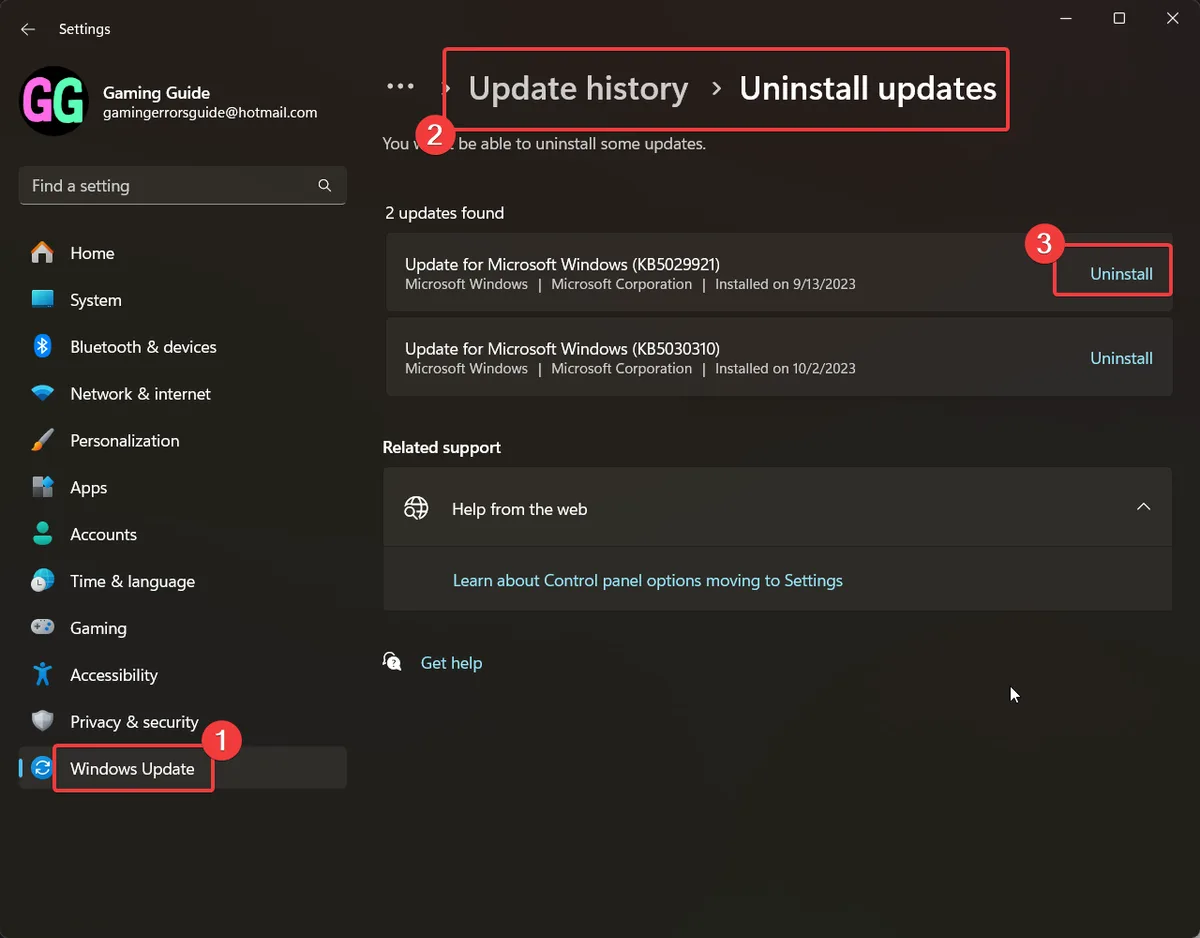
Image source: Bing (Web (fair-use with source credit))
How to Tell If an Update Is the Problem
Start by checking the update history. Open Settings > Windows Update > Update History to see recently installed updates. Look for the KB number tied to the date your issues began.
Use the Reliability Monitor for clues. Type "reliability" in the Start menu, then open the tool. It’ll show critical events like crashes or failures that align with update installations.
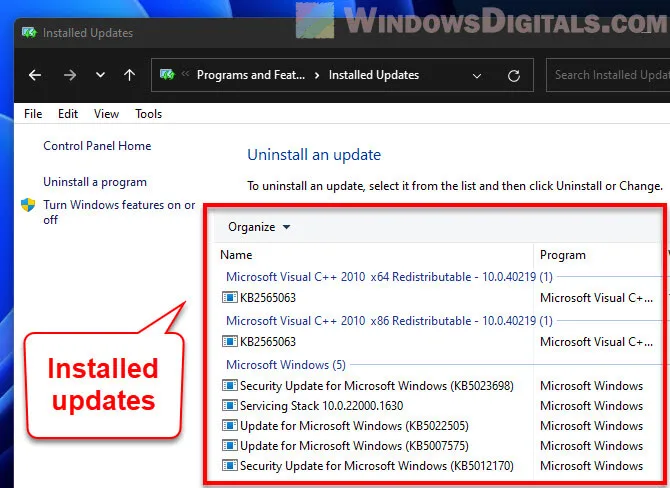
Image source: Bing (Web (fair-use with source credit))
If you suspect a driver update, check Device Manager for warnings. Right-click the Start button, select Device Manager, and look for yellow exclamation marks next to hardware.
Step-by-Step: 3 Ways to Uninstall a Windows Update
Method 1: Uninstall via Settings
Open Settings > Windows Update > Update History. Click Uninstall Updates at the top. This opens the classic Control Panel list of installed updates.
Find the update by its KB number or installation date. Select it, then click Uninstall. Follow the prompts and restart your PC if asked.
This method works for most non-critical updates. It’s the simplest and safest for recent updates within the 10-day window.
Method 2: Use Command Prompt (wusa)
Open Command Prompt as administrator. Type wusa /uninstall /kb:XXXXXXX (replace XXXXXXX with the actual KB number). Press Enter.
This forces the uninstall even if the update isn’t visible in Settings. It’s useful for stubborn updates or when the GUI method fails.
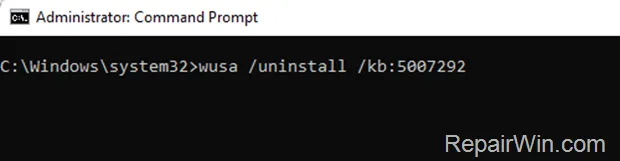
Image source: Bing (Web (fair-use with source credit))
Method 3: System Restore
If the update caused system-wide issues, use System Restore. Type "create a restore point" in the Start menu, open the tool, and click System Restore.
Pick a restore point from before the update was installed. This reverts your system files and settings to that state without affecting personal files.
What to Do If the Update Won’t Uninstall
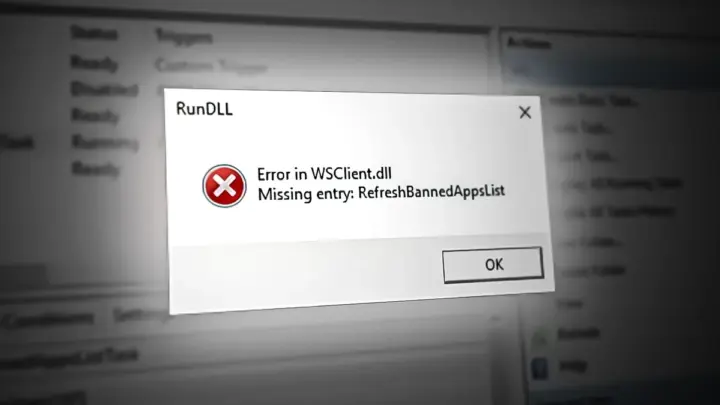
Some updates refuse to uninstall through normal methods. If you see errors like "update not found" or "uninstall failed," try booting into Safe Mode first. Safe Mode loads only essential drivers, which can help remove problematic updates.
If that doesn’t work, use the Windows Update Troubleshooter. Open Settings > System > Troubleshoot > Other troubleshooters, then run the Windows Update troubleshooter. It can reset stuck components.
For critical failures, System Restore is your best bet. If even that fails, you may need to use DISM or Windows Recovery Environment (WinRE). These are advanced options, so proceed with caution.
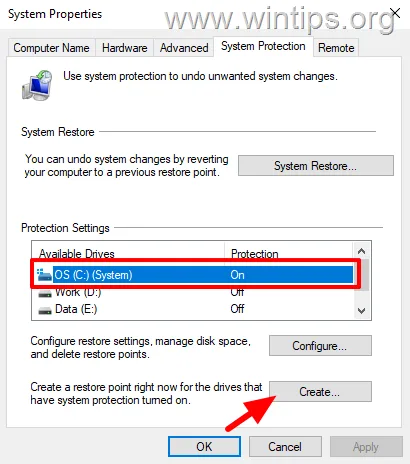
Image source: Bing (Web (fair-use with source credit))
Mistakes That Can Break Your System (And How to Avoid Them)
Uninstalling the wrong update can cause bigger problems. Never remove servicing stack updates or cumulative updates without checking dependencies first. These often contain critical fixes for other components.
Skipping the backup step is another common mistake. Always create a system restore point before making changes. If something goes wrong, you’ll have a way back.
Forcing an uninstall when the system is in use can corrupt files. Close all apps and save your work before starting. If the update is part of a pending restart, complete the restart first.
What Happens If You Remove a Security Update
Security updates patch vulnerabilities. Removing them can leave your system exposed to malware or exploits. Only do this if the update is directly causing critical issues and no other fixes work.
FAQs About Windows Update Removal
Can I uninstall any Windows update
No. Some updates like servicing stack updates or critical system files cannot be removed. These are often hidden from the uninstall list.
How do I find the KB number of a problematic update
Open Settings > Windows Update > Update History. The KB number is listed next to each update. You can also check Event Viewer for error details.
What if the uninstall option is grayed out
This usually means the update is protected or too old to remove. Try System Restore to revert to a point before the update was installed.
Will uninstalling an update delete my files
No. Uninstalling an update only removes the update files and reverts system changes. Your personal files and apps remain untouched.
How do I stop Windows from reinstalling the same update
Use the Windows Update Troubleshooter to hide the update. Open Settings > Troubleshoot > Other troubleshooters, then select Windows Update and run the tool. It will give you the option to hide problematic updates.
Is there a time limit to uninstall updates
Yes. For major updates, you typically have 10 days to roll back. After that, the option may disappear unless you use advanced methods like System Restore.

Similar Posts