Why Is My Ethernet Slower Than WiFi? Fix It Now
Founder & Lead Technology Analyst at Techny Tech · IEEE Senior Member, Certified Information Systems Security Professional (CISSP) · 13+ years in embedded systems benchmarking, machine learning hardware acceleration, and consumer electronics
Ethernet is supposed to be faster and more stable than WiFi, so finding out it’s the opposite on your PC is frustrating. If you’re wondering why is Ethernet slower than WiFi on my PC, the issue usually comes down to hardware limits, driver problems, or network settings, not the connection type itself.
Manufacturer specifications for Gigabit Ethernet (IEEE 802.3ab) promise up to 1000 Mbps, yet real-world results often fall short. Let’s cut through the noise and pinpoint what’s actually slowing you down.
why is Ethernet slower than WiFi on my PC
Your Ethernet may be slower due to a damaged cable or a 100 Mbps port. Outdated network drivers can also cap speeds. WiFi might outperform it if your router uses a high-bandwidth channel.
Check your NIC settings for forced speed limits.
Quick Answer: The Most Likely Causes
If your Ethernet is slower than WiFi, start with the basics. A faulty or low-grade cable (like Cat 5 instead of Cat 5e or Cat 6) can bottleneck speeds to 100 Mbps. Your PC or router might also have a 10/100 port instead of Gigabit.
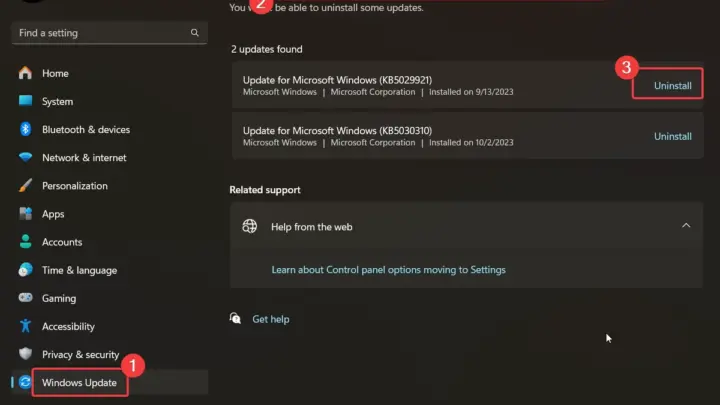
Driver issues are another common culprit. An outdated or corrupted network driver can throttle performance. Windows often defaults to generic drivers that don’t fully support your NIC’s capabilities.
Lastly, check your network adapter settings. Power-saving modes or manual speed/duplex settings can force your connection into a slower mode. Auto-negotiation failures between your PC and router can also limit speeds.
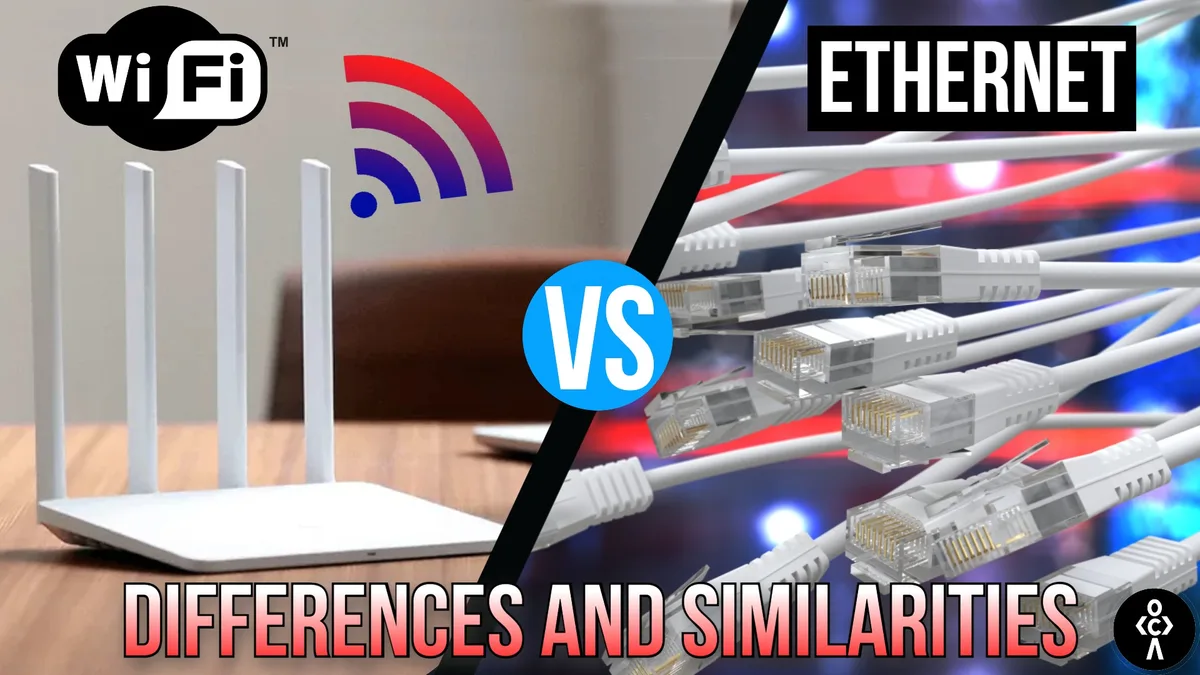
Image source: Bing (Web (fair-use with source credit))
How Ethernet and WiFi Speeds Actually Work
Ethernet and WiFi transmit data differently, which affects their real-world performance. Ethernet uses a direct, wired connection with dedicated bandwidth. As of 2026, Gigabit Ethernet (1000 Mbps) is standard, with 2.5G and 5G options gaining traction.
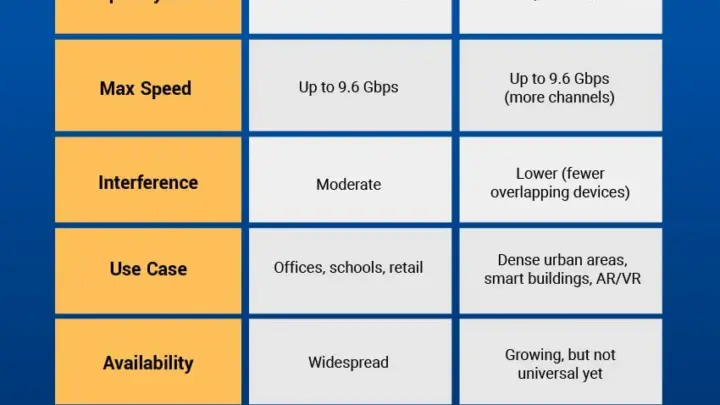
WiFi, on the other hand, relies on radio waves. Modern standards like WiFi 6 (802.11ax) can theoretically hit 9.6 Gbps, but real-world speeds depend on distance, interference, and your device’s capabilities. A 5 GHz WiFi connection in ideal conditions can outperform a poorly configured Ethernet setup.
Ethernet’s strength lies in consistency. It’s less prone to interference and latency spikes, making it ideal for gaming or large file transfers. WiFi offers convenience but can suffer from signal degradation over distance or in crowded environments.
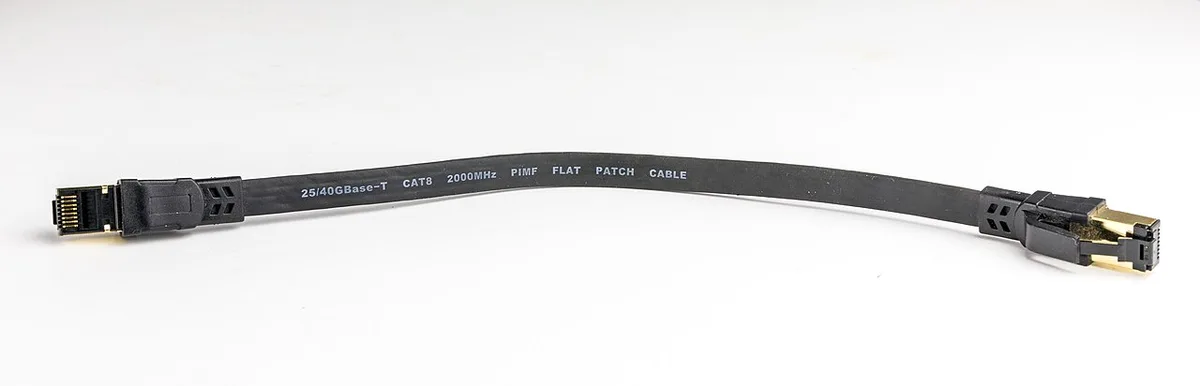
Image source: Wikimedia Commons / Raimond Spekking (CC BY-SA)
Step-by-Step: Diagnose Why Your Ethernet Is Slow
Start by checking your hardware. Inspect your Ethernet cable for damage or wear. Cat 5e or Cat 6 cables are recommended for Gigabit speeds.
Plug the cable into a different port on your router or switch to rule out a faulty port.
Next, verify your PC’s network adapter. Open Device Manager and look under Network adapters for your Ethernet controller. If it’s listed as 10/100, it’s capped at 100 Mbps.
For Gigabit, you need a 10/100/1000 NIC.
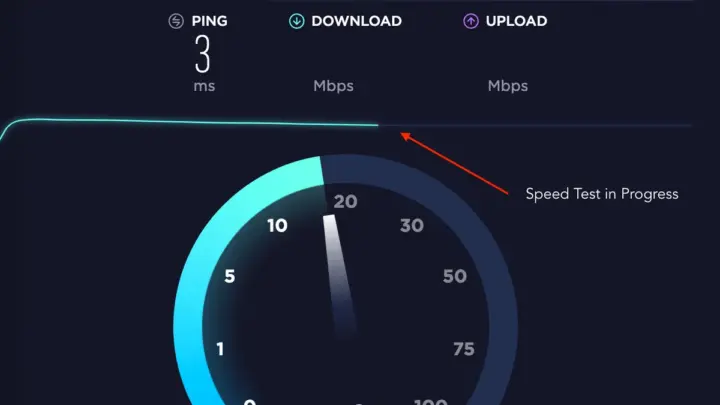
Run a speed test on both Ethernet and WiFi. Use a tool like Speedtest by Ookla to compare. If Ethernet is significantly slower, check your link speed.
On Windows, open Command Prompt and type ipconfig /all. Look for Link Speed under your Ethernet adapter.
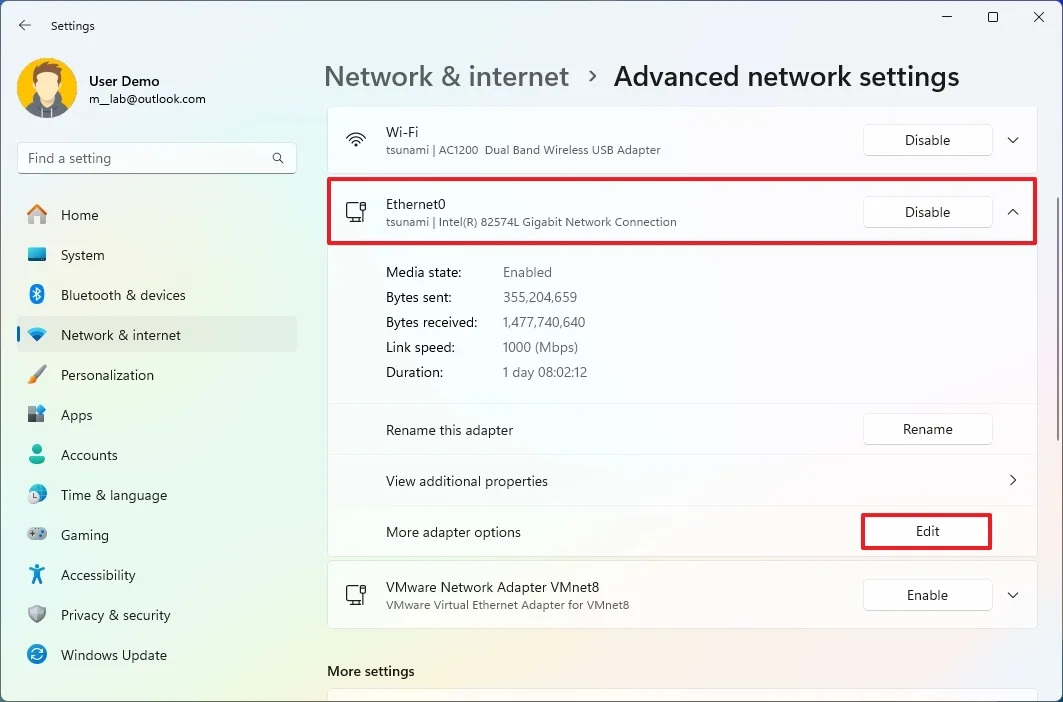
Image source: Bing (Web (fair-use with source credit))
Update your network drivers. Visit your NIC manufacturer’s website (e.g., Intel, Realtek) and download the latest driver. Windows Update often misses critical updates for network hardware.
Finally, check your router’s settings. Log in to your router’s admin panel and ensure Gigabit mode is enabled. Some routers default to 100 Mbps for compatibility.
Also, disable any QoS or traffic shaping settings that might be throttling Ethernet traffic.
Fixes That Work (Ranked by Probability)
Replace your Ethernet cable. A damaged or outdated cable is the most common culprit. Use a Cat 5e or Cat 6 cable for Gigabit speeds. Avoid cheap, unshielded cables that can introduce interference.
Update or reinstall your network driver. Outdated drivers can limit your NIC’s performance. Uninstall the current driver in Device Manager, then install the latest version from the manufacturer’s site. This often resolves speed caps caused by generic drivers.
Check your NIC’s speed and duplex settings. Open Device Manager, right-click your Ethernet adapter, and select Properties. Under the Advanced tab, ensure Speed & Duplex is set to Auto Negotiation. Forcing a lower speed (e.g., 100 Mbps) will bottleneck your connection.
Disable power-saving features. Windows may reduce your NIC’s performance to save power. In Device Manager, go to your Ethernet adapter’s Properties > Power Management tab and uncheck Allow the computer to turn off this device to save power.
Test with a different port or device. Plug your Ethernet cable into another port on your router or switch. If speeds improve, the original port may be faulty. Also, test with another device (e.g., a laptop) to isolate whether the issue is with your PC or the network.
Adjust router QoS settings. Some routers prioritize WiFi traffic by default. Log in to your router’s admin panel and check the QoS settings. Disable QoS or adjust it to prioritize wired connections.
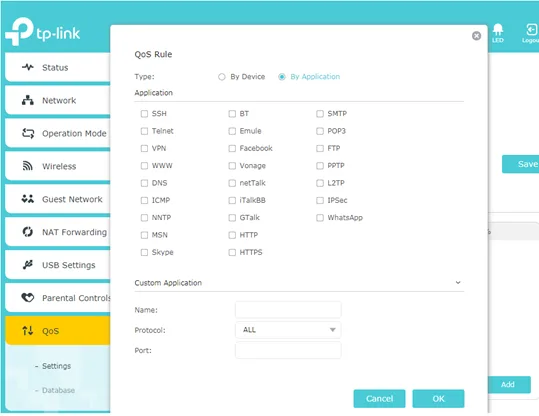
Image source: Bing (Web (fair-use with source credit))
When WiFi Should Be Faster (And When It’s a Red Flag)
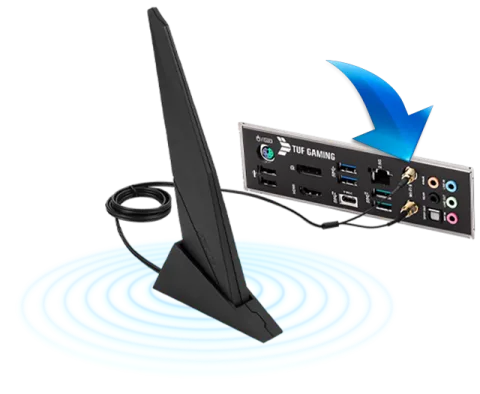
WiFi can legitimately outperform Ethernet in a few specific cases. If your router supports WiFi 6 or 6E and your PC has a compatible adapter, wireless speeds may hit 1-2 Gbps in ideal conditions. This happens when your Ethernet setup is limited to 100 Mbps due to old hardware.
Another scenario is distance. If your PC is far from the router but has a strong WiFi signal, wireless might be faster than a long, poor-quality Ethernet cable. However, this is rare with modern Cat 6 cables, which maintain stability up to 100 meters.
If WiFi is consistently faster than Ethernet with no clear reason, it’s a red flag. This suggests a serious issue like a faulty NIC, corrupted drivers, or a misconfigured network. Ethernet should never be slower than WiFi in a properly set up system.
FAQs: Ethernet vs. WiFi Speed Issues
Why does my 1 Gbps Ethernet only show 100 Mbps?
Your PC or router likely has a 10/100 port instead of a Gigabit port. Check your NIC specs in Device Manager. Also, a damaged or Cat 5 cable can limit speeds to 100 Mbps.
Can a bad Ethernet cable slow down my connection?
Yes. A damaged or low-quality cable can reduce speeds or cause packet loss. Replace it with a Cat 5e or Cat 6 cable for Gigabit performance.
How do I check my Ethernet port speed on Windows?
Open Command Prompt and type ipconfig /all. Look for Link Speed under your Ethernet adapter. It should show 1.0 Gbps for Gigabit connections.
Why is my WiFi faster than Ethernet on my gaming PC?
Your Ethernet setup might be capped at 100 Mbps due to hardware limits. Alternatively, your WiFi 6 router could be delivering higher speeds than your outdated NIC.
Is it normal for Ethernet to have higher latency than WiFi?
No. Ethernet should have lower latency (under 1ms) compared to WiFi (10-50ms). High Ethernet latency suggests driver issues or network congestion.
Can QoS settings on my router affect Ethernet speeds?
Yes. Some routers prioritize WiFi traffic by default. Check your router’s QoS settings and adjust them to prioritize wired connections if needed.

Similar Posts