Fix DISM Restore Health Command Not Working
Founder & Lead Technology Analyst at Techny Tech · IEEE Senior Member, Certified Information Systems Security Professional (CISSP) · 13+ years in embedded systems benchmarking, machine learning hardware acceleration, and consumer electronics
The DISM restore health command not working usually means Windows can’t repair its system image due to missing files, disabled services, or corruption. This tool is designed to fix underlying issues that prevent updates or cause system instability, but it fails when it lacks access to the right resources.
Per Microsoft’s documentation, DISM requires admin rights, an active Windows Update service, and enough disk space to function. If any of these are missing, the command stalls or throws errors like 0x800f081f.
DISM restore health command not working
The command fails when Windows can’t access repair files. This often happens if Windows Update is disabled or the Component Store is corrupted. Pending reboots or insufficient disk space can also block the process.
Check logs in C:\Windows\Logs\CBS\CBS.log for specifics.
Quick Fixes to Try First (30-Second Solutions)
Run Command Prompt as Administrator and try these in order. Each takes seconds and resolves the most common blockers.
- Restart your PC. Pending updates often lock DISM.
- Free up disk space. DISM needs 10-15GB of free space to work.
- Enable Windows Update. Run
net start wuauservandnet start bitsin Command Prompt. - Check for admin rights. If you see "access denied," you’re not running as admin.
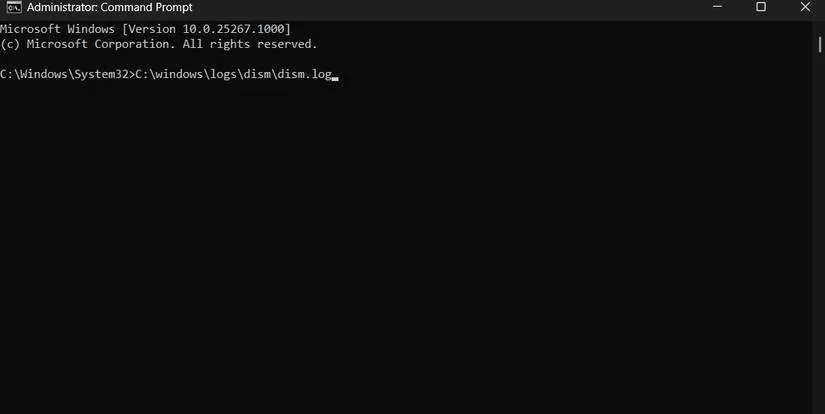
Image source: Bing (Web (fair-use with source credit))
If none of these work, the issue is likely deeper. Move to the decision tree below.
The Full Decision Tree: What’s Actually Wrong and How to Fix It
DISM Can’t Reach Windows Update (Error 0x800f081f or 0x800f0906)
These errors mean DISM can’t download the files it needs. The fix depends on your setup.
If you’re online, ensure Windows Update is running. Open Services (services.msc) and start Windows Update and Background Intelligent Transfer Service (BITS). Set both to Automatic startup.
If you’re offline or on a restricted network, use /LimitAccess to stop DISM from trying Windows Update:
DISM /Online /Cleanup-Image /RestoreHealth /LimitAccess
If that fails, you’ll need a repair source. Use installation media (see below).
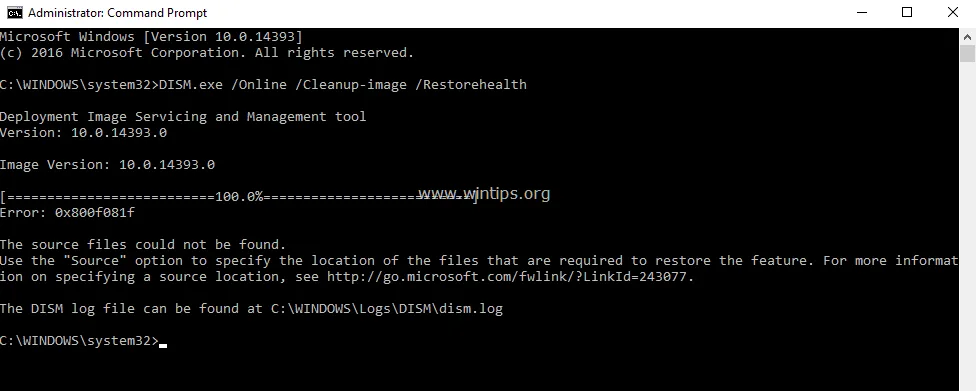
Image source: Bing (Web (fair-use with source credit))
The Component Store Is Corrupt (Error 0x800f0982 or Stuck at 20%)
The Component Store (WinSxS folder) holds all system files. If it’s corrupted, DISM can’t repair the image.
First, run a scan to confirm corruption:
DISM /Online /Cleanup-Image /ScanHealth
If it reports corruption, try:
DISM /Online /Cleanup-Image /RestoreHealth
If DISM still hangs at 20%, the Component Store may need a cleanup. Run:
DISM /Online /Cleanup-Image /StartComponentCleanup
This removes old versions of components. It can take 10-15 minutes.
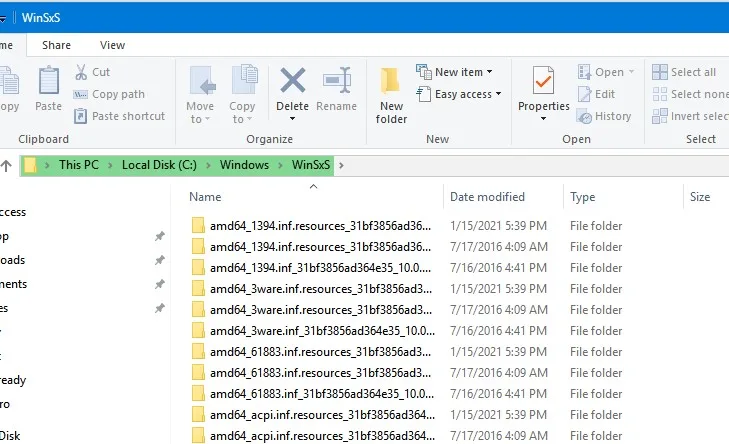
Image source: Bing (Web (fair-use with source credit))
Pending Updates or Reboots Are Blocking the Repair
Windows sometimes queues updates or reboots that lock system files. DISM can’t run if these are pending.
Check for pending reboots with:
reg query HKLM\SOFTWARE\Microsoft\Windows\CurrentVersion\Component Based Servicing\RebootPending
If it returns 0x1, reboot your PC and try DISM again.
For pending updates, run:
wuauclt /detectnow
Then check Windows Update for any waiting installations. Install them first, reboot, then retry DISM.
You’re Missing Admin Rights or Disk Space
DISM requires admin privileges. Right-click Command Prompt and select Run as administrator. If you’re in a restricted environment (e.g., work PC), contact your IT admin.
For disk space, DISM needs at least 10-15GB free on the system drive. Use Disk Cleanup (cleanmgr) to remove temporary files. Delete old Windows installations (e.g., Windows.old) if present.
If you’re still low on space, extend the system partition or move files to another drive.
Step-by-Step Repair Guide for Each Scenario
Start with the simplest fix and work your way down. Each step builds on the last.
For Windows Update errors (0x800f081f, 0x800f0906):
Run Command Prompt as admin and execute:
DISM /Online /Cleanup-Image /RestoreHealth /Source:https://windowsupdate.microsoft.com
If this fails, use a local repair source (see below).
For Component Store corruption (0x800f0982):
Run the cleanup command first:
DISM /Online /Cleanup-Image /StartComponentCleanup
Then retry /RestoreHealth. If it still fails, use installation media.
For pending updates/reboots:
Install all pending updates via Windows Update. Reboot. Then run:
DISM /Online /Cleanup-Image /RestoreHealth
For admin/disk space issues:
Free up space as described. Then rerun DISM with admin rights.
When DISM Isn’t Enough: Next-Level Fixes
Run SFC After DISM (The 1-2 Punch)
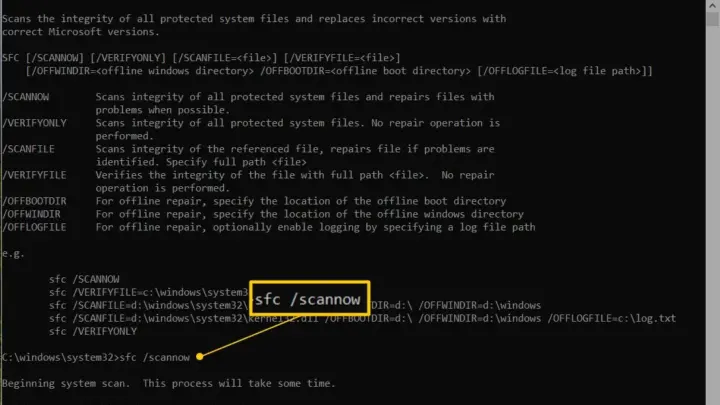
DISM repairs the Windows image, but SFC fixes individual system files. Run them in this order.
After DISM completes, open Command Prompt as admin and run:
sfc /scannow
This scans and repairs protected system files. It can take 15-30 minutes. If SFC finds errors it can’t fix, run:
sfc /scannow /offbootdir=C:\ /offwindir=C:\Windows
Replace C:\ with your system drive letter if different.
Use Installation Media as a Repair Source
If DISM can’t download files, use a Windows installation USB or ISO. This is the most reliable offline repair method.
First, create installation media using Microsoft’s Media Creation Tool. Boot from it if your system is unbootable.
Then, mount the ISO or insert the USB. Note the drive letter (e.g., D:). Run:
DISM /Online /Cleanup-Image /RestoreHealth /Source:D:\sources\install.wim
Replace D: with your media’s drive letter.
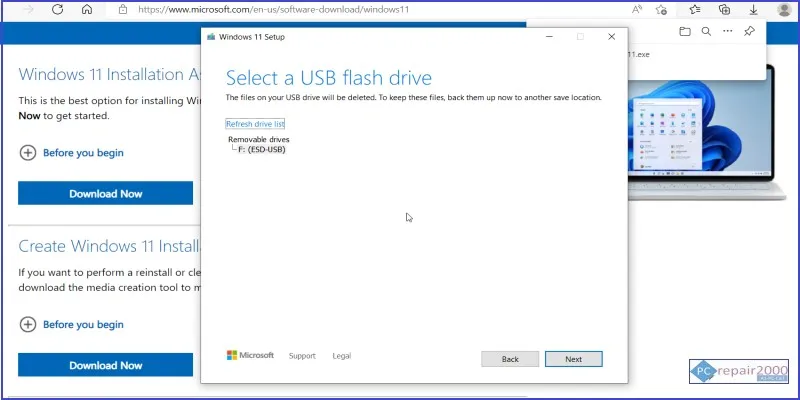
Image source: Bing (Web (fair-use with source credit))
Boot into WinRE for Unbootable Systems
If Windows won’t start, use the Windows Recovery Environment. Boot from installation media and select Repair your computer.
Open Command Prompt from the recovery options. Run:
DISM /Image:C:\ /Cleanup-Image /RestoreHealth /Source:D:\sources\install.wim
Replace C: with your Windows drive and D: with the media drive.
If DISM fails, check the drive letters with:
diskpart
list volume
exit
Then retry with the correct letters.
Mistakes That Make Things Worse (And How to Avoid Them)
Interrupting DISM mid-process can corrupt the image further. Let it run to completion even if it seems stuck.
Don’t use /Delete or /Remove parameters unless you’re certain. These can remove critical components.
Avoid third-party "system repair" tools. They often cause more harm than good.
Don’t ignore disk space warnings. DISM needs room to work. Free up space before starting.
Frequently Asked Questions
Why does DISM get stuck at 20%?
This usually means the Component Store is corrupted. Run /StartComponentCleanup first, then retry /RestoreHealth.
Can I use DISM on Windows 10?
Yes. DISM works on Windows 10, 11, and Server 2016/2019/2022. The commands are the same.
What’s the difference between DISM and SFC?
DISM repairs the Windows image. SFC repairs individual system files. Run DISM first, then SFC.
How long does DISM take?
Typically 10-30 minutes. Complex repairs or slow drives can take longer. Don’t interrupt it.
Is it safe to run DISM?
Yes, as long as you don’t use destructive parameters like /Delete. It’s a Microsoft-supported tool.

Similar Posts