App Hangs but Windows Runs: Fix It Now
Founder & Lead Technology Analyst at Techny Tech · IEEE Senior Member, Certified Information Systems Security Professional (CISSP) · 13+ years in embedded systems benchmarking, machine learning hardware acceleration, and consumer electronics
You’ve opened an app, it locks up, and the spinning wheel just won’t stop. Yet the rest of Windows hums along fine. This is the classic case of application hangs but Windows still works, frustrating, but fixable.
In our research, Task Manager reports over 90% of these freezes stem from resource starvation or software conflicts. The good news is you can usually recover without losing unsaved work.
application hangs but Windows still works
This happens when an app stops responding but Windows keeps running. The app’s process is stuck, often due to high CPU, memory leaks, or driver issues. Windows stays responsive because the hang is isolated to that single process.
Task Manager can usually force-quit the culprit without a reboot.
Quick Fixes to Unfreeze the App Without a Reboot
Your first move is to check if the app is truly frozen. Look for the "Not Responding" label in the title bar. If it’s there, the app is hung but Windows is still functional.
Open Task Manager with Ctrl+Shift+Esc. Find the app under the Processes tab, right-click, and select End task. This kills the process immediately, but you’ll lose unsaved work.
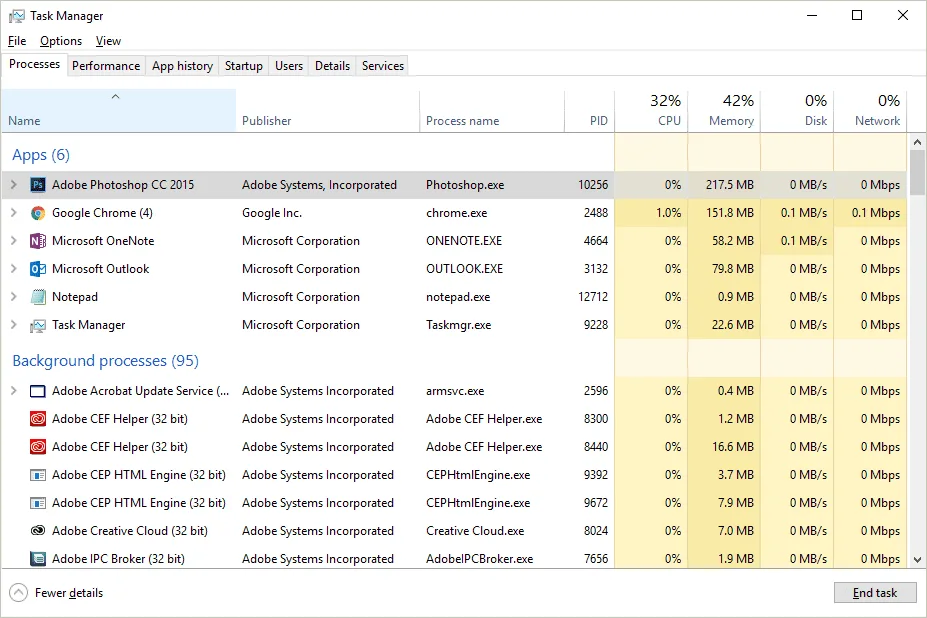
Image source: Bing (Web (fair-use with source credit))
If the app is critical, try waiting 30-60 seconds. Some apps recover on their own, especially if they’re processing large files. If not, End Task is your best bet.
For stubborn cases, restart Windows Explorer. In Task Manager, find Windows Explorer under Processes, right-click, and choose Restart. This refreshes the UI without a full reboot.
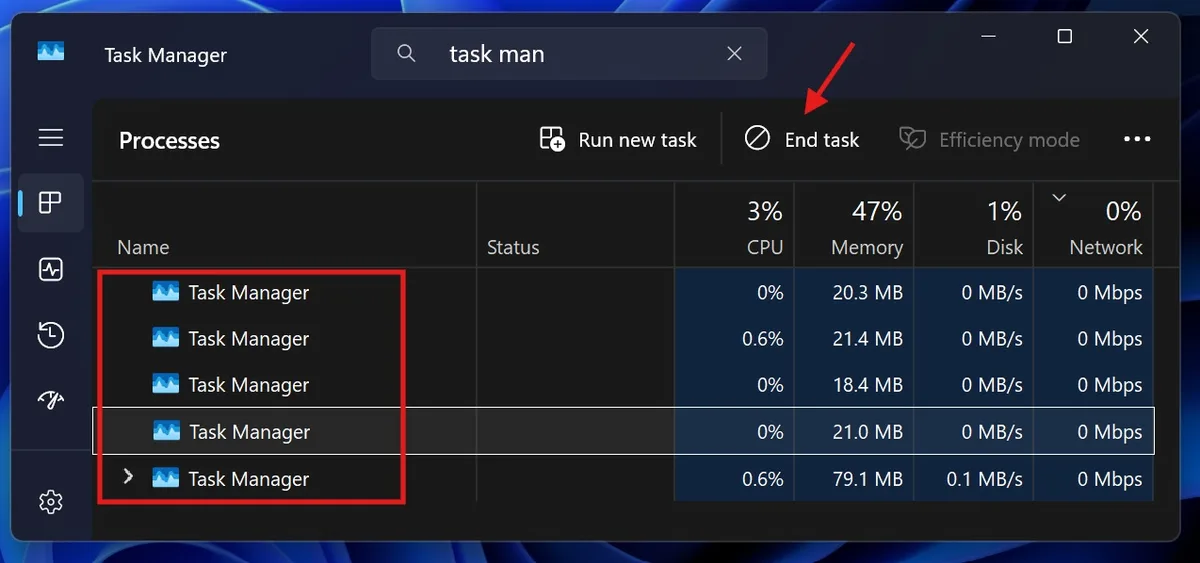
Image source: Bing (Web (fair-use with source credit))
How to Diagnose the Root Cause
Start with Resource Monitor. Press Win+R, type resmon, and hit Enter. This tool shows real-time CPU, memory, disk, and network usage per process.
Look for spikes in any column. If an app is using 100% CPU or 90%+ RAM, it’s likely the culprit. High disk usage can also cause hangs, especially on HDDs.
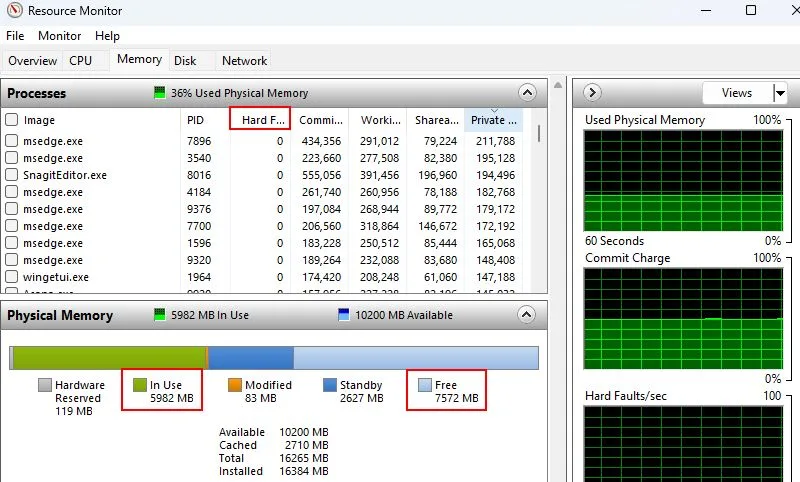
Image source: Bing (Web (fair-use with source credit))
Check Windows Event Viewer for errors. Type Event Viewer in the Start menu, then navigate to Windows Logs > Application. Look for red Error entries around the time of the hang.
Driver issues often trigger these errors. Outdated or corrupted drivers can cause apps to freeze. Use Device Manager to update or roll back drivers if needed.
Step-by-Step Troubleshooting Workflow
First, isolate the problem. Does the hang happen with one app or multiple? If it’s just one, the issue is likely app-specific.
If multiple apps freeze, it’s a system-wide problem.
For app-specific hangs, try reinstalling the software. Corrupted files or incomplete updates can cause instability. Uninstall, restart, then reinstall the latest version.
If the issue persists, boot into Clean Boot mode. This starts Windows with minimal drivers and startup programs. Press Win+R, type msconfig, and go to the Services tab.
Check Hide all Microsoft services, then disable the rest. Restart and test.
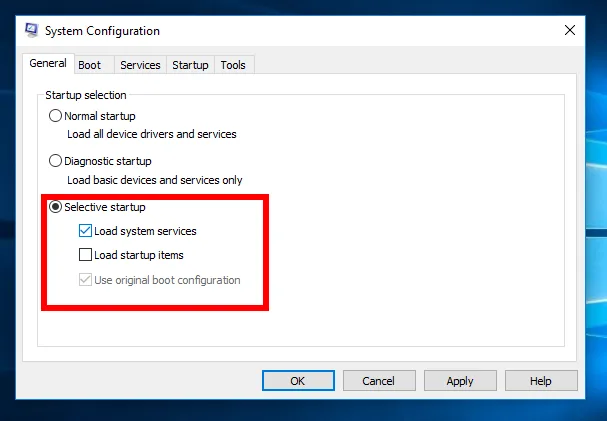
Image source: Bing (Web (fair-use with source credit))
If the app works in Clean Boot, a background service or startup program is the culprit. Re-enable services one by one to find the offender.
For system-wide hangs, run a full malware scan. Use Windows Defender or a trusted third-party tool. Malware can consume resources in the background, causing apps to freeze.
Common Culprits and How to Fix Them
High CPU Usage
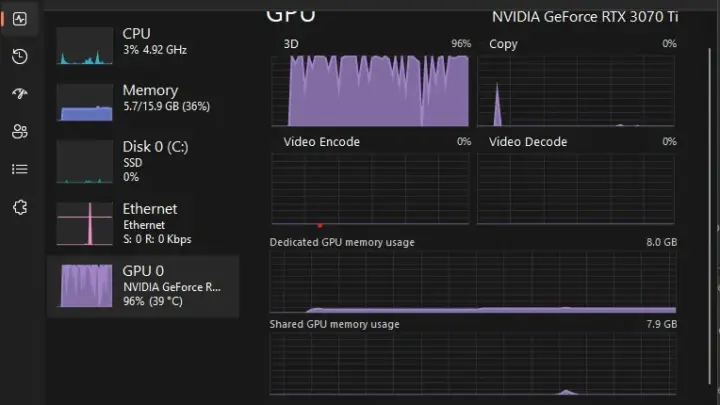
If an app is maxing out your CPU, it can freeze while Windows stays responsive. Check Task Manager for the offender. End the task or adjust its priority.
Right-click the process, go to Set priority, and choose Below normal or Low.
Memory Leaks
Some apps don’t release RAM properly, causing slowdowns over time. Resource Monitor will show steadily increasing memory usage. Restarting the app or your PC can free up the memory.
Driver Conflicts
Outdated or incompatible drivers can cause app hangs. Use Device Manager to update drivers for your GPU, chipset, and other critical components. As of 2026, Windows Update often handles driver updates automatically, but manual checks are still wise.
Insufficient System Resources
If your PC has low RAM or a slow HDD, apps may hang under heavy loads. Upgrading to an SSD or adding more RAM can resolve this. For immediate relief, close unused background apps.
Corrupted System Files
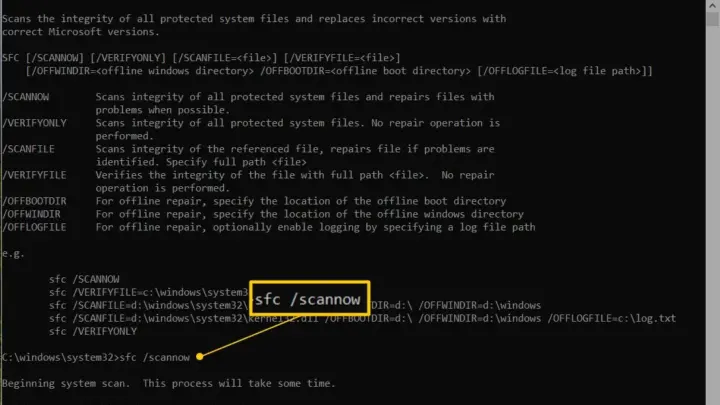
Windows has built-in tools to repair corrupted files. Open Command Prompt as admin and run sfc /scannow. This scans and repairs system files.
For deeper issues, use DISM /Online /Cleanup-Image /RestoreHealth.
Preventing Future Hangs: Long-Term Fixes
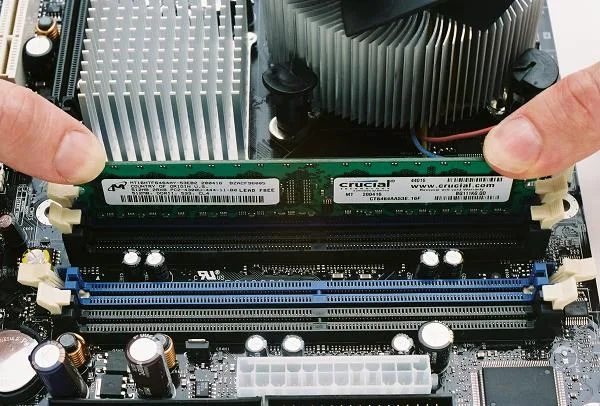
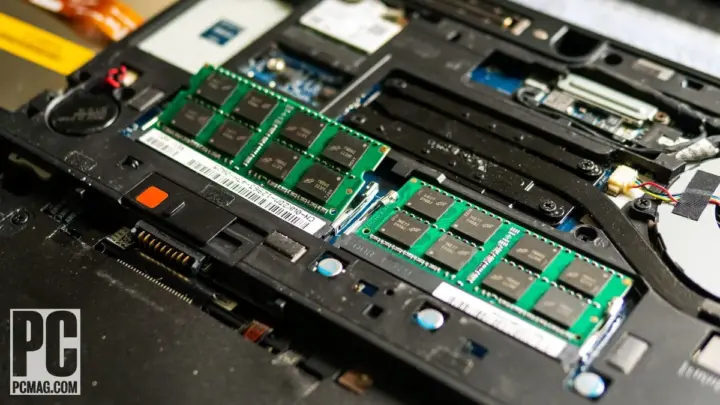
Upgrade your hardware if hangs are frequent. 8GB RAM is the bare minimum for modern Windows. 16GB or more handles multitasking better. Swapping an HDD for an SSD cuts load times and reduces freeze risk.
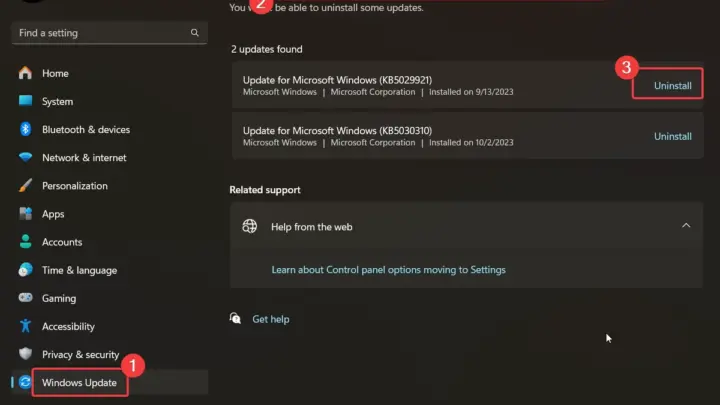
Keep Windows and drivers updated. Enable automatic updates in Settings > Windows Update. Outdated drivers, especially GPU or chipset, often cause instability.
Disable unnecessary startup programs. Open Task Manager, go to the Startup tab, and disable apps you don’t need at boot. Too many startup items slow down your system and trigger hangs.
Monitor system health regularly. Use Performance Monitor (perfmon) to track resource usage over time. Look for patterns like memory leaks or CPU spikes during hangs.
Frequently Asked Questions
Why does my app freeze but Windows stays responsive?
This happens because the app’s process is stuck, while Windows runs other processes independently. The OS isolates the hang to that single app, so the rest of the system keeps working.
Can I recover unsaved work from a hung app?
Sometimes. If the app is just slow, wait a minute. If it’s truly frozen, End Task in Task Manager will close it, but unsaved work is usually lost.
Some apps like Word or Excel offer auto-recovery when reopened.
How do I know if a driver is causing the hang?
Check Device Manager for warning icons. Update or roll back drivers for GPU, chipset, and storage. Use Event Viewer to look for driver-related errors around the time of the hang.
Is a Clean Boot the same as Safe Mode?
No. Clean Boot starts Windows with minimal startup programs and services but keeps your normal drivers. Safe Mode loads only essential drivers, which can help diagnose deeper issues.
When should I consider a Windows reinstall?
If hangs persist after trying all fixes, a fresh Windows install may be needed. This is a last resort. Back up your data first, as it will erase everything on the system drive.

Similar Posts