Remove Browser Hijacker on Windows: Easy Steps
Founder & Lead Technology Analyst at Techny Tech · IEEE Senior Member, Certified Information Systems Security Professional (CISSP) · 13+ years in embedded systems benchmarking, machine learning hardware acceleration, and consumer electronics
Your browser suddenly redirects you to sketchy sites, or your homepage changed without your permission. If this sounds familiar, you’re likely dealing with a browser hijacker. Learning how to remove a browser hijacker from Windows is the first step to regaining control of your browsing experience.
Browser hijackers are a common type of malware that alter your browser settings to push unwanted ads or redirect traffic. As of 2026, they remain one of the most frequent nuisances for Windows users, often bundled with free software downloads.
how to remove a browser hijacker from Windows
Open your browser settings and remove suspicious extensions. Uninstall unknown programs from Control Panel or Windows Settings. Run a full scan with Windows Defender or trusted antivirus software.
Reset your browser to default settings. For stubborn cases, clean the Windows Registry.
What Is a Browser Hijacker and How to Spot It
A browser hijacker is a type of malware that modifies your browser’s settings without your consent. It typically changes your homepage, default search engine, or injects unwanted ads and redirects. These changes persist even after you manually reset your browser, which is a telltale sign of an infection.
Common symptoms include unexpected pop-ups, slow browser performance, and toolbars or extensions you don’t remember installing. Some hijackers also track your browsing activity to serve targeted ads, raising privacy concerns. If you notice these issues, your system is likely compromised.
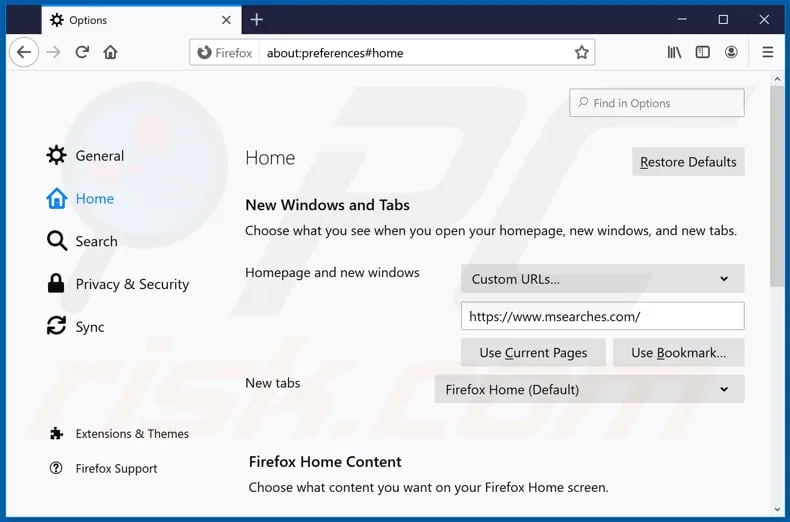
Image source: Bing (Web (fair-use with source credit))
Quick Fix: Remove a Browser Hijacker in 5 Steps
If you suspect a hijacker, act fast to prevent further damage. Start by closing all browser windows to stop the hijacker from interfering with your cleanup. Then, disconnect from the internet to prevent the malware from communicating with its servers.
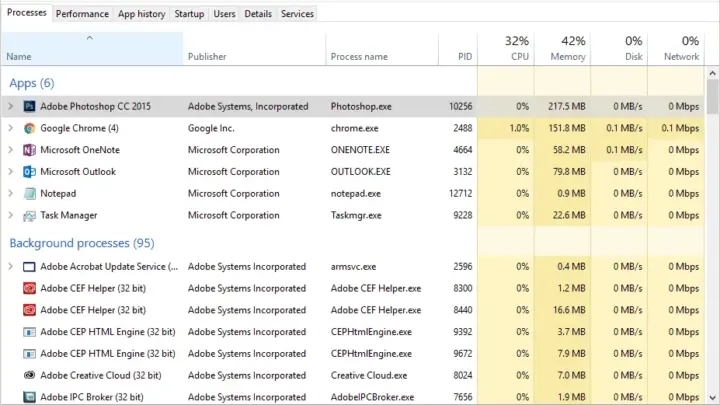
Next, open Task Manager and end any suspicious processes. Look for unfamiliar names or high CPU usage from unknown applications. This step can temporarily halt the hijacker’s activity, making it easier to remove.
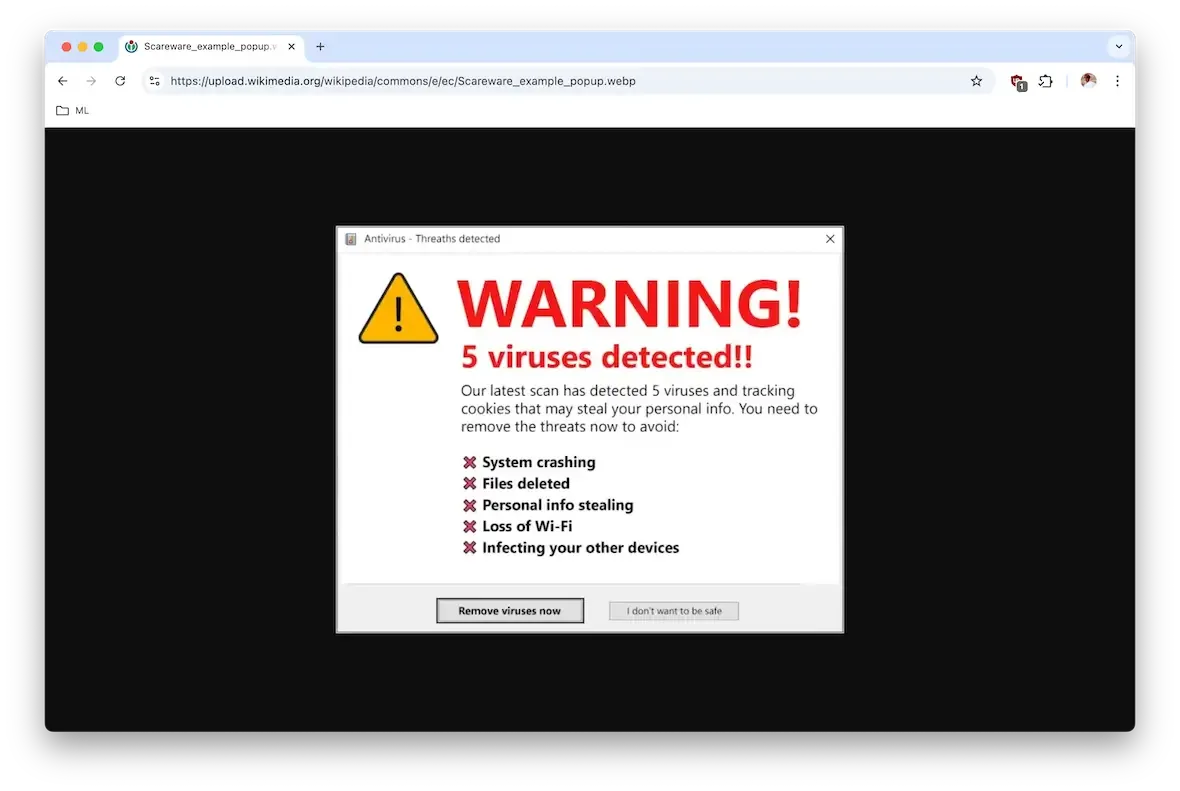
Image source: Bing (Web (fair-use with source credit))
Open your browser and remove any unfamiliar extensions or add-ons. These are often the culprits behind hijacking behavior. In Chrome, Edge, or Firefox, go to the extensions menu and uninstall anything you don’t recognize.
Finally, run a quick scan with Windows Defender or your preferred antivirus. This can catch and remove many hijackers automatically. For more thorough cleanup, proceed to the full step-by-step guide below.
Full Step-by-Step Removal Guide for Windows
Identify the Hijacker in Your Browser
Start by checking your browser’s homepage and default search engine settings. If they’ve been changed to an unfamiliar site, that’s a red flag. Look for toolbars or extensions you didn’t install, as these are common hijacker indicators.
In Chrome, go to Settings > Extensions. In Edge, navigate to Extensions > Manage Extensions. Firefox users should check Add-ons and Themes.
Remove anything suspicious immediately, as these extensions often reinfect your browser if left untouched.
Uninstall Suspicious Programs
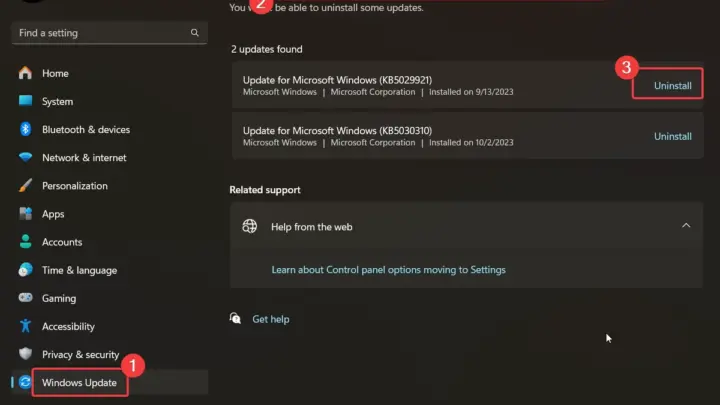
Open Control Panel or Windows Settings and go to Programs > Uninstall a Program. Look for unfamiliar software, especially anything installed around the time your browser issues started. Browser hijackers often disguise themselves as legitimate programs, so be thorough.
Pay attention to programs with vague names like "Web Search" or "Browser Helper." These are often PUPs (Potentially Unwanted Programs) that bundle hijackers. Uninstall them completely to prevent reinfection.
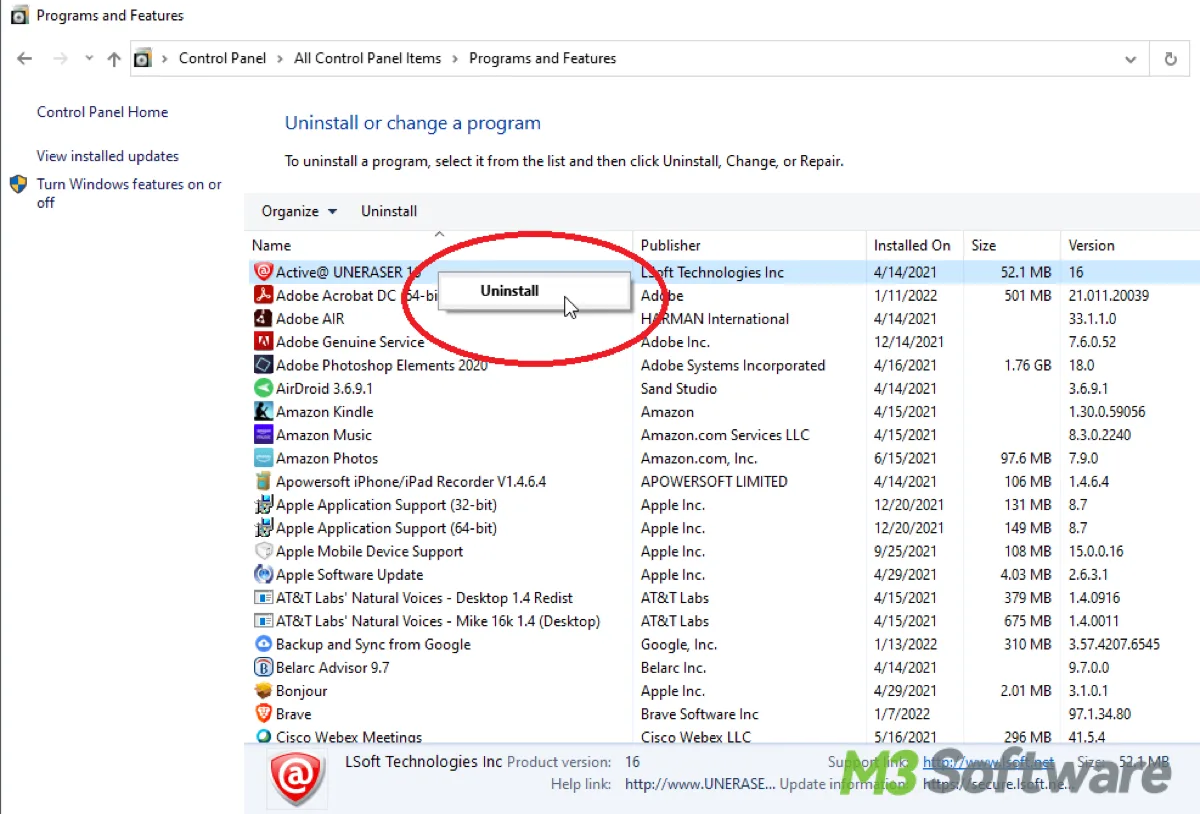
Image source: Bing (Web (fair-use with source credit))
If you’re unsure about a program, search its name online to see if it’s associated with malware. Many hijackers are well-documented, and a quick search can confirm whether it’s safe to keep or needs removal. When in doubt, uninstall it.
Reset Your Browser Settings
Each browser has a reset option that restores it to factory defaults. In Chrome, go to Settings > Reset and clean up > Restore settings to their original defaults. Edge users should navigate to Settings > Reset settings.
Firefox offers a refresh feature under Help > More troubleshooting information.
Resetting removes all extensions, cookies, and custom settings, so back up your bookmarks first. This step ensures any lingering hijacker elements are wiped out. If the hijacker persists after a reset, it’s likely embedded deeper in your system.
Run a Malware Scan
Use Windows Defender or a trusted antivirus like Malwarebytes to scan your entire system. Defender is built into Windows and can catch most common hijackers. For stubborn infections, a dedicated anti-malware tool may be necessary.
Run the scan in Safe Mode if the hijacker resists removal. Safe Mode loads only essential system files, making it easier to detect and eliminate malware. To enter Safe Mode, restart your PC and hold Shift while selecting Restart from the login screen.
Clean Up the Registry (Advanced)
The Windows Registry stores configuration settings for your system and applications. Some hijackers modify the Registry to persist after uninstallation. Only attempt this if you’re comfortable editing system files, as incorrect changes can harm your PC.
Open the Registry Editor by typing regedit in the Start menu. Navigate to HKEY_CURRENT_USER\Software\ and look for unfamiliar entries related to your browser or suspicious programs. Delete any keys tied to the hijacker, but proceed with caution.
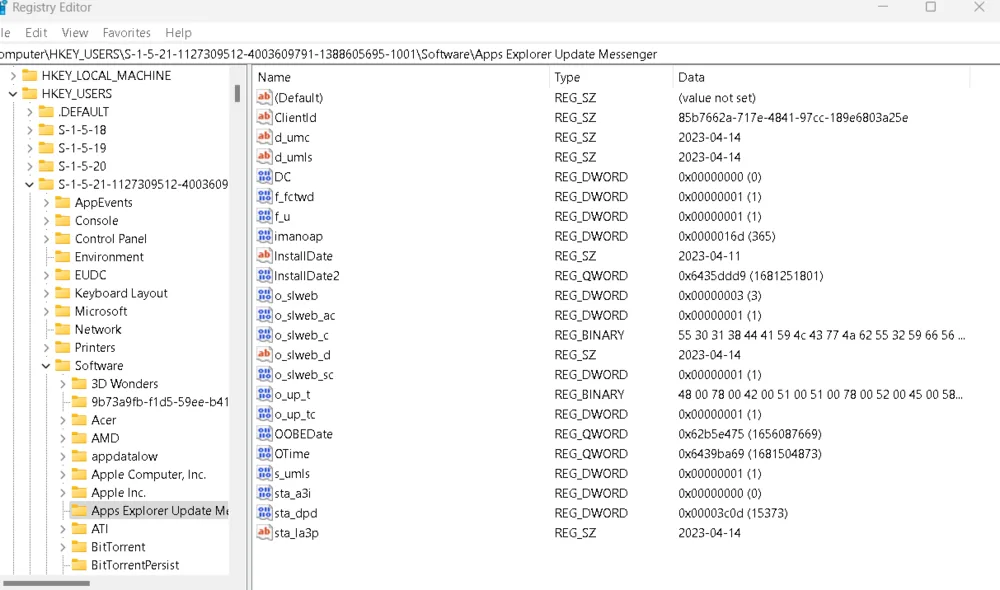
Image source: Bing (Web (fair-use with source credit))
Before editing the Registry, back up your system or create a restore point. This lets you revert changes if something goes wrong. Microsoft’s official documentation recommends this precaution for all Registry edits.
If you’re unsure about a Registry entry, leave it alone. Deleting the wrong key can cause system instability or crashes. For most users, a malware scan and browser reset are enough to remove a hijacker without touching the Registry.
How to Prevent Future Infections
Avoid downloading software from untrusted sources, as hijackers often bundle with free programs. Always opt for custom installation and uncheck boxes for additional software. Many PUPs sneak in through pre-checked options during setup.
Keep your operating system and browsers updated. Security patches close vulnerabilities that malware exploits. As of 2026, Windows 11 and the latest browser versions include improved defenses against hijackers.
Use an ad blocker to reduce exposure to malicious ads, which are a common hijacker delivery method. Regularly scan your system with antivirus software to catch threats early. Prevention is easier than cleanup after an infection takes hold.
Common Mistakes That Make Hijackers Worse
Ignoring browser updates leaves vulnerabilities open. Many hijackers exploit outdated software to reinfect systems. Always install the latest patches for your OS and browsers.
Skipping the Registry cleanup can leave behind persistent hijacker entries. If you’ve already uninstalled the program and reset your browser but the issue returns, the Registry likely still holds malicious keys. Use caution when editing it, as incorrect changes can break your system.
Using multiple antivirus programs at once can cause conflicts. Stick to one trusted tool to avoid performance issues or false negatives. Windows Defender is often sufficient for most hijacker cases.
Downloading "fix-it" tools from pop-ups often installs more malware. Only use reputable antivirus software from official sources. If a website claims your PC is infected and offers a download, it’s likely a scam.
Not checking all user profiles can miss hidden infections. Some hijackers only affect one user account, so scan every profile on the machine. This is especially important for shared or family computers.

Similar Posts