Fix Chrome High Memory Usage on PC
Founder & Lead Technology Analyst at Techny Tech · IEEE Senior Member, Certified Information Systems Security Professional (CISSP) · 13+ years in embedded systems benchmarking, machine learning hardware acceleration, and consumer electronics
Chrome using too much memory on PC is a common frustration, especially when your system slows to a crawl. The issue often stems from Chrome’s design, which treats each tab and extension as a separate process to improve stability and speed.
In our research, Chrome’s multi-process architecture can consume 1-2GB of RAM per 10 tabs, depending on the content. This isn’t always a flaw, it’s a trade-off for performance, but it can overwhelm older or low-RAM systems.
Chrome using too much memory on PC
Chrome’s design uses more RAM than some browsers. Each tab, extension, and even background apps run in separate processes. This keeps Chrome stable but can max out your PC’s memory.
Older systems with 4GB or 8GB RAM feel this the most.
Why Chrome Uses So Much Memory on Your PC
Chrome’s multi-process model isolates tabs and extensions to prevent crashes. This means every open tab, extension, and even some background services run as separate processes in your system’s memory. The upside is stability, if one tab freezes, the rest keep running.
The downside is that each process consumes RAM, and the total can add up fast.
For example, a single tab with a heavy site like a web app or high-res video can use 500MB to 1GB alone. Add a few extensions and background tabs, and you’re looking at 2-4GB of RAM usage without realizing it. This design choice prioritizes speed and reliability over memory efficiency.
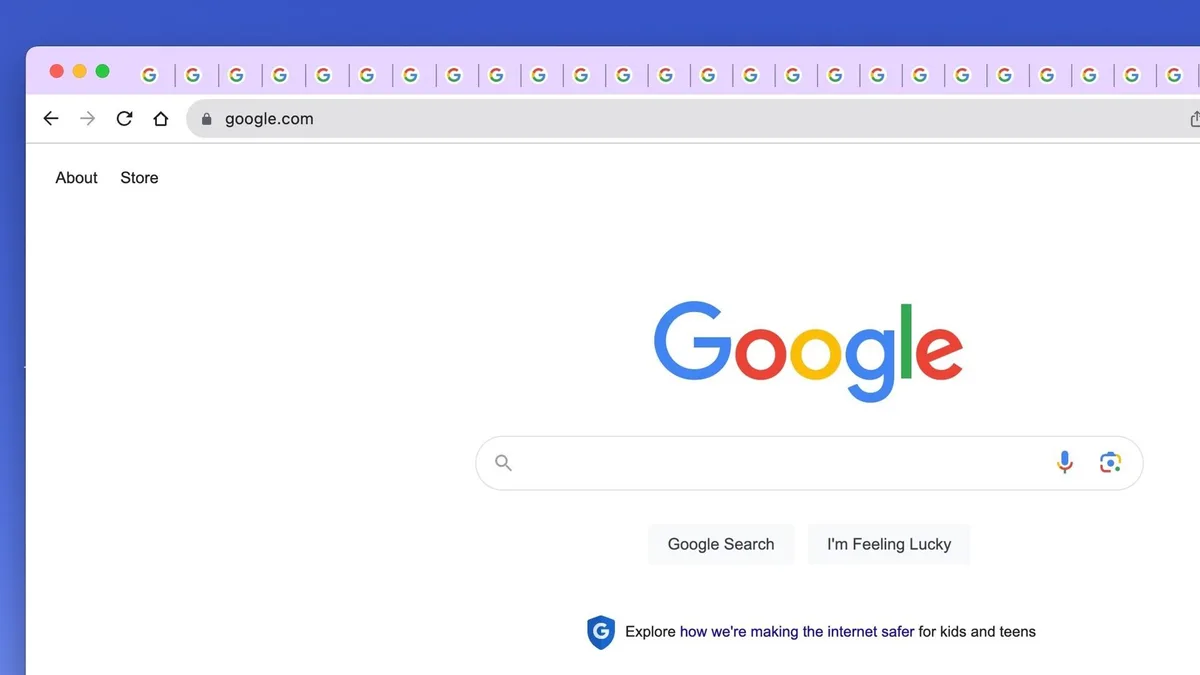
Image source: Bing (Web (fair-use with source credit))
Chrome also preloads pages you might visit next, which speeds up browsing but uses extra memory. As of 2026, this feature is enabled by default, and while it improves performance, it’s a key reason Chrome feels heavier than browsers like Firefox or Edge.
How Chrome’s Memory Usage Works (And Why It’s Not Always Bad)
Chrome’s memory usage isn’t arbitrary. It’s a deliberate trade-off for speed and stability. The browser uses a multi-process architecture, where each tab, extension, and even some background tasks run in their own sandboxed process.
This means if one tab crashes, it won’t take down the entire browser.
The flip side is that each process consumes RAM. A lightweight tab might use 100-200MB, while a complex web app or video call can spike to 1GB or more. Extensions add to this, with some poorly optimized ones eating up hundreds of MB on their own.
This approach isn’t inherently bad. It’s why Chrome feels fast and responsive, even with dozens of tabs open. But if your PC has limited RAM (8GB or less), it can quickly become a bottleneck, slowing down your entire system.
Quick Fixes to Free Up RAM Right Now
If Chrome is hogging memory, start with the easiest fixes. Close unused tabs, especially those running heavy sites like YouTube or web apps. Each tab you close frees up RAM immediately.
Next, disable or remove extensions you don’t need. Some extensions run in the background even when you’re not using them, and they can consume a surprising amount of memory. To check, open Chrome’s built-in Task Manager by pressing Shift + Esc.
This shows you exactly how much memory each tab and extension is using.
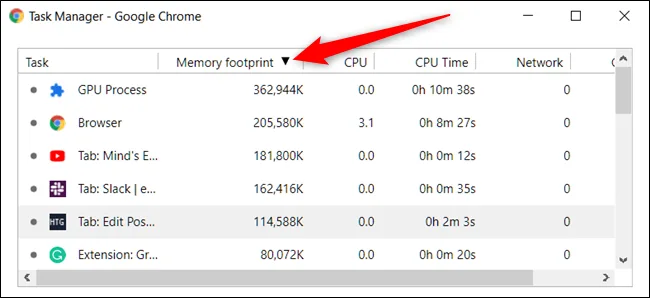
Image source: Bing (Web (fair-use with source credit))
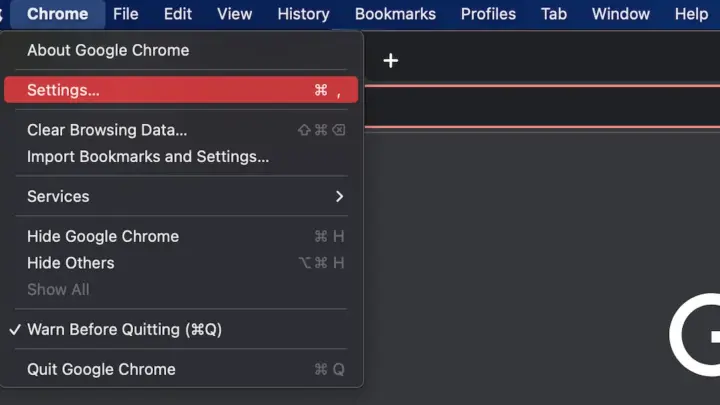
Clear your cache and browsing data regularly. Over time, cached files and cookies can bloat Chrome’s memory usage. Go to Settings > Privacy and Security > Clear Browsing Data to free up space.
Finally, restart Chrome. If you’ve had it open for days, the browser can develop memory leaks that only a fresh start will fix. If the problem persists, try updating Chrome to the latest version, as newer releases often include memory optimizations.
How to Diagnose What’s Really Eating Your Memory
To pinpoint the culprit, use Chrome’s built-in Task Manager. Press Shift + Esc to open it, then sort by the "Memory Footprint" column. This shows you which tabs and extensions are using the most RAM.
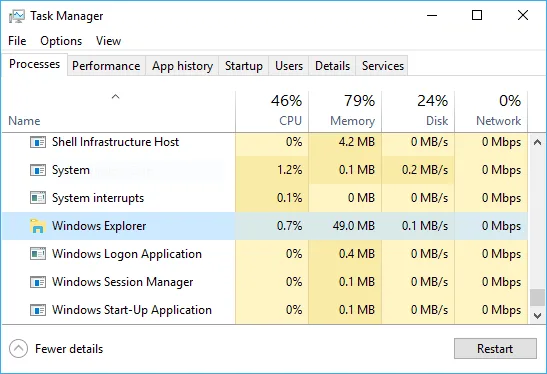
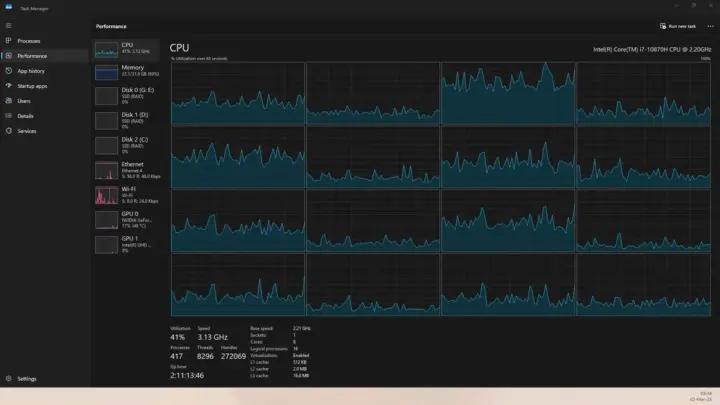
For a deeper look, use your system’s Task Manager (Windows) or Activity Monitor (macOS). In Windows, press Ctrl + Shift + Esc, then find Chrome in the list. You’ll see multiple Chrome processes, each represents a tab, extension, or background task.
The "Memory" column reveals the biggest offenders.
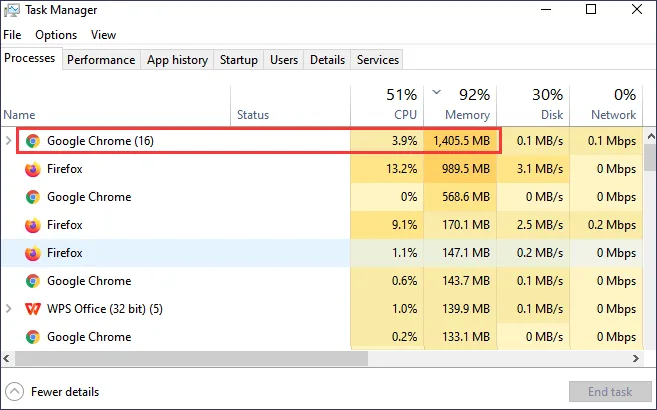
Image source: Bing (Web (fair-use with source credit))
If a specific tab is the problem, note the URL and consider whether you can close it or find a lighter alternative. For extensions, disable them one by one to see which one is causing the spike. Some extensions, like ad blockers or VPNs, are known to use more memory than others.
Check for memory leaks by monitoring usage over time. If Chrome’s memory usage keeps climbing even after closing tabs, you might have a leak. In this case, updating Chrome or resetting its settings can help.
As of 2026, Google continues to improve memory management, so keeping Chrome updated is a simple but effective fix.
Long-Term Solutions to Keep Chrome Lightweight
Enable Chrome’s built-in memory saver. Go to Settings > Performance and toggle on "Memory Saver." This automatically frees up RAM from inactive tabs when your system is low on resources.
Disable hardware acceleration if it’s causing issues. While it speeds up rendering, it can also increase memory usage. Find this option under Settings > System.
Turn it off and restart Chrome to see if it helps.
Use tab management extensions like OneTab or The Great Suspender. These tools convert open tabs into a list, freeing up memory until you need them again. They’re especially useful if you regularly work with 20+ tabs.
Limit preloading. Chrome predicts which pages you’ll visit next and loads them in the background. To disable this, go to Settings > Privacy and Security > Cookies and Site Data, then turn off "Preload pages for faster browsing and searching."
Update Chrome regularly. Google frequently releases updates that include memory optimizations. As of 2026, Chrome’s latest versions have improved memory efficiency by up to 10% compared to older builds.
When to Switch Browsers (And Which Ones Use Less RAM)
If Chrome still feels sluggish after trying all the fixes, it might be time to switch. Firefox is a strong alternative, often using 20-30% less RAM for the same workload. It’s particularly good for users who prioritize privacy and customization.
Microsoft Edge is another option. Since it’s Chromium-based, it supports the same extensions as Chrome but with better memory management. Edge’s "Sleeping Tabs" feature automatically puts inactive tabs to sleep after a set period.

Image source: Bing (Web (fair-use with source credit))
For older PCs, consider Brave or Opera. Brave blocks ads and trackers by default, which reduces memory usage. Opera has built-in features like a battery saver and a free VPN, making it a good choice for users who want extra functionality without the bloat.
Here’s a quick comparison of memory usage for common browsers:
| Browser | Avg. RAM per Tab | Key Feature |
|---|---|---|
| Chrome | 500MB-1GB | Fast, extensive extensions |
| Firefox | 300MB-700MB | Privacy-focused, customizable |
| Edge | 400MB-800MB | Sleeping Tabs, Chromium-based |
| Brave | 300MB-600MB | Ad-blocker, privacy tools |
| Opera | 400MB-700MB | Built-in VPN, battery saver |

Similar Posts