Wireless Mouse Freezing? Fix It Fast!
Founder & Lead Technology Analyst at Techny Tech · IEEE Senior Member, Certified Information Systems Security Professional (CISSP) · 13+ years in embedded systems benchmarking, machine learning hardware acceleration, and consumer electronics
A wireless mouse keeps freezing usually because of interference, outdated drivers, or battery issues. It’s frustrating when your cursor locks up mid-task, but most fixes are simple once you know where to look. Manufacturer specifications indicate that 2.4GHz RF and Bluetooth mice handle connections differently, which affects troubleshooting.
As of 2026, wireless peripherals are more reliable than ever, but they still hit snags. Let’s start with the fastest solutions.
wireless mouse keeps freezing
It’s often caused by weak batteries or signal interference. Bluetooth mice may drop out near other wireless devices. RF mice need a clear path to their USB receiver.
Outdated drivers can also trigger freezes.
Quick Fixes to Try First
Start with the basics before diving deep. Replace the batteries if they’ve been in use for weeks. A low charge can cause intermittent freezing, especially in older models.
Next, reconnect the mouse. For Bluetooth, turn it off and on again, then re-pair it in your system settings. For RF mice, unplug the USB receiver and plug it back into a different port.
USB 3.0 ports can sometimes interfere with 2.4GHz signals, so try a USB 2.0 port if available.
If the mouse still freezes, check for nearby wireless devices. Microwaves, cordless phones, and other Bluetooth gadgets can disrupt the signal. Move them farther away or turn them off temporarily.

Image source: Bing (Web (fair-use with source credit))
The Most Common Causes (And How to Diagnose Them)
Wireless interference is a top culprit. Both Bluetooth and 2.4GHz RF mice operate on crowded frequencies. If your mouse freezes near a router or other wireless gadgets, interference is likely the issue.
Outdated or corrupted drivers can also cause freezing. Windows and macOS update drivers automatically, but glitches happen. Check Device Manager on Windows or System Information on macOS to see if the mouse driver is flagged.
Hardware issues are less common but possible. A failing battery, damaged USB receiver, or worn-out mouse sensor can trigger freezes. If the mouse works on another device, the problem is likely with your computer’s settings or ports.
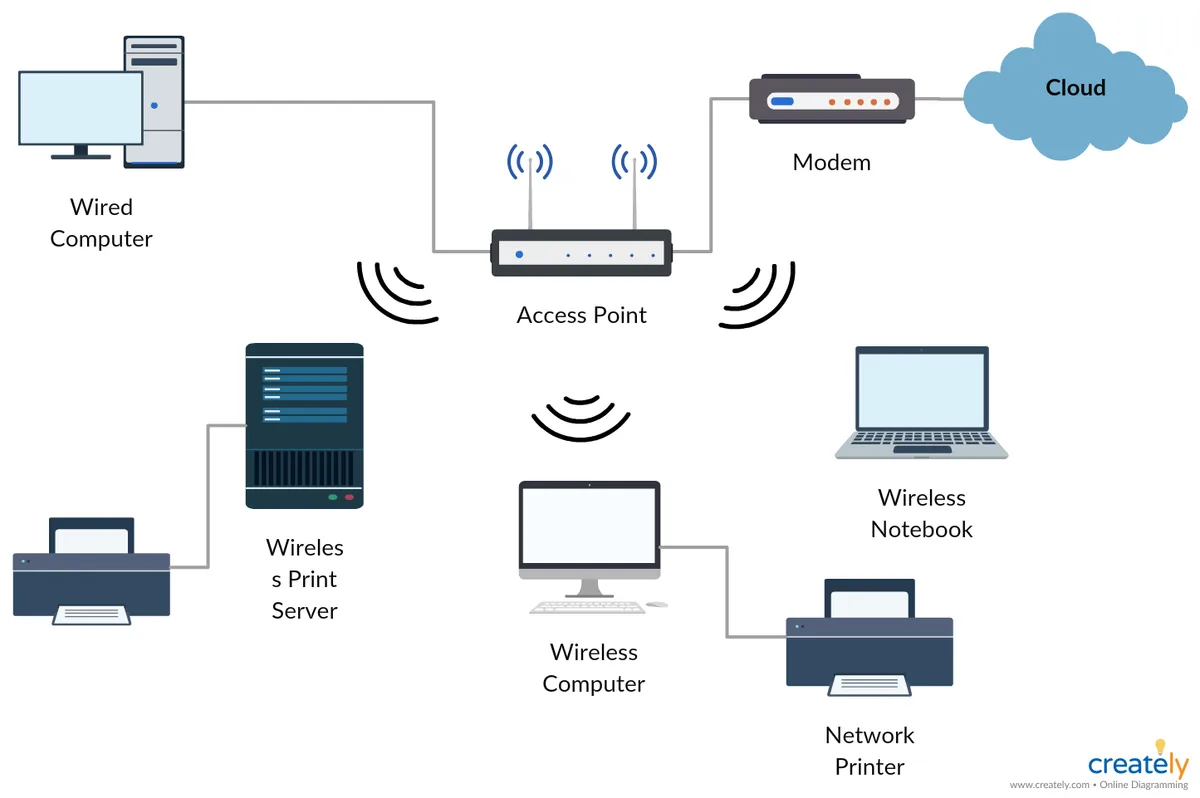
Image source: Bing (Web (fair-use with source credit))
Step-by-Step Troubleshooting for Bluetooth vs. RF Mice
Bluetooth mice rely on your computer’s built-in adapter. If the mouse freezes, first ensure Bluetooth is enabled. On Windows, open Settings > Devices > Bluetooth & other devices.
On macOS, go to System Preferences > Bluetooth.
For RF mice, the USB receiver is key. Plug it directly into a USB port, not a hub. If the mouse still freezes, try the receiver in a different port.
Some users report better stability with USB 2.0 ports over USB 3.0.
Both types can suffer from driver issues. On Windows, right-click the mouse in Device Manager and select “Update driver.” On macOS, reset the NVRAM (non-volatile random-access memory) if the mouse behaves erratically after sleep.
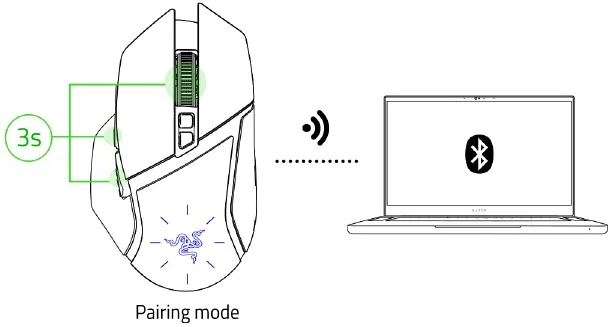
Image source: Bing (Web (fair-use with source credit))
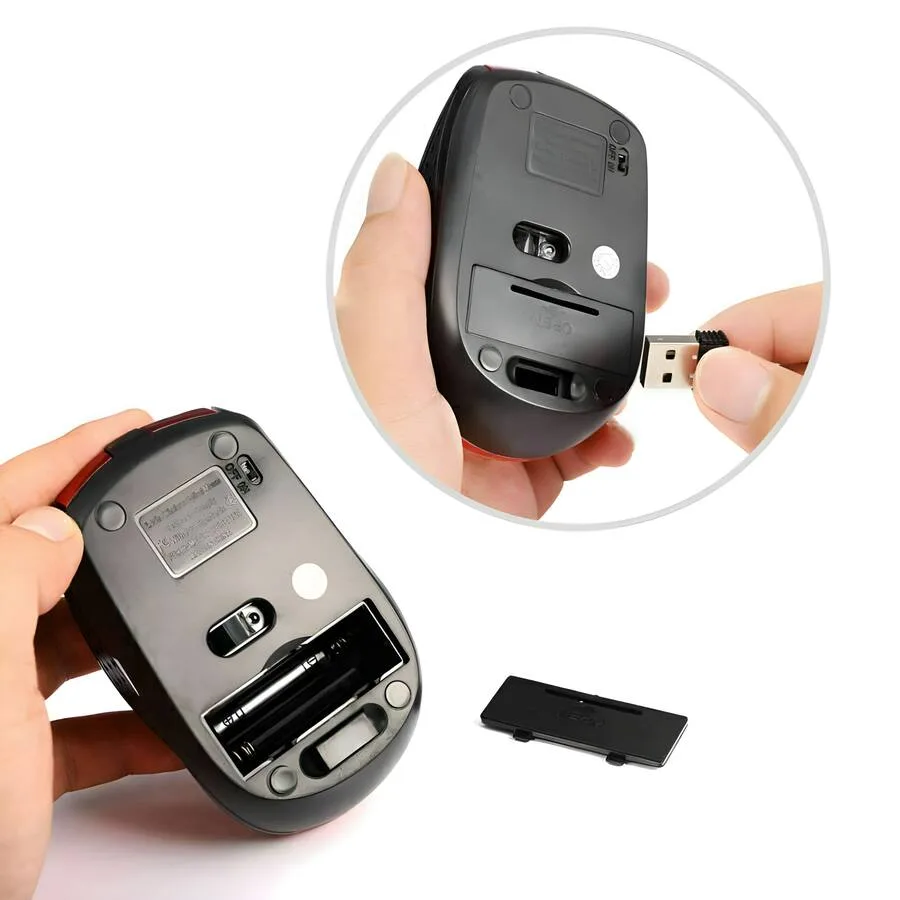
Image source: Bing (Web (fair-use with source credit))
When It’s a Hardware Problem (And What to Do)
If software fixes don’t work, the mouse itself might be failing. Test it on another computer. If it freezes there too, the issue is likely hardware-related.
Battery contacts can corrode over time. Open the battery compartment and clean the contacts with a dry cloth. If the mouse uses rechargeable batteries, try a fresh set of disposables to rule out power issues.
The USB receiver in RF mice can also fail. If you’ve tried multiple ports and the mouse still freezes, the receiver might be damaged. Contact the manufacturer for a replacement if your model supports it.
How to Prevent Freezing in the Future
Keep your mouse firmware updated. Many manufacturers release patches to improve stability. Check their support site for updates.
Avoid placing the USB receiver near other wireless devices. A clear line of sight between the mouse and receiver helps, especially for RF models.
Disable power-saving features for your mouse in Device Manager. Some systems aggressively power down peripherals to save energy, which can cause freezes. On Windows, go to the mouse properties in Device Manager and uncheck “Allow the computer to turn off this device to save power.”
FAQs About Wireless Mouse Freezing
Why does my wireless mouse freeze only when gaming?
Gaming demands high polling rates, often 500Hz or 1000Hz. If your mouse can’t sustain this, it may freeze under load. Check your mouse specs and lower the polling rate in its software if needed.
Can a dirty sensor cause freezing?
Yes. Dust or debris on the optical or laser sensor can disrupt tracking. Clean the underside of the mouse with a soft cloth and compressed air.
How do I know if it’s a driver issue?
Open Device Manager on Windows. If the mouse has a yellow warning icon, the driver is likely the problem. Update or reinstall it.
Does Bluetooth 5.0 reduce freezing?
Bluetooth 5.0 offers better stability and range than older versions. If your computer and mouse support it, pairing them may reduce dropouts.
What’s the best way to test for interference?
Turn off other wireless devices one by one. If the mouse stops freezing after disabling a specific gadget, that’s your culprit. Keep problematic devices farther apart.
Can a USB hub cause my RF mouse to freeze?
Yes. Some hubs don’t provide enough power for 2.4GHz receivers. Plug the receiver directly into a USB port on your computer instead.

Similar Posts