Can You Upgrade Your Laptop’s RAM? Here’s How to Check
Founder & Lead Technology Analyst at Techny Tech · IEEE Senior Member, Certified Information Systems Security Professional (CISSP) · 13+ years in embedded systems benchmarking, machine learning hardware acceleration, and consumer electronics
Not sure if your laptop can take more RAM? Here’s how to check if a laptop has upgradeable RAM without guessing or cracking it open unnecessarily. Many modern ultrabooks solder RAM directly to the motherboard, but older models and some gaming or workstation laptops still let you swap in more.
As of 2026, most consumer laptops use either SO-DIMM modules or LPDDR variants, and the difference determines whether you can upgrade. Let’s start with the fastest way to find out.
how to check if a laptop has upgradeable RAM
Check the manufacturer’s specs first. Look for terms like “SO-DIMM” or “replaceable RAM” in the tech sheet. If it lists LPDDR4X or LPDDR5, it’s likely soldered.
Use built-in tools like Task Manager on Windows or About This Mac to see current RAM type and slots. If you see “1 of 2 slots used,” you can likely add more.
How to Check RAM Upgradeability Without Opening Your Laptop
The easiest way is to check your laptop’s official specifications. Manufacturer websites like Dell, HP, or Lenovo often list whether RAM is upgradeable under the “Technical Specifications” or “Memory” section. Look for phrases like “user-upgradeable” or “SO-DIMM slots.” If the spec sheet mentions LPDDR4, LPDDR4X, or LPDDR5, the RAM is almost always soldered and non-upgradeable.
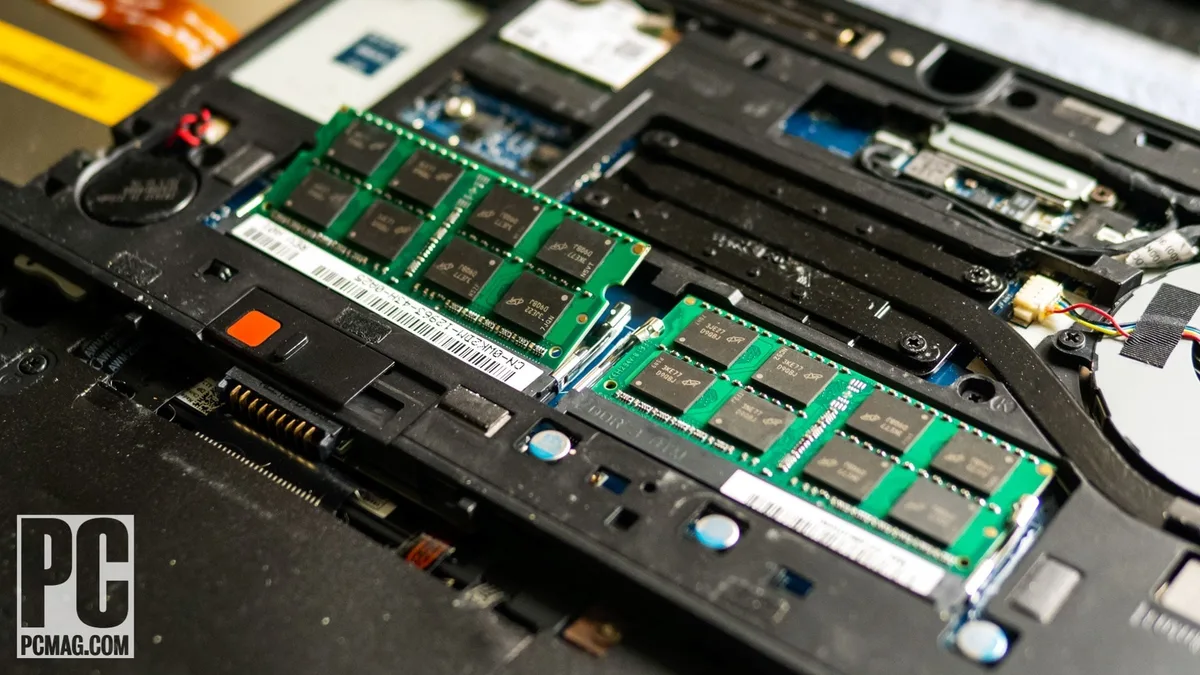
Image source: Bing (Web (fair-use with source credit))
If the manufacturer’s site is unclear, use system tools. On Windows, open Task Manager (Ctrl+Shift+Esc), go to the Performance tab, and select Memory. It will show your RAM type, speed, and how many slots are in use.
On macOS, click the Apple logo, select About This Mac, then System Report, and check the Memory tab. If it shows “Memory Slots: 0,” your RAM is soldered.
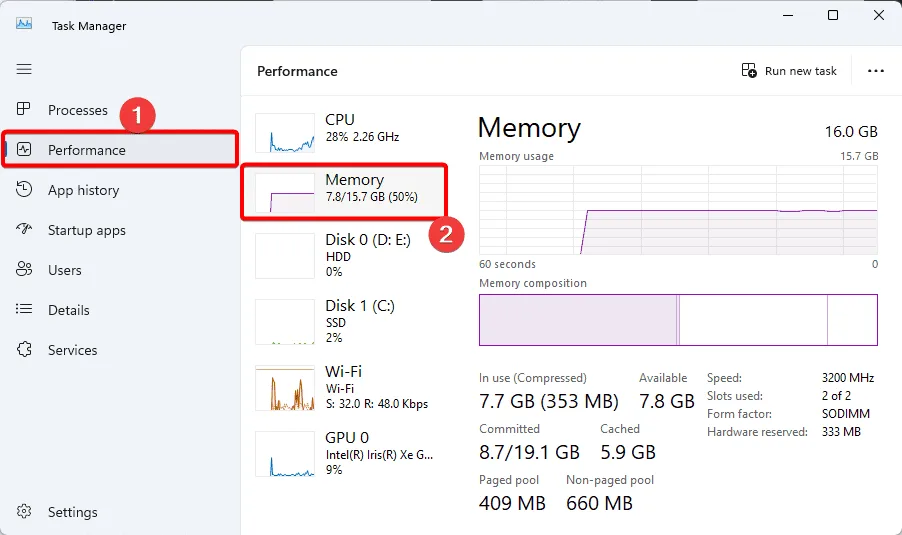
Image source: Bing (Web (fair-use with source credit))
Third-party tools can also help. CPU-Z (Windows) or Speccy will display detailed RAM information, including the number of slots and whether they’re occupied. Crucial’s System Scanner tool is another reliable option, as it cross-references your laptop model with its database to confirm upgradeability.
Physical Inspection: What to Look for Inside Your Laptop
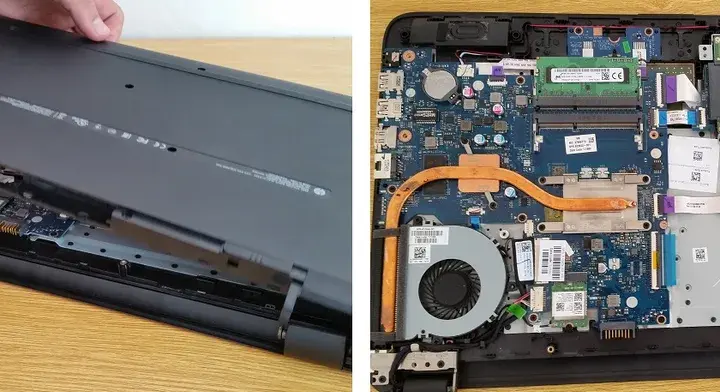
If software methods leave you unsure, a physical check is the next step. Start by powering down your laptop and unplugging it. Remove the back panel, this usually requires a small Phillips screwdriver or a plastic pry tool.
Some laptops have a dedicated RAM access door, which simplifies the process.
Once inside, look for small, rectangular modules labeled with RAM specifications. These are SO-DIMM sticks, and if you see them, your laptop supports upgrades. If the RAM chips are directly attached to the motherboard with no visible slots, the RAM is soldered and cannot be upgraded.
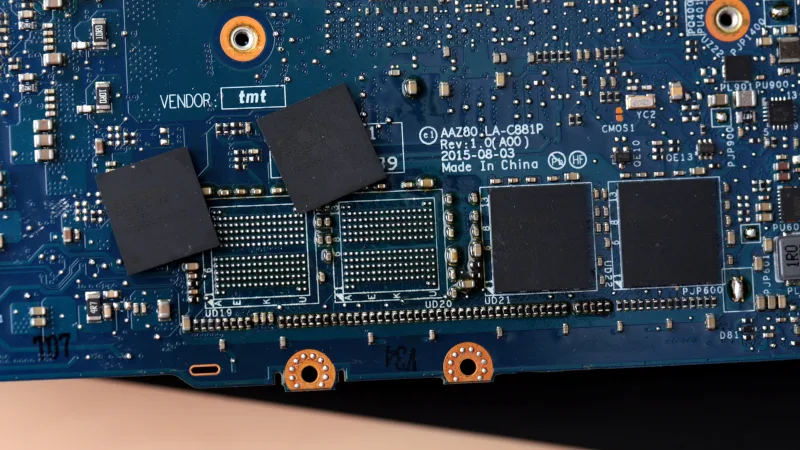
Image source: Bing (Web (fair-use with source credit))
If you’re unsure what you’re looking at, compare it to reference images of SO-DIMM modules versus soldered RAM. SO-DIMMs are typically green or black and have a notch for alignment, while soldered RAM looks like small, flat chips directly on the motherboard. If your laptop has empty slots, you can add more RAM, but if all slots are full, you’ll need to replace existing modules with higher-capacity ones.
Step-by-Step: Confirming RAM Type, Slots, and Compatibility
Start by identifying your laptop’s exact model number. This is usually printed on the bottom of the device or in the BIOS/UEFI settings. Once you have the model, check the manufacturer’s documentation or support page for RAM specifications.
Look for the type (DDR3, DDR4, DDR5), maximum capacity, and number of slots.
Next, verify compatibility. If your laptop uses DDR4 SO-DIMMs, you can’t use DDR5 modules, even if they fit physically. The same goes for speed, your laptop may support up to 3200MHz, but installing 4800MHz RAM won’t work unless the motherboard and CPU support it.
Use tools like Crucial’s Memory Advisor or Kingston’s Configurator to cross-check compatibility.
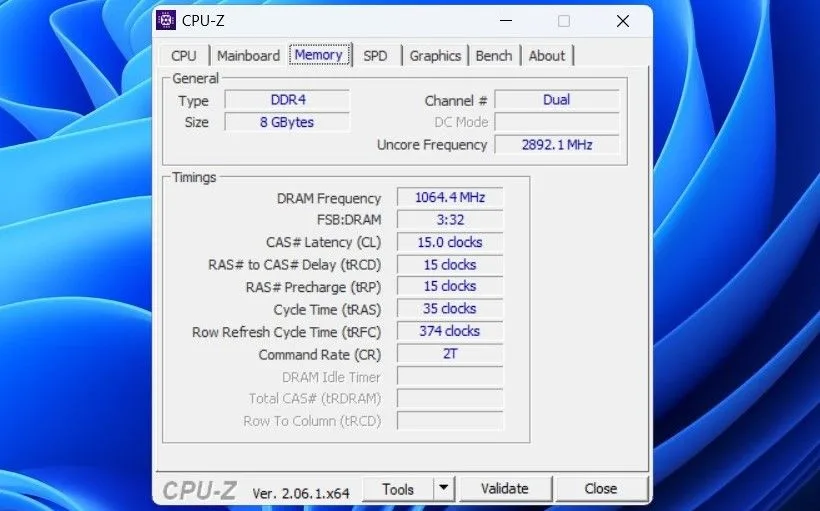
Image source: Bing (Web (fair-use with source credit))
If you’re planning to upgrade, note the maximum capacity your laptop supports. For example, a laptop with two slots and a 32GB max can take two 16GB modules. Installing 32GB modules in each slot would exceed the limit and likely won’t work.
Also, check if your laptop supports dual-channel memory, which can improve performance if you install matched pairs of RAM.
Common Mistakes That Waste Money or Break Your Laptop
One of the biggest mistakes is assuming all laptops have upgradeable RAM. Many thin-and-light models, especially those with LPDDR4X or LPDDR5, have soldered RAM that can’t be replaced. Always confirm before buying new modules.
Another common error is mixing incompatible RAM types. DDR4 and DDR5 are not interchangeable, and even within the same generation, mixing speeds or capacities can cause instability. Stick to the exact type and speed recommended by the manufacturer.
Physical damage is also a risk. Applying too much force when inserting or removing RAM can bend the motherboard or damage the slots. Always handle RAM by the edges, align it properly with the slot, and press down firmly but evenly until it clicks into place.
Static electricity can also fry components, so ground yourself by touching a metal part of the laptop’s chassis before handling RAM.
Pro Tips: Tools, Shortcuts, and Manufacturer-Specific Quirks
Manufacturer databases are your best friend. Dell’s service tag lookup, HP’s Support Assistant, and Lenovo’s PSREF tool provide exact RAM specs for your model. These tools often include upgrade paths and maximum capacities, saving you from guesswork.
Third-party scanners like Crucial’s System Scanner or Kingston’s Memory Configurator automate the process. They scan your system and return compatible RAM modules, including type, speed, and capacity. For older laptops, iFixit’s teardown guides show internal layouts and RAM accessibility.
Some brands have quirks. Apple’s MacBooks since 2016 almost always have soldered RAM. Many ultrabooks from ASUS, Acer, and MSIs Surface line follow the same trend.
Gaming laptops from Alienware or MSI often retain upgradeable SO-DIMM slots, but always verify.
Frequently Asked Questions
Can I upgrade RAM on any laptop?
No. Most ultrabooks and thin-and-light models have soldered RAM that cannot be upgraded. Only laptops with SO-DIMM slots allow upgrades, and this is typically limited to gaming, workstation, or older consumer models.
How do I know if my laptop has empty RAM slots?
Check Task Manager on Windows or About This Mac on macOS. These tools show the number of slots and how many are in use. If you see “1 of 2” or similar, you have an empty slot.
What happens if I install incompatible RAM?
Your laptop may not boot, or the new RAM won’t be recognized. In some cases, mixing incompatible types or speeds can cause system instability or crashes. Always match the type, speed, and capacity to your laptop’s specifications.
Is it worth upgrading laptop RAM?
If your laptop supports it, upgrading RAM can significantly improve multitasking and performance for demanding tasks like video editing or gaming. For basic use, 8GB is often sufficient, but 16GB or more is ideal for future-proofing.
Can I upgrade RAM on a MacBook?
Most MacBooks since 2016 have soldered RAM and do not support upgrades. The last MacBook Pro models with upgradeable RAM were released in 2012. Always check Apple’s official specs for your model.

Similar Posts