Update Windows Safely Without Losing Files
Founder & Lead Technology Analyst at Techny Tech · IEEE Senior Member, Certified Information Systems Security Professional (CISSP) · 13+ years in embedded systems benchmarking, machine learning hardware acceleration, and consumer electronics
Windows updates can feel like a gamble, will your files survive the process? The good news is that updating Windows without losing files is absolutely possible if you follow the right steps. The key is choosing the correct method and preparing your system properly.
As of 2026, Microsoft’s in-place upgrade process is designed to preserve your personal files, apps, and settings, but only if you avoid common pitfalls like insufficient storage or interrupted installations.
how to update Windows without losing files
Use Windows Update in Settings for automatic, safe updates. For major version upgrades, the Media Creation Tool or Windows Update Assistant preserves files. Always back up first to an external drive or cloud.
Avoid clean installs unless you intentionally want to erase data.
Why Updates Sometimes Delete Files (And How to Prevent It)
Files disappear during updates for a few predictable reasons. Interruptions like power loss or manual restarts can corrupt the process, forcing a rollback that may leave files in limbo. Insufficient disk space (less than 20GB free) can also trigger failures, as the system can’t complete the installation.
Another culprit is choosing the wrong update method. A clean install wipes everything by design, while an in-place upgrade keeps your data. Always verify you’re selecting “Keep personal files and apps” when prompted.
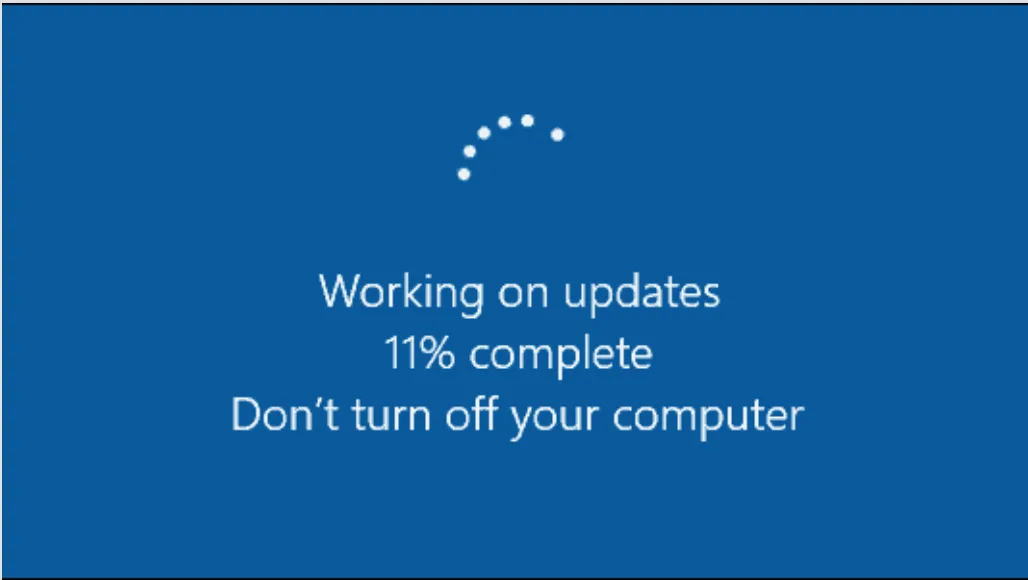
Image source: Bing (Web (fair-use with source credit))
Outdated drivers or conflicting software (like overzealous antivirus tools) can also cause updates to fail, sometimes leading to data loss. Microsoft’s Windows Release Health Dashboard tracks known issues, so checking it before updating can save you trouble.
The 3 Safest Ways to Update Windows Without Losing Data
Not all update methods are equal. The safest options preserve your files by default, but each has its own conditions.
Windows Update (Settings):
Best for routine updates. Automatically keeps files and apps. Requires a stable internet connection.
Windows Update Assistant:
Best for major version upgrades. Manual download, preserves files. Good for slow or metered connections.
Media Creation Tool:
Best for offline updates or multiple PCs. Creates a bootable USB or ISO. Lets you choose to keep files during setup.
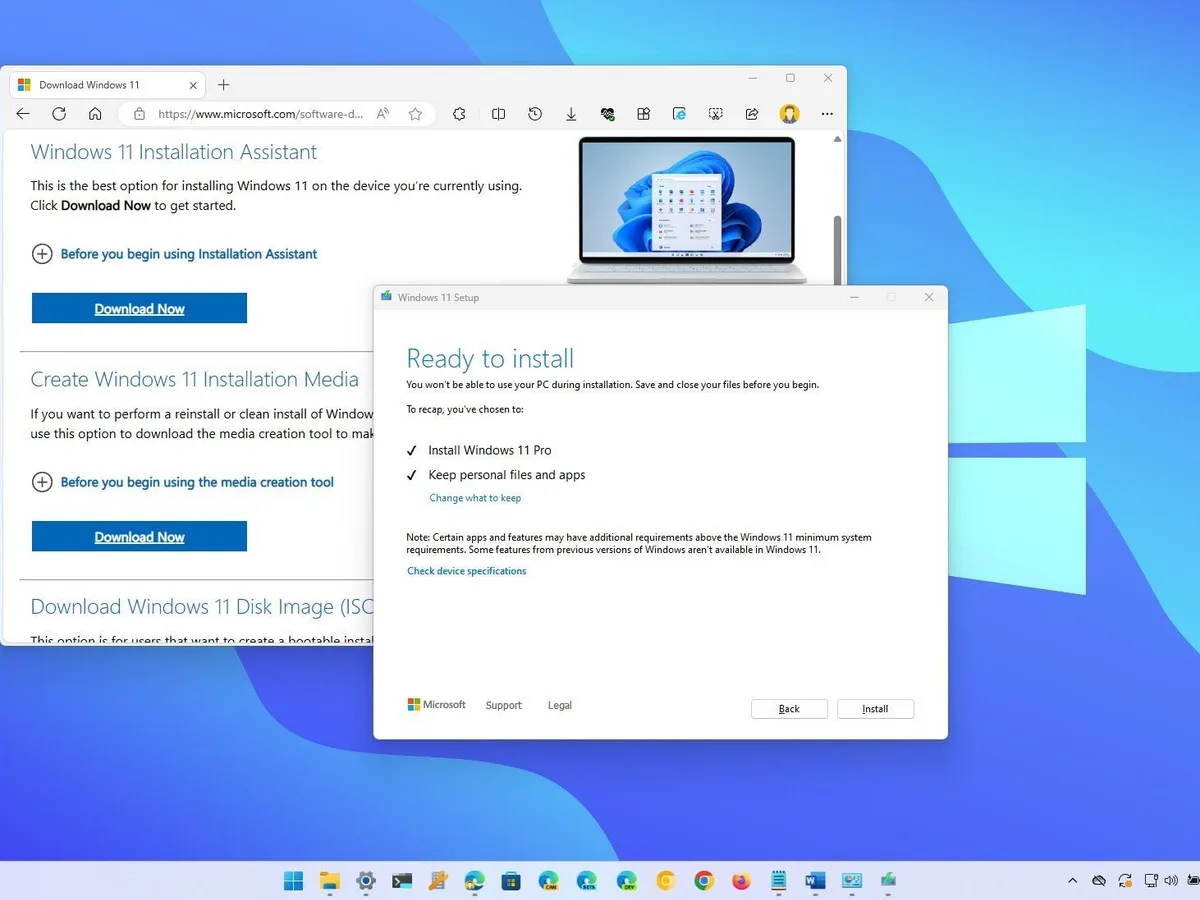
Image source: Bing (Web (fair-use with source credit))
Step-by-Step: Update via Windows Settings (Easiest Method)
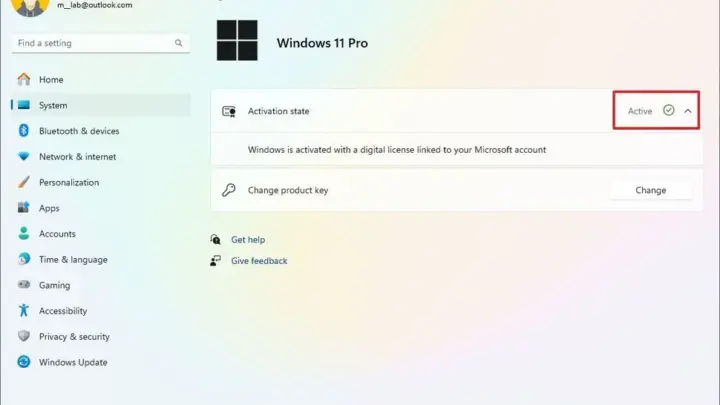
This is the simplest way to update Windows without losing files. Start by opening Settings > Windows Update. Click Check for updates and let Windows download any available updates.
If a feature update (like Windows 10 to 11) is ready, you’ll see an option to Download and install. Select it, then choose Keep personal files and apps when prompted. Your PC will restart several times, don’t turn it off.
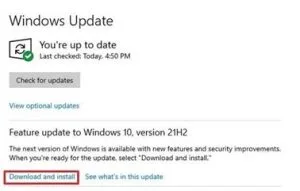
Image source: Bing (Web (fair-use with source credit))
After the update, verify your files are intact. If something goes wrong, Windows automatically rolls back to the previous version within 10 days, keeping your files in a Windows.old folder.
Step-by-Step: Manual Update with Media Creation Tool (Most Reliable)
For more control, use the Media Creation Tool. Download it from Microsoft’s official site, then run the tool. Select Upgrade this PC now and follow the prompts.
When asked, choose Keep personal files and apps. The tool will download the necessary files (3GB, 6GB, depending on the version) and guide you through the installation. Ensure your PC is plugged in and has at least 20GB of free space.
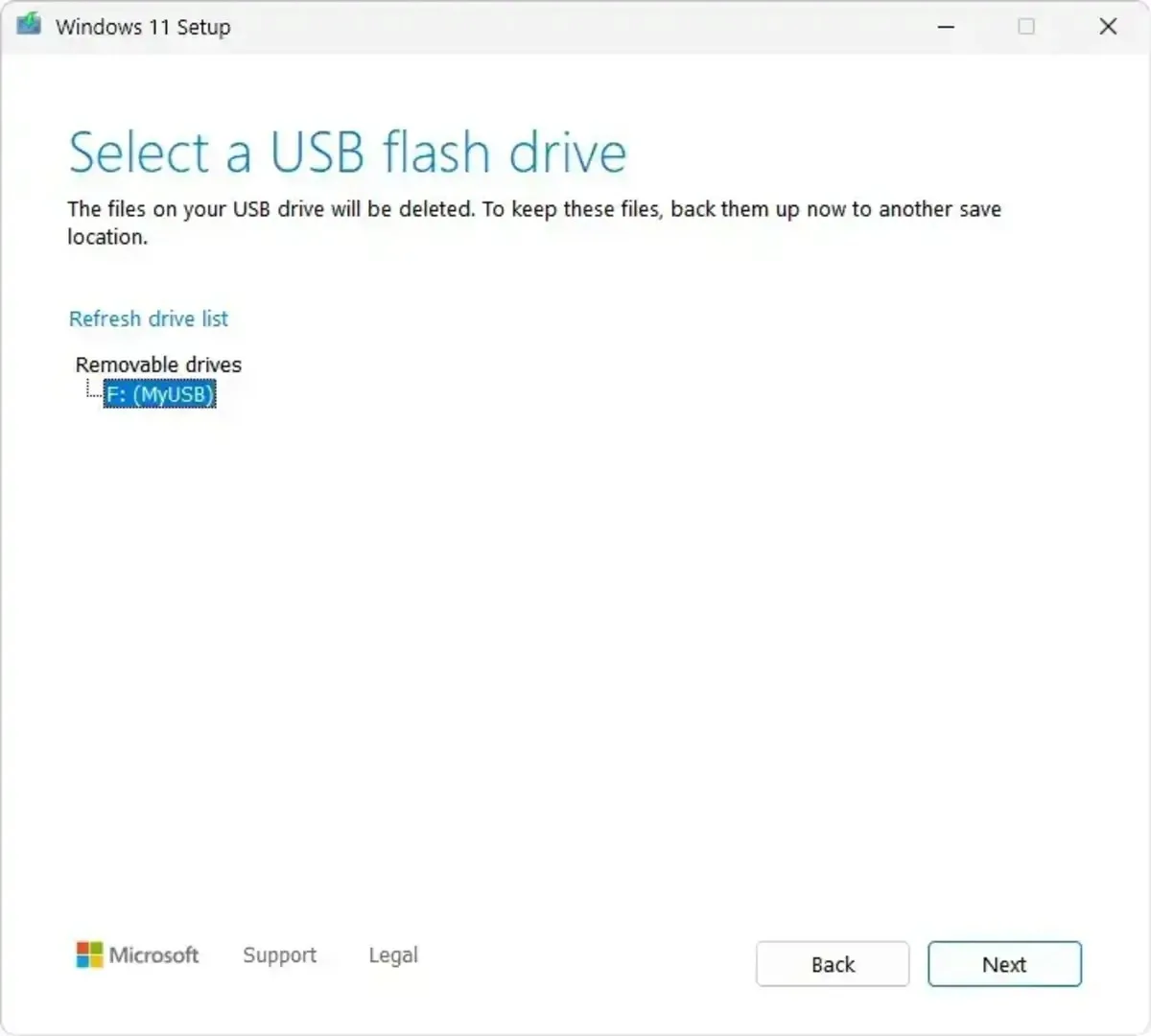
Image source: Bing (Web (fair-use with source credit))
If you prefer a bootable USB, select Create installation media for another PC. This lets you update multiple devices or perform a clean install later. Always back up first, even with this method.
What to Do If the Update Fails or Files Go Missing
First, don’t panic. If the update fails, Windows usually rolls back to the previous version automatically. Your files should still be intact in the Windows.old folder, which appears on your system drive.
If files are missing after a successful update, check the Recycle Bin or use File History to restore them. For critical data, run a scan with Windows File Recovery from the Microsoft Store.
If the system won’t boot, use Windows Recovery Environment (WinRE). Restart your PC and press F11 or Shift + Restart to access troubleshooting options. Select Advanced Options > System Restore to revert to a previous state.
Mistakes That Wipe Your Files (And How to Avoid Them)
Skipping the backup is the biggest mistake. Even with safe update methods, hardware failures or power outages can corrupt data. Always back up to an external drive or cloud storage before starting.
Choosing Clean Install instead of In-Place Upgrade erases everything. Double-check the prompt during setup to ensure you select Keep personal files and apps.
Ignoring storage requirements can also cause failures. Major updates need at least 20GB of free space. Use Disk Cleanup to free up room if needed.
Interrupting the update process is another common issue. Never turn off your PC or force a restart during an update. If the progress seems stuck, wait at least 2-3 hours before assuming it’s frozen.
FAQs About Windows Updates and File Safety
Does Windows Update delete my personal files?
No, Windows Update is designed to preserve your files during standard updates. However, major version upgrades or clean installs can erase data if you don’t select the correct options.
How do I recover files after a failed update?
Check the Windows.old folder for your previous files. Use File History or System Restore to recover lost data. For severe cases, Windows File Recovery can help retrieve deleted files.
What’s the difference between in-place upgrade and clean install?
An in-place upgrade keeps your files, apps, and settings. A clean install wipes everything and starts fresh. Always choose Keep personal files and apps for upgrades.
How much free space do I need for a Windows update?
Microsoft recommends at least 20GB of free space for major updates. Smaller updates may need less, but it’s best to have extra room to avoid failures.
Can I stop a Windows update once it’s started?
No, interrupting an update can corrupt your system. If it seems stuck, wait a few hours. If it’s truly frozen, use the power button to force a restart, but this risks data loss.

Similar Posts