Find and Delete Large Files to Free Up Disk Space
Founder & Lead Technology Analyst at Techny Tech · IEEE Senior Member, Certified Information Systems Security Professional (CISSP) · 13+ years in embedded systems benchmarking, machine learning hardware acceleration, and consumer electronics
Your computer’s storage is full again, and you’re not sure why. The answer usually starts with learning how to find large files taking up disk space, those hidden videos, forgotten downloads, or bloated logs quietly eating your drive.
On average, a single 4K video can chew through 10, 50 GB, while game installs often exceed 100 GB. The good news is you don’t need to guess where the space went.
how to find large files taking up disk space
Use your OS’s built-in file explorer to sort by size. On Windows, open File Explorer and click the Size column. On macOS, use Finder and select View > Show View Options.
Linux users can run du -h --max-depth=1 in the terminal. Third-party tools like WinDirStat or DaisyDisk visualize the data for faster results.
Why Your Disk Space Disappears (And How to Spot the Culprits)
Disk space doesn’t vanish, it gets claimed. The usual suspects are large media files, temporary caches, and old downloads. System restore points, hibernation files, and unused applications also pile up over time.
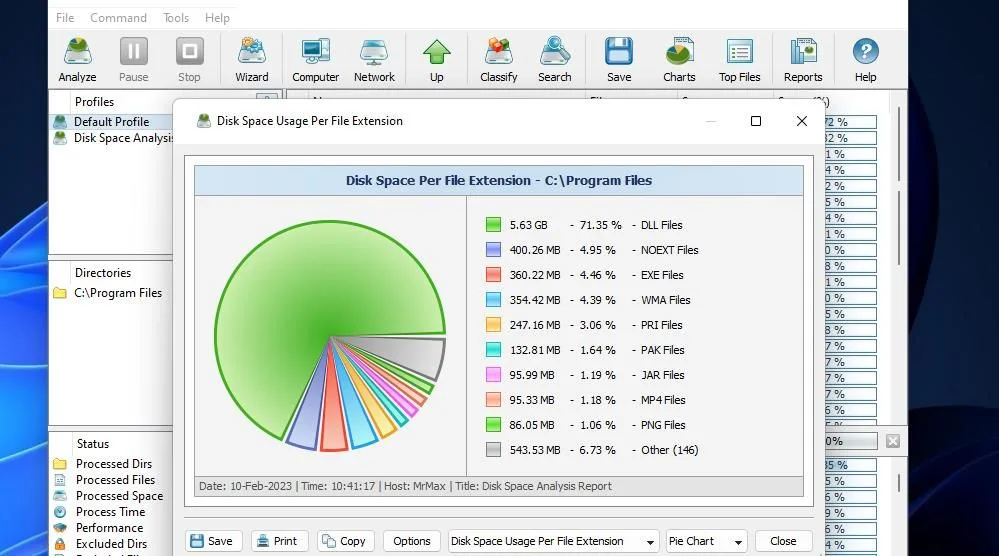
Image source: Bing (Web (fair-use with source credit))
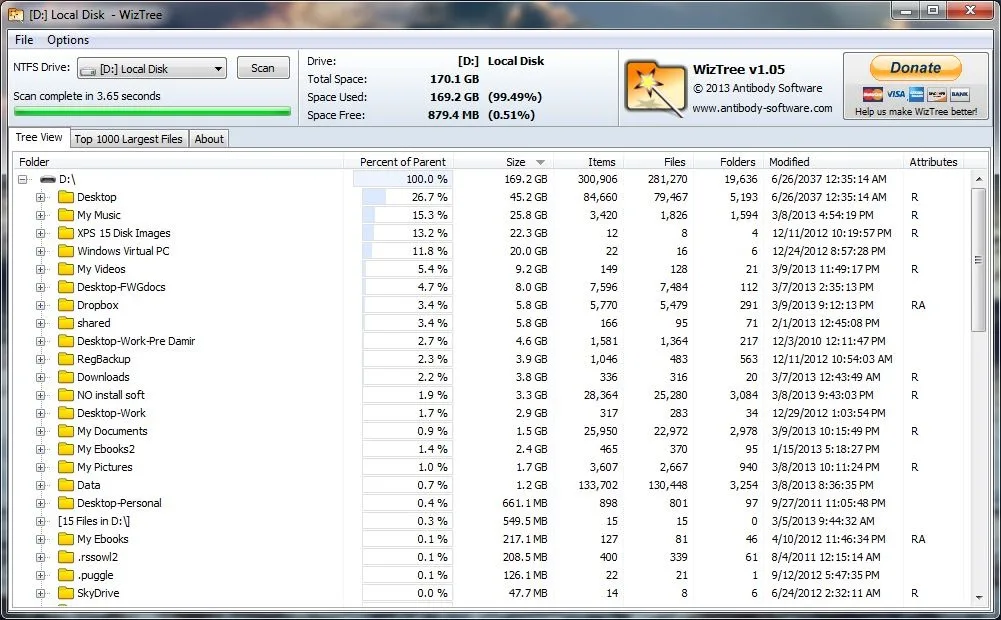
Image source: Bing (Web (fair-use with source credit))
Windows users often overlook the C:\Windows\SoftwareDistribution folder, which can grow to several gigabytes. macOS users might find their ~/Library/Caches directory stuffed with unused data. Linux systems frequently accumulate large log files in /var/log.
Quick Fix: Find Large Files in 30 Seconds or Less
If you’re in a hurry, here’s the fastest way to spot the biggest files on any system.
Windows:
Open File Explorer, navigate to your drive, and click the Size column to sort descending. The largest files rise to the top.
macOS:
Open Finder, press Cmd + F, and set the search criteria to File Size > 1 GB. The results show the largest files instantly.
Linux:
Run find / -type f -size +1G -exec ls -lh {} + in the terminal. This lists all files over 1 GB with their paths and sizes.
Step-by-Step: How to Hunt Down Large Files on Windows, macOS, and Linux
Windows
Open File Explorer and navigate to the drive you want to check. Click the View tab, then select Details. Click the Size column header to sort files by size, largest first.
For a deeper scan, use the command line. Open Command Prompt and run:
dir /s /o-s
This lists all files in the current directory and subdirectories, sorted by size.
PowerShell offers more control. Run:
Get-ChildItem -Recurse | Sort-Object Length -Descending | Select-Object -First 10
This shows the 10 largest files in the current directory and its subfolders.
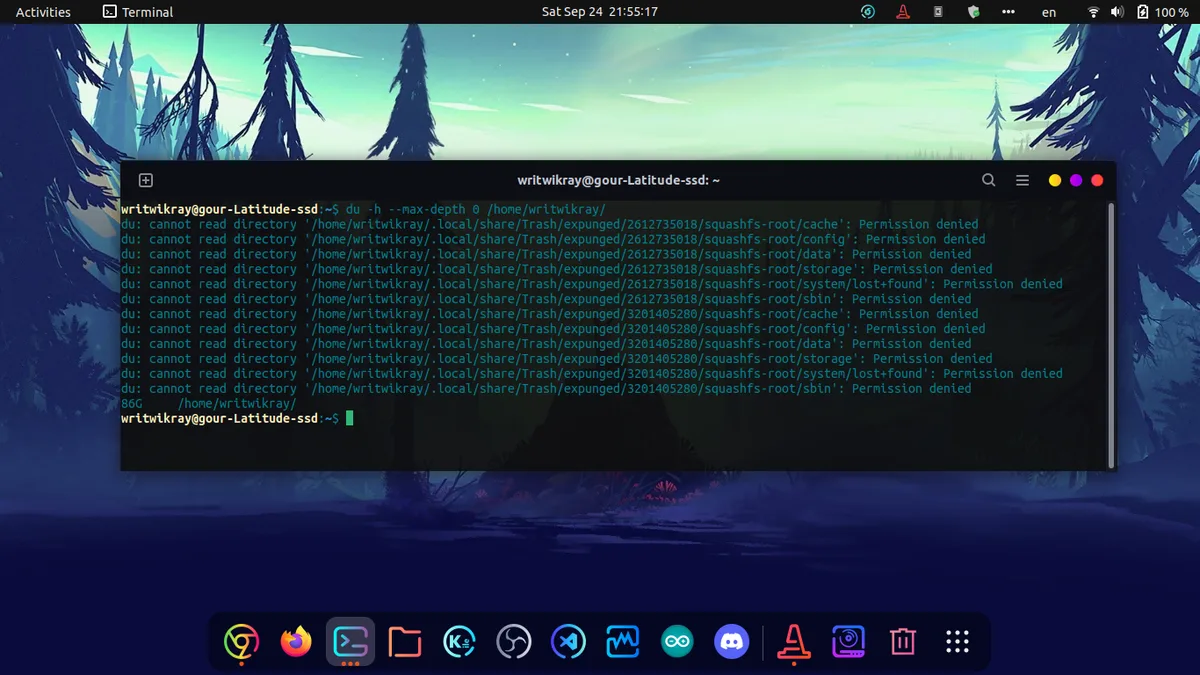
Image source: Bing (Web (fair-use with source credit))
macOS
Open Finder and press Cmd + F to open a search window. Click the + button to add a criterion, select File Size, and set it to is greater than 1 GB. Choose This Mac from the search scope dropdown.
For terminal users, run:
find ~ -type f -size +1000000000 -exec ls -lh {} +
This finds files over 1 GB in your home directory.
To scan the entire system, use:
sudo find / -type f -size +1000000000 -exec ls -lh {} +
Note that this requires admin privileges.
Linux
The du command is your best friend. Run:
du -h --max-depth=1 /
This shows the size of each top-level directory in human-readable format.
For a more detailed scan, use:
find / -type f -size +100M -exec ls -lh {} +
This lists all files over 100 MB with their paths and sizes.
For an interactive view, install ncdu:
sudo apt install ncdu
Then run:
ncdu /
This provides a navigable interface to explore disk usage.
Best Tools for the Job (Built-In vs. Third-Party)
Built-in tools are convenient, but third-party apps often provide better visualization and features.
| Tool | Platform | Key Feature | Best For |
|---|---|---|---|
| File Explorer | Windows | Sort by size | Quick checks |
| Finder | macOS | Search by size | Simple scans |
du, find | Linux | Command-line scanning | Advanced users |
| WinDirStat | Windows | Visual disk map | Detailed analysis |
| DaisyDisk | macOS | Interactive sunburst chart | Visual learners |
| ncdu | Linux | Terminal-based interface | Server admins |
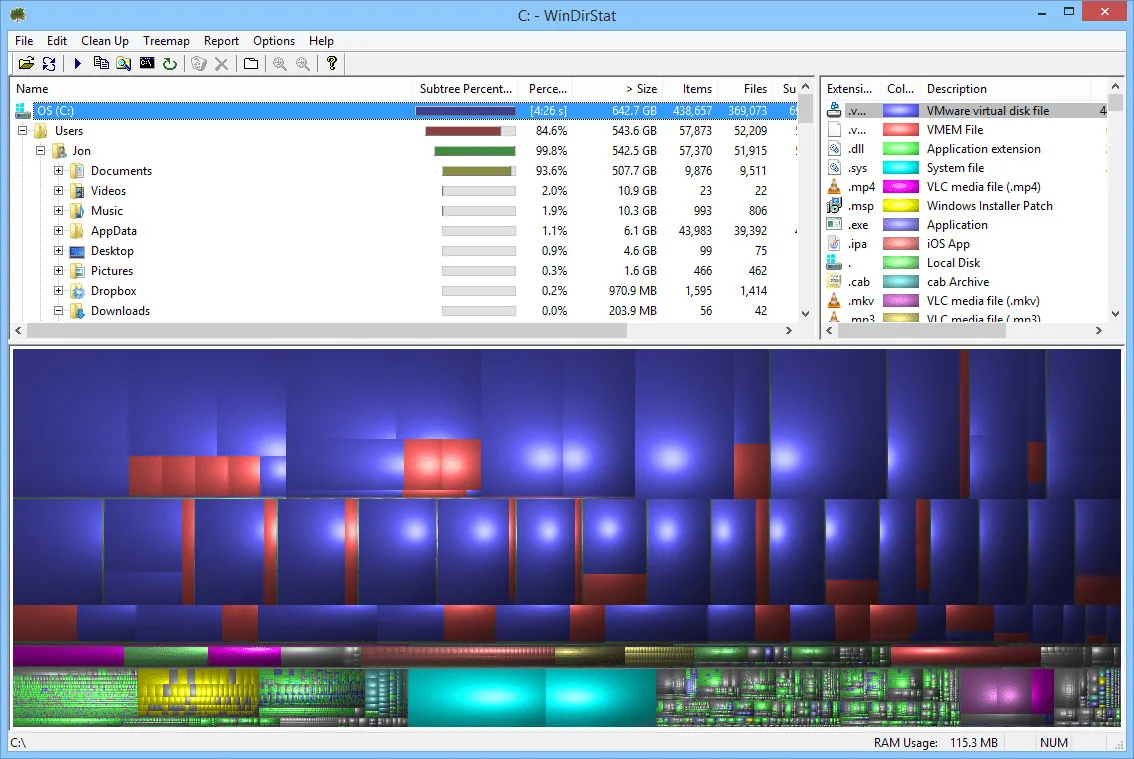
Image source: Bing (Web (fair-use with source credit))
WinDirStat and DaisyDisk offer visual representations of disk usage, making it easy to spot large files at a glance. These tools are especially useful if you’re not comfortable with the command line. For Linux users, ncdu provides a similar experience within the terminal.
Common Mistakes That Make You Miss the Biggest Space Hogs
You might think sorting by size in File Explorer catches everything. It doesn’t. Hidden files and system folders often stay invisible by default.
On Windows, enable hidden files in View > Hidden items. On macOS, use Cmd + Shift + . in Finder to toggle hidden files. Linux users should run ls -la to see all files, including hidden ones.
Another mistake is ignoring temporary files. Windows stores them in C:\Users\<YourUser>\AppData\Local\Temp. macOS caches live in ~/Library/Caches. Clearing these can free up gigabytes.
Pro Tips to Keep Your Storage Lean Long-Term
Set up automated cleanup. Windows has Storage Sense under Settings > System > Storage. Turn it on to delete temporary files and old downloads automatically.
On macOS, use the built-in Optimize Storage feature. Go to Apple Menu > About This Mac > Storage > Manage. This offloads old files to iCloud when space is low.
For Linux, create a cron job to run ncdu weekly. Schedule it with:
0 3 * * 0 ncdu / --exclude /mnt --exclude /media
This scans your system every Sunday at 3 AM, excluding external drives.
Regularly check for duplicate files. Tools like fdupes on Linux or Duplicate File Finder on macOS can identify and remove redundant copies. This is especially useful for photos, videos, and downloads.

Similar Posts