How to Test Your Internet Speed on a Computer
Founder & Lead Technology Analyst at Techny Tech · IEEE Senior Member, Certified Information Systems Security Professional (CISSP) · 13+ years in embedded systems benchmarking, machine learning hardware acceleration, and consumer electronics
Slow internet got you staring at a spinning wheel again? Knowing how to test internet speed on a computer is the first step to figuring out if the problem is your connection, your router, or just a bad day for your ISP. A quick test can tell you whether you’re getting the Mbps you’re paying for or if something’s holding you back.
The Federal Communications Commission (FCC) recommends speeds of at least 25 Mbps download and 3 Mbps upload for most households as of 2026. If your numbers are way off, it’s time to dig deeper.
how to test internet speed on a computer
Close all other apps and tabs. Open a speed test tool like Speedtest.net or Fast.com. Click "Go" and wait for the download, upload, and ping results.
Compare the numbers to your ISP’s advertised speeds.
Why Test Your Internet Speed (And When It Actually Matters)
You don’t need to run a speed test every day, but there are a few times it’s worth checking. If videos buffer constantly, games lag, or Zoom calls keep freezing, a test can confirm whether your connection is the culprit.
It’s also useful before signing up for a new plan or after upgrading your service. If your speeds are consistently lower than advertised, you’ve got proof to take to your ISP. And if you’re setting up a home office or gaming rig, testing helps you pick the best spot for your router.
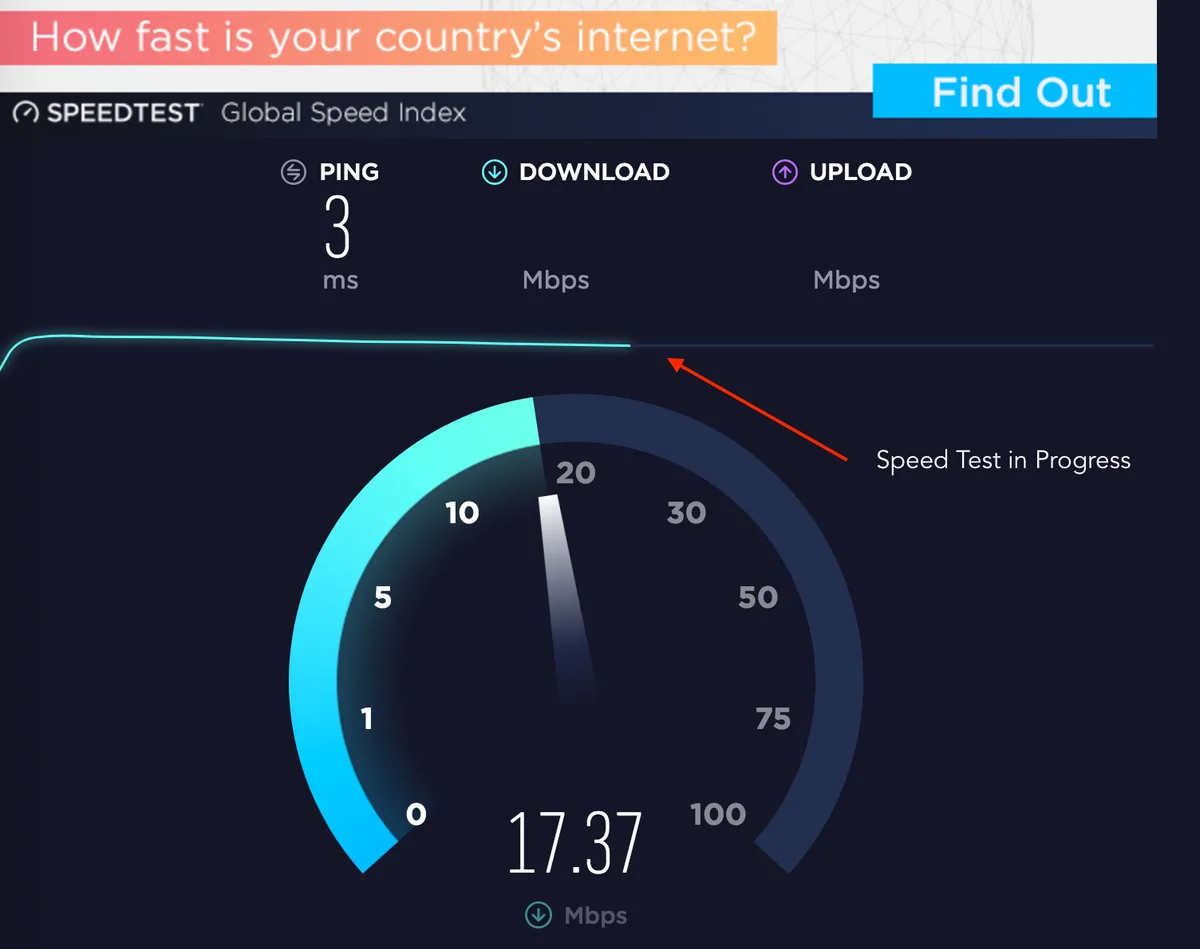
Image source: Bing (Web (fair-use with source credit))
The 3 Things a Speed Test Really Measures (And What They Mean for You)
A speed test breaks down your connection into three key numbers: download speed, upload speed, and ping. Each one tells you something different about how your internet performs.
Download speed is how fast data comes to you, measured in Mbps. This affects streaming, downloading files, and loading web pages. Upload speed is how fast you send data out, which matters for video calls, uploading photos, or backing up files.
Ping, or latency, is the time it takes for a signal to go from your device to a server and back, measured in milliseconds. Lower ping means less lag, which is critical for gaming or video calls.
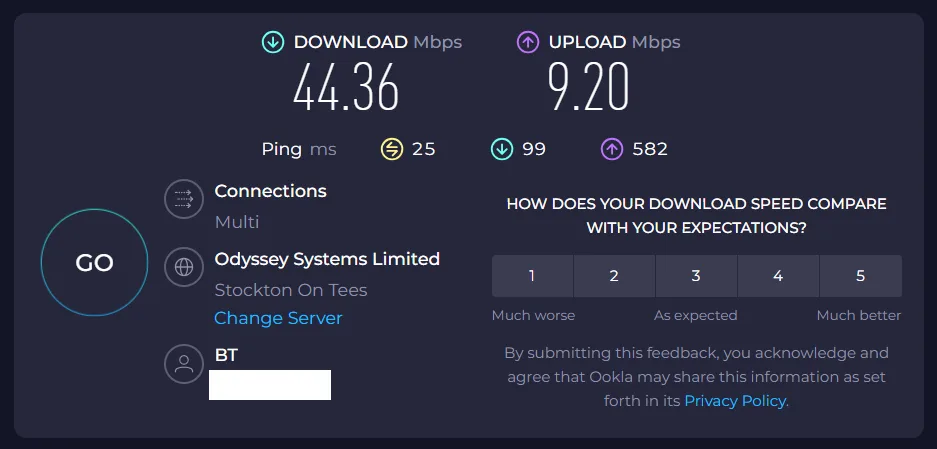
Image source: Bing (Web (fair-use with source credit))
How to Test Your Internet Speed the Right Way (Step-by-Step)
Start by closing all apps, tabs, and downloads that might be using bandwidth. If you’re on Wi-Fi, stand near your router or use a wired Ethernet connection for the most accurate results.
Open a speed test tool like Speedtest.net by Ookla or Fast.com. Click the "Go" or "Start" button and wait for the test to run. It usually takes less than a minute.
Once it’s done, you’ll see your download speed, upload speed, and ping. Run the test a few times at different times of day to spot patterns.
For the best results, test multiple devices. If one computer is slow but others are fine, the issue might be with that device. If everything is slow, the problem is likely your network or ISP.
Wi-Fi vs. Ethernet: Which Gives the Real Speed?
Wi-Fi is convenient, but it’s not always the fastest or most stable option. Walls, interference from other devices, and distance from your router can all slow it down. Ethernet, on the other hand, gives you a direct, wired connection that’s usually faster and more reliable.
If you’re testing to see what your ISP is actually delivering, use Ethernet. It removes Wi-Fi variables and gives you a true baseline. If you’re troubleshooting Wi-Fi issues, test in the same room as your router, then move to other areas to see how your signal holds up.

Image source: Bing (Web (fair-use with source credit))
Common Mistakes That Mess Up Your Results
Running a speed test while streaming or downloading files skews the numbers. Background apps, updates, or even a VPN can throttle your connection and give false readings.
Testing over Wi-Fi when your router is across the house adds interference. Always test at different times of day, as network congestion can drop speeds during peak hours. Using an outdated browser or a slow device can also limit your results.
What Your Speed Test Results Actually Mean (And When to Call Your ISP)
If your download speed is below 25 Mbps, basic tasks like streaming HD video may struggle. Upload speeds under 3 Mbps can cause issues with video calls or file uploads. Ping over 100ms means noticeable lag in gaming or real-time apps.
Compare your results to your ISP’s advertised speeds. If you’re consistently getting 50% or less of what you pay for, contact your provider. Use the test results as evidence to request a fix or upgrade.
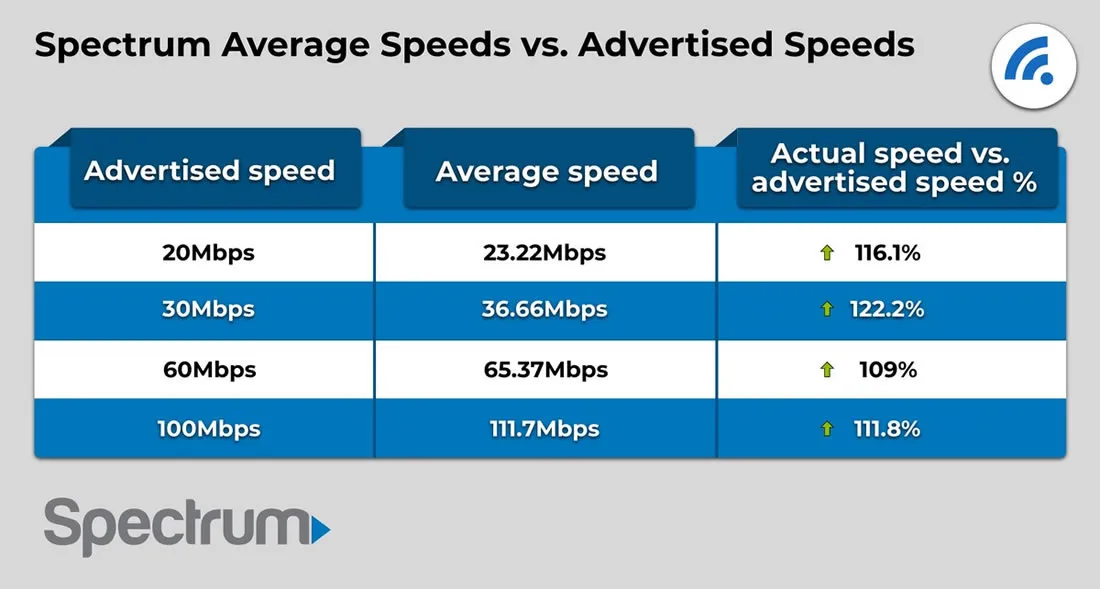
Image source: Bing (Web (fair-use with source credit))

Similar Posts