Boost Your Desktop PC’s WiFi Signal Fast
Founder & Lead Technology Analyst at Techny Tech · IEEE Senior Member, Certified Information Systems Security Professional (CISSP) · 13+ years in embedded systems benchmarking, machine learning hardware acceleration, and consumer electronics
Weak WiFi on a desktop PC is frustrating, especially when your laptop or phone works fine in the same spot. If you're wondering how to improve WiFi reception on a desktop PC, the fix often starts with simple tweaks before considering hardware upgrades. Many desktops ship with basic or outdated WiFi adapters that can't keep up with modern routers.
As of 2026, even mid-range WiFi 6 (802.11ax) adapters can hit speeds up to 2.4 Gbps under ideal conditions, but your setup might be holding you back. Let’s start by identifying why your signal is weak in the first place.
how to improve WiFi reception on a desktop PC
Upgrade to a WiFi 6 PCIe card for best performance.
Move your router to a central, elevated location.
Switch to the 5GHz band for less interference.
Update your WiFi adapter drivers regularly.
Use a high-gain antenna if your adapter supports it.
Why Your Desktop PC’s WiFi Is Weak (And How to Tell)
Your desktop’s WiFi issues usually stem from one of three problems: hardware limitations, signal interference, or poor router placement. Older desktops often have weak built-in WiFi adapters, or none at all, relying on cheap USB dongles that struggle with distance and obstacles.
Manufacturer specifications indicate that even a WiFi 5 (802.11ac) adapter can lose 50% of its speed if the signal strength drops below -70 dBm. Check your current signal strength in Windows using the Command Prompt: type netsh wlan show interfaces and look for the "Signal" percentage. Anything below 70% means you’re losing performance.
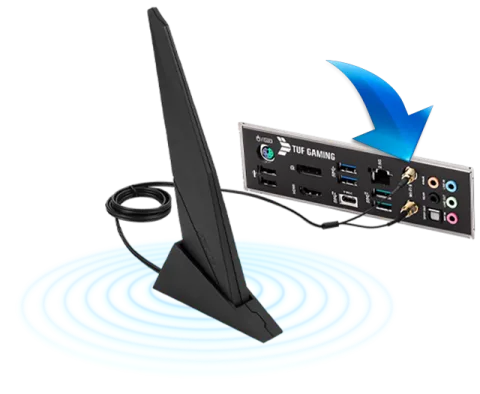
Image source: Bing (Web (fair-use with source credit))
Quick Fixes to Try First (5-Minute Solutions)
Before spending money, try these no-cost fixes. First, restart your router and PC, this clears temporary glitches that slow down connections. If that doesn’t help, switch your WiFi band from 2.4GHz to 5GHz in your network settings, as the 2.4GHz band is often crowded with other devices like microwaves and cordless phones.
Next, move your router to a higher, more central location. Walls, metal objects, and even thick furniture can block signals. If your router has external antennas, adjust them to point in different directions, one vertical, one horizontal, to cover more area.
Finally, update your WiFi adapter drivers through Device Manager or the manufacturer’s website, as outdated drivers can cause instability.
Hardware Upgrades That Actually Work
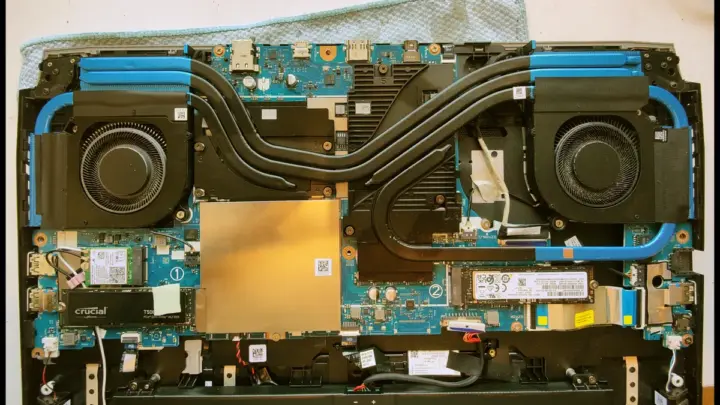
If quick fixes don’t cut it, a hardware upgrade is your next step. PCIe WiFi cards offer the best performance for desktops, as they connect directly to your motherboard and often include external antennas for stronger signals. USB WiFi adapters are easier to install but may suffer from interference and limited bandwidth, especially if plugged into a USB 2.0 port.
For gamers or 4K streamers, a WiFi 6 or WiFi 6E PCIe card is the best choice, as it supports higher speeds and lower latency. If your motherboard lacks a PCIe slot, an M.2 WiFi card or a high-quality USB 3.0 adapter can still provide a significant boost. Pair your upgrade with a high-gain antenna (5dBi or higher) to extend range and improve stability.
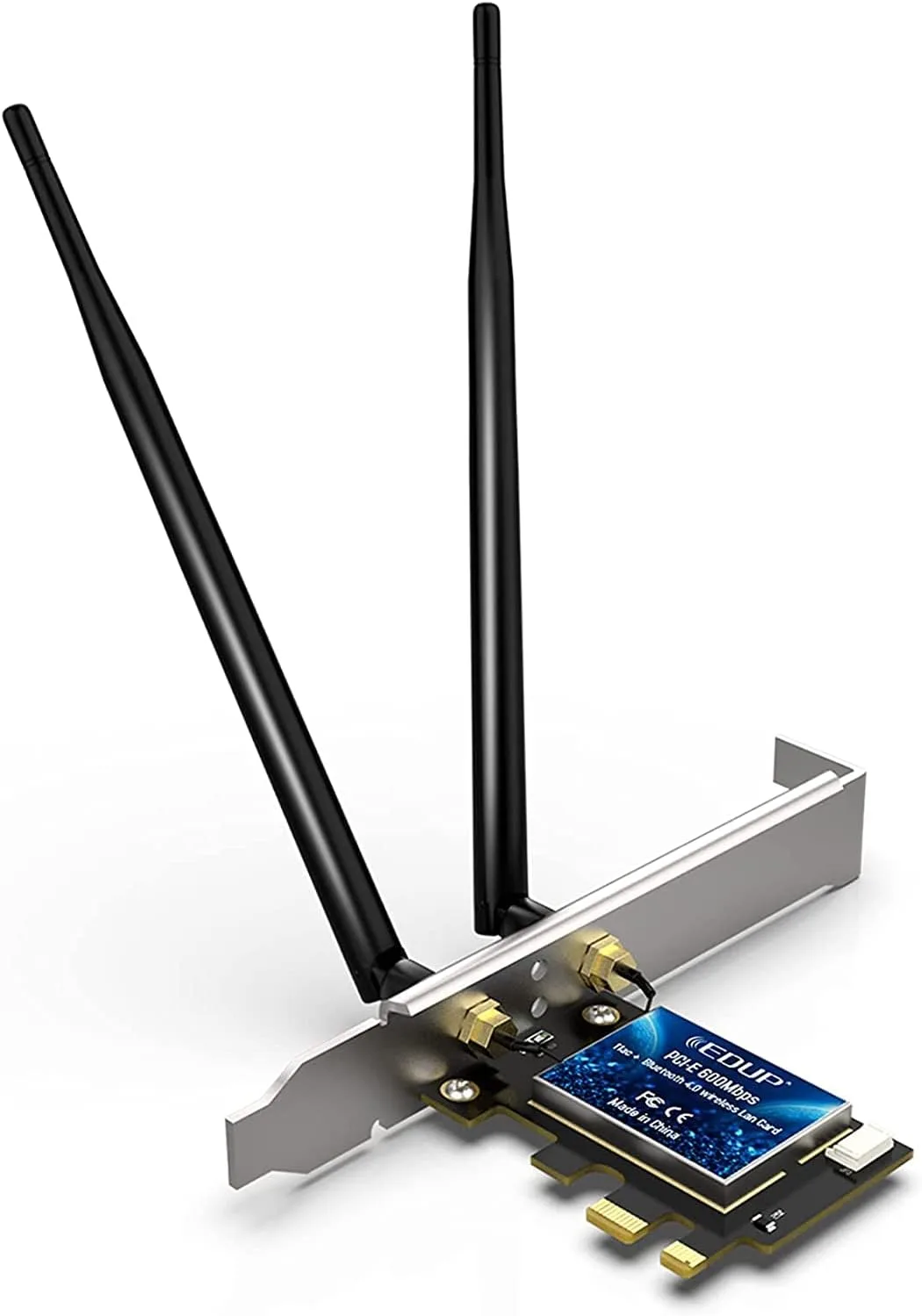
Image source: Bing (Web (fair-use with source credit))
| Upgrade Option | Pros | Cons | Best For |
|---|---|---|---|
| PCIe WiFi Card | Fast, stable, external antennas | Requires PCIe slot | Gamers, power users |
| USB WiFi Adapter | Easy to install, portable | Limited bandwidth, interference | Temporary fixes, laptops |
| M.2 WiFi Card | Compact, good performance | Requires M.2 slot | Small-form-factor PCs |
| High-Gain Antenna | Boosts existing adapter range | Requires compatible adapter | Weak signal areas |
Router and Network Tweaks for Better Signal
Your router’s settings can make or break your WiFi performance. Start by logging into your router’s admin panel (usually via 192.168.1.1 or 192.168.0.1) and check which WiFi channel you’re using. If you’re on a crowded channel, switch to a less congested one, tools like NetSpot or inSSIDer can help identify the best options.
Enable Quality of Service (QoS) to prioritize traffic for gaming or streaming, and consider splitting your WiFi into separate 2.4GHz and 5GHz networks to avoid interference. If your router supports it, enable MU-MIMO and beamforming to improve multi-device performance. For larger homes, a mesh WiFi system or a WiFi extender can eliminate dead zones, but a wired Ethernet connection remains the most reliable option for desktops.
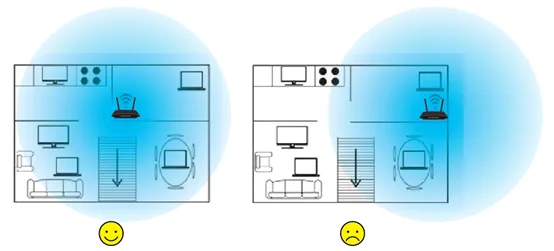
Image source: Bing (Web (fair-use with source credit))
Step-by-Step: Diagnose and Fix Your WiFi for Good
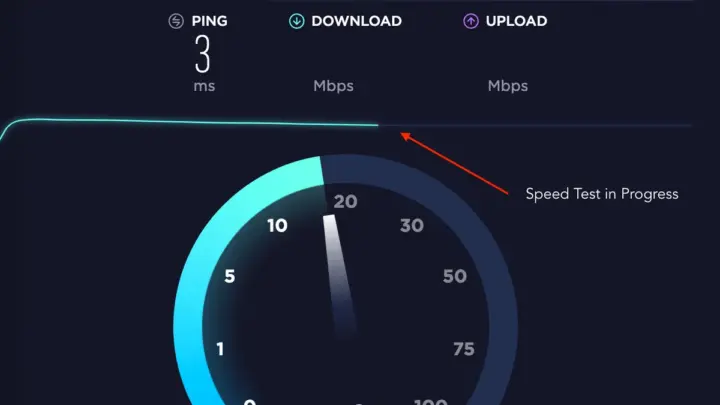
Start by running a speed test on Ookla to measure your current performance. Compare the results to your ISP’s advertised speeds, if you’re getting less than 50% of the promised speed, the issue is likely on your end. Next, use the Command Prompt to check your signal strength: type netsh wlan show interfaces and note the "Signal" percentage.
If your signal is weak, try moving your PC closer to the router or removing obstacles between them. If the signal is strong but speeds are still slow, your WiFi adapter might be the bottleneck. Check Device Manager to see which adapter you’re using, if it’s an older model (e.g., WiFi 4 or 802.11n), upgrading to a WiFi 6 adapter could double or triple your speeds.
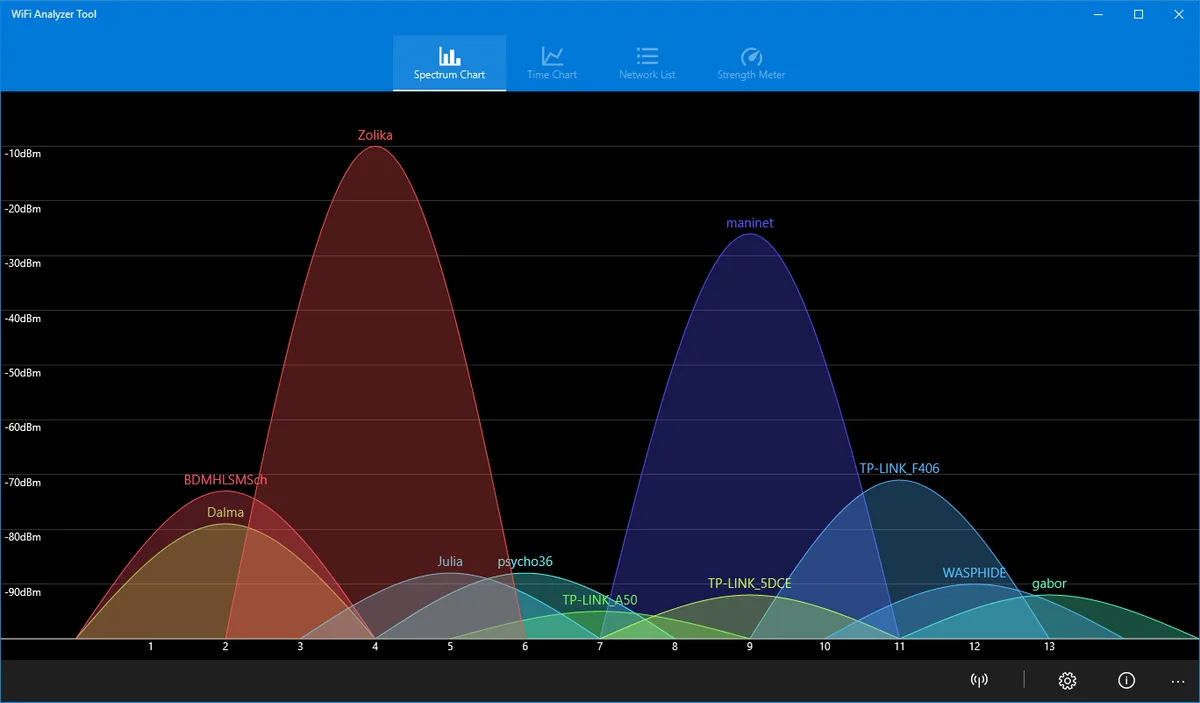
Image source: Bing (Web (fair-use with source credit))
Mistakes That Make WiFi Worse (And How to Avoid Them)
Placing your router in a corner or behind furniture kills signal strength. Walls and large appliances like refrigerators block WiFi waves, especially on the 5GHz band. Keep your router in an open, central location for the best coverage.
Using the wrong WiFi band can also hurt performance. The 2.4GHz band travels farther but is slower and more prone to interference from other devices. If your router supports 5GHz or 6GHz, use those for faster speeds and less congestion.
Outdated drivers are another common culprit. If your WiFi adapter drivers haven’t been updated in months, your PC might not be using the latest optimizations. Check Device Manager regularly or set Windows to update drivers automatically.
Frequently Asked Questions
Why is my desktop PC’s WiFi slower than my phone’s?
Your desktop likely has an older or weaker WiFi adapter. Phones often use advanced antennas and newer WiFi standards like WiFi 6. Upgrading your desktop’s adapter to a PCIe WiFi 6 card can match or exceed phone speeds.
Can I use a USB WiFi adapter for gaming?
USB adapters work but aren’t ideal for gaming. They often suffer from higher latency and interference compared to PCIe cards. For serious gaming, a PCIe WiFi 6 adapter with external antennas is the better choice.
How do I know if my WiFi card is the problem?
Run a speed test on your desktop and compare it to a test on your phone in the same location. If your desktop is significantly slower, the WiFi card is likely the bottleneck. Check Device Manager to see your adapter’s model and specs.
Does a high-gain antenna really help?
Yes, but only if your adapter supports it. A 5dBi or 9dBi antenna can extend range and improve signal stability. Pair it with a PCIe card for the best results.
Should I use a WiFi extender or a mesh system?
WiFi extenders are cheaper but can halve your speed. Mesh systems provide better coverage and performance but cost more. For a desktop, a wired Ethernet connection is still the most reliable option.

Similar Posts