Fix OneDrive Files Stuck Syncing Fast
Founder & Lead Technology Analyst at Techny Tech · IEEE Senior Member, Certified Information Systems Security Professional (CISSP) · 13+ years in embedded systems benchmarking, machine learning hardware acceleration, and consumer electronics
OneDrive files stuck syncing usually mean a simple hiccup in the connection between your device and Microsoft’s servers. Whether it’s a single file or your entire queue, the fix often starts with checking the basics like your internet or the OneDrive app itself.
Microsoft’s own specs confirm that OneDrive supports files up to 250GB each, but even smaller files can stall if there’s a conflict or a corrupted cache. Let’s start by identifying the most common culprits.
OneDrive files stuck syncing
This happens when OneDrive can’t complete the upload or download. Common causes include poor internet, file conflicts, or app glitches. A quick restart of the app or your device often resolves it.
Check the sync status icon in your system tray for clues.
Why OneDrive Files Get Stuck Syncing (And How to Spot Your Issue)
Sync problems usually fall into a few clear categories. If your files are stuck at 0%, it’s often a connectivity or server issue. If they’re stuck in a loop, a conflict or corrupted cache might be to blame.
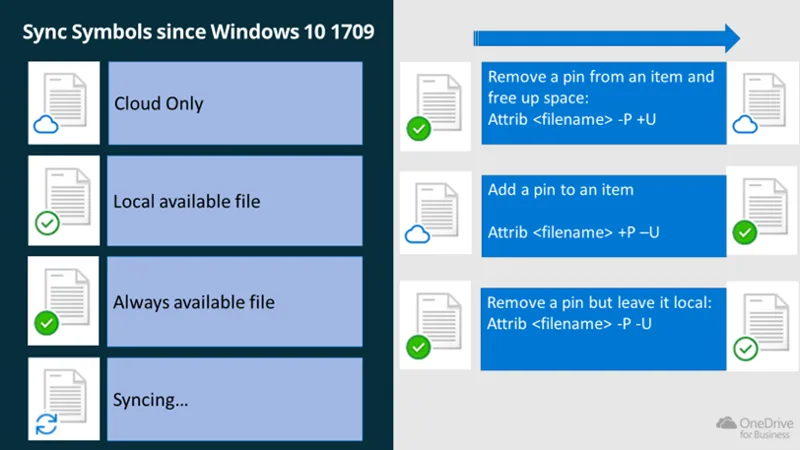
Image source: Bing (Web (fair-use with source credit))
OneDrive’s sync status icons can tell you a lot. A blue cloud means the file is syncing, a green checkmark means it’s done, and a red X means there’s an error. If you see a spinning circle for hours, something’s wrong.
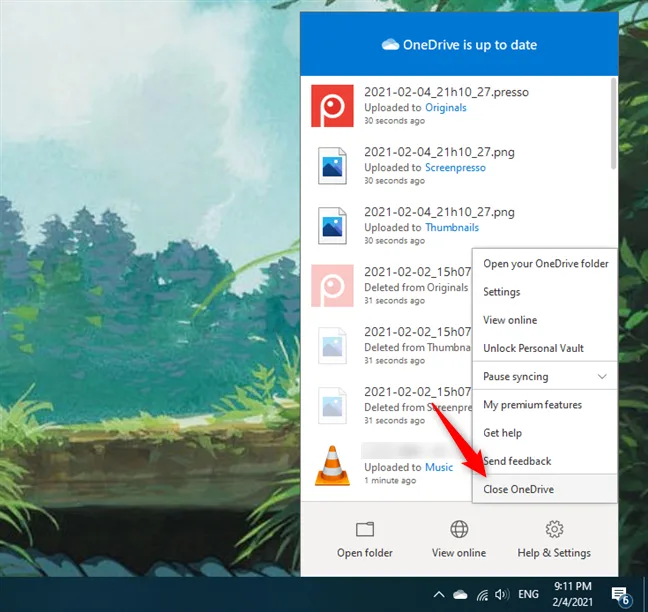
Image source: Bing (Web (fair-use with source credit))
Another red flag is the Activity Center. Open it from the OneDrive icon in your system tray to see detailed error messages. If you see “Sync pending” for a long time, it’s time to dig deeper.
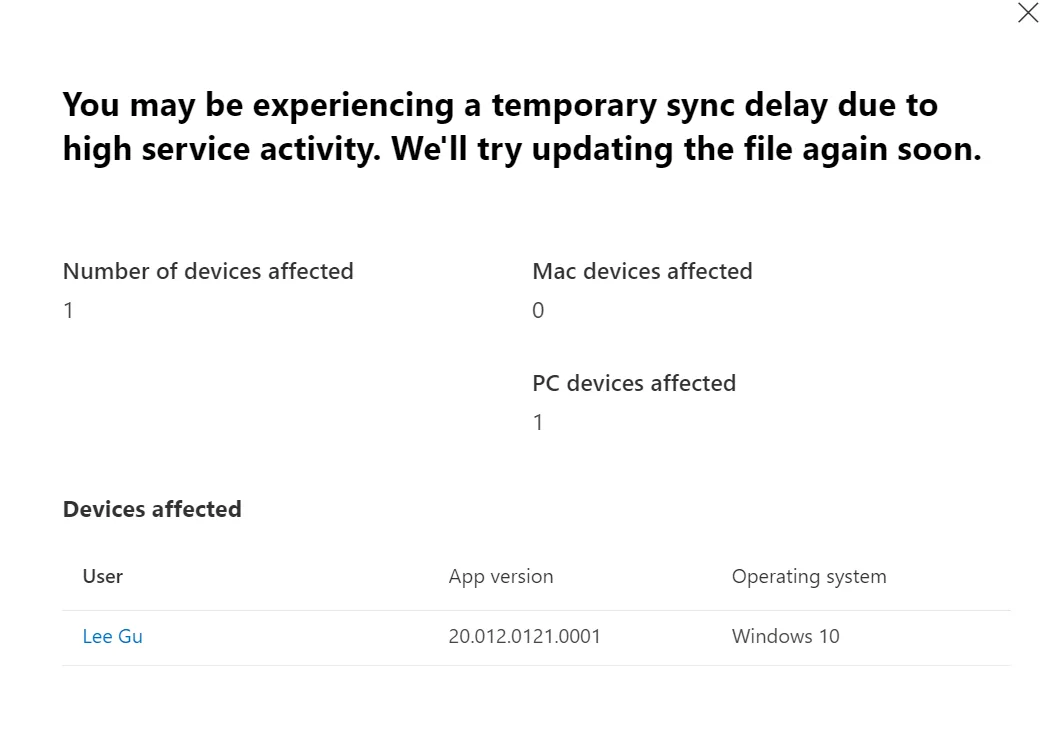
Image source: Bing (Web (fair-use with source credit))
Quick Fixes to Try First (30-Second Solutions)
Start with the simplest fixes. Restart the OneDrive app, this often clears temporary glitches. If that doesn’t work, pause syncing for 10 seconds, then resume it.
Check your internet connection next. OneDrive needs a stable connection to sync files. If you’re on a metered network, OneDrive might be throttling sync to save data.
Finally, look at the file itself. If it has invalid characters in the name (like / \ : * ? " < > |), OneDrive won’t sync it.
Rename the file and try again.
The Full Troubleshooting Workflow: Step by Step
Files stuck at 0% or "Processing"
If the file isn’t moving at all, first confirm your internet is working. Try opening a webpage or streaming a video. If that’s fine, the issue might be with OneDrive’s servers.
Check the Microsoft 365 Service Status page to see if there’s an outage.
If the servers are up, the file might be too large or the path too long. OneDrive supports files up to 250GB, but your local file path can’t exceed 255 characters. Shorten the file name or move it to a folder closer to the root directory.
Sync loop or endless pending status
A sync loop often means a conflict. If the same file was edited offline by multiple people, OneDrive doesn’t know which version to keep. Open the file in question and check for duplicate copies (e.g., “Document (Conflict).docx”).
If there’s no conflict, clear the OneDrive cache. Close OneDrive, then delete the contents of the %localappdata%\Microsoft\OneDrive\cache folder. Restart OneDrive and let it rebuild the cache.
Partial sync (some files work, others don’t)
This usually points to permission issues. If you’re syncing a shared folder, make sure you have edit access. For personal files, check if the file is locked by another app (like Word or Excel).
Close the app and try syncing again.
If the issue persists, try signing out of OneDrive and signing back in. This refreshes your connection to the service and can resolve hidden permission problems.
Advanced Fixes for Stubborn Sync Problems
If the basics don’t work, it’s time for deeper fixes. Reset OneDrive to its default settings. On Windows, open the Command Prompt as admin and run:
%localappdata%\Microsoft\OneDrive\OneDrive.exe /reset
This won’t delete your files, but it will reset all settings and force a fresh sync.
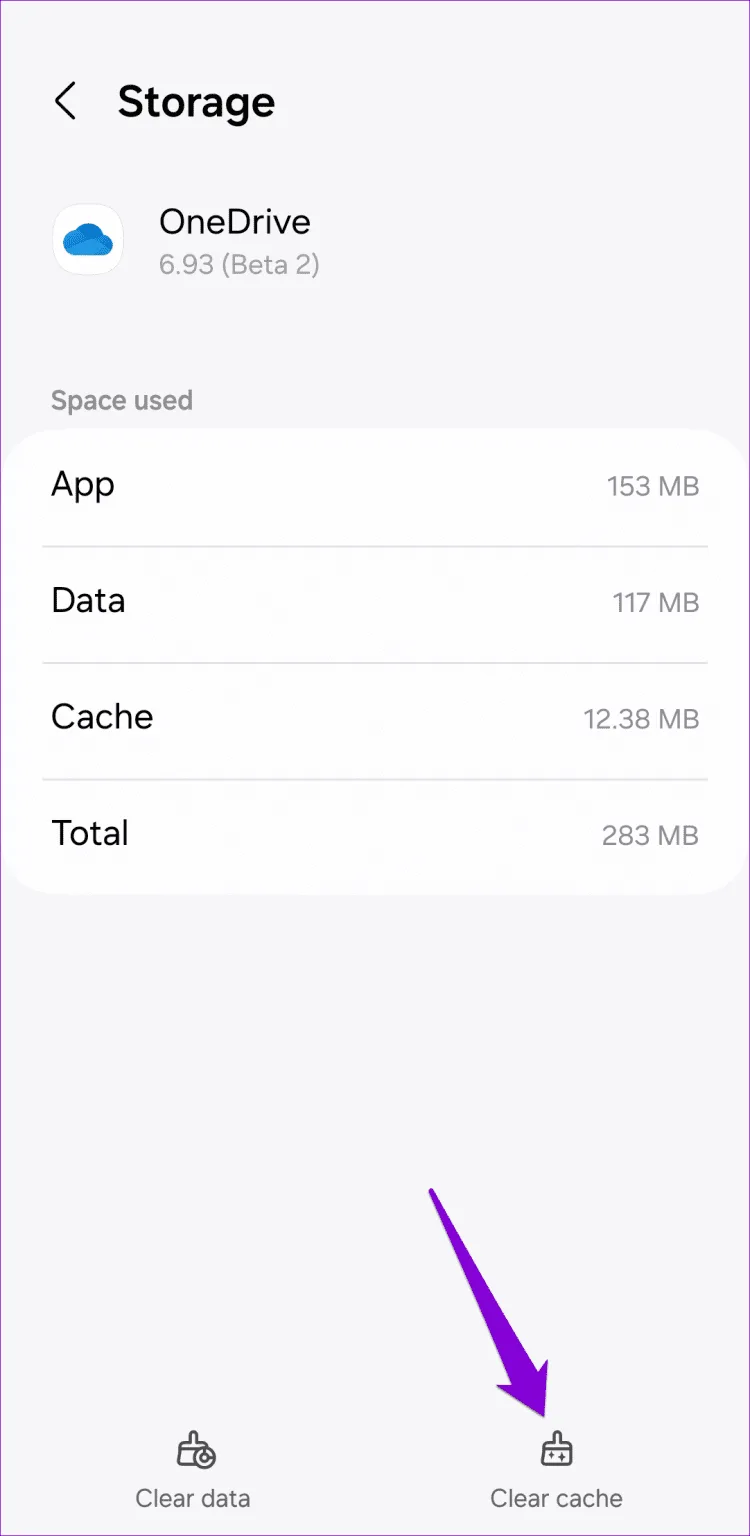
Image source: Bing (Web (fair-use with source credit))
If resetting doesn’t help, reinstall OneDrive. Uninstall it from your system, then download the latest version from Microsoft’s official site. This ensures you’re running the most stable build.
For persistent issues, check for antivirus or firewall interference. Temporarily disable your security software and see if syncing works. If it does, add OneDrive to your antivirus’s exclusion list.
How to Prevent Future Sync Issues
Avoid sync problems by keeping OneDrive updated. Microsoft releases patches for bugs that cause sync loops or freezes. Enable automatic updates in the app settings.
Monitor your storage quota. OneDrive for Business plans offer 1TB per user as of 2026, but personal accounts max out at 5GB unless you upgrade. Delete old files or empty the Recycle Bin to free up space.
Use short, valid file names. Stick to letters, numbers, and basic symbols like underscores or hyphens. Avoid special characters like / \ : * ?
" < > | which break sync.
Disable Files On-Demand if you frequently edit large files. This feature streams files instead of downloading them, but it can cause conflicts if you’re working offline. Toggle it off in OneDrive settings.
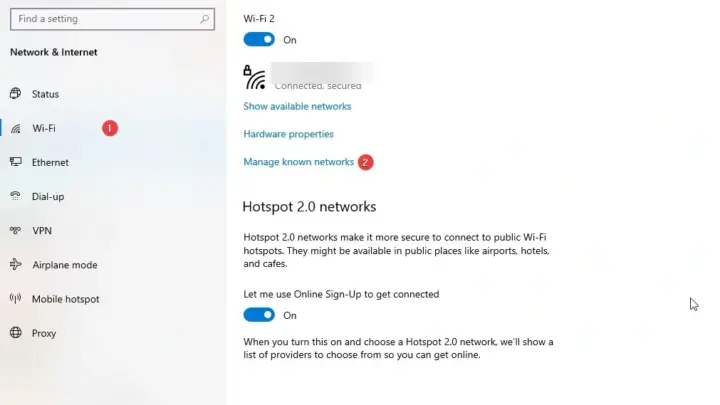
Check your network settings. If you’re on a metered connection, OneDrive may limit sync to save data. Adjust this in the app’s Network tab.
Also, disable VPNs or proxies temporarily to rule out interference.

Similar Posts