Fix Google Drive Desktop Sync Issues Fast
Founder & Lead Technology Analyst at Techny Tech · IEEE Senior Member, Certified Information Systems Security Professional (CISSP) · 13+ years in embedded systems benchmarking, machine learning hardware acceleration, and consumer electronics
Google Drive desktop not syncing files is one of the most frustrating issues when you need access to your work. It usually happens because of a simple setting, a network glitch, or a full storage quota. Google Drive for desktop is designed to sync files in real time, but even small interruptions can break the process.
The app supports up to 750GB for individual file uploads and syncs across Windows and macOS, as of 2026. When it stops working, the fix is often quicker than you think.
Google Drive desktop not syncing files
It means the desktop app can’t upload or download changes between your computer and the cloud. Common causes include no internet, paused sync, or full storage. Check the sync status icon in your system tray or menu bar first.
Restarting the app or your computer often resolves temporary glitches.
Why Google Drive Desktop Stops Syncing (And How to Tell What’s Wrong)
The root cause usually falls into one of four categories: connection, storage, app issues, or file conflicts. Connection problems show as a "Waiting to sync" message, while storage issues trigger "Not enough space" errors. App crashes or outdated versions may stop sync entirely, and file conflicts can pause sync for specific items.
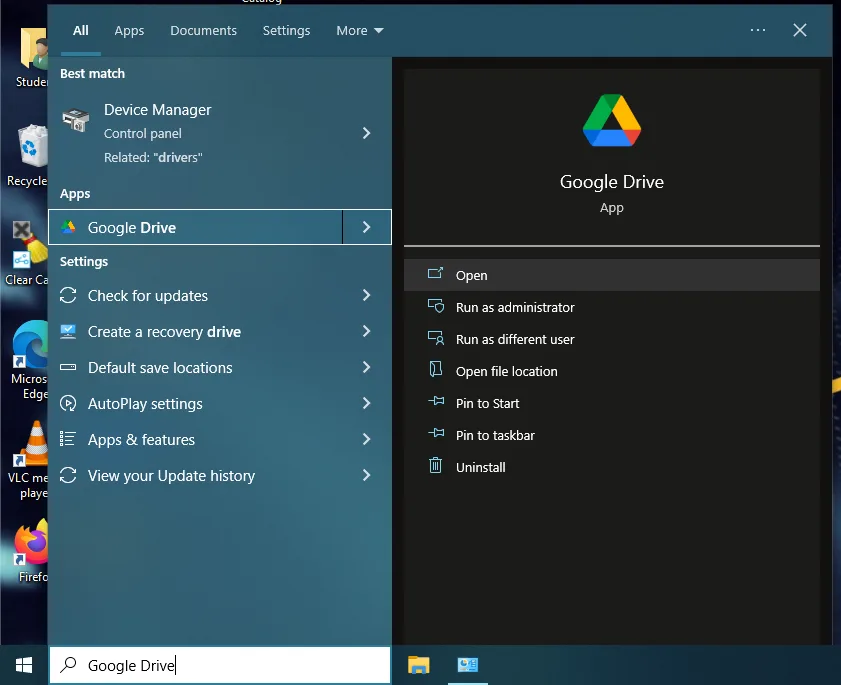
Image source: Bing (Web (fair-use with source credit))
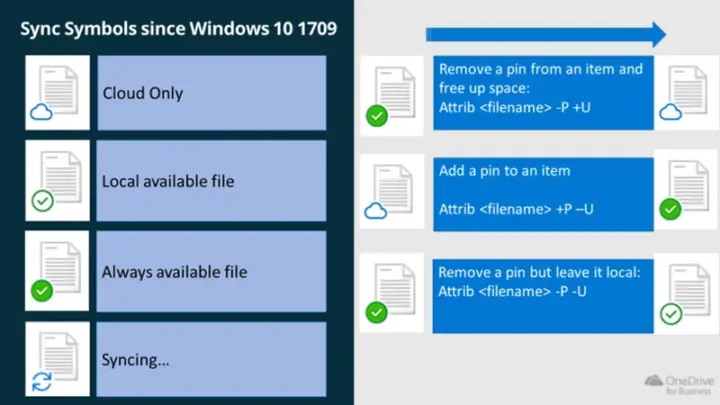
If the sync icon spins indefinitely, it’s likely a network or server-side delay. A red warning symbol means an error needs attention. The Google Drive for desktop app uses color-coded indicators to show status: blue for active sync, green for up to date, and red for errors.
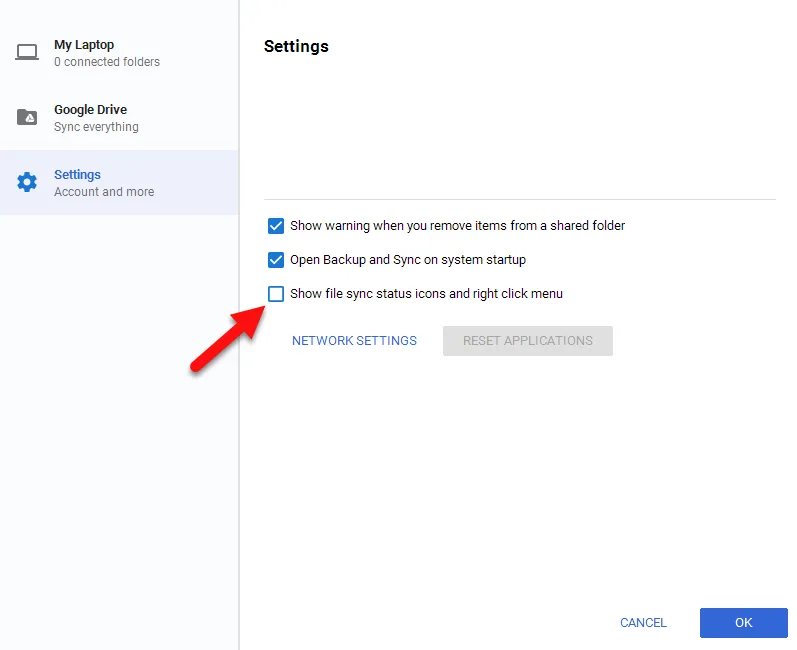
Image source: Bing (Web (fair-use with source credit))
Quick Fixes to Try First (30-Second Solutions)
Start with the simplest fixes before diving deeper. Click the sync icon in your system tray or menu bar and check for error messages. If it’s paused, click "Resume sync."
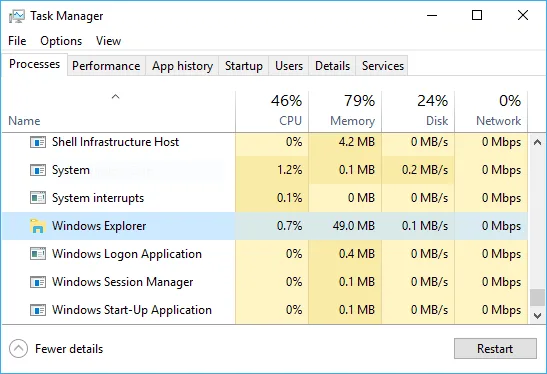
Restart the app by right-clicking the icon and selecting "Quit" or "Exit," then reopen it. A quick computer restart can also clear temporary glitches. Verify your internet connection is stable, as unstable Wi-Fi often causes sync delays.
Check your Google Drive storage quota. If you’re out of space, sync will stop until you free up room or upgrade. As of 2026, the free tier offers 15GB shared across Drive, Gmail, and Photos.
Paid plans start at $1.99/month for 100GB.
The Full Troubleshooting Workflow: Step by Step
Files Stuck on “Syncing” or “Waiting”
If files are stuck, first check the sync status icon for details. A "Waiting to sync" message often means the app is processing a large batch or waiting for a better connection.
Pause and resume sync to reset the queue. If the issue persists, reduce the number of files syncing at once by adjusting selective sync settings. Large files or folders can slow down the process significantly.
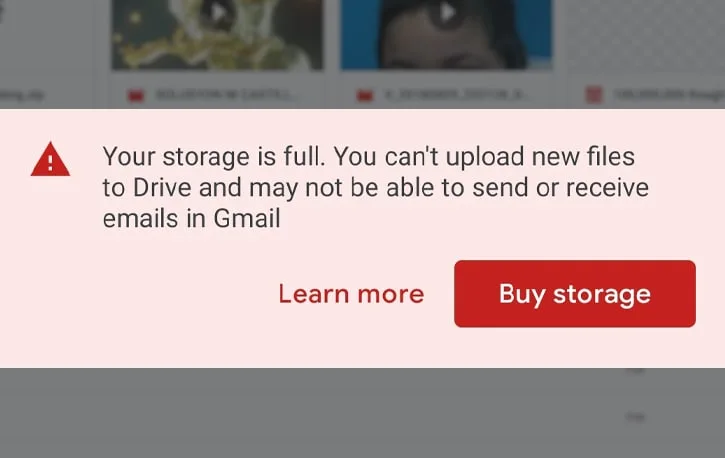
Image source: Bing (Web (fair-use with source credit))
“Not Enough Space” or Quota Errors
This error appears when your Google account storage is full. Delete unnecessary files or empty the trash to free up space. Remember, deleted files stay in the trash for 30 days before permanent removal.
Upgrade your storage plan if you consistently hit the limit. Google Workspace users can contact their admin to request more space. Shared drives may also have separate quotas, so check with your organization if applicable.
Network or Connection Issues
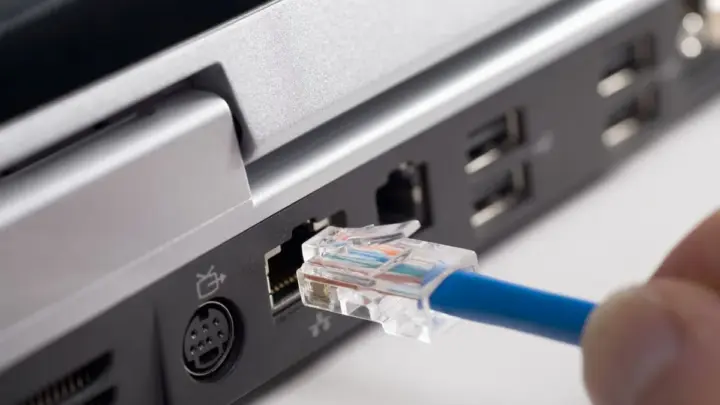
Unstable or slow internet can pause sync. Switch from Wi-Fi to a wired connection if possible, or move closer to your router. Disable VPNs or proxies, as they can interfere with Google’s servers.
Check if other apps can access the internet. If they can’t, the issue is with your connection, not Google Drive. Restart your router or contact your ISP if the problem persists.
App Crashes, Freezes, or Won’t Open
An outdated or corrupted app can cause crashes. Update Google Drive for desktop to the latest version via the app settings or official website. If the app won’t open, restart your computer and try again.
Clear the app cache to resolve corruption issues. On Windows, navigate to %USERPROFILE%\AppData\Local\Google\DriveFS and delete the cache folder. On macOS, remove files in ~/Library/Application Support/Google/DriveFS.
Reopen the app after clearing the cache.
If the app still crashes, reinstall it. Uninstall Google Drive for desktop, download the latest version from the official Google Drive download page, and install it fresh.
How to Prevent Sync Problems Long-Term
Use selective sync to limit the folders syncing to your computer. This reduces the load on your bandwidth and storage. Avoid editing the same file offline on multiple devices, as this can create conflicts when reconnecting.
Monitor your storage quota regularly. Set up alerts in Google Drive settings to notify you when you’re nearing the limit. Keep the app and your operating system updated to avoid compatibility issues.
Enable automatic updates for Google Drive for desktop. This ensures you always have the latest bug fixes and improvements. If you work with large files, consider upgrading your internet plan for faster sync speeds.
When to Reinstall (And How to Do It Safely)
Reinstalling is the last resort when other fixes fail. If the app crashes repeatedly or sync never resumes, a clean install often resolves deeper corruption.
First, back up any unsynced local files. Uninstall Google Drive for desktop through your system’s app manager. On Windows, use "Add or remove programs." On macOS, drag the app to Trash.
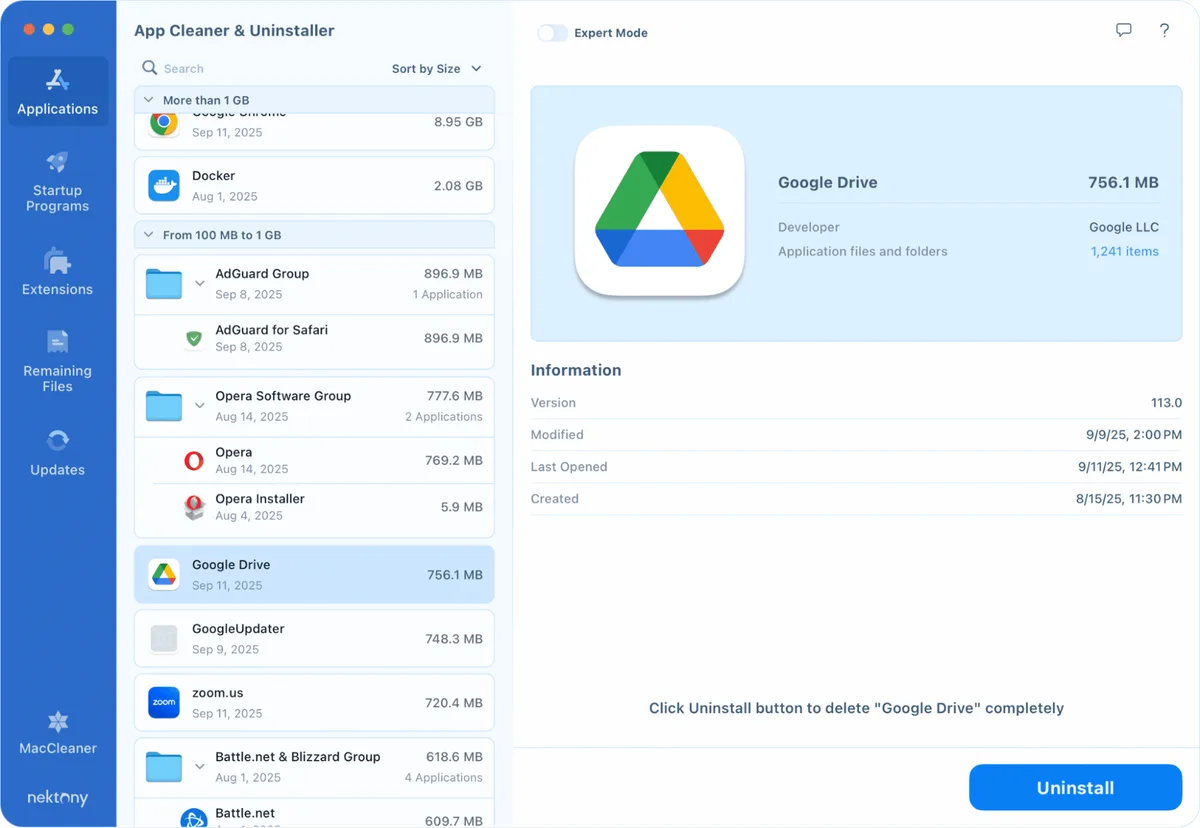
Image source: Bing (Web (fair-use with source credit))
Download the latest version from the official Google Drive download page. Install it, then sign in again. The app will resync your files, which may take time for large libraries.

Similar Posts